Windows setup
Use your Android phone as a keyboard and mouse for Windows
You want to type and move the cursor on your Windows PC from your Android phone.
Use your Android phone as a keyboard and mouse for a Windows PC: pair it over Bluetooth in Windows Settings, then type and move the cursor with Deck Pointer. Nothing gets installed on the PC; Windows sees the phone as a Bluetooth keyboard and mouse.
Video tutorial
Step by step
On Android: start the Windows setup
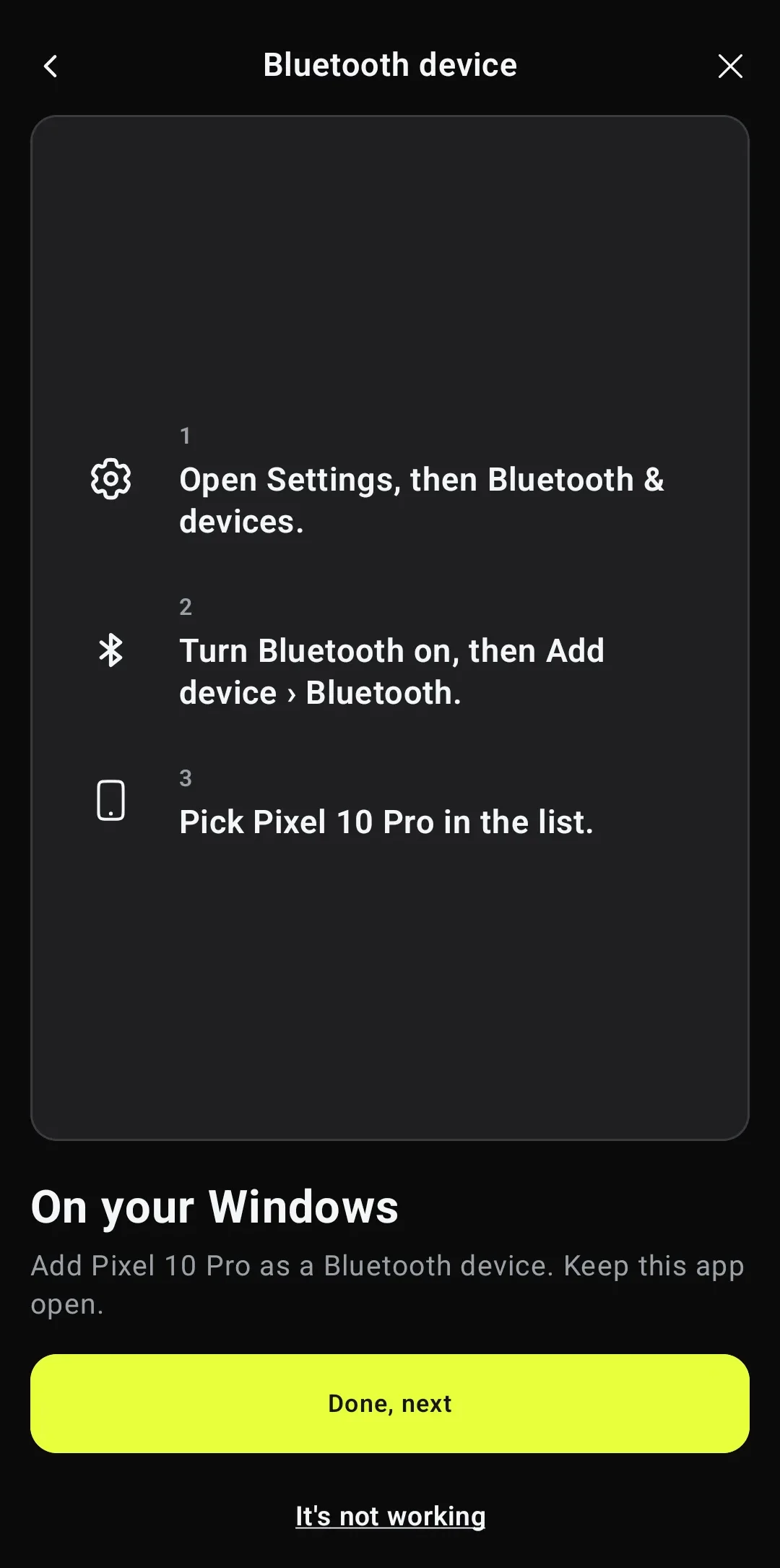
Open Deck Pointer and tap Connect a device, or open the connection panel and choose Add new device. Pick Windows under Which device do you want to control?, then what you want to do. For a new pairing, choose Yes, this is the first time. Tap Continue and allow Nearby devices when Android asks.
Let Windows find the phone
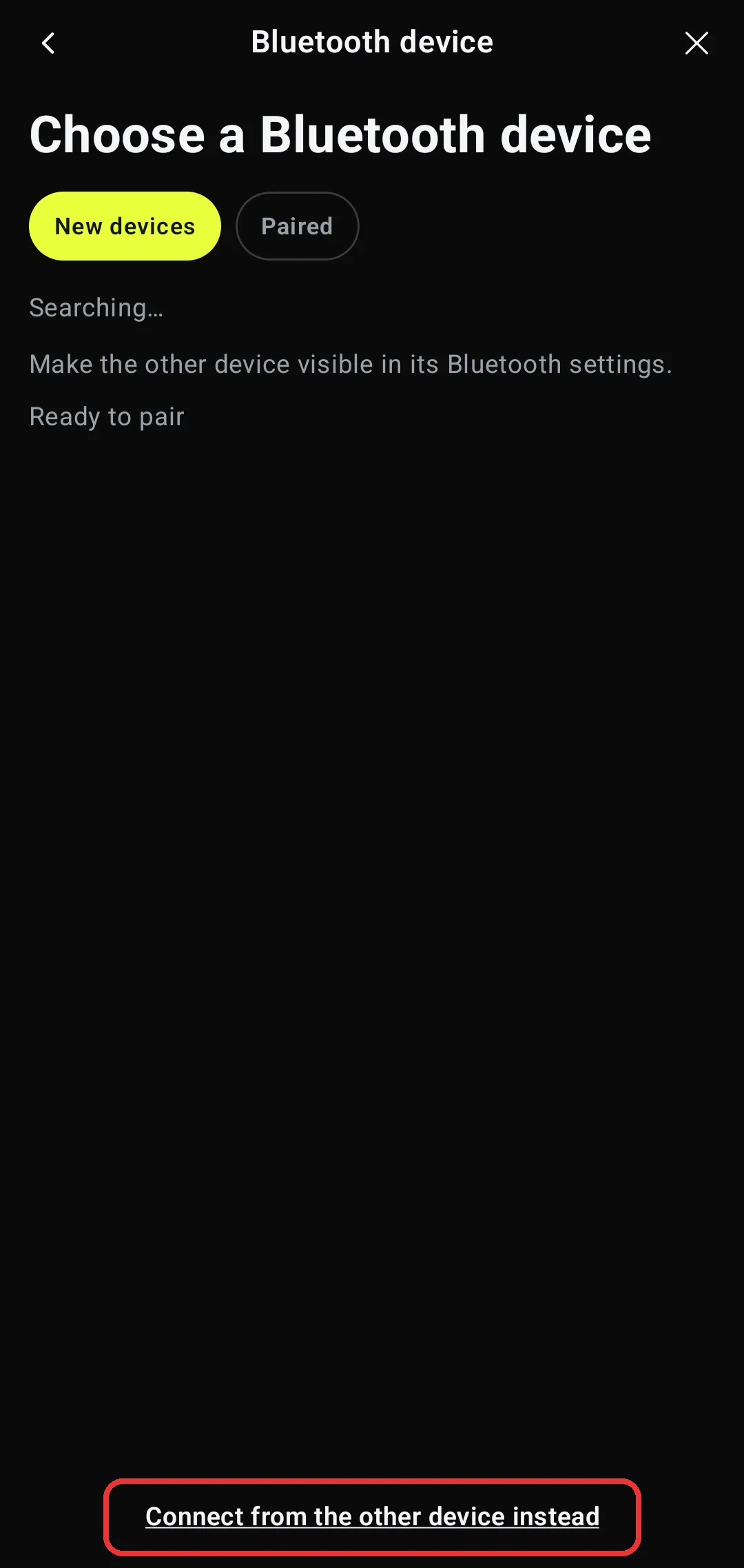
Deck Pointer opens Choose a Bluetooth device. Tap Connect from the other device instead, and tap Allow when Android asks to make the phone visible. Keep the app open on On your Windows: it shows your phone's Bluetooth name.
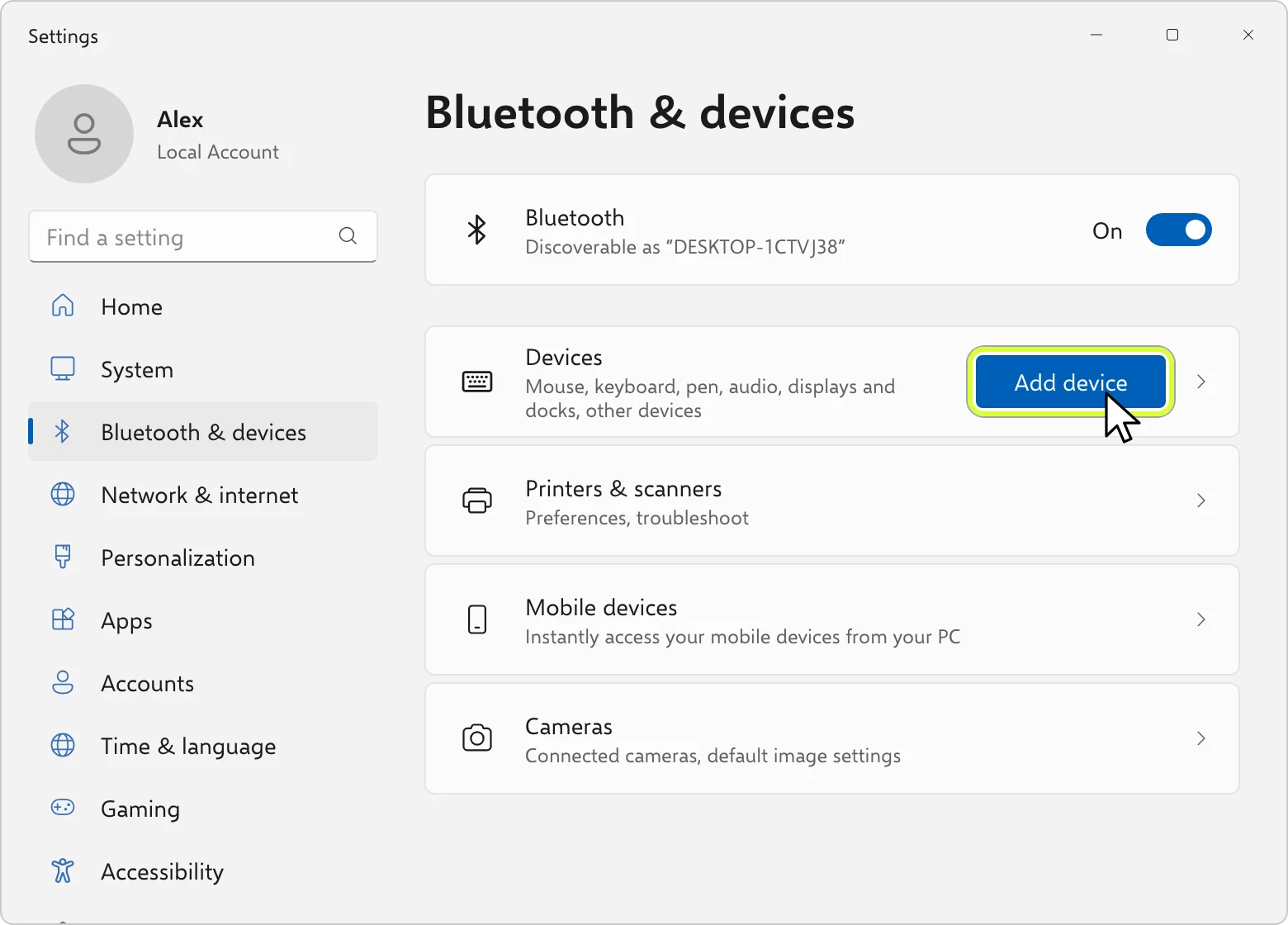
On Windows: open Bluetooth & devices, click Add device
Open Start → Settings → Bluetooth & devices. Check that Bluetooth is On, then click Add device. On Windows 10 the same button is Settings → Devices → Bluetooth & other devices → Add Bluetooth or other device.
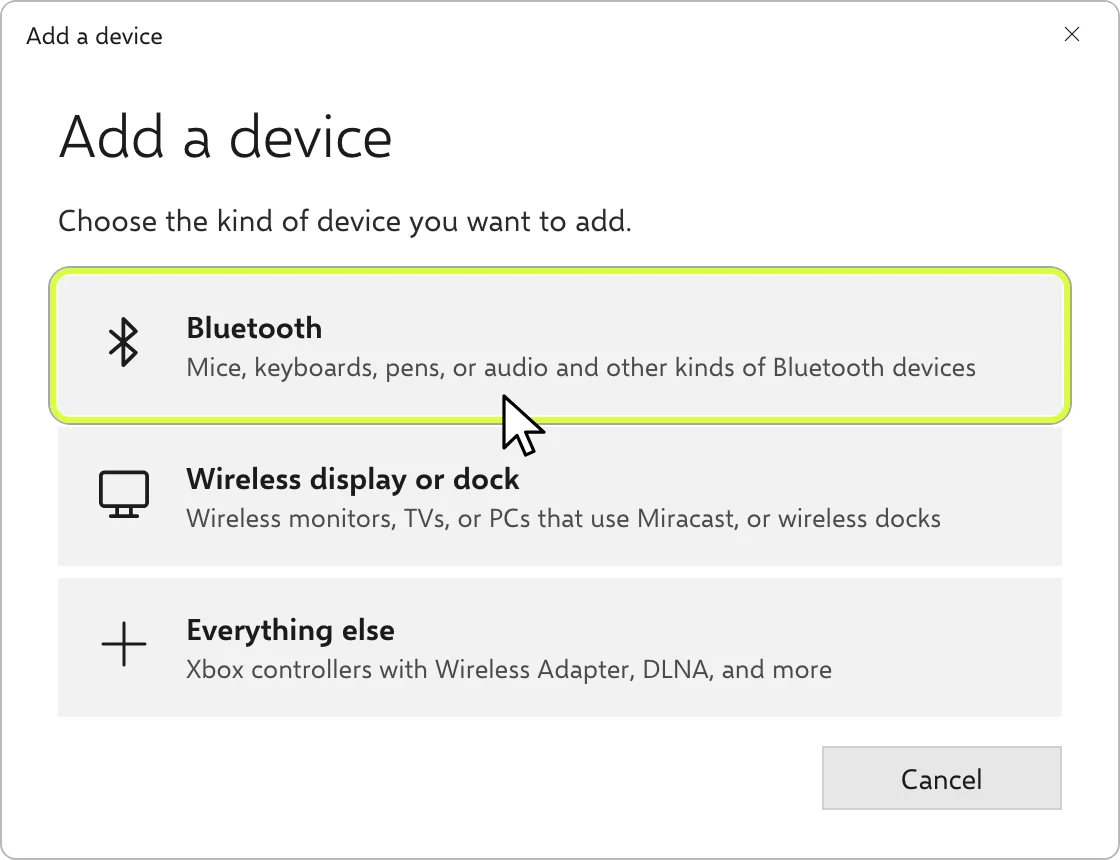
Choose Bluetooth, then your phone
In Add a device, click Bluetooth. Windows lists what it finds nearby: click your phone's Bluetooth name, Pixel 10 Pro in our pictures. Look for the name Deck Pointer shows, not the app's name. If the list stays empty, check that the app's Visible to other devices card is still counting down and tap Make visible if it ran out.
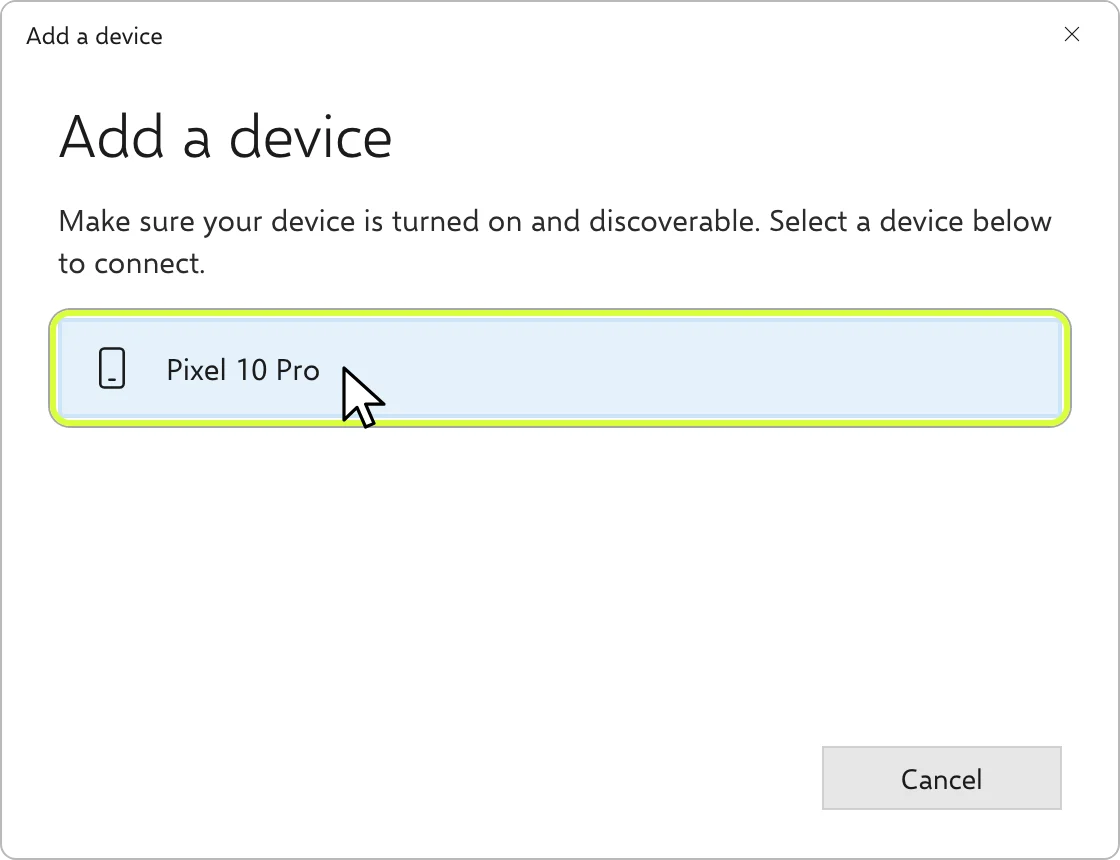
Confirm the same code on both devices
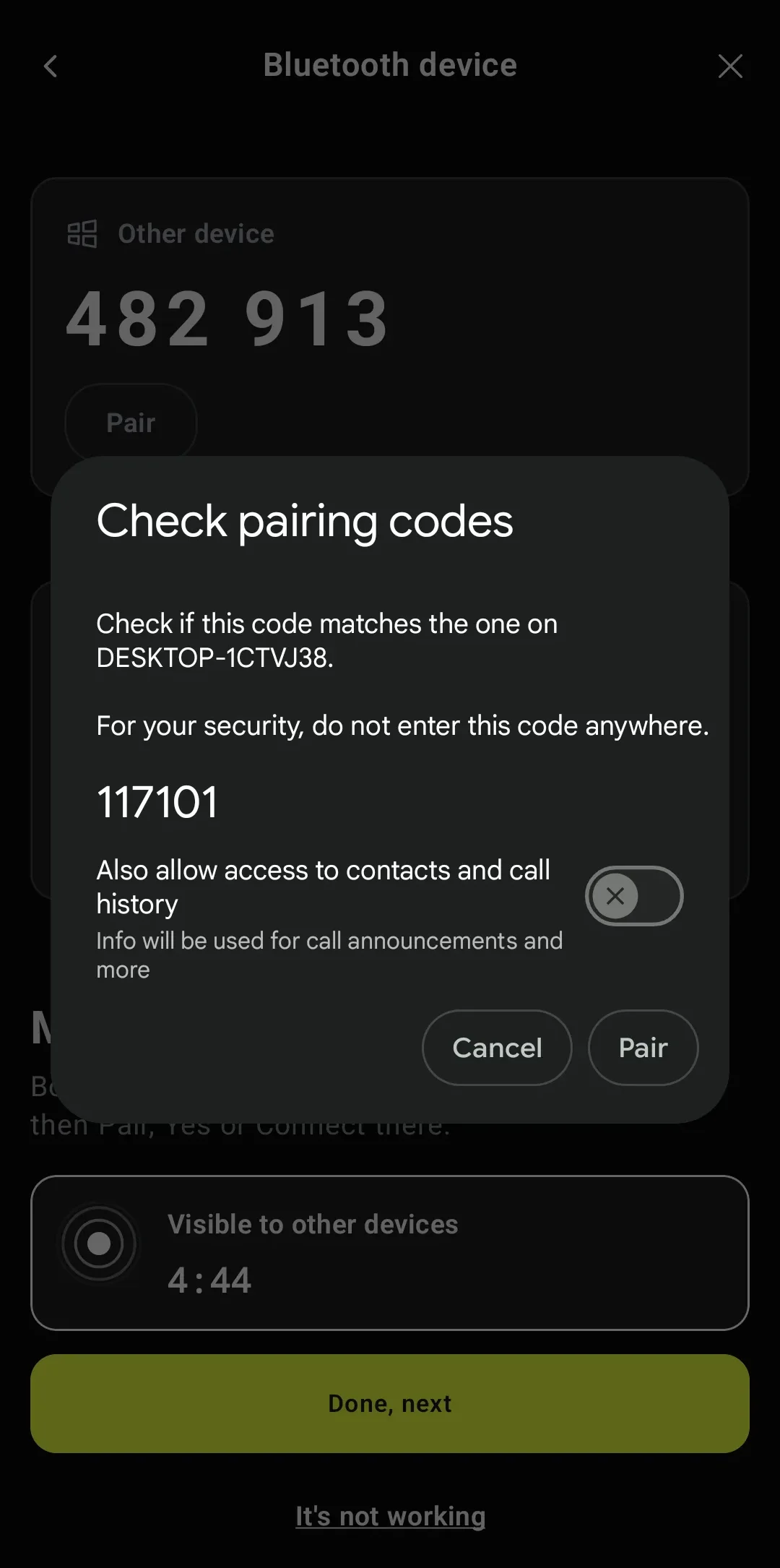
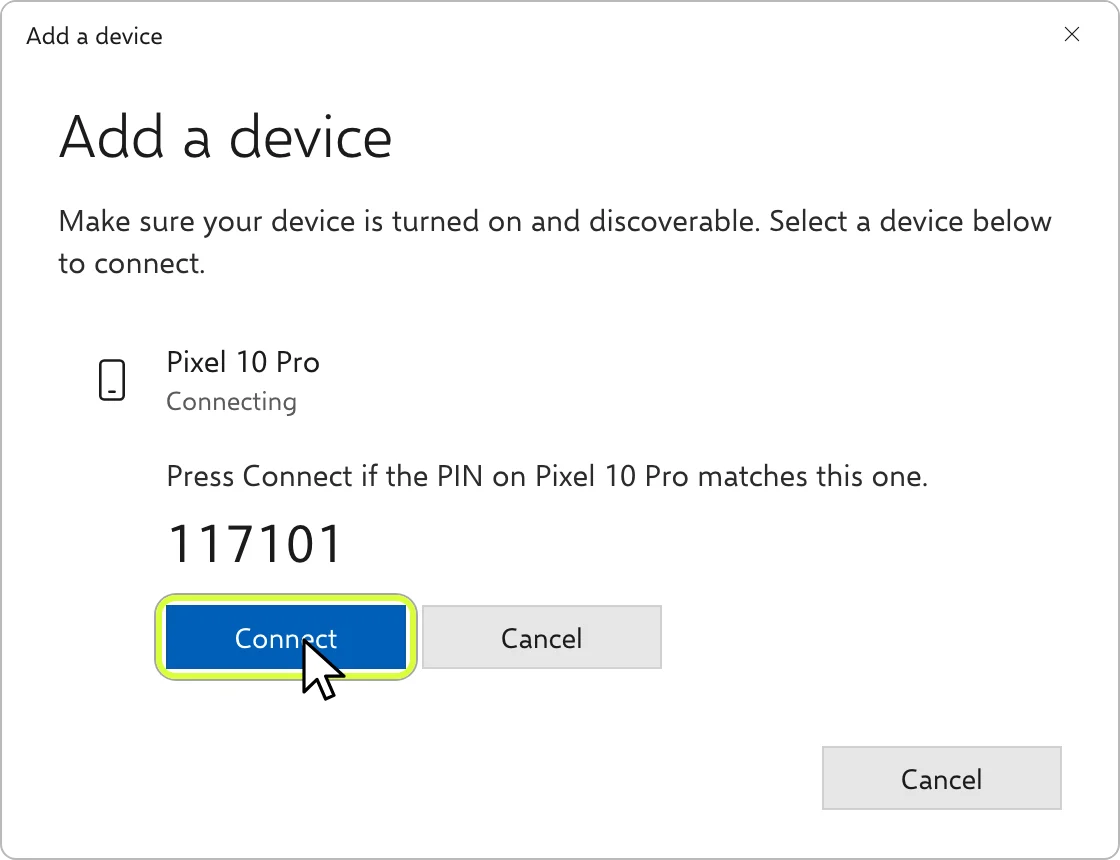
Android shows Check pairing codes with the computer's name (DESKTOP-1CTVJ38 here) and Windows shows a PIN. If the six digits match, click Connect on Windows and tap Pair on Android. Leave Also allow access to contacts and call history off.
Connected: type and move the cursor
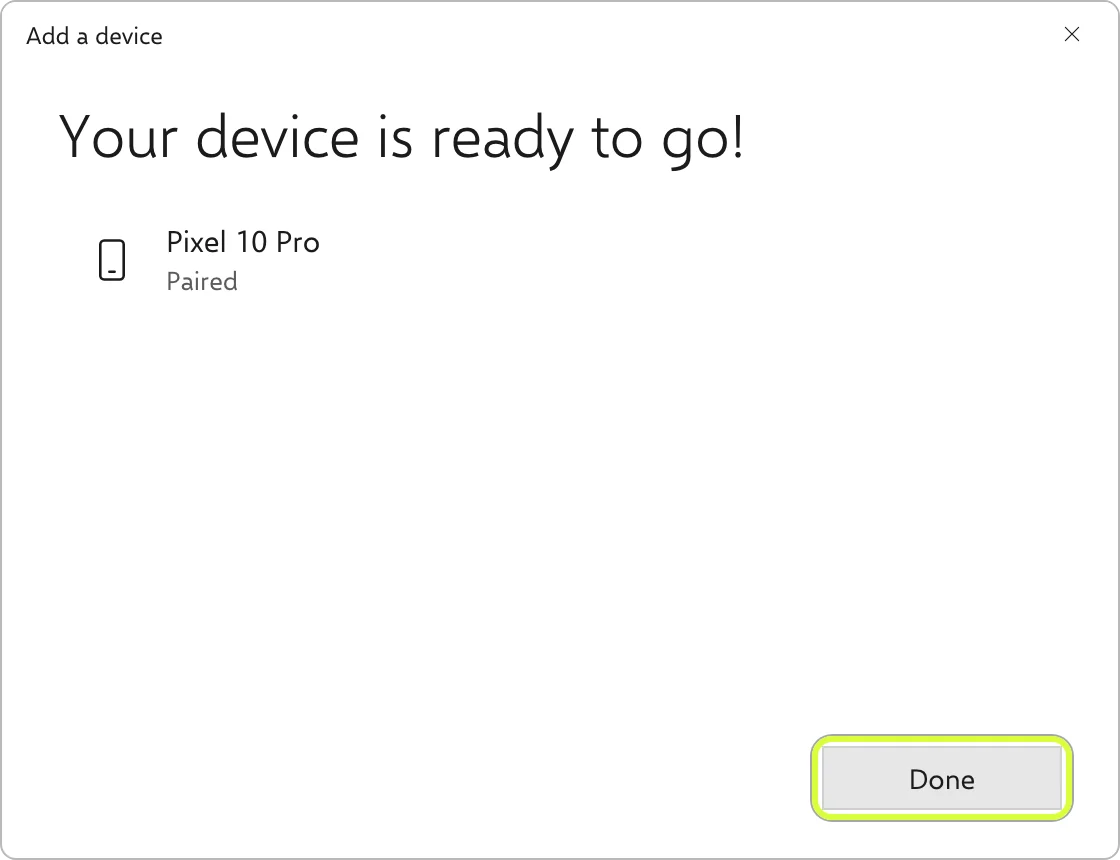
Windows says Your device is ready to go! Click Done. Deck Pointer shows Connected a few seconds later: finish the wizard and use the phone's keyboard and trackpad on the PC.
Reconnect to the saved PC next time
Open Deck Pointer's connection panel and tap Connect next to the saved PC. Wait for the Connected header before typing. If either device has forgotten the pairing, remove the phone in Windows and the PC in Android, then pair them again.
Questions, answered
Do I need Wi-Fi or a Windows companion app?
This connection uses Bluetooth. You only install Deck Pointer on Android; keyboard input does not need a Windows receiver, SSH, or a shared Wi-Fi network.
Why does Windows show my phone's name instead of Deck Pointer?
Windows lists the phone by its Bluetooth name, such as Pixel 10 Pro. On Android, the pairing dialog shows the computer's name instead. These are the two ends of the same connection.
Windows cannot find my Android phone. What should I check?
Keep Deck Pointer open on On your Windows and check that Visible to other devices is still counting down. Tap Make visible if needed, then click Add device in Windows again. If you are replacing an old pairing, remove it on both devices before retrying.
Why are some letters or symbols different?
Text input uses US-QWERTY key positions, which Windows interprets using its active keyboard layout. Use the English US layout for supported text input; non-ASCII letters are not supported by this Windows text path.