Steam Deck fixes
REDlauncher on Steam Deck: how to start The Witcher 3 Remastered with your phone
Pressing Play on The Witcher 3: Wild Hunt — Remastered opens REDlauncher, the CD PROJEKT RED launcher, a program built for a mouse. In Game Mode you need a pointer to browse it, sign in or press its Play button.
Valve rates The Witcher 3: Wild Hunt Verified on Steam Deck (checked against Steam's Steam Deck compatibility data on 3 October 2026). This guide covers REDlauncher, which opens when you press Play, as shown in the video: browsing it, signing in to a CD PROJEKT RED account and starting the game.
The Witcher 3 Remastered opens REDlauncher when you press Play on the Steam Deck. With Deck Pointer on your phone as the trackpad you browse it, sign in and start the game, all in Game Mode.
Video tutorial
Step by step
Connect Deck Pointer to the Deck in Game Mode
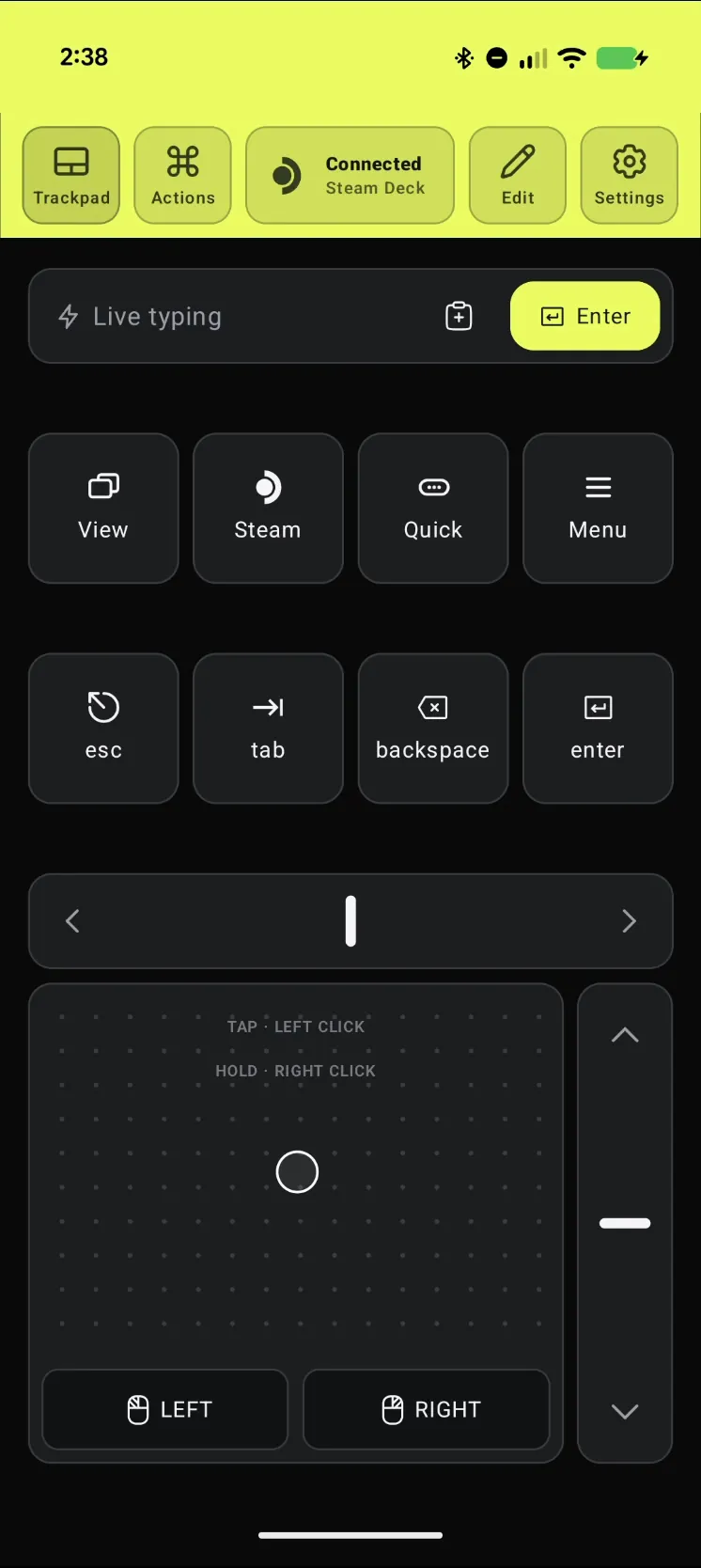
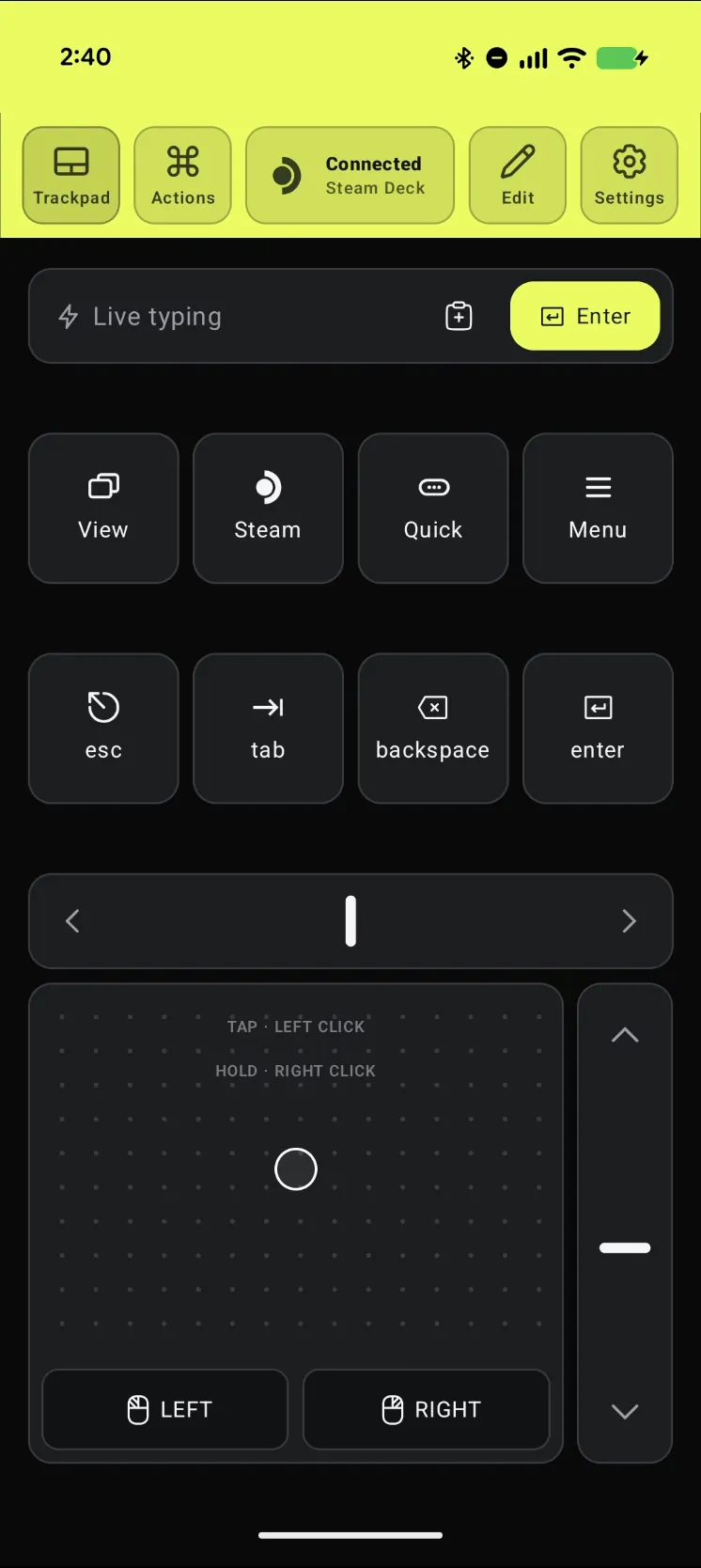
Open Deck Pointer on your phone and check that the chip at the top reads Connected. Haven't paired yet? Follow the pairing guide first, it takes about a minute. Nothing needs installing on the Deck.
Open the game and press Play
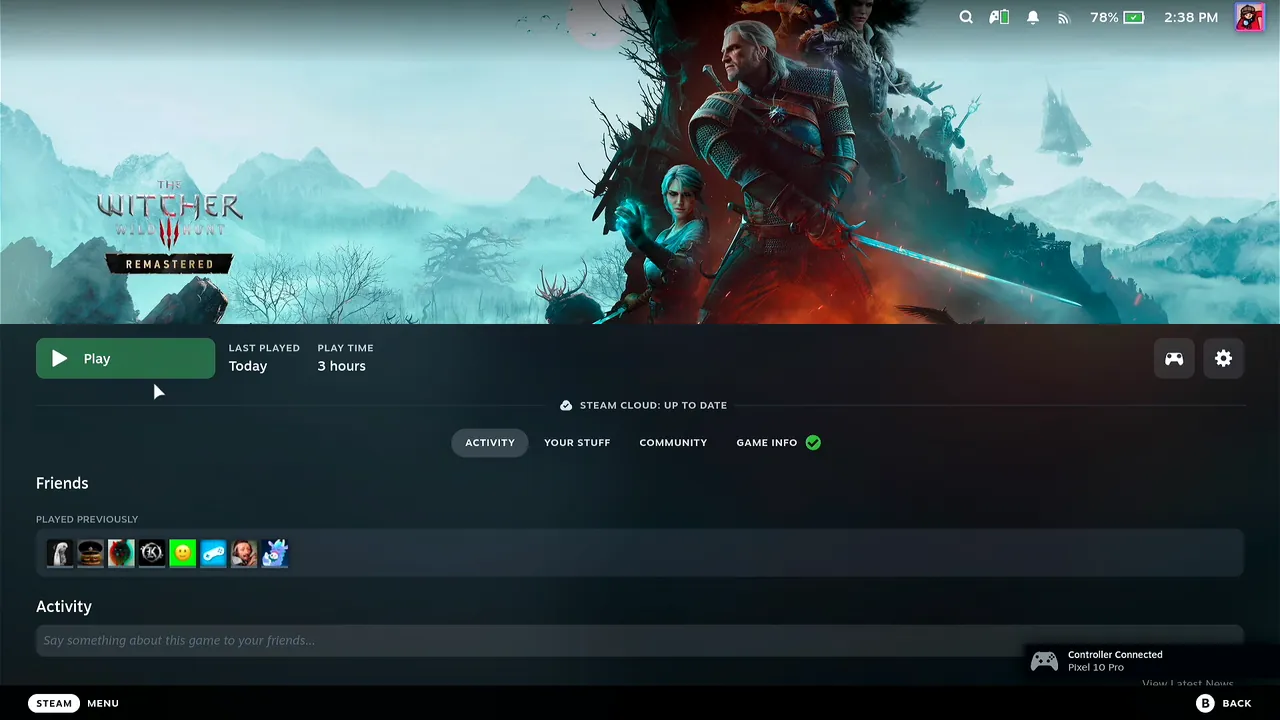
In Game Mode, open The Witcher 3: Wild Hunt — Remastered in your Steam library. Move the pointer with the phone's trackpad and tap Play.
Wait for REDlauncher to open
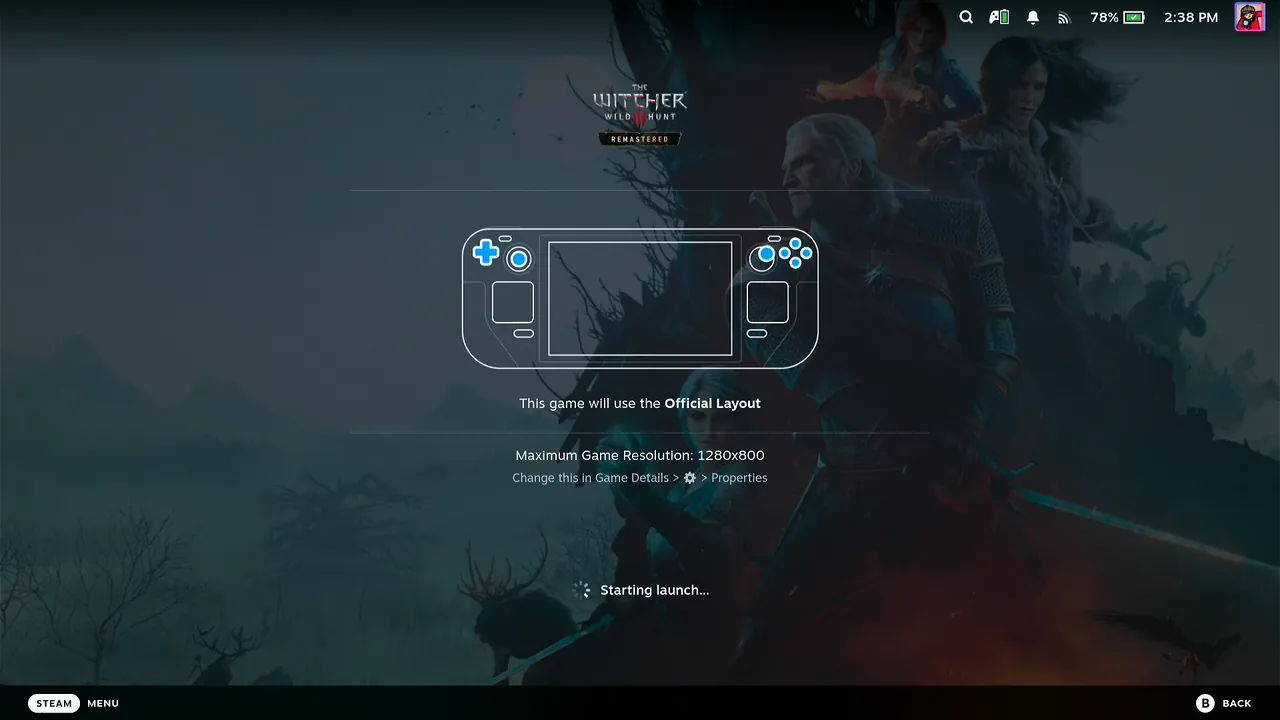
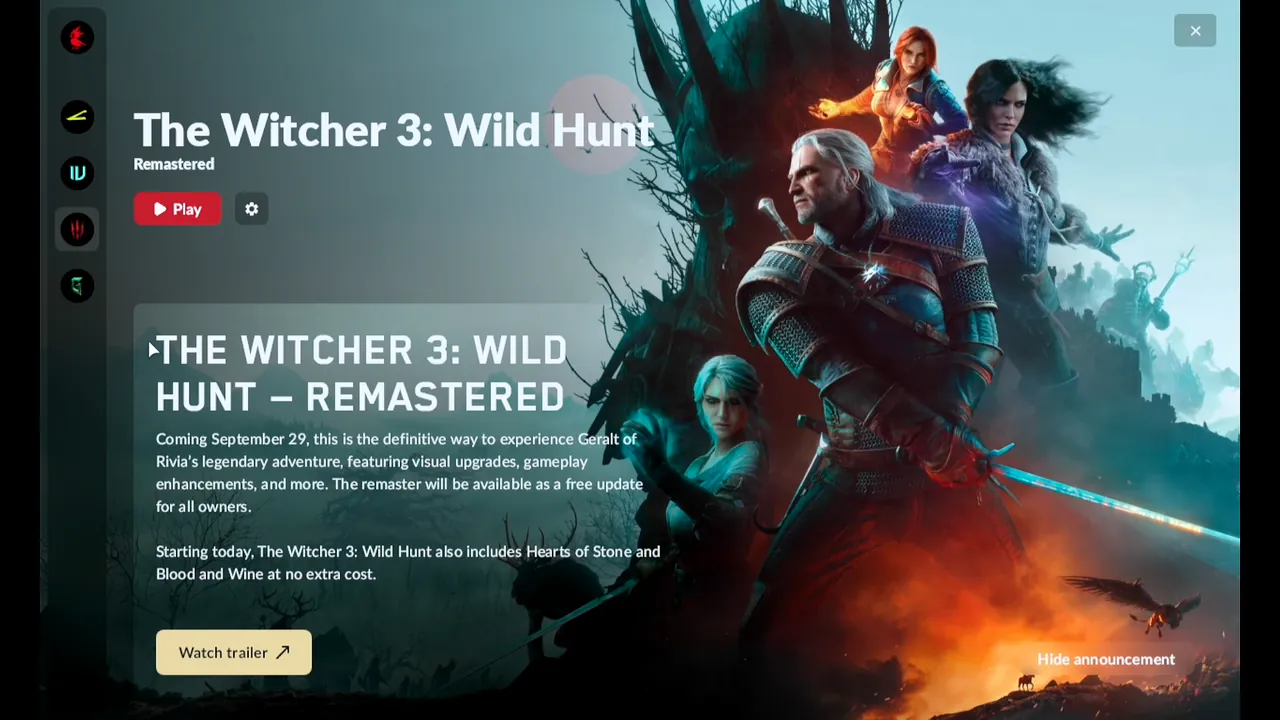
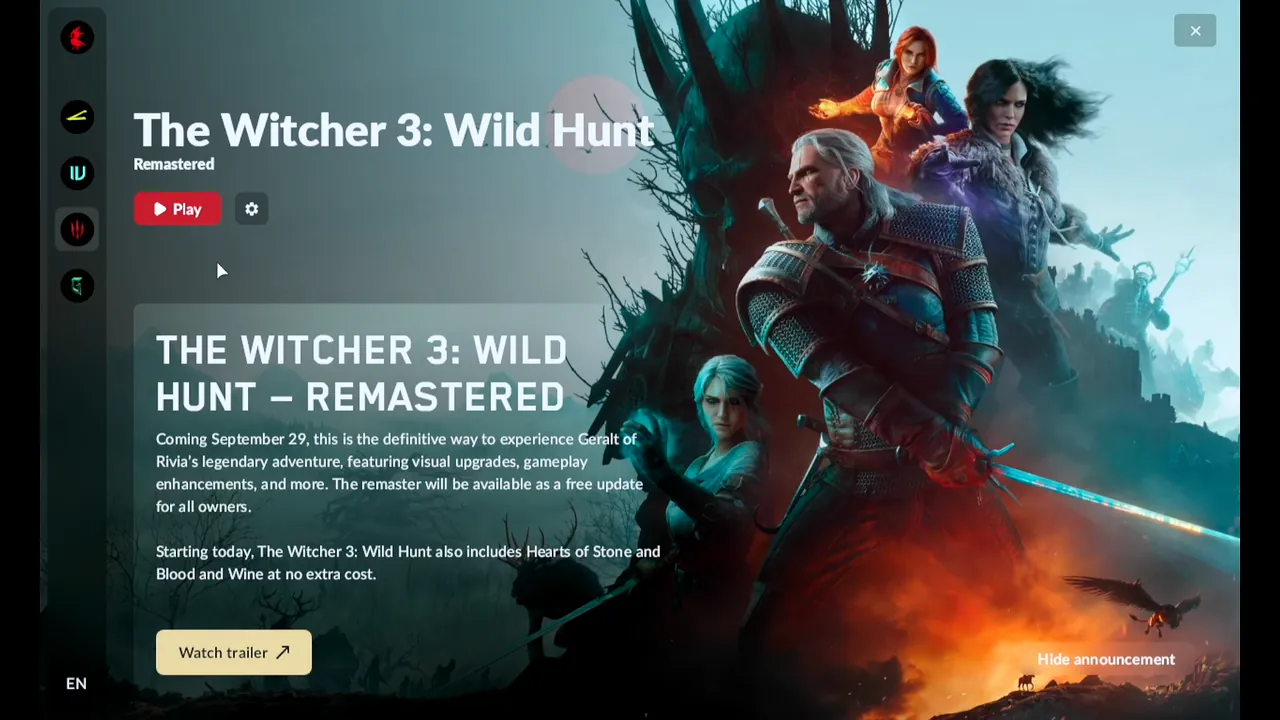
Steam shows its launch screens and starts the game's launcher. REDlauncher opens on The Witcher 3 Remastered page, with its own red Play button.
Look around and open the news
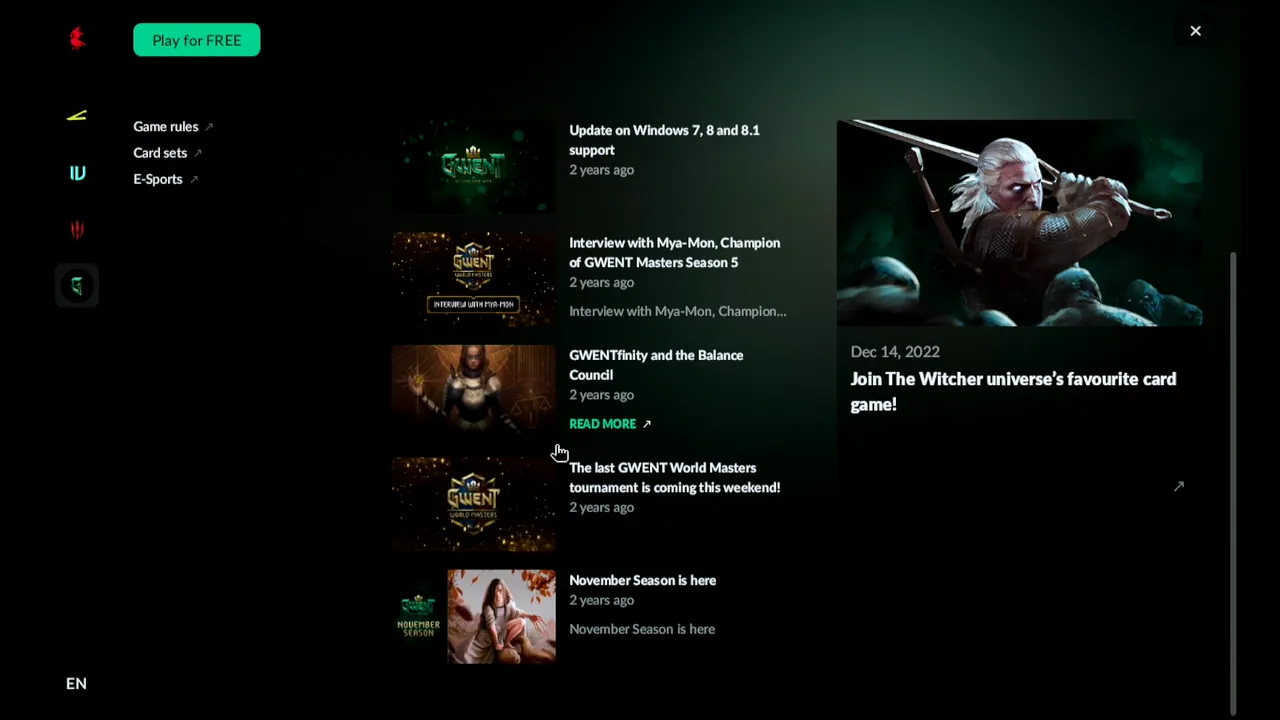
Click through the launcher with the trackpad. The GWENT page lists news; Read more opens the article on the GWENT site in Steam's browser.
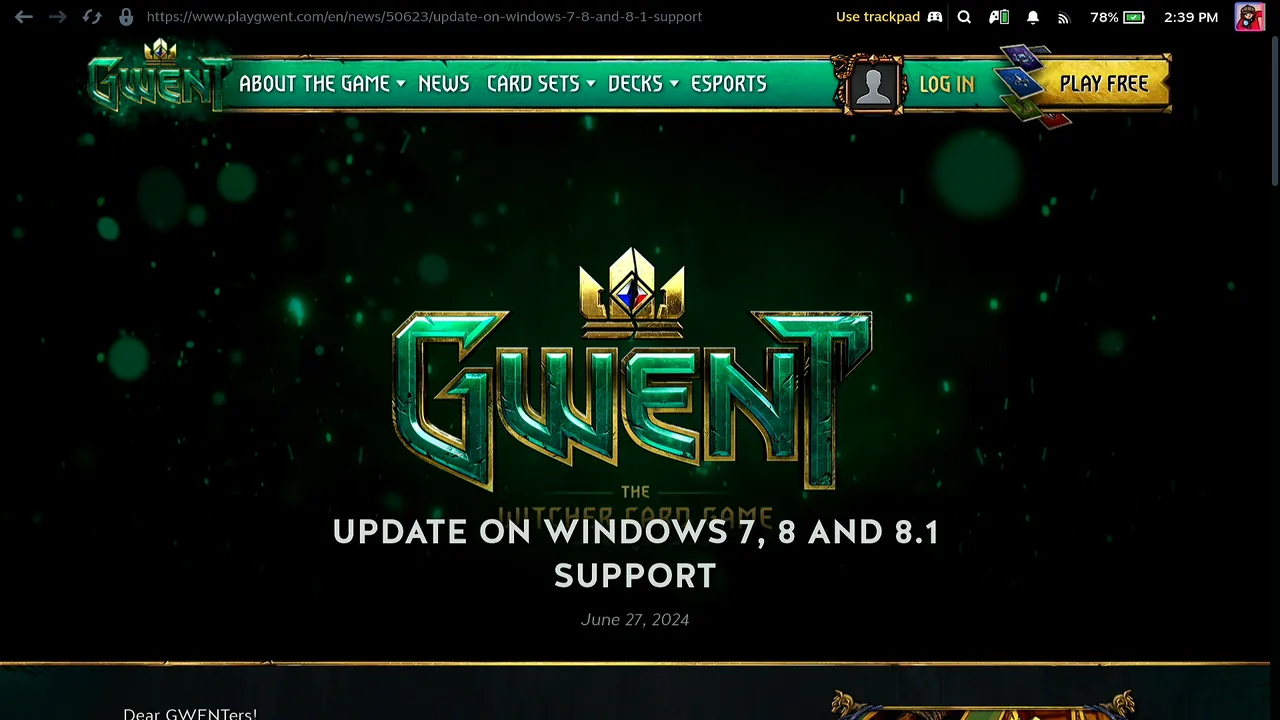
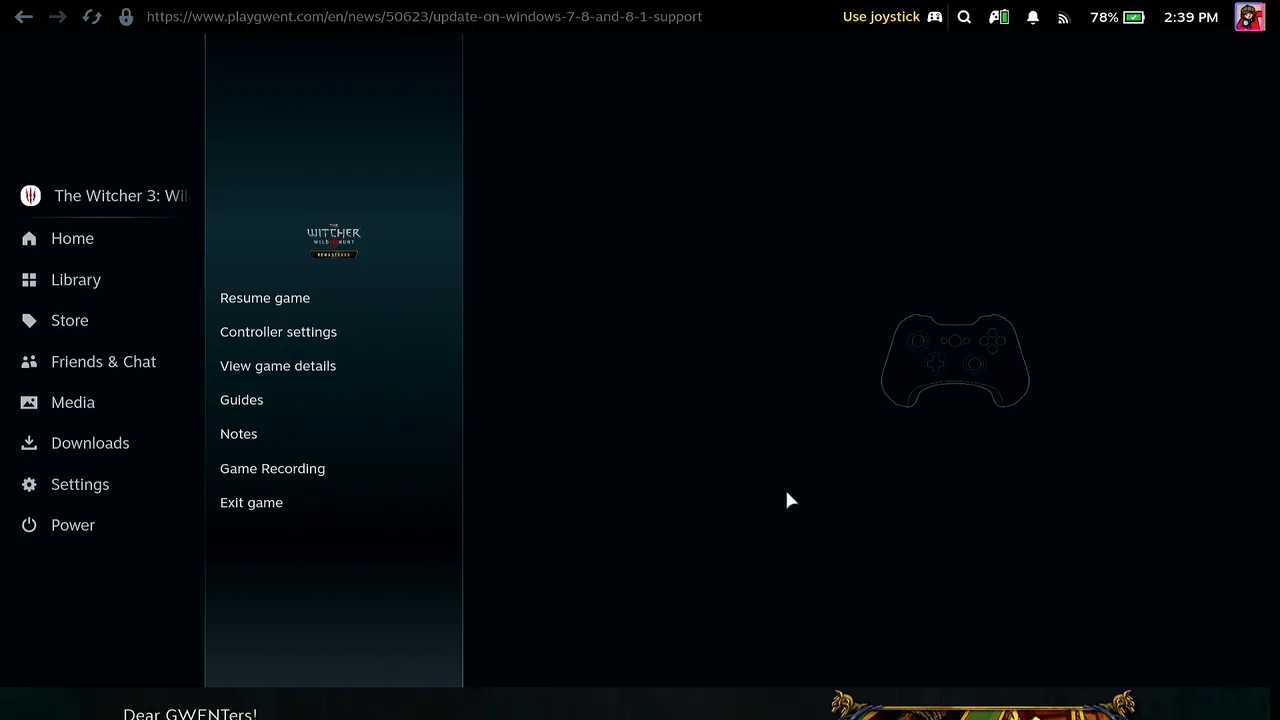
Get back to the game with the Steam button menu
To close the browser, open the Steam menu (the Steam key on Deck Pointer, or the Deck's own Steam button) and choose Resume game.
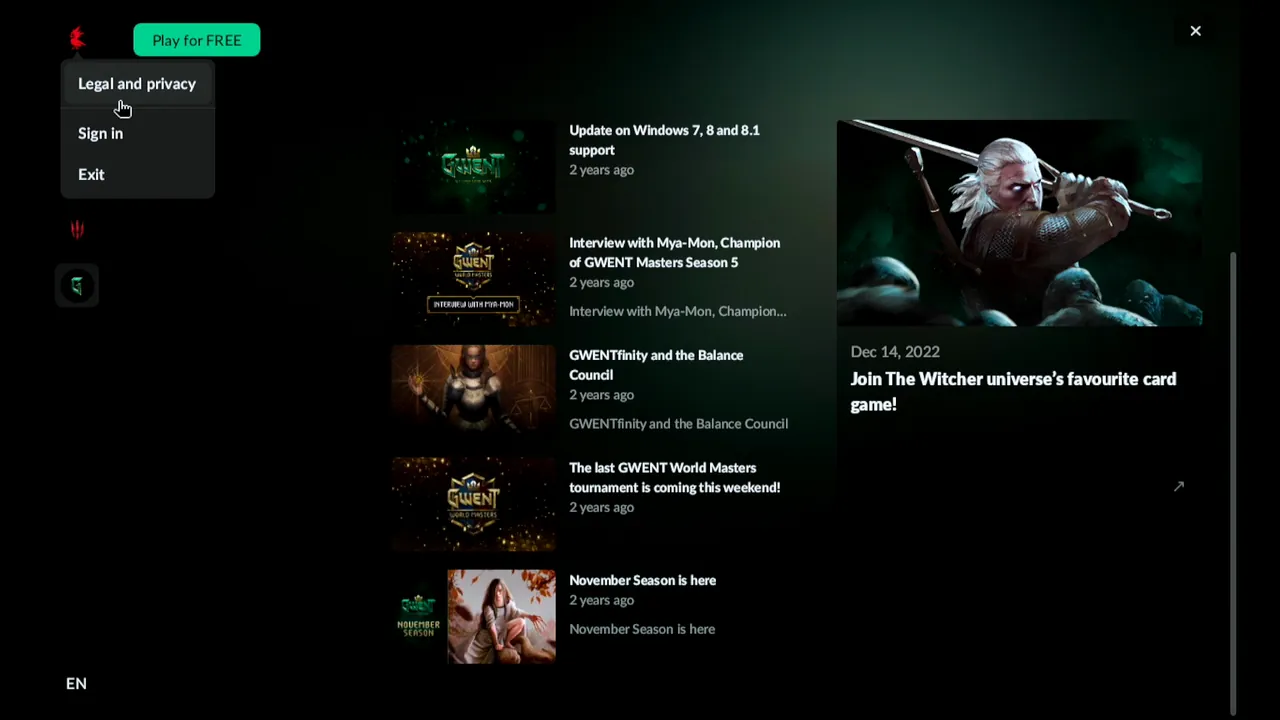
Open Sign in
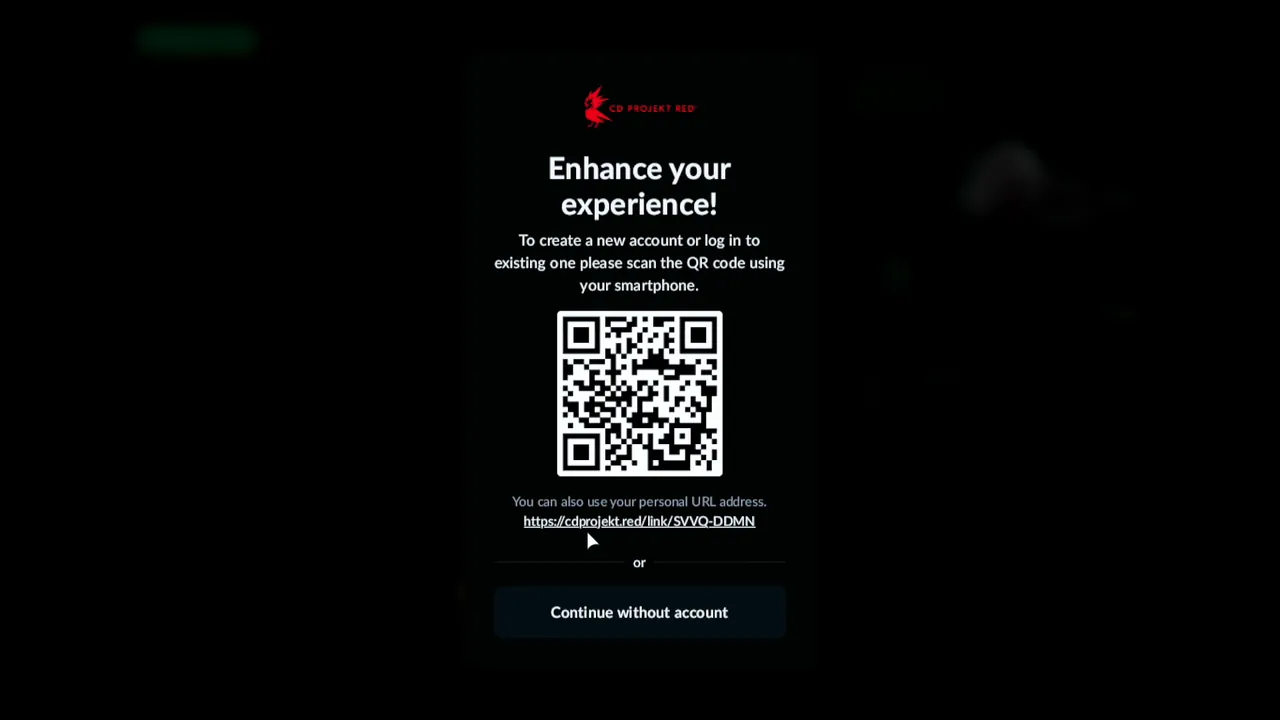
In REDlauncher, click the account icon at the top left and choose Sign in. The launcher shows a QR code and a personal link.
Link your account and press Allow and continue
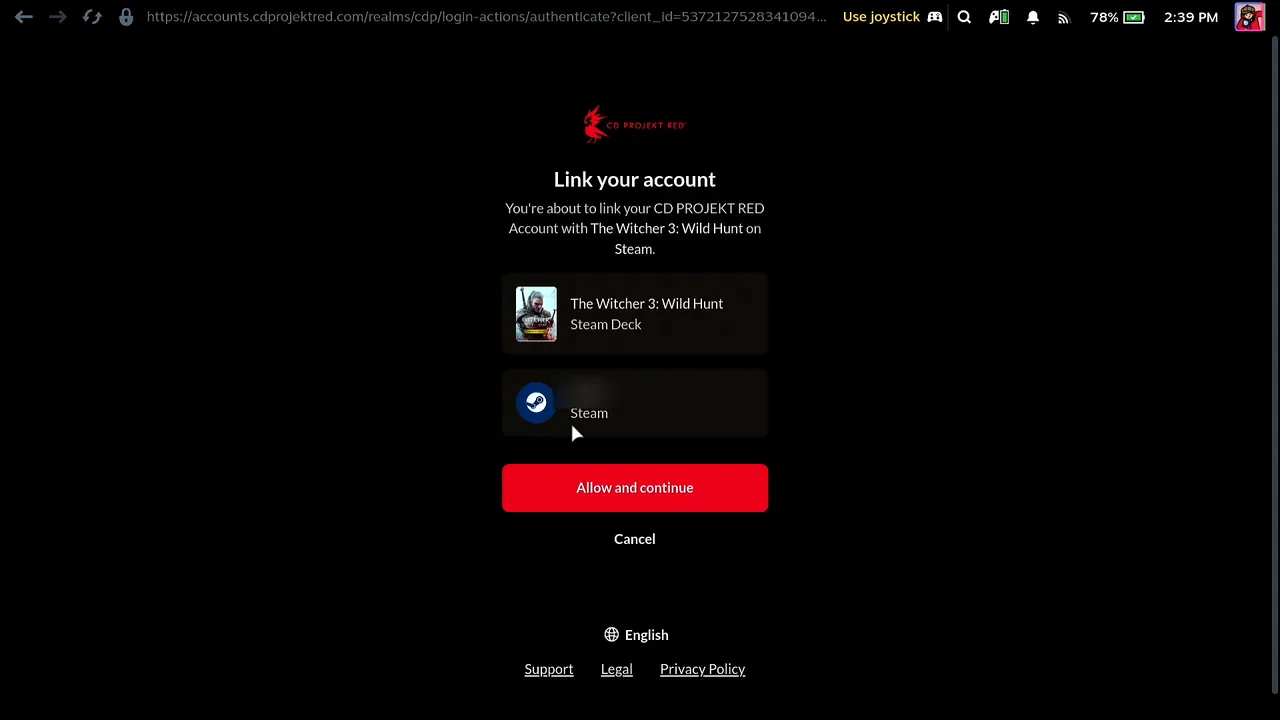
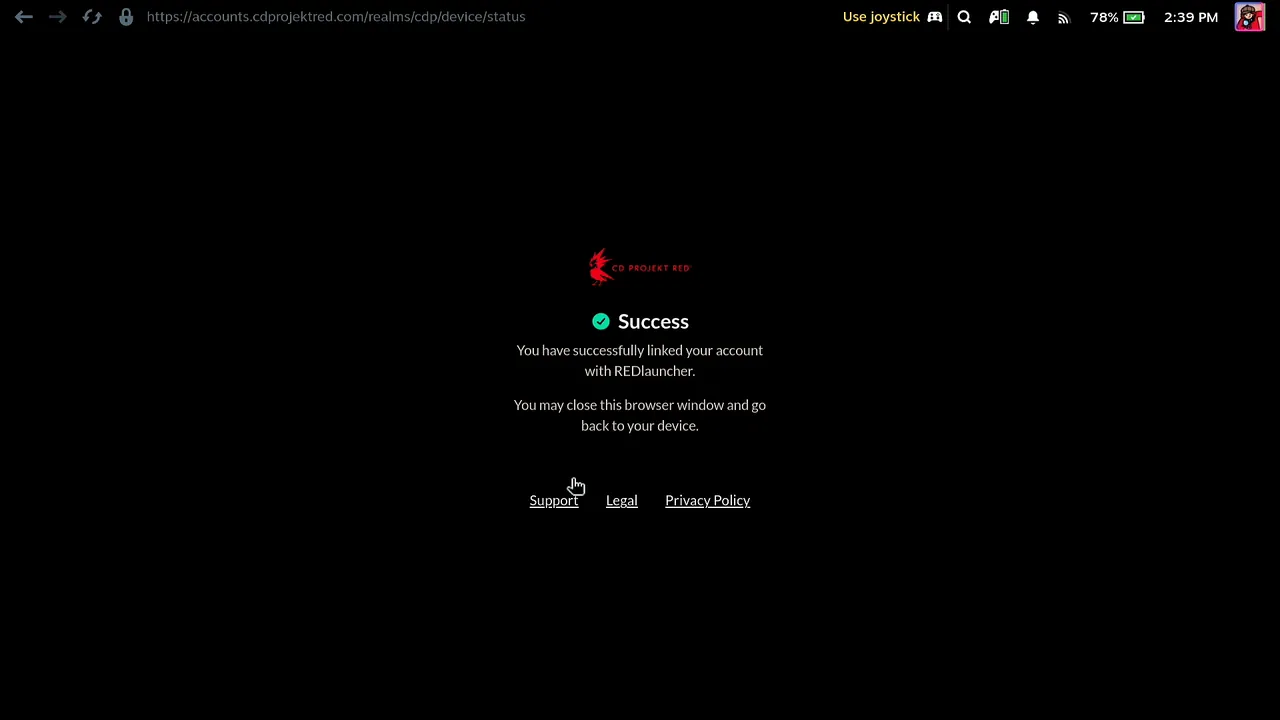
The Steam browser opens a Link your account page for The Witcher 3 on Steam Deck and your Steam account. Click Allow and continue. The page then reports Success: your account is linked with REDlauncher.
Open your account from the launcher
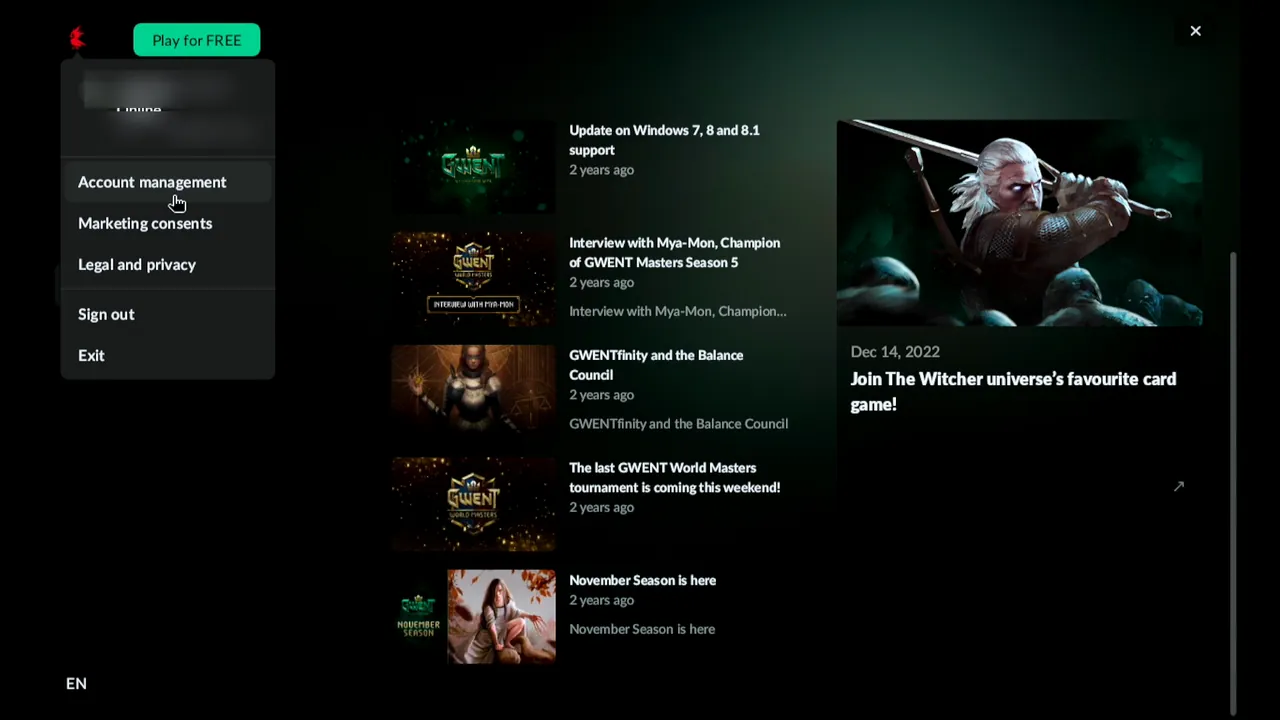
Resume the game from the Steam menu again. The account menu in REDlauncher now lists Account management, Marketing consents and Sign out. Click Account management.
Browse the account pages
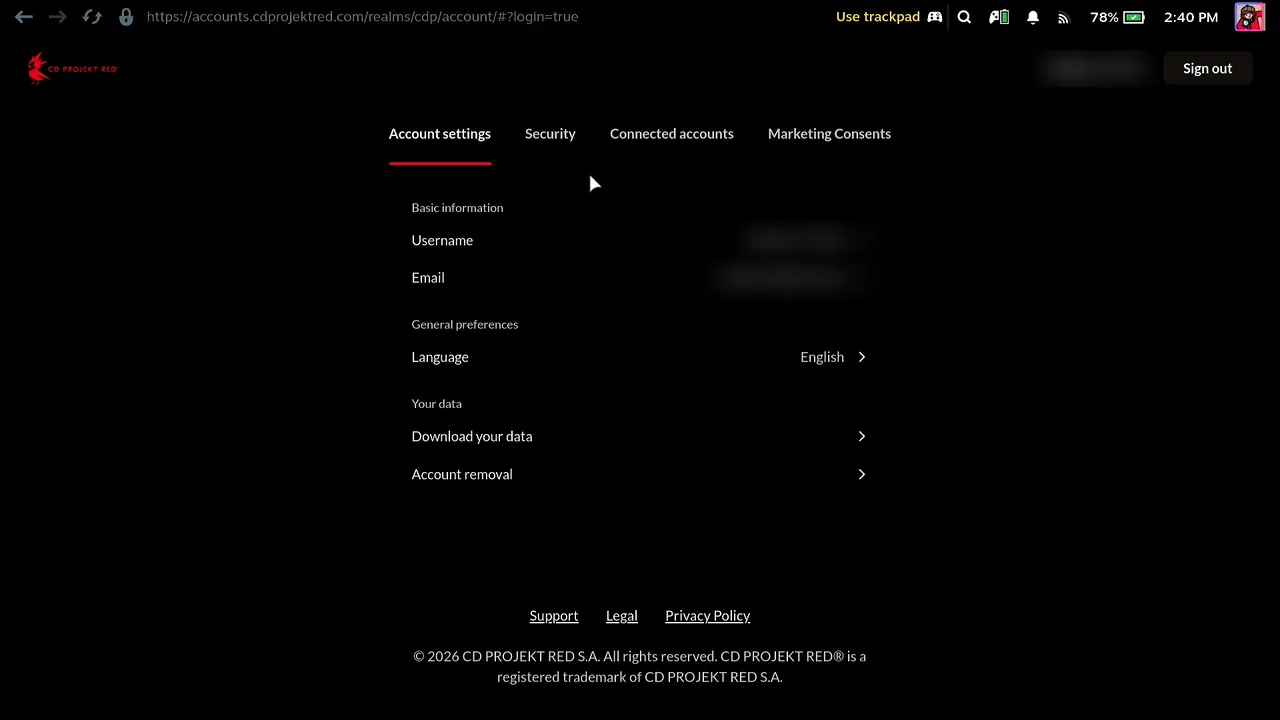
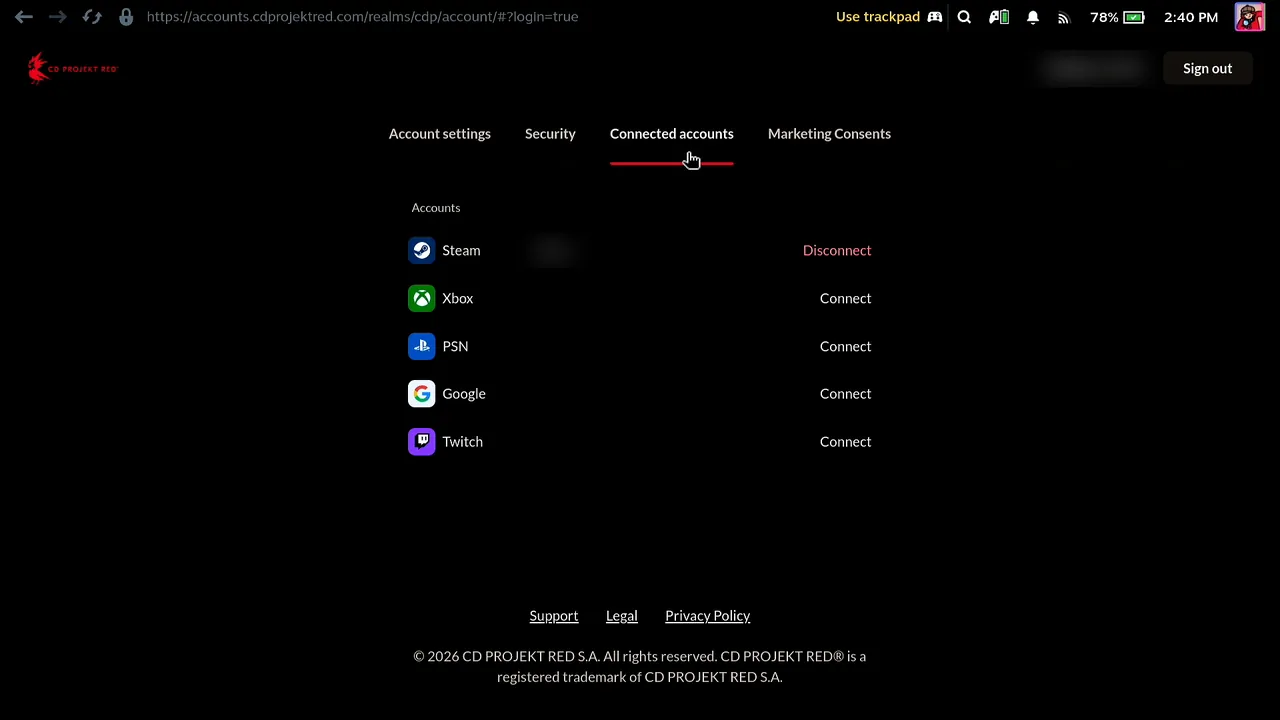
The account site opens in the Steam browser. Switch between Account settings, Security, Connected accounts and Marketing Consents with the trackpad. Connected accounts lists the linked Steam account.
Scroll with the phone's scroll strip
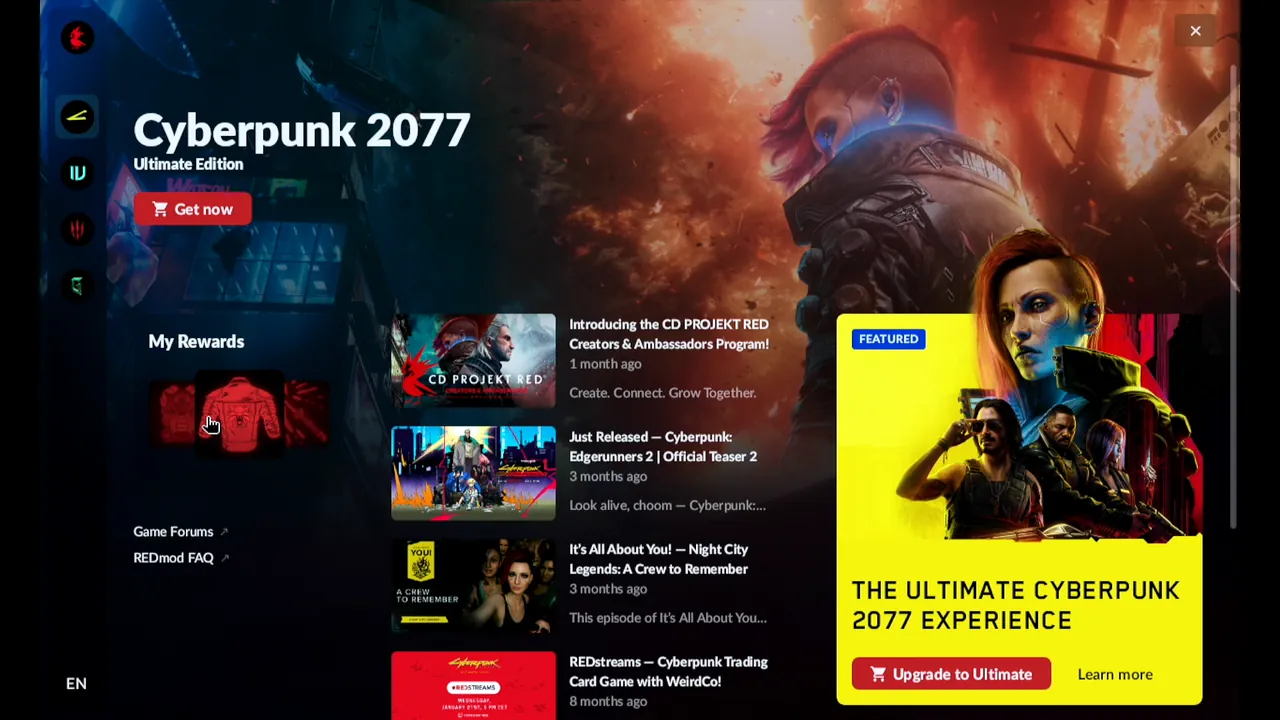
Back in the launcher, open another game's page such as Cyberpunk 2077 and scroll its news with the scroll strip on the right of Deck Pointer's trackpad.
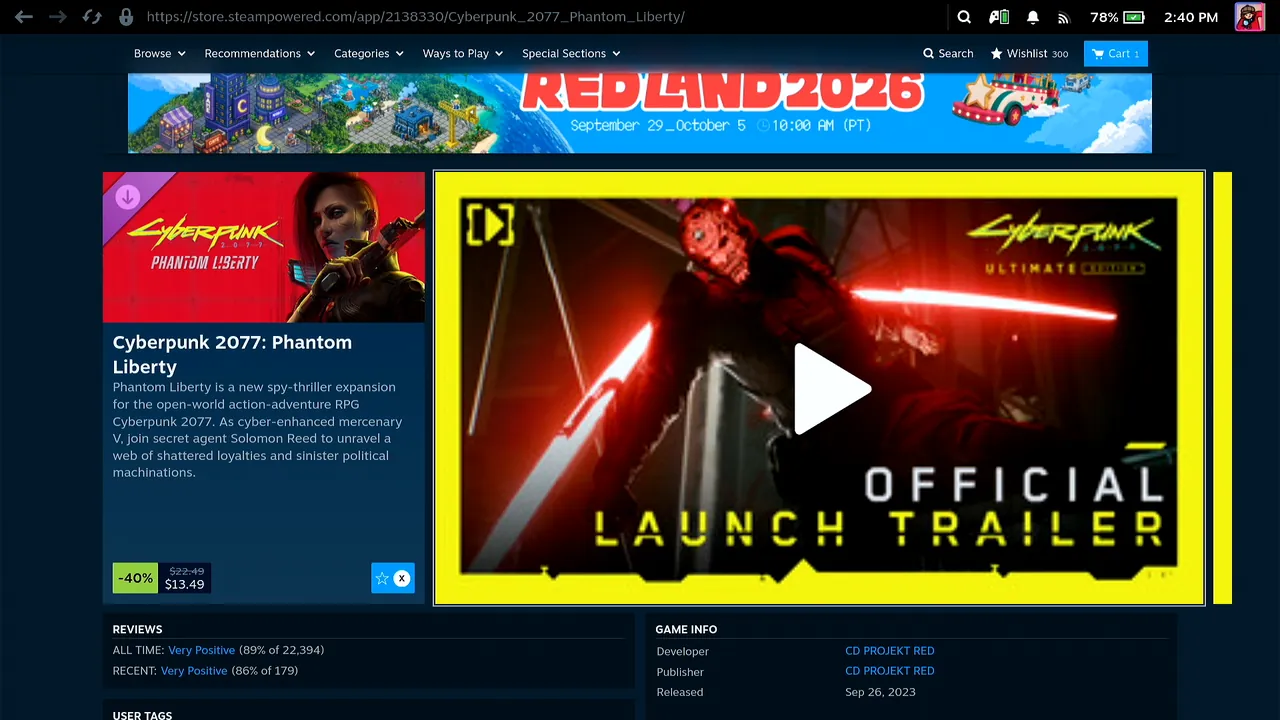
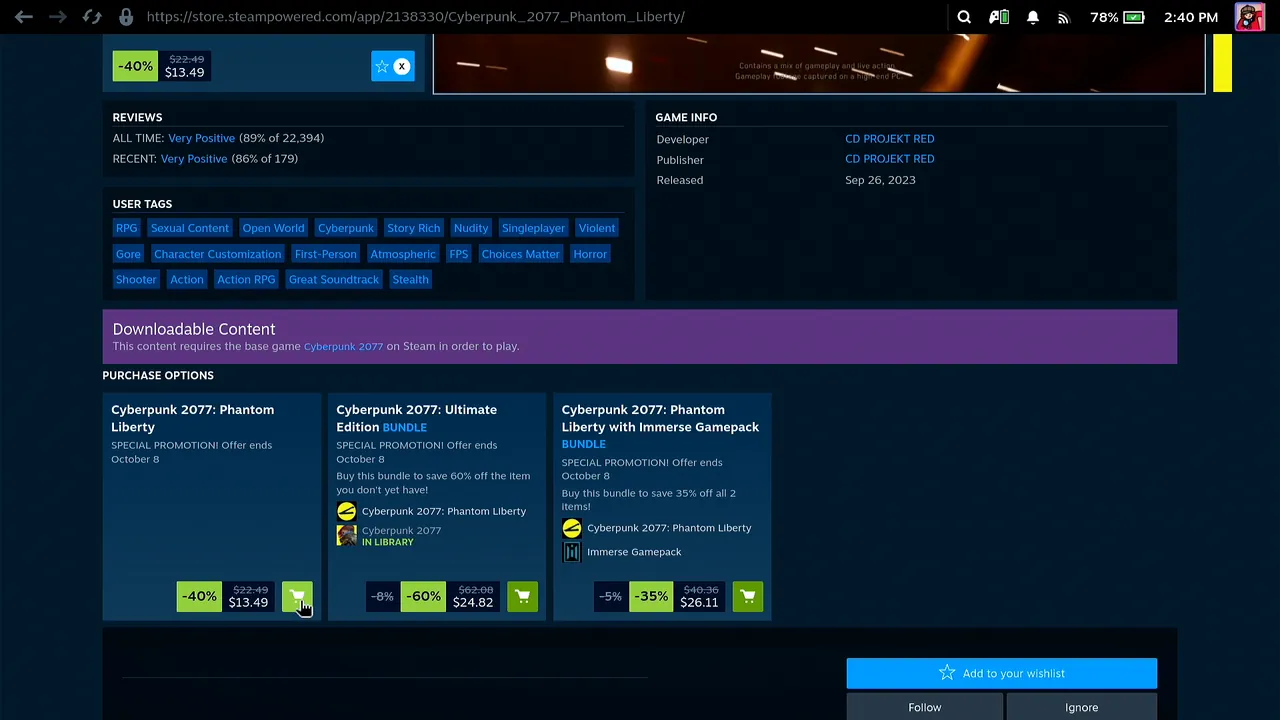
Buy links open the Steam store
A Get now or Upgrade button in the launcher opens the game's Steam store page in Steam's browser, so purchases go through Steam. Close the browser from the Steam menu with Resume game, as before.
Go back to The Witcher 3 and press Play
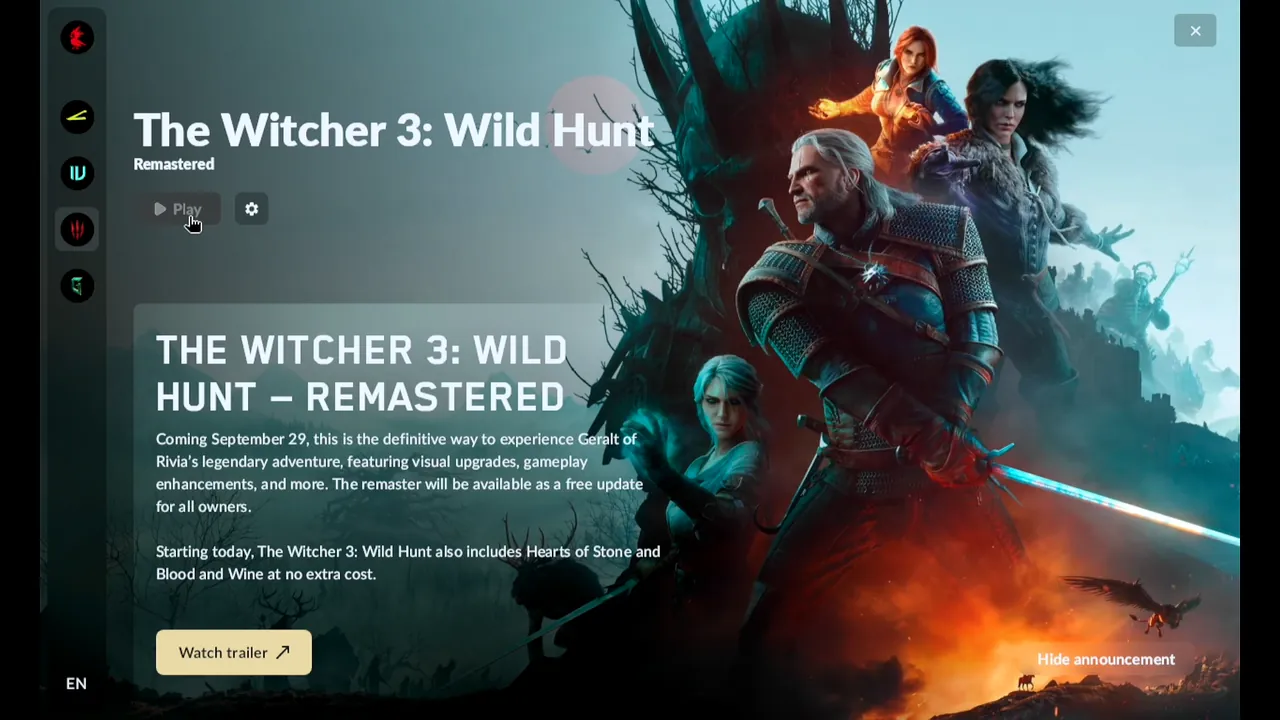
Back in REDlauncher, open The Witcher 3 page and press Play with the trackpad.
You're in the game
The game starts with its intro and The Witcher: Wild Hunt Remastered title. The launcher, the account link and the menus were all handled from the phone, without a mouse or keyboard plugged into the Deck. From here the game plays with the Deck's own controls.


What people are saying
“To create a new account or log in to existing one please scan the QR code using your smartphone.”
REDlauncher's sign-in screen, shown on the Steam Deck in Game Mode · 2026-10
Questions, answered
Why does The Witcher 3 open REDlauncher?
The game is published by CD PROJEKT RED, and Steam starts it through the company's launcher. REDlauncher opens first, and its Play button starts the game.
Do I have to sign in to REDlauncher?
You can browse the launcher without an account. In the video I signed in before starting the game: Sign in shows a QR code and a personal link, then the Steam browser asks you to link your account with Allow and continue.
Do I need to install anything on the Steam Deck?
Not for Bluetooth: the Deck sees your phone as a Bluetooth keyboard and mouse, so Deck Pointer needs no software on it. Only the optional Wi-Fi connection (Android) uses a small app on the Deck, from deckpointer.com/deck. Pair it once, the way you pair any Bluetooth keyboard.
Does this work with an iPhone?
Yes. Deck Pointer runs on iPhone and Android and connects to the Deck the same way over Bluetooth.
Is Deck Pointer free?
Yes, it's free on Android and iPhone.