Steam Deck fixes
How to install Decky Loader on Steam Deck with your phone
Decky Loader only installs from Desktop Mode, where you need a mouse and keyboard to download a file, rename it and type an admin password.
Video tutorial
Step by step
Switch to Desktop Mode and connect the phone
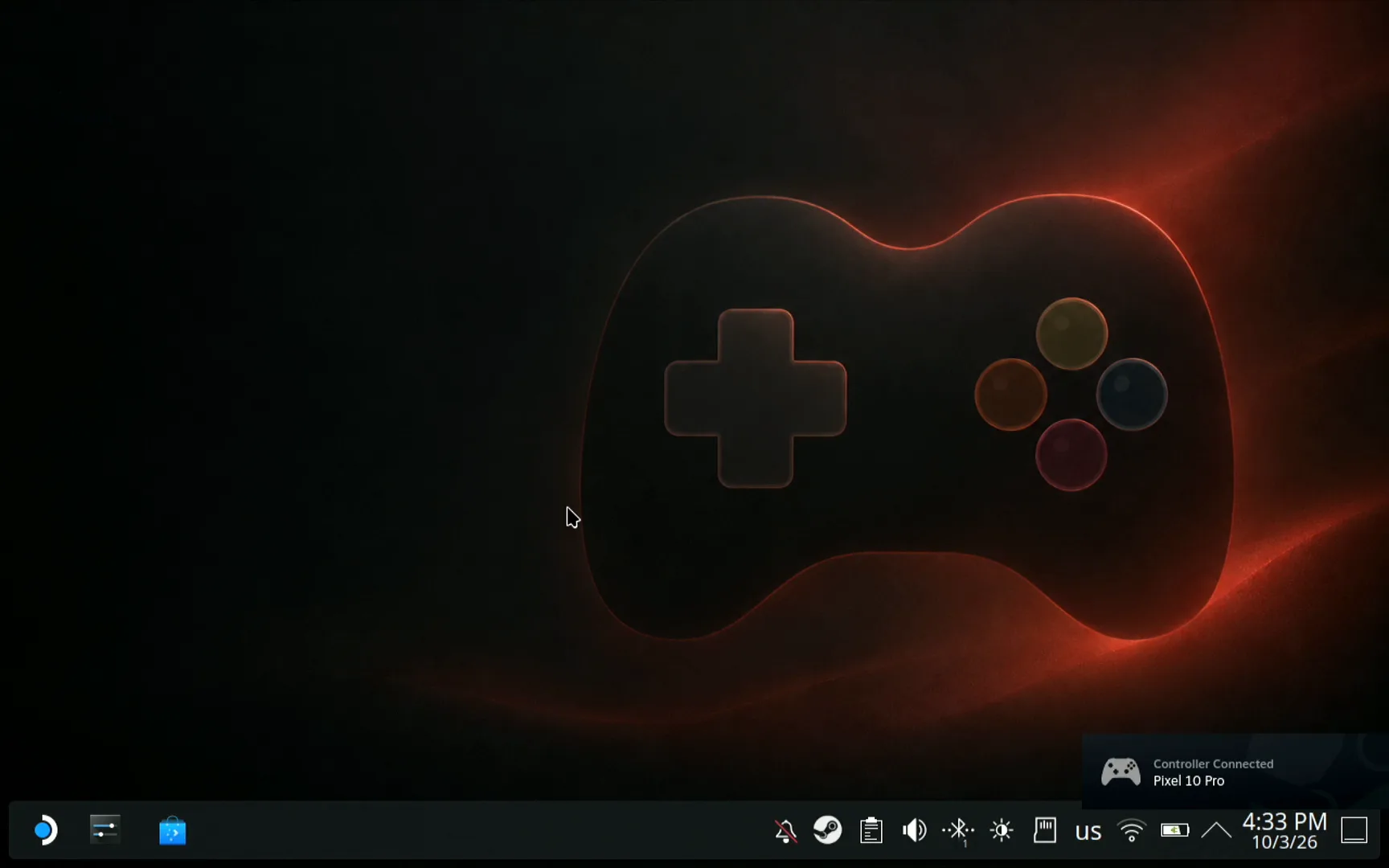
Decky Loader installs from Desktop Mode: press the Steam button, open the Power menu and choose Switch to Desktop. Open Deck Pointer on your phone and check that the chip at the top reads Connected, Steam Deck. The Deck even announces the phone as a connected controller. Haven't paired yet? Follow the pairing guide first, it takes about a minute.
Open Firefox
Open the application launcher, search for Firefox and start it. Move the pointer with the phone's trackpad and tap to click.

Type decky.xyz from the phone
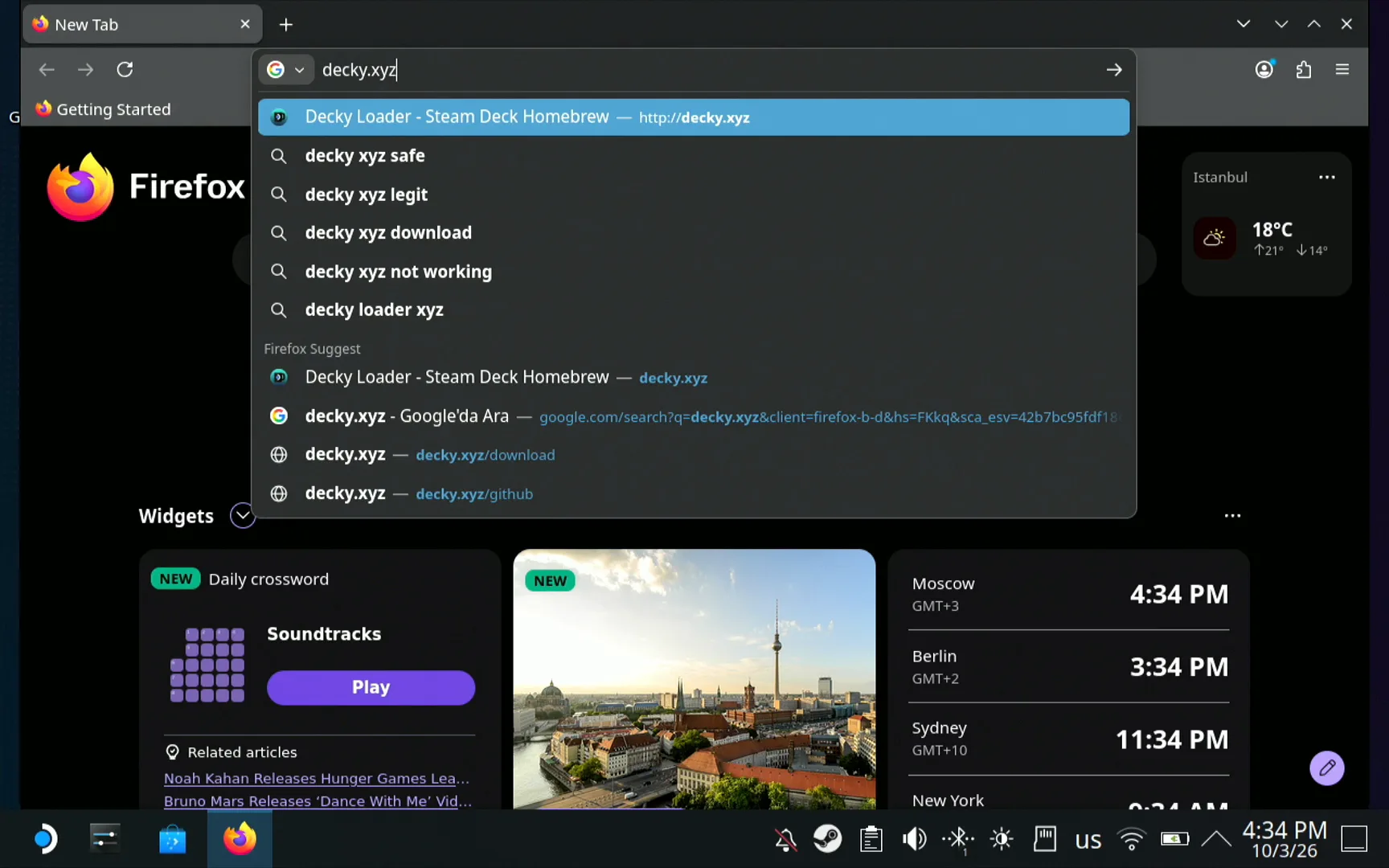
Click the address bar, then type decky.xyz in Deck Pointer's text field on the phone and press Enter. decky.xyz is the official Decky Loader site.
Press Download
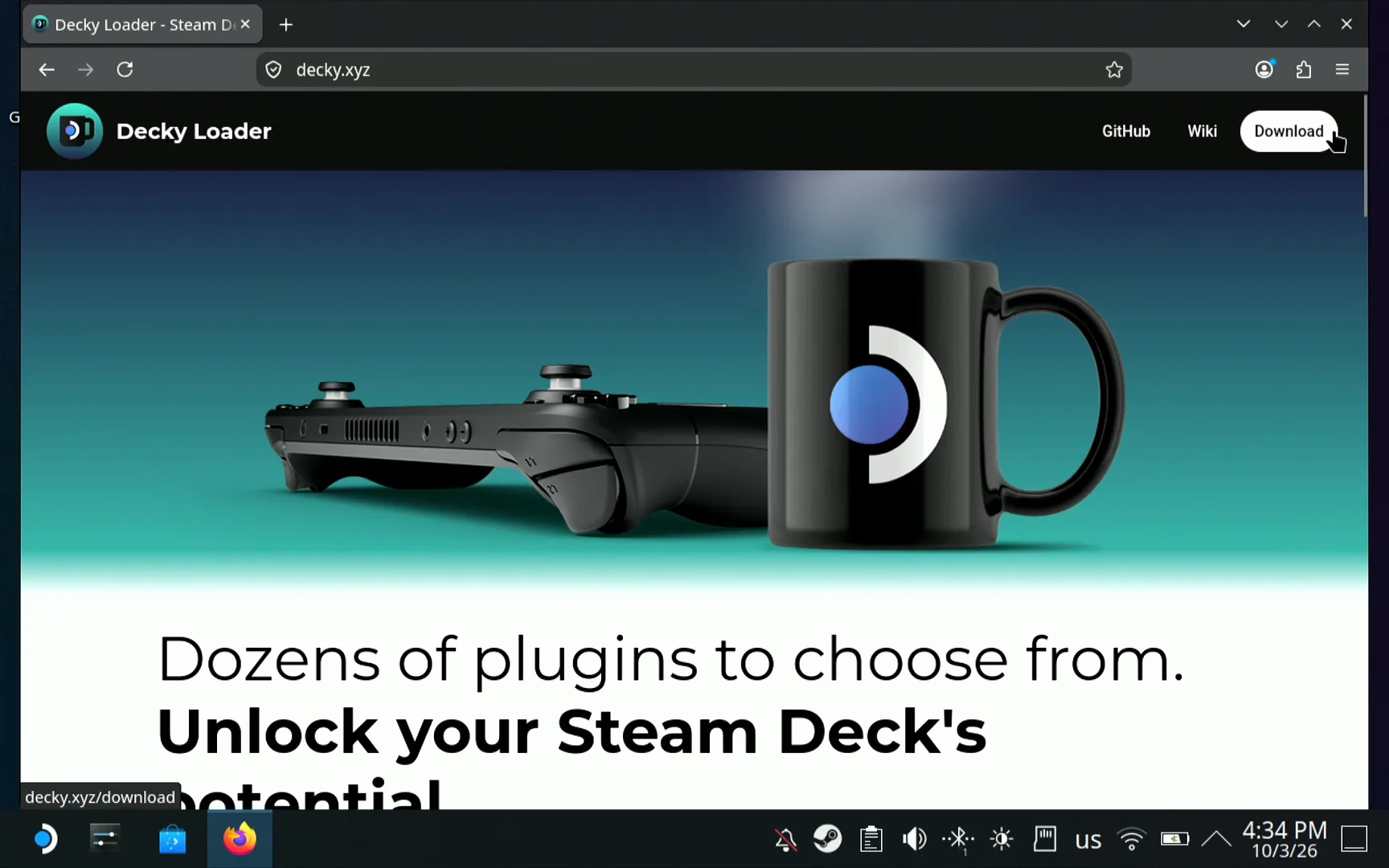
On the Decky Loader page, click Download in the top right corner. Firefox saves the installer as decky_installer.desktop.download.
Open the file in the Downloads folder
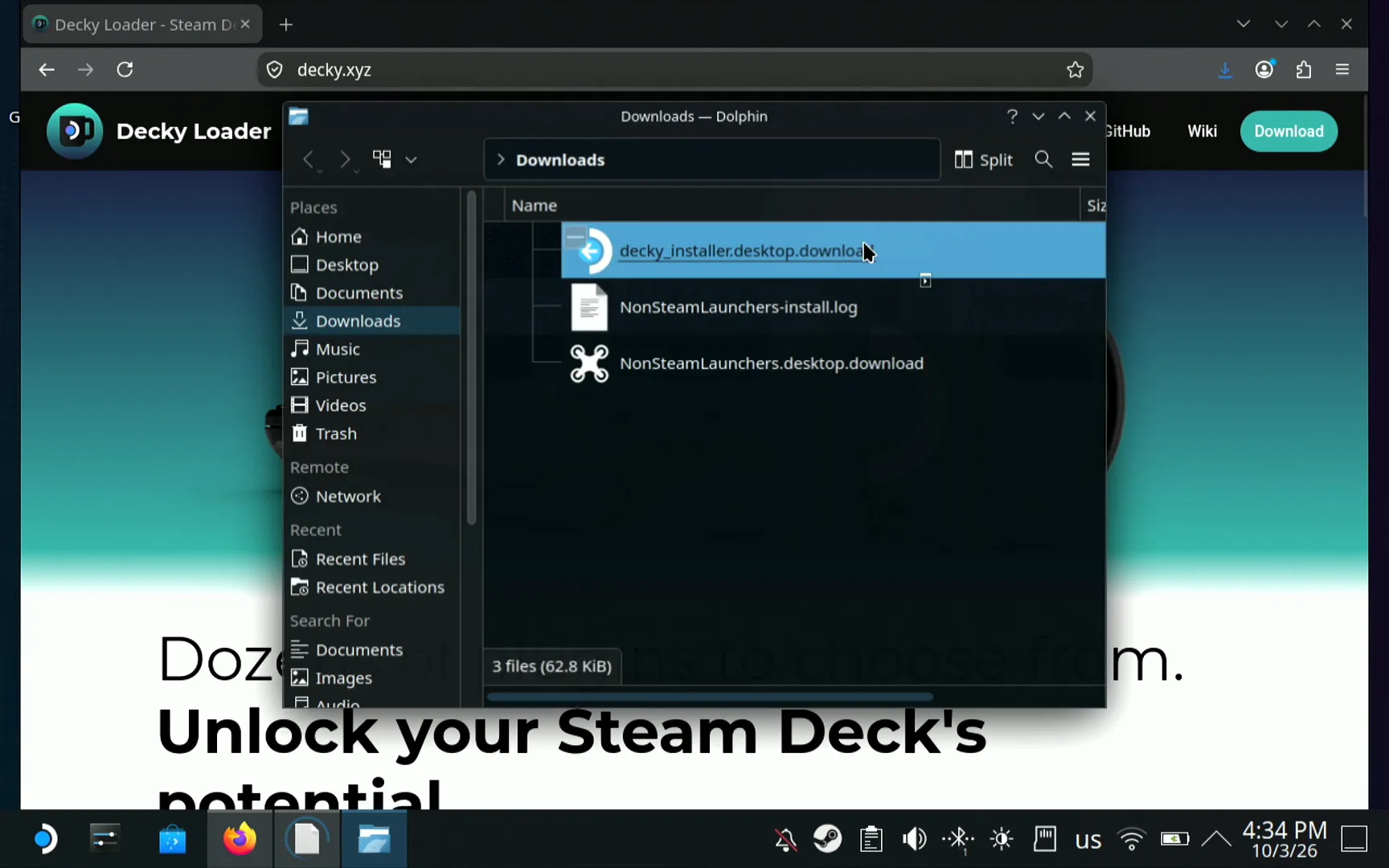
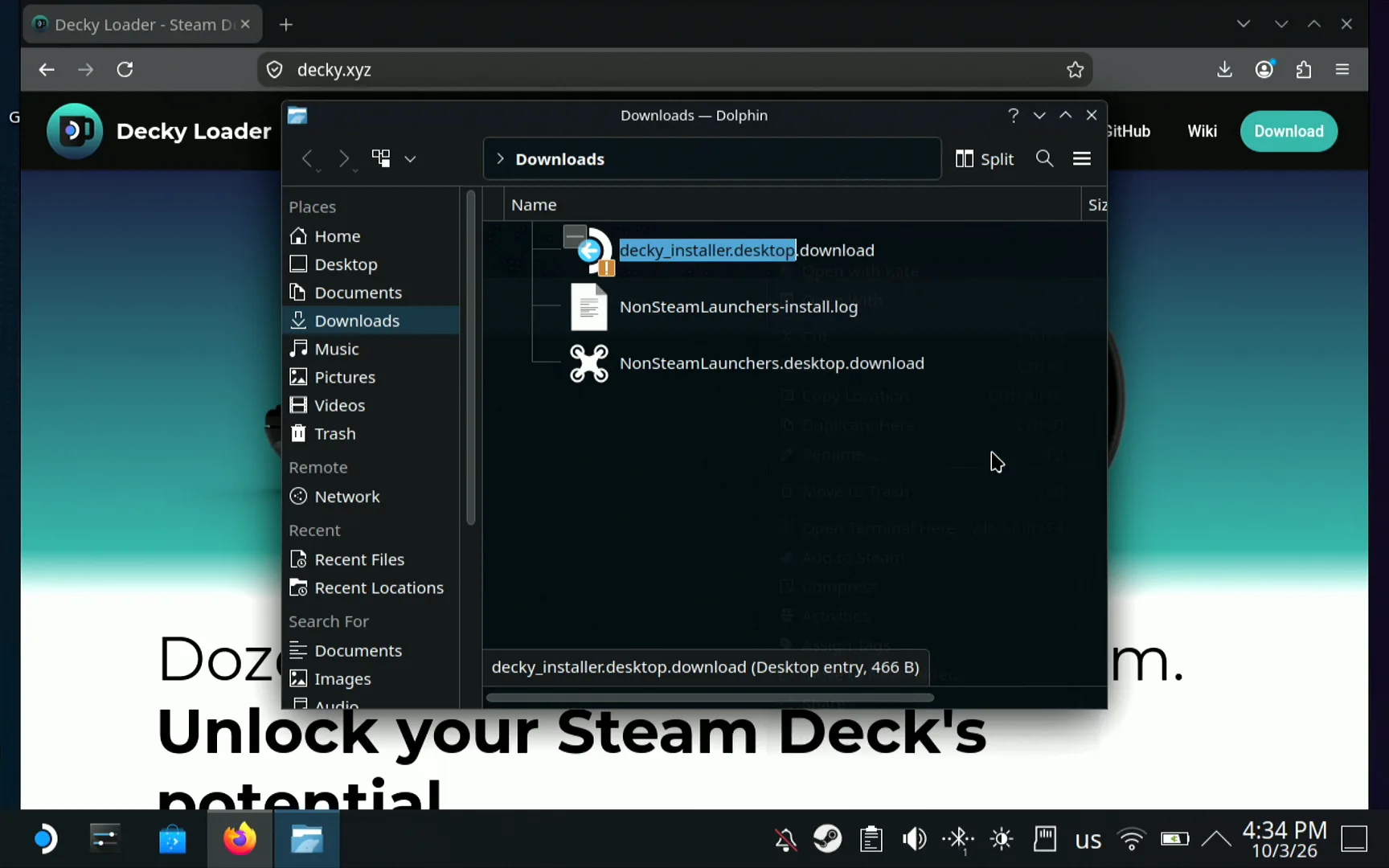
Open the Downloads folder in Dolphin, the file manager. The installer is there, but Firefox added .download to its name, so the Deck won't run it yet.
Rename it: remove .download
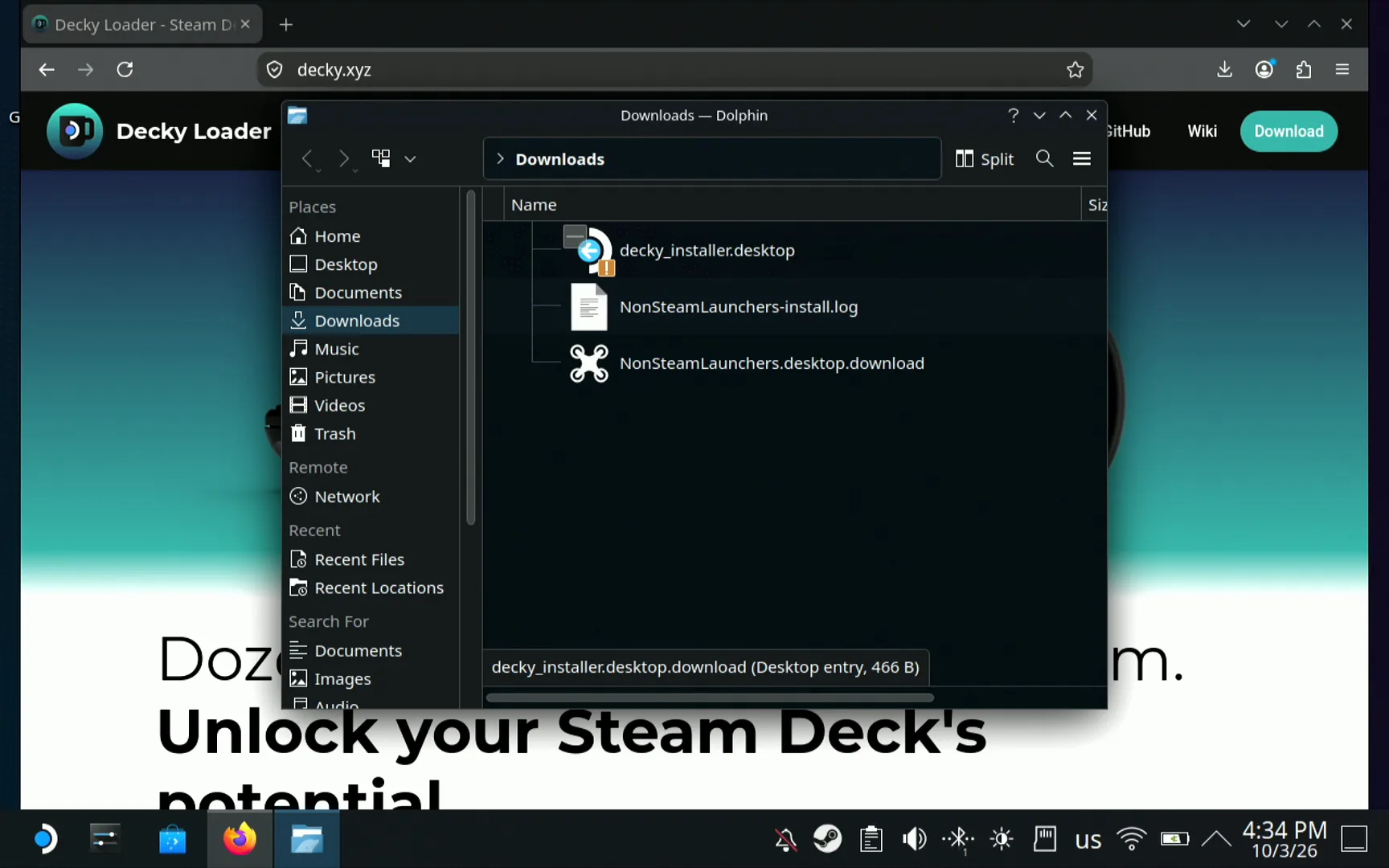
Right-click the file and choose Rename. Delete .download from the end of the name, so it reads decky_installer.desktop, and press Enter.
Double-click it and choose Launch
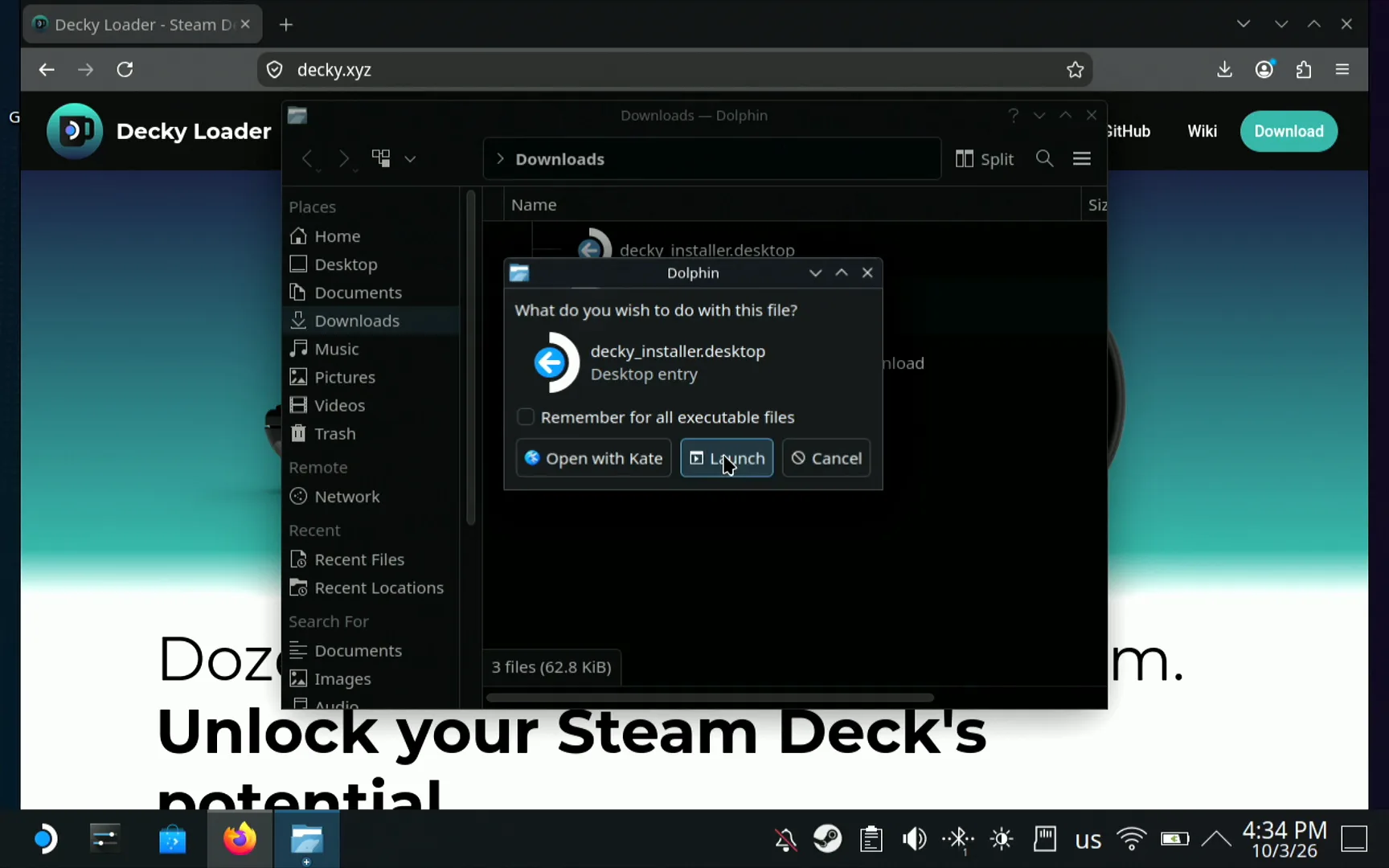
Double-click the renamed file. Dolphin asks What do you wish to do with this file? Choose Launch, not Open with Kate, which only opens it as text.
Enter the admin password from the phone
A Konsole terminal window opens with a Decky Installer box asking Enter your sudo/admin password. Type the password you set on the Deck in Deck Pointer's text field and press OK. If you never set an admin password, Decky's installer offers to set a temporary one and removes it when it finishes (per the Decky Loader README).
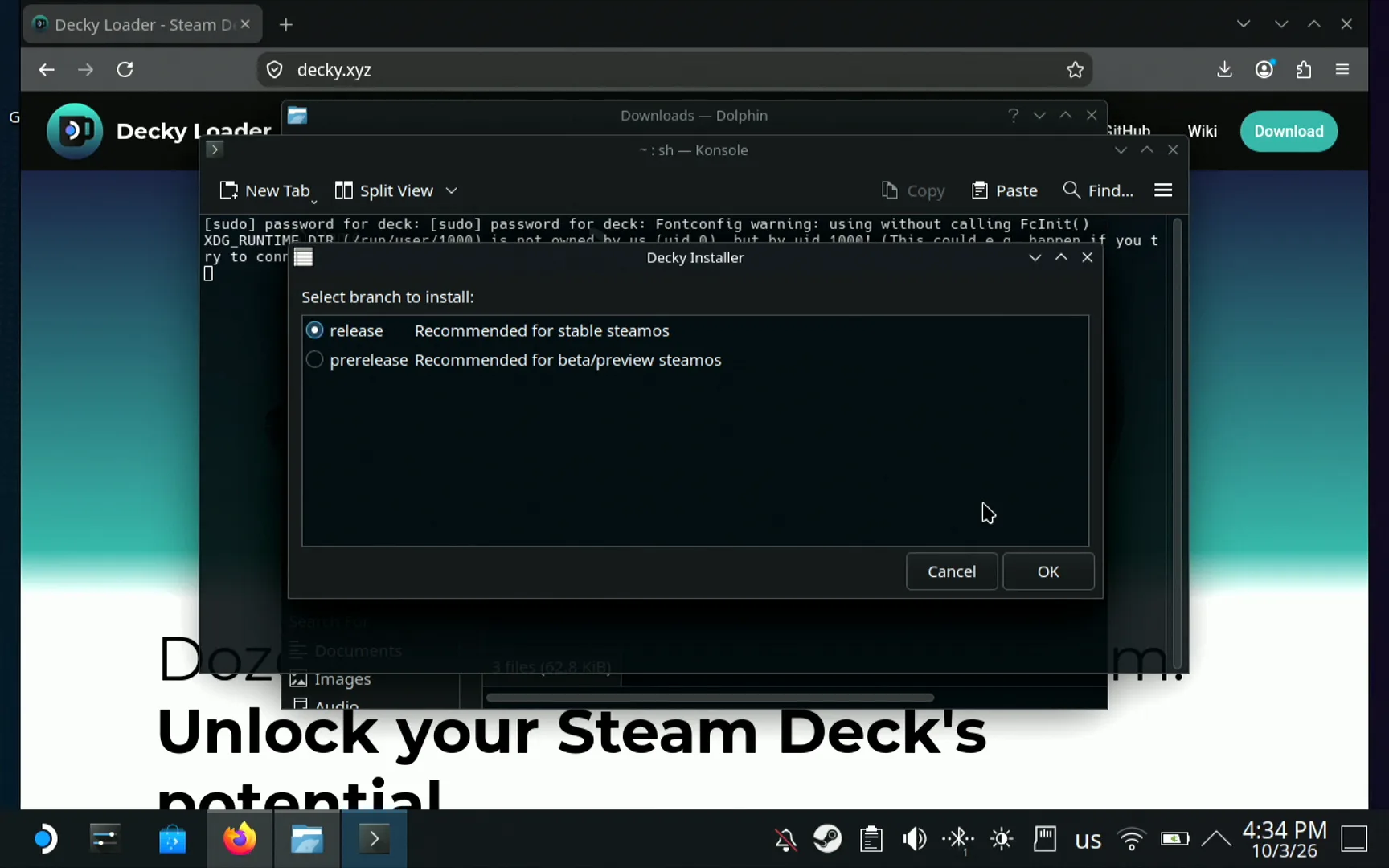
Choose release and press OK
The installer asks Select branch to install. Pick release, recommended for stable SteamOS, and press OK. prerelease is for the beta/preview SteamOS channel and for plugin developers. The install takes a few seconds.
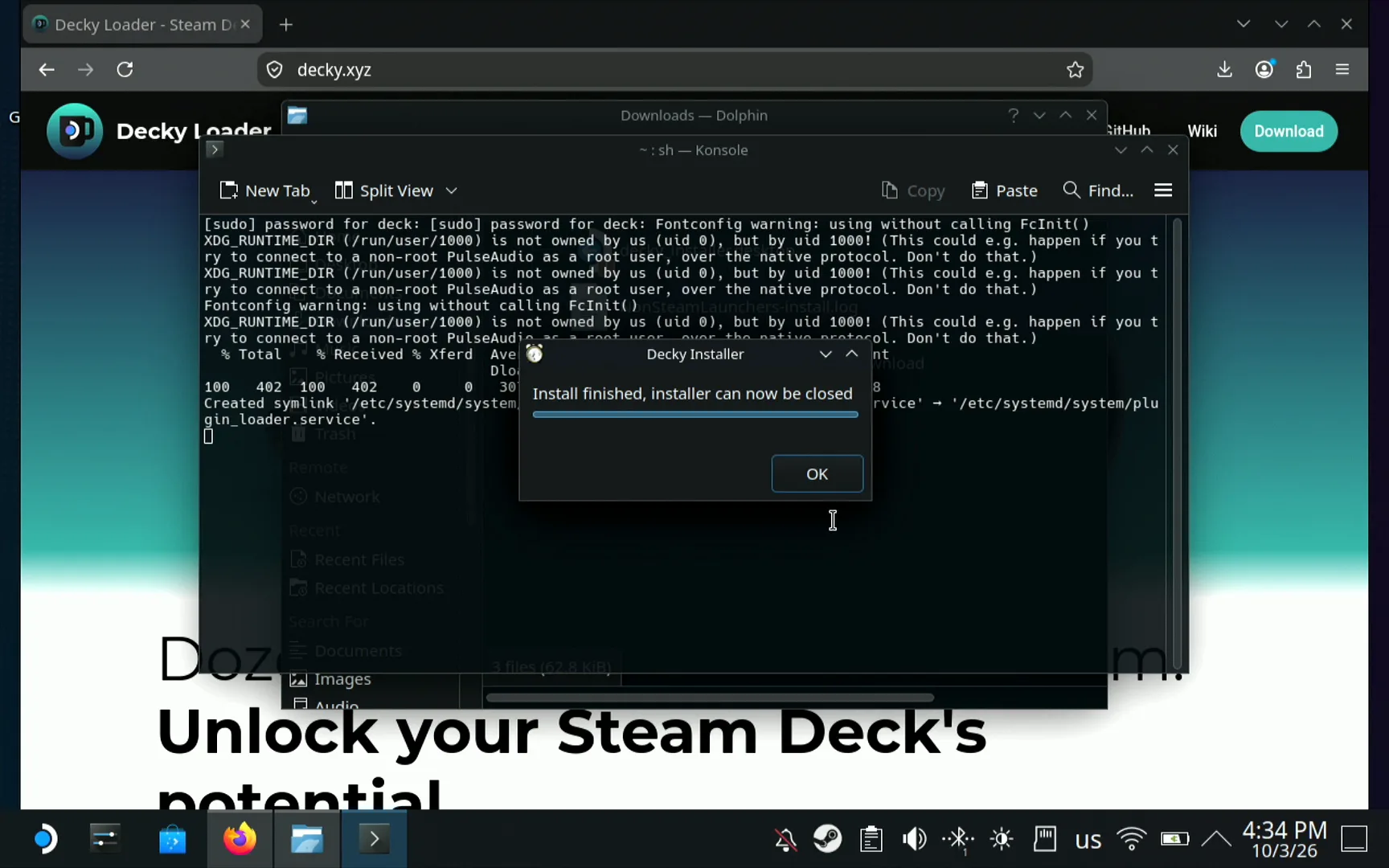
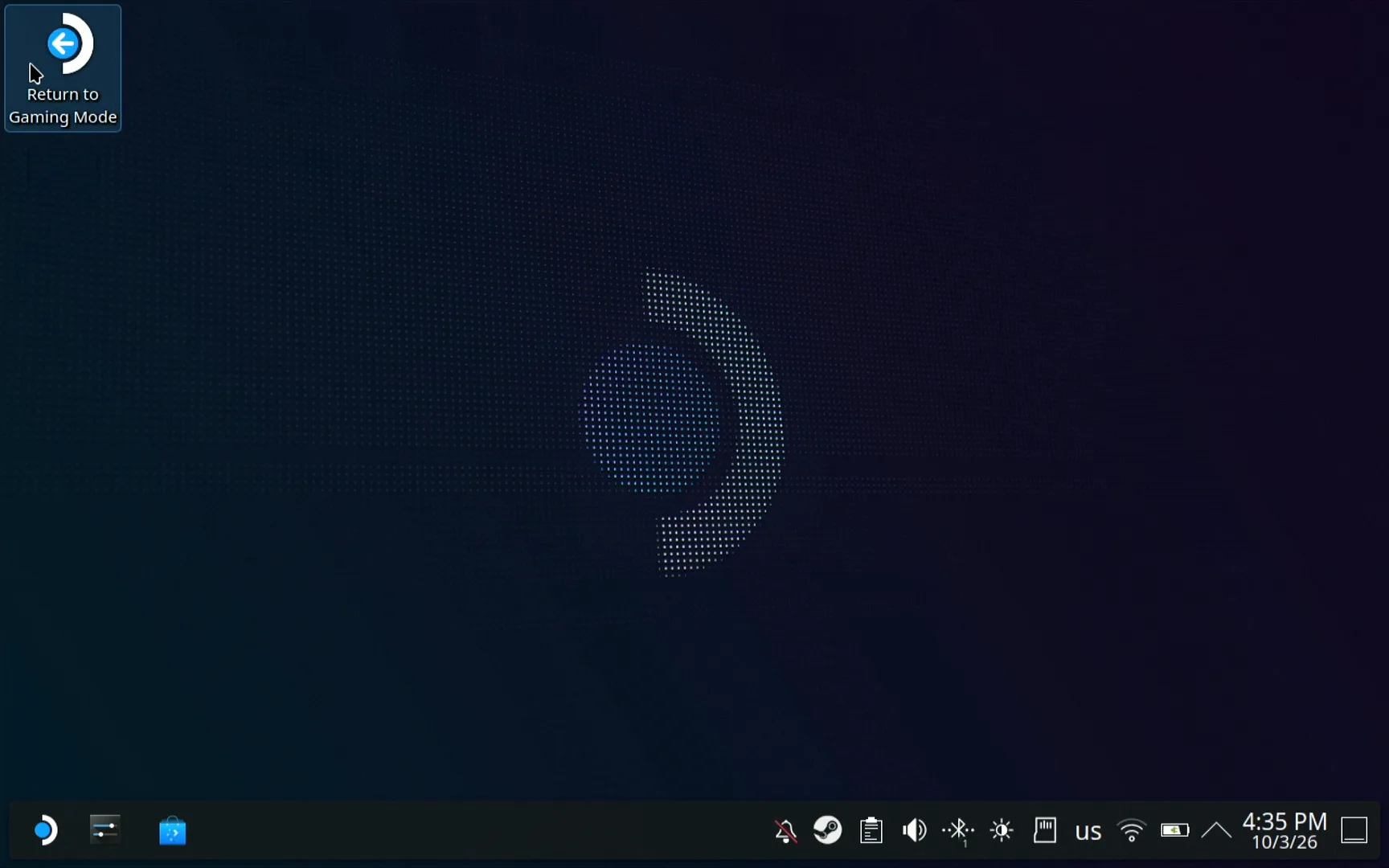
Return to Gaming Mode
Close the installer, the terminal and Dolphin. On the desktop, double-click Return to Gaming Mode and wait a few seconds while Game Mode starts.
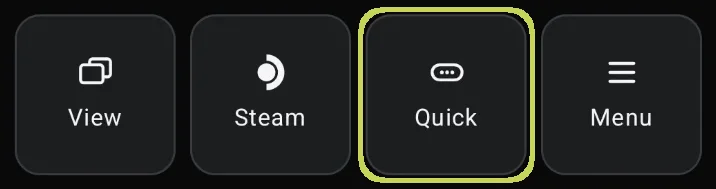
Open Quick Access and find the plug tab
In Game Mode, tap the Quick key in Deck Pointer. Quick Access opens, and the list of tabs on its edge now ends with a plug icon. That is Decky.
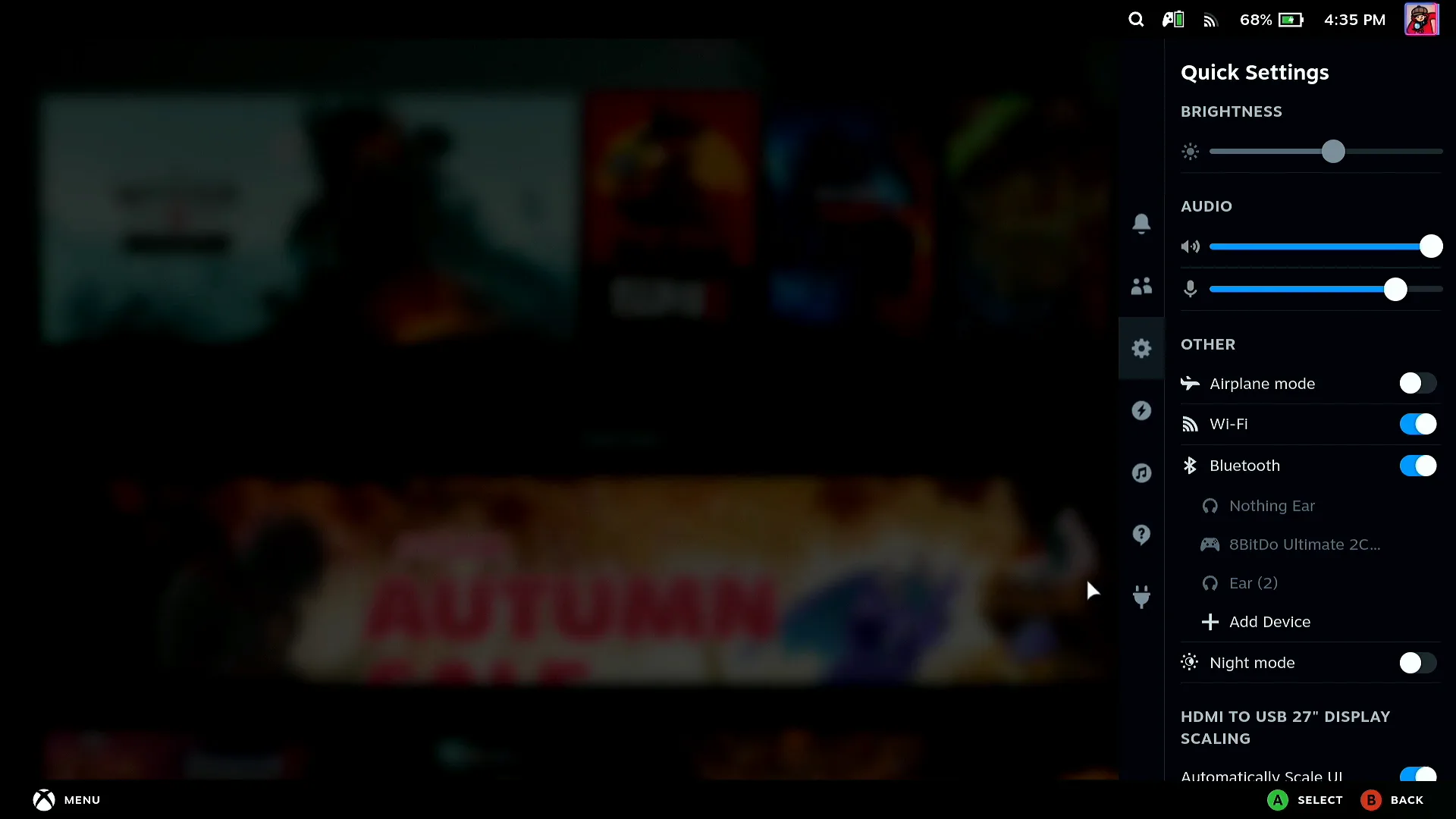
Open the Decky menu
Select the plug tab. The Decky panel has two icons at the top right: the store and the gear for Decky's settings. A fresh install has no plugins yet, so the panel is empty below them.
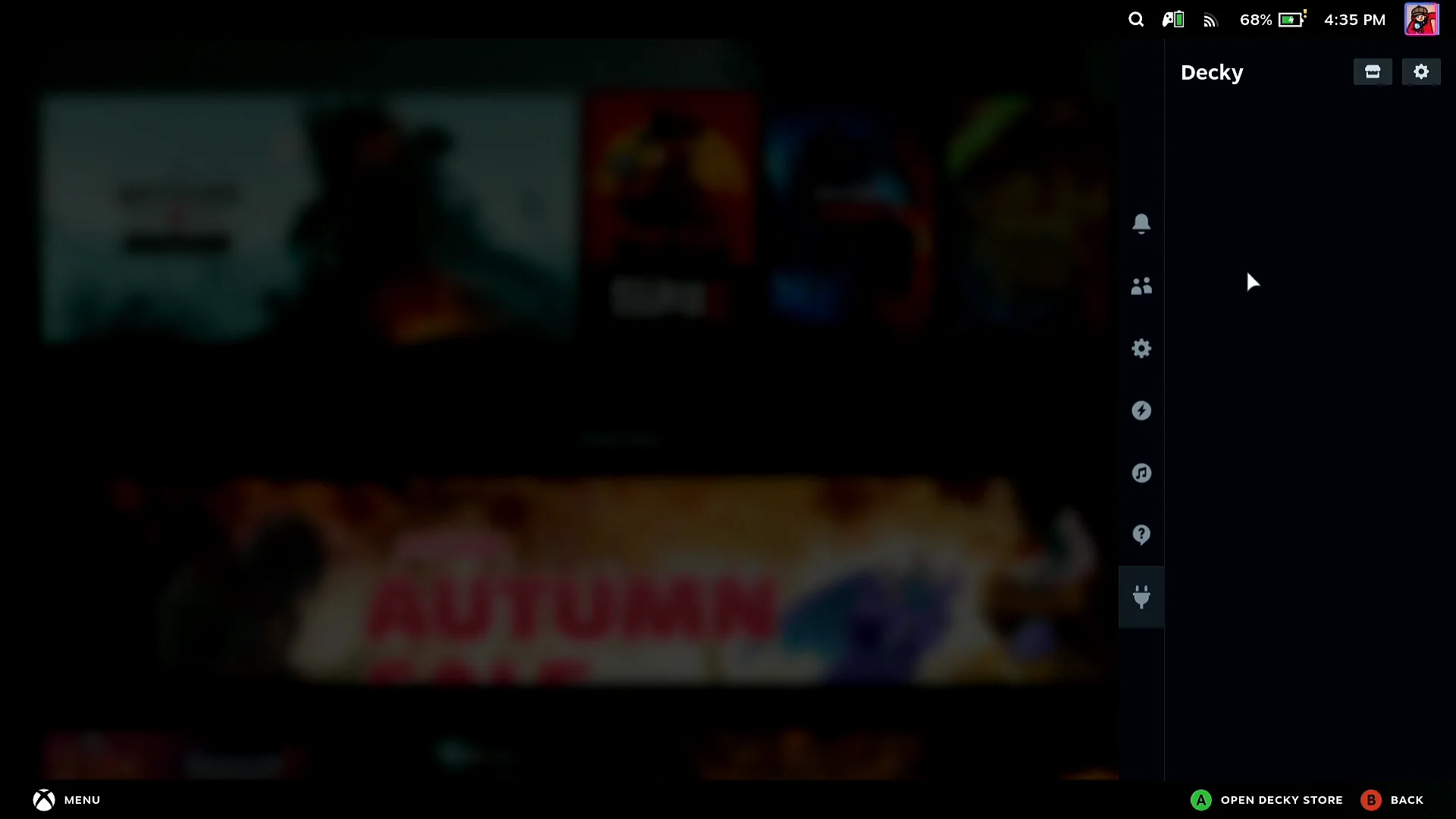
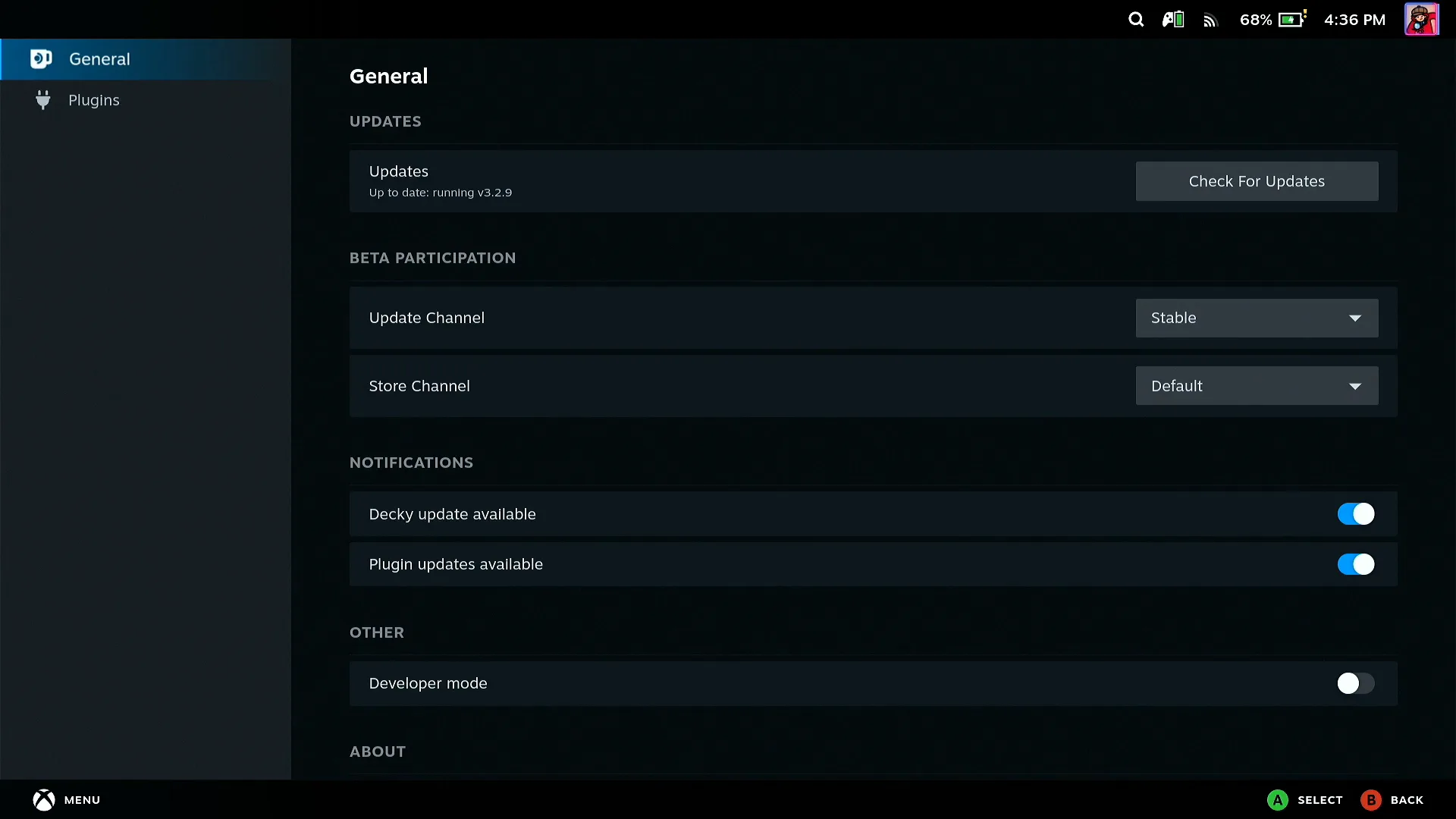
Check Decky's settings
The gear opens Decky's settings. Under General, the Updates line shows Up to date and the Check For Updates button, and the Update Channel is Stable, matching the release branch you installed.
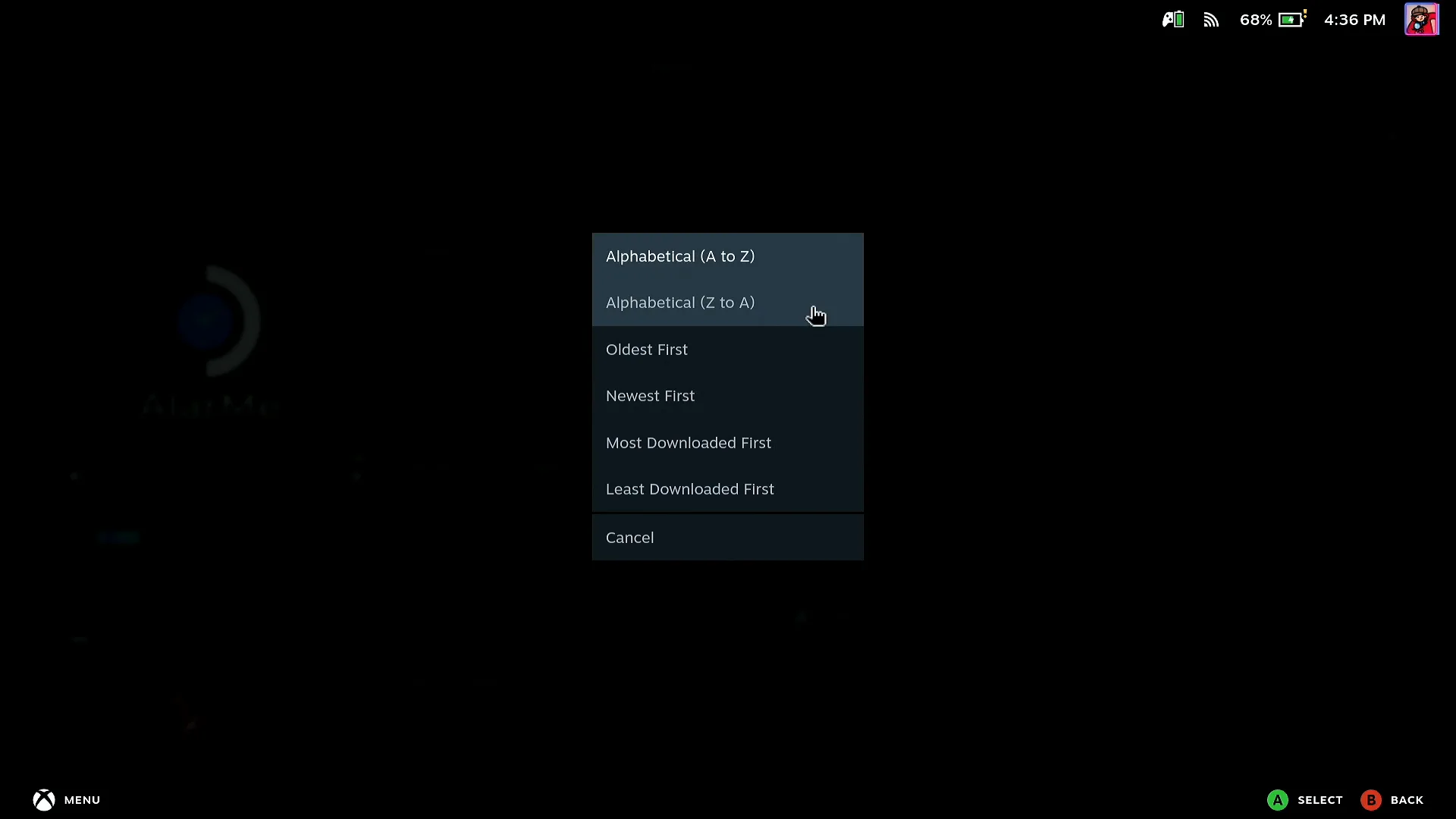
Open the plugin store
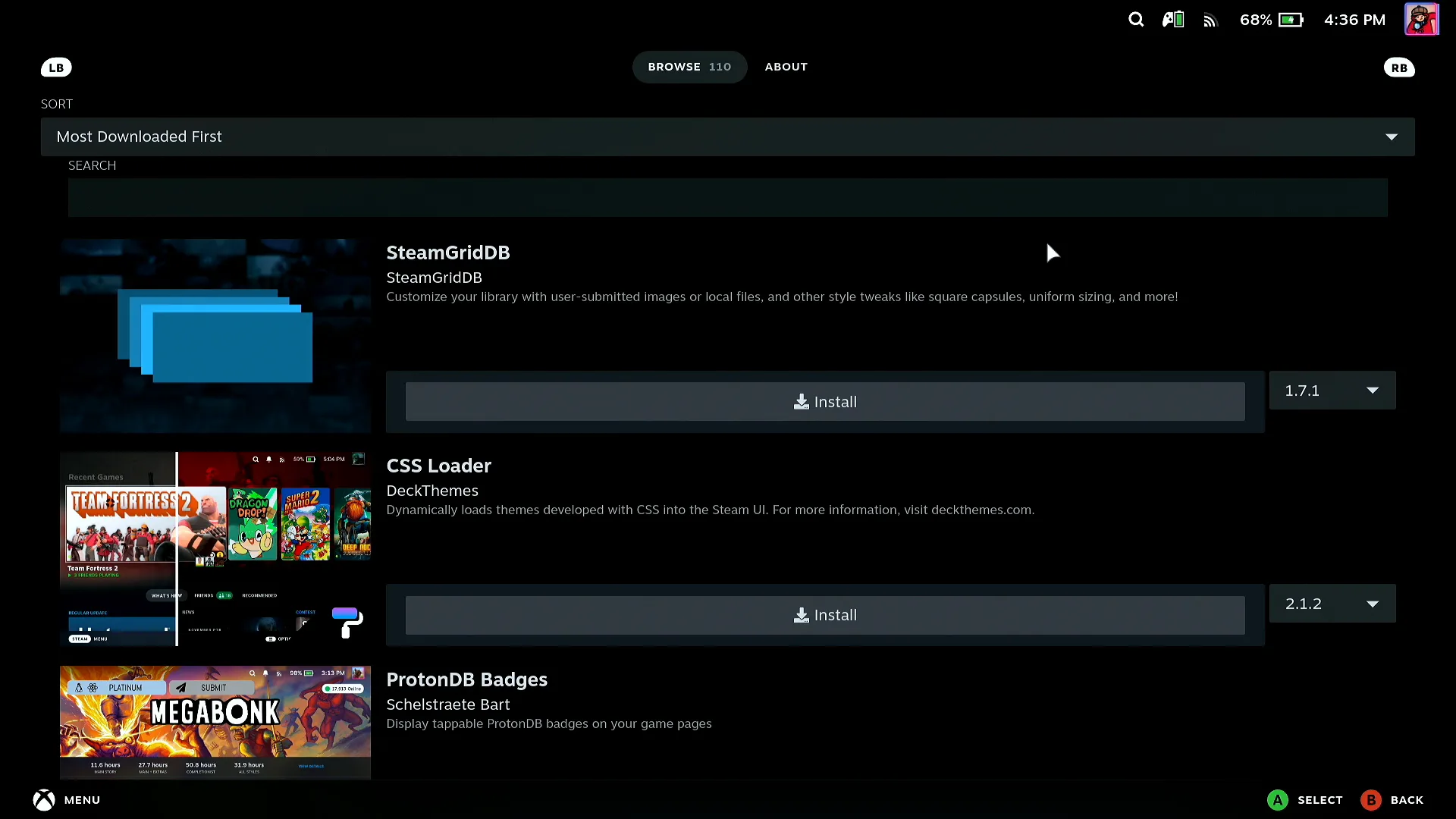
Back in the Decky panel, press the store icon. The store opens with its plugins in A to Z order. Open the Sort list and choose Most Downloaded First to see the popular plugins on top. Press Install under a plugin to add it.
Decky is installed, all from the phone
The store lists the most downloaded plugins first, SteamGridDB, CSS Loader and ProtonDB Badges at the top when this was recorded, each with an Install button. The download, the rename, the admin password and the Game Mode menus were all handled from the phone, without a mouse or keyboard plugged into the Deck.
What people are saying
Decky Loader's own instructions start with 'Prepare a mouse and keyboard if possible' and list Bluetooth keyboard and mouse apps for iOS and Android as an option. The installer is a file you download in Desktop Mode, then run.
Decky Loader README, Installation section (SteamDeckHomebrew/decky-loader on GitHub) · 2026-10
Questions, answered
Do I need to do anything special for the admin password?
The installer asks for the Deck's sudo/admin password. Type it from the phone's text field. According to the Decky Loader README, if you have not set an admin password, you can allow the installer to set one temporarily; it is removed after the installer finishes.
Decky disappeared from Quick Access after a SteamOS update. What do I do?
The Decky Loader README says Decky can disappear on SteamOS updates and that re-running the installer and installing the stable branch again usually fixes it. Run the same installer from Desktop Mode: when Decky is already installed, the list offers update to latest release (Recommended for stable steamos), update to latest prerelease and uninstall decky loader. Choose update to latest release. If that doesn't work, the README suggests trying the prerelease.
Firefox saved the file as decky_installer.desktop.download and it won't run.
That is the name Firefox gives the download. Rename the file to decky_installer.desktop, as in the Rename step, and it runs. The Decky Loader README says the same.
Dolphin asks What do you wish to do with this file? Which button?
Launch. Open with Kate only shows the installer's text in an editor, and the install does not start.
Which branch should I pick, release or prerelease?
release is the latest stable version and is recommended for stable SteamOS. prerelease is recommended for the beta/preview SteamOS channel, and the Decky Loader README describes it as intended for plugin developers.
Do I need to install anything on the Steam Deck for Deck Pointer to work?
Not for Bluetooth: the Deck sees your phone as a Bluetooth keyboard and mouse, so Deck Pointer needs no software on it. Only the optional Wi-Fi connection (Android) uses a small app on the Deck, from deckpointer.com/deck. Pair it once, the way you pair any Bluetooth keyboard.
Does this work with an iPhone?
Yes. Deck Pointer runs on iPhone and Android and connects to the Deck the same way over Bluetooth.
Is Deck Pointer free?
Yes, it's free on Android and iPhone.