Steam Deck fixes
How to connect your Android phone to a Steam Deck over Wi-Fi
Bluetooth between your phone and the Steam Deck won't pair or keeps dropping, and you want a connection that holds.
Deck Pointer for Android can connect to the Steam Deck over Wi-Fi instead of Bluetooth. Install it on the Deck once, enter a code, and the phone works the same way it does over Bluetooth. On iPhone, Wi-Fi already works in the Deck Pointer beta on TestFlight, and comes to the App Store version once Apple approves the update.
Step by step
Open Deck Pointer and pick Steam Deck
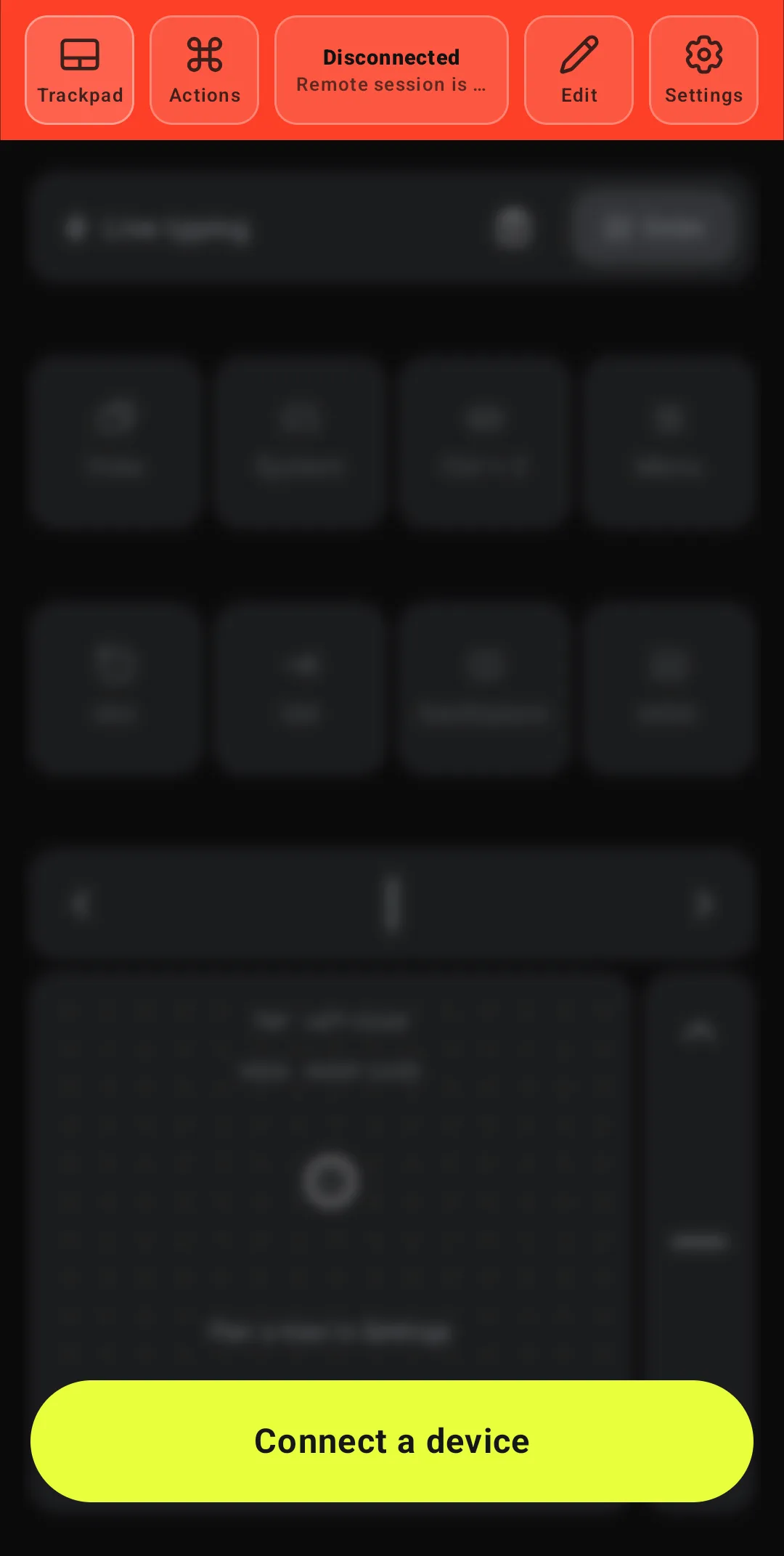
Tap Connect a device, then Steam Deck. If you already have a device saved, open the device list from the header and tap Add new device.
Choose Wi-Fi
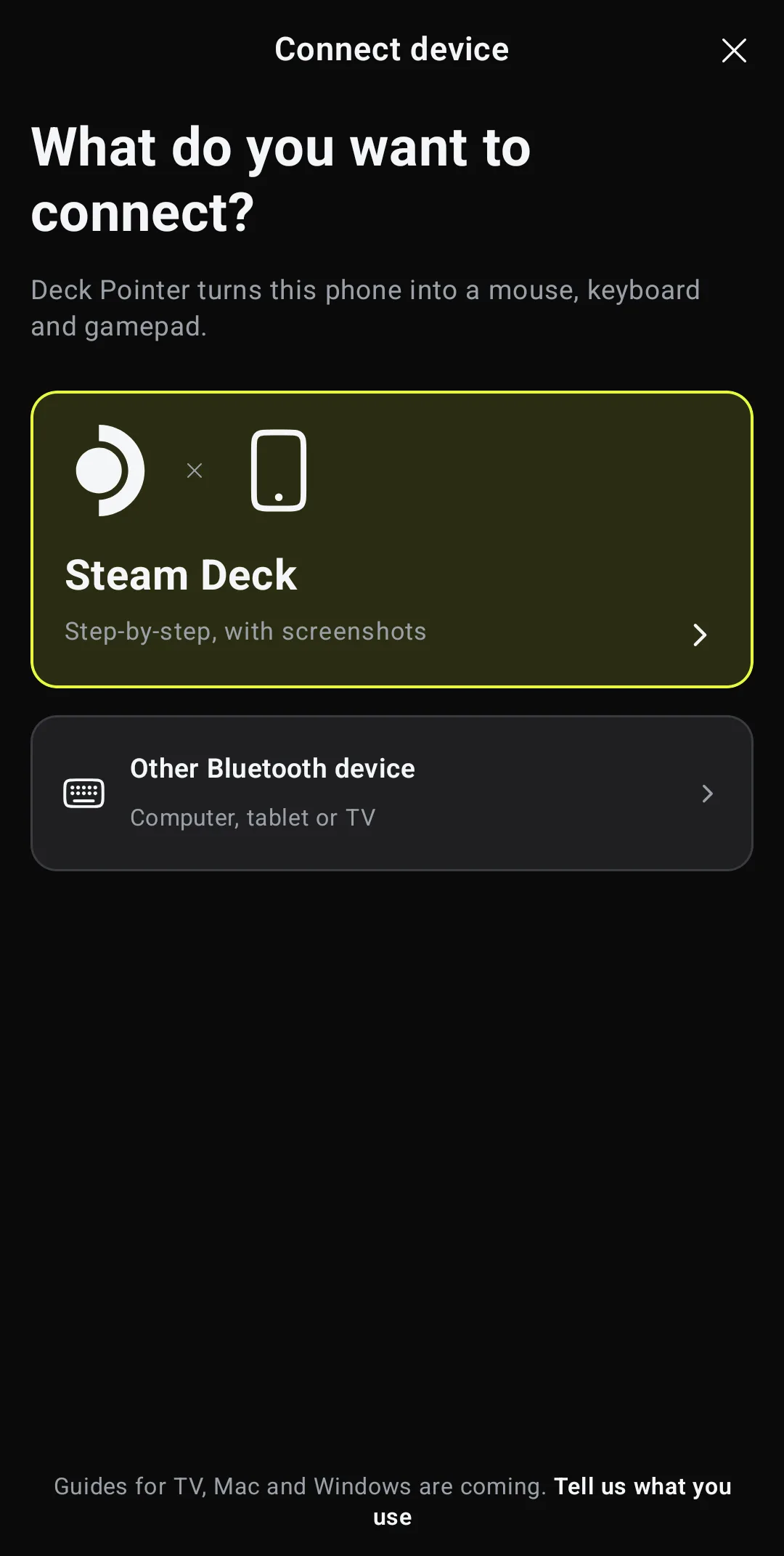
The wizard asks how to connect. Bluetooth is the simpler way and needs nothing on the Deck. Wi-Fi needs Deck Pointer installed on the Deck once, and holds where Bluetooth drops. The controls are the same either way. Tap Wi-Fi. The wizard now shows the install on the Deck screen by screen, the same as the steps below.
Switch the Deck to Desktop Mode
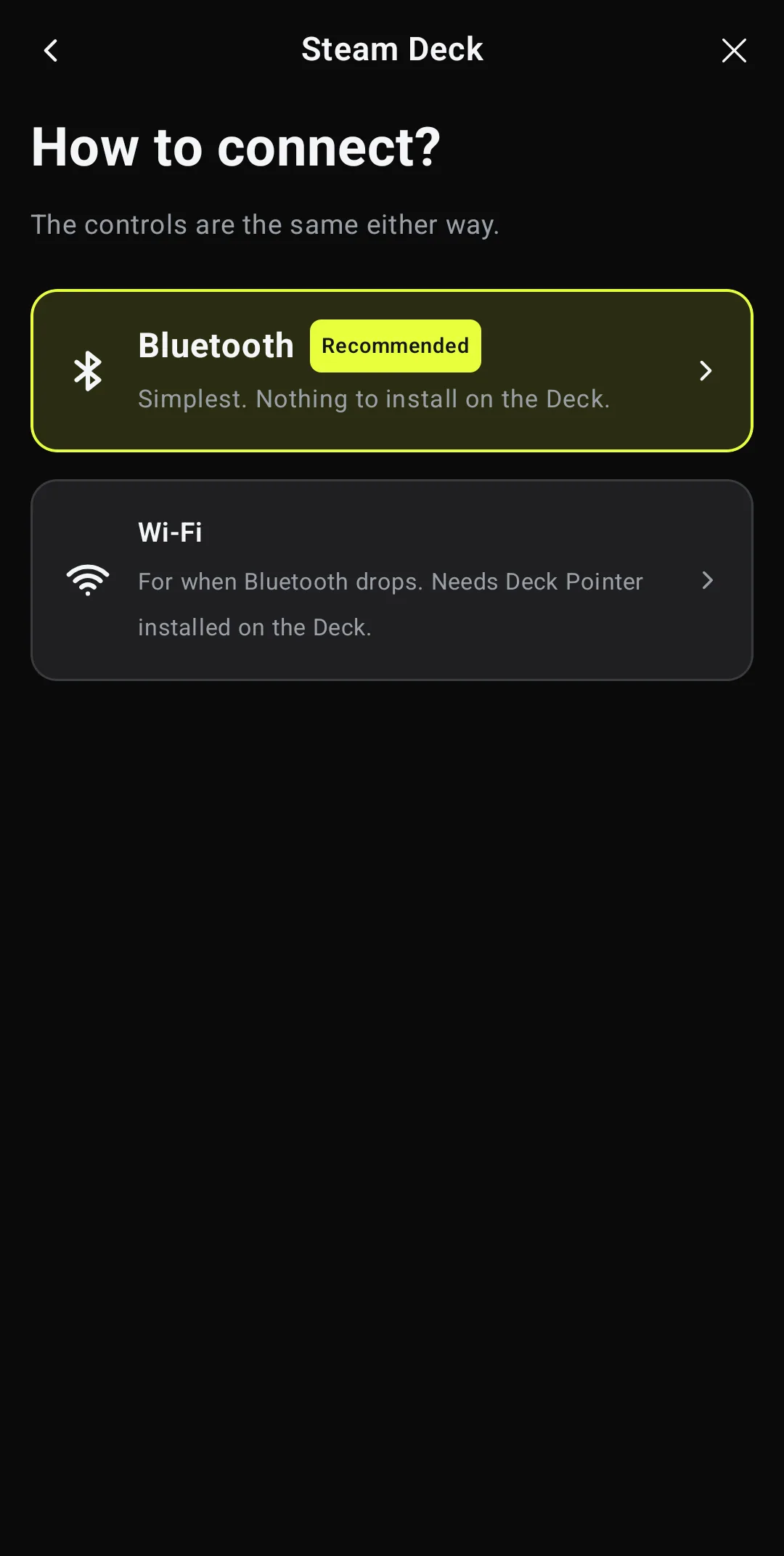
On the Deck: STEAM → Power → Switch to Desktop. The install runs once, from the desktop. After that you never need Desktop Mode for Wi-Fi again.
Open Firefox
Click the Steam Deck icon in the bottom-left corner of the desktop, then Firefox.
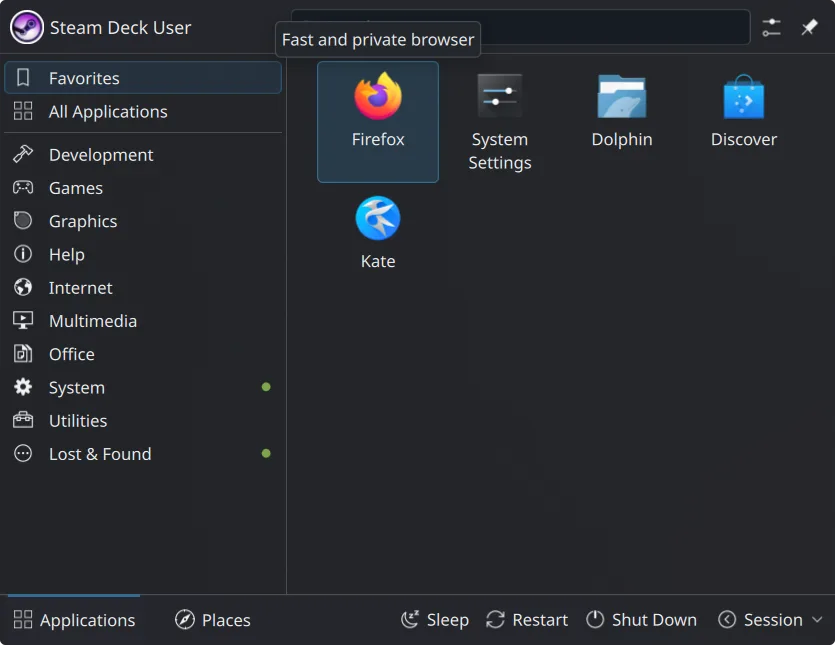
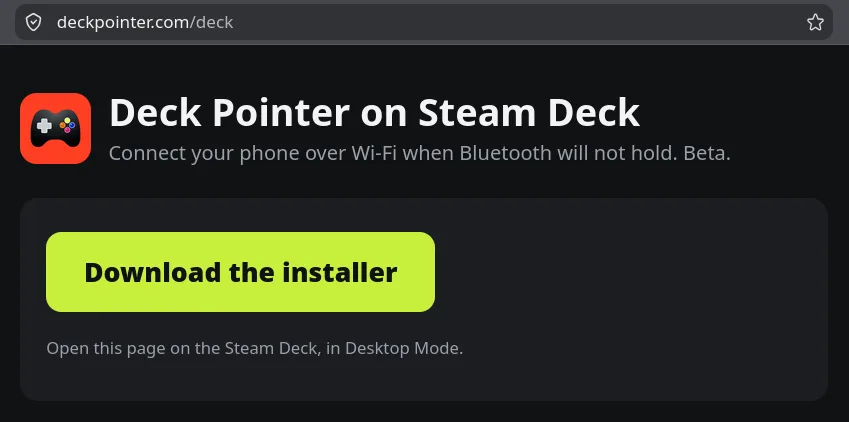
Download the installer from deckpointer.com/deck
Type deckpointer.com/deck in the address bar and click Download the installer.
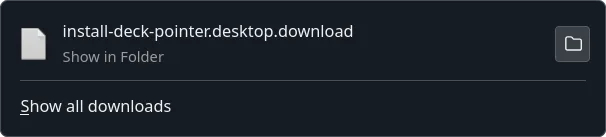
Open the downloaded file
Click the file in Firefox's downloads. Its name ends in .download: Firefox adds that to installers of this kind, and it does not matter.
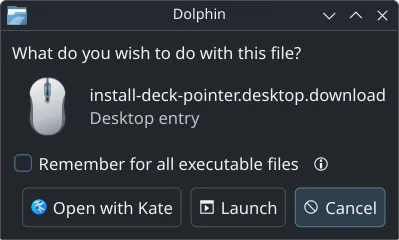
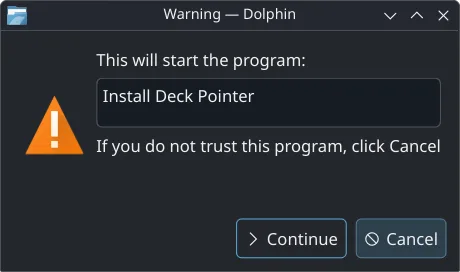
Allow it to run: Launch, then Continue
The Deck asks twice before it runs something downloaded. Click Launch in the first window and Continue in the second.
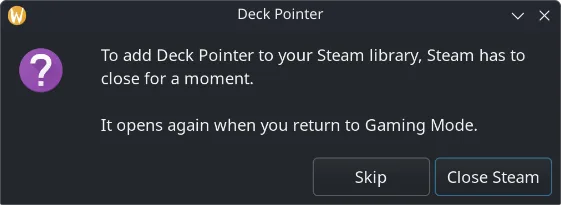
Let it close Steam for a moment
The installer adds Deck Pointer to your Steam library, and Steam has to be closed for that. Click Close Steam. It opens again when you go back to Gaming Mode. No password is asked: Deck Pointer installs into your own folder and runs as you.
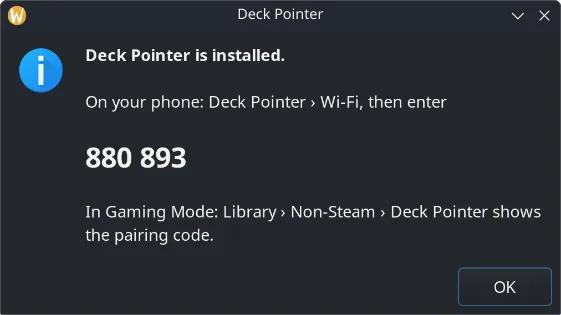
Note the code on the Deck
The last window says Deck Pointer is installed and shows a six-digit code.
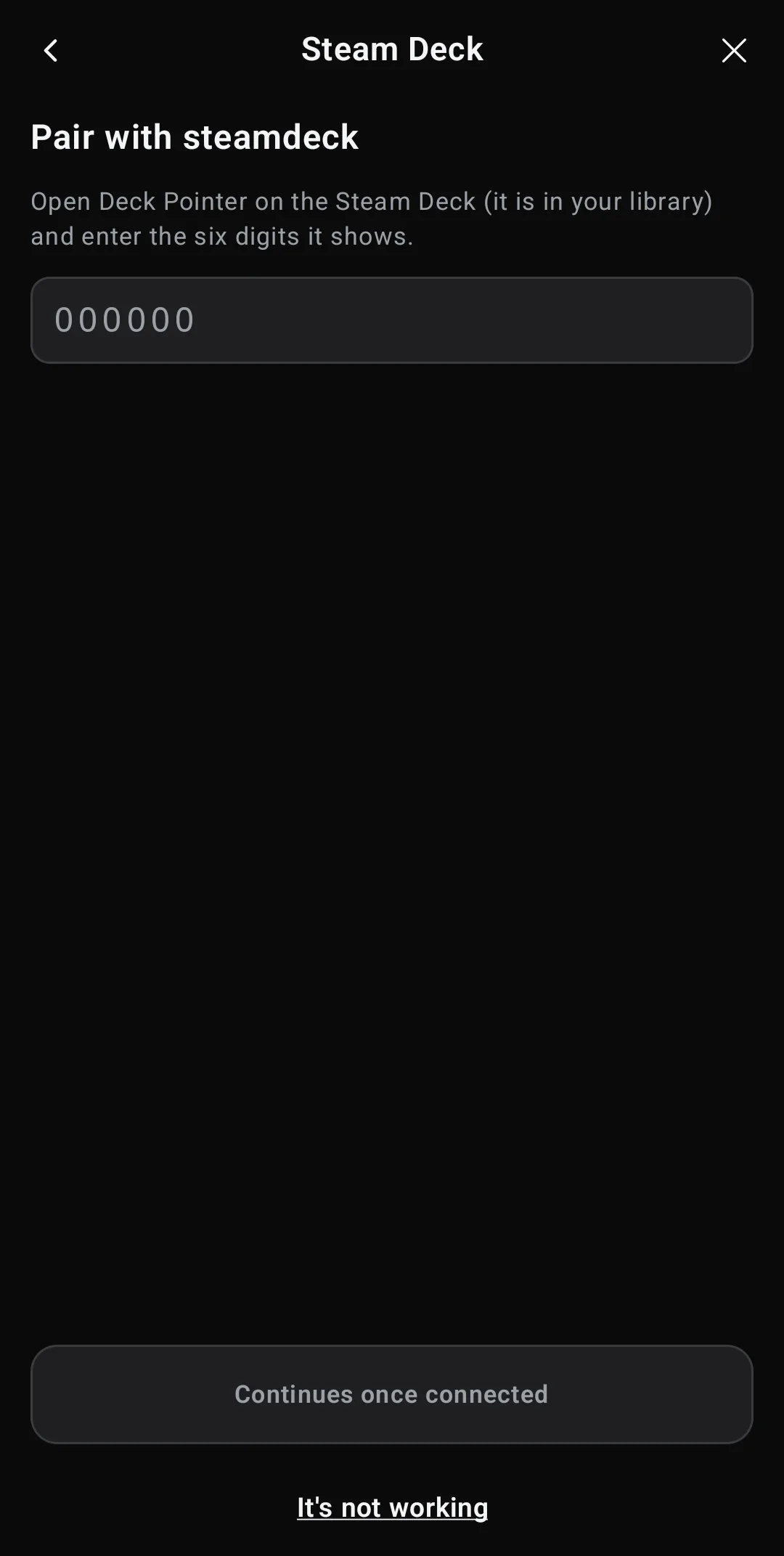
Enter the code on the phone
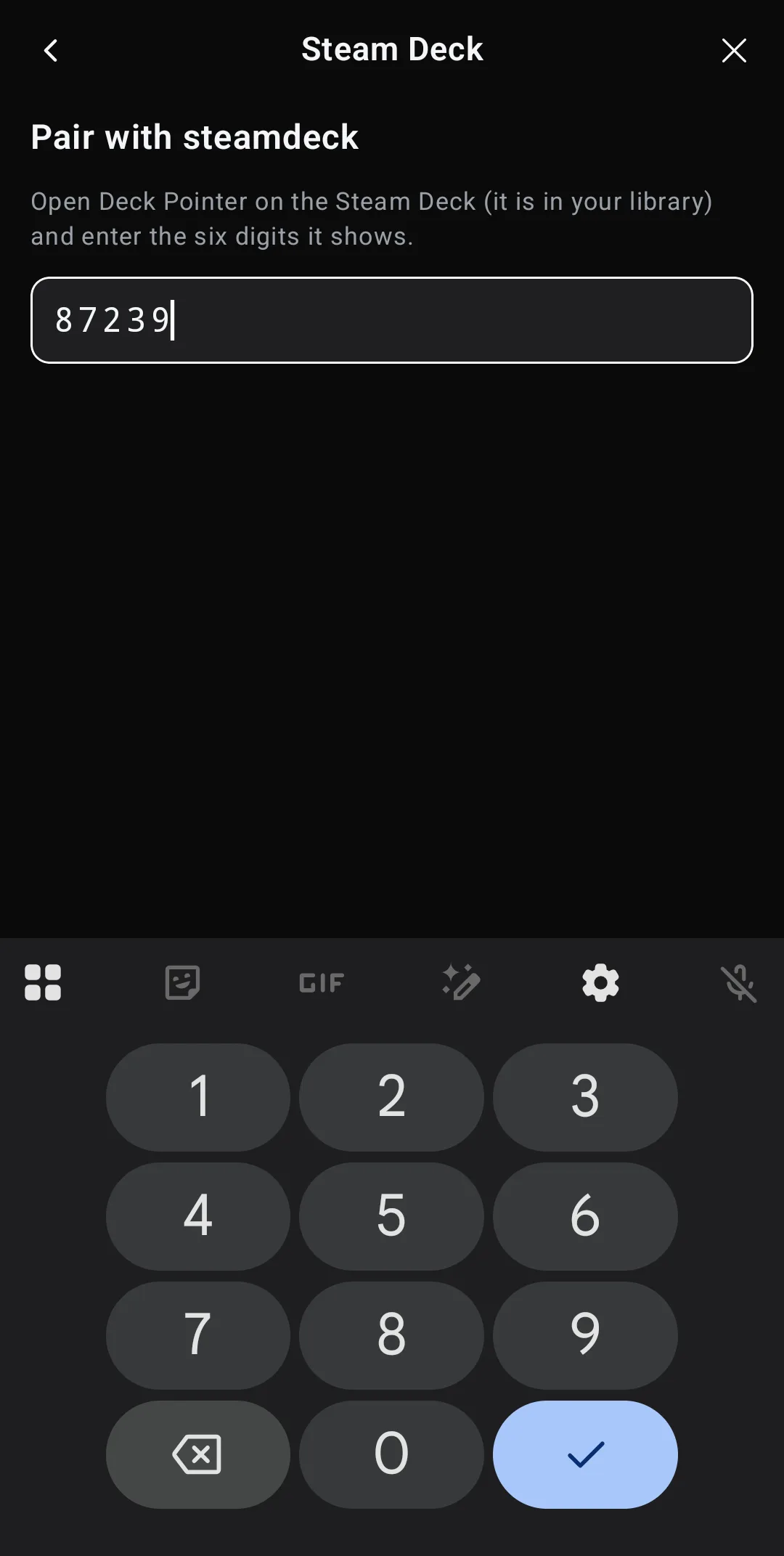
Back on the phone, tap Done, next until the wizard looks for your Deck. It finds the Deck on its own and asks for the code. Type the six digits: it connects as soon as the last one is in. The Deck and the phone have to be on the same Wi-Fi.
You're connected
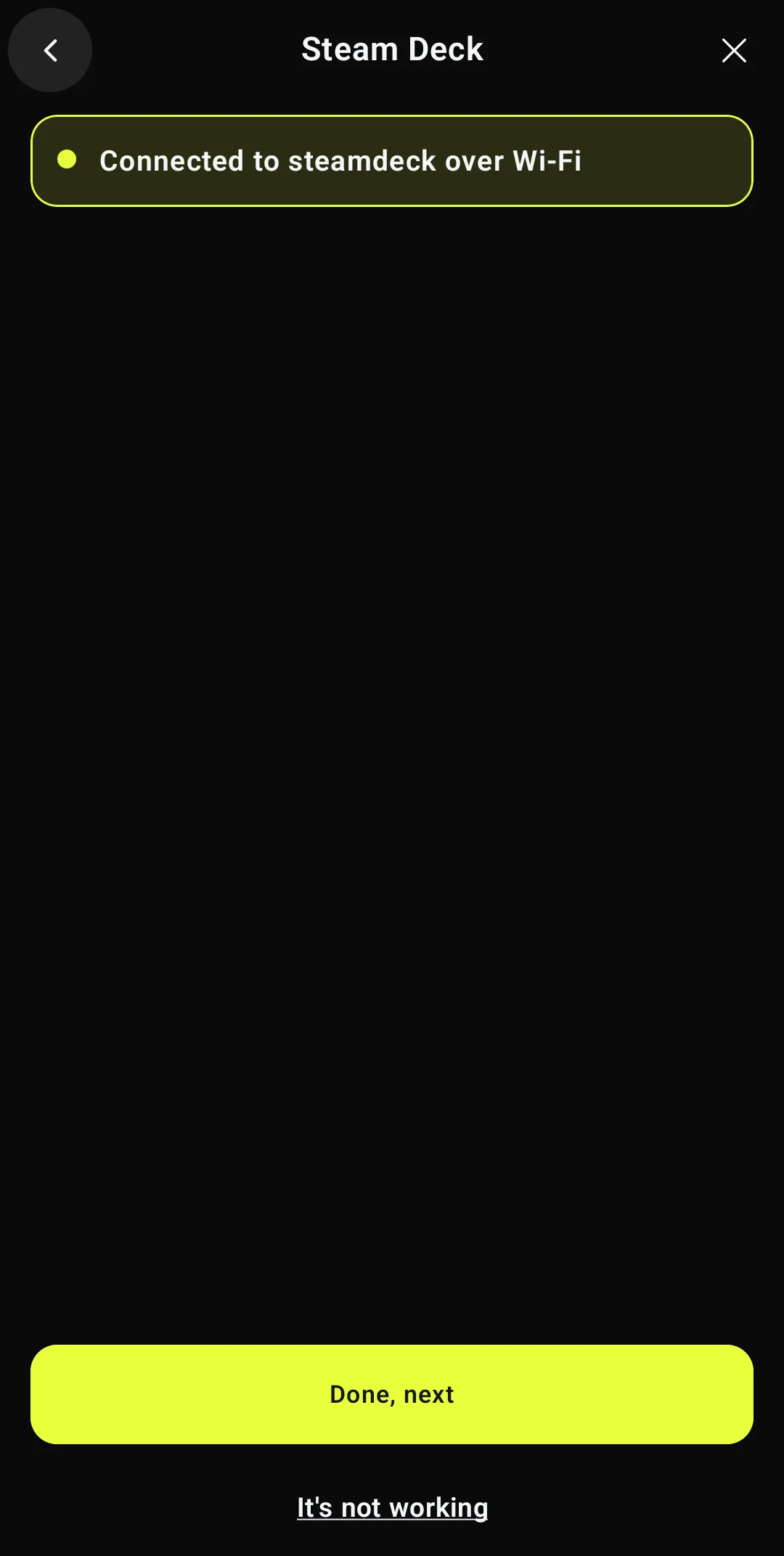
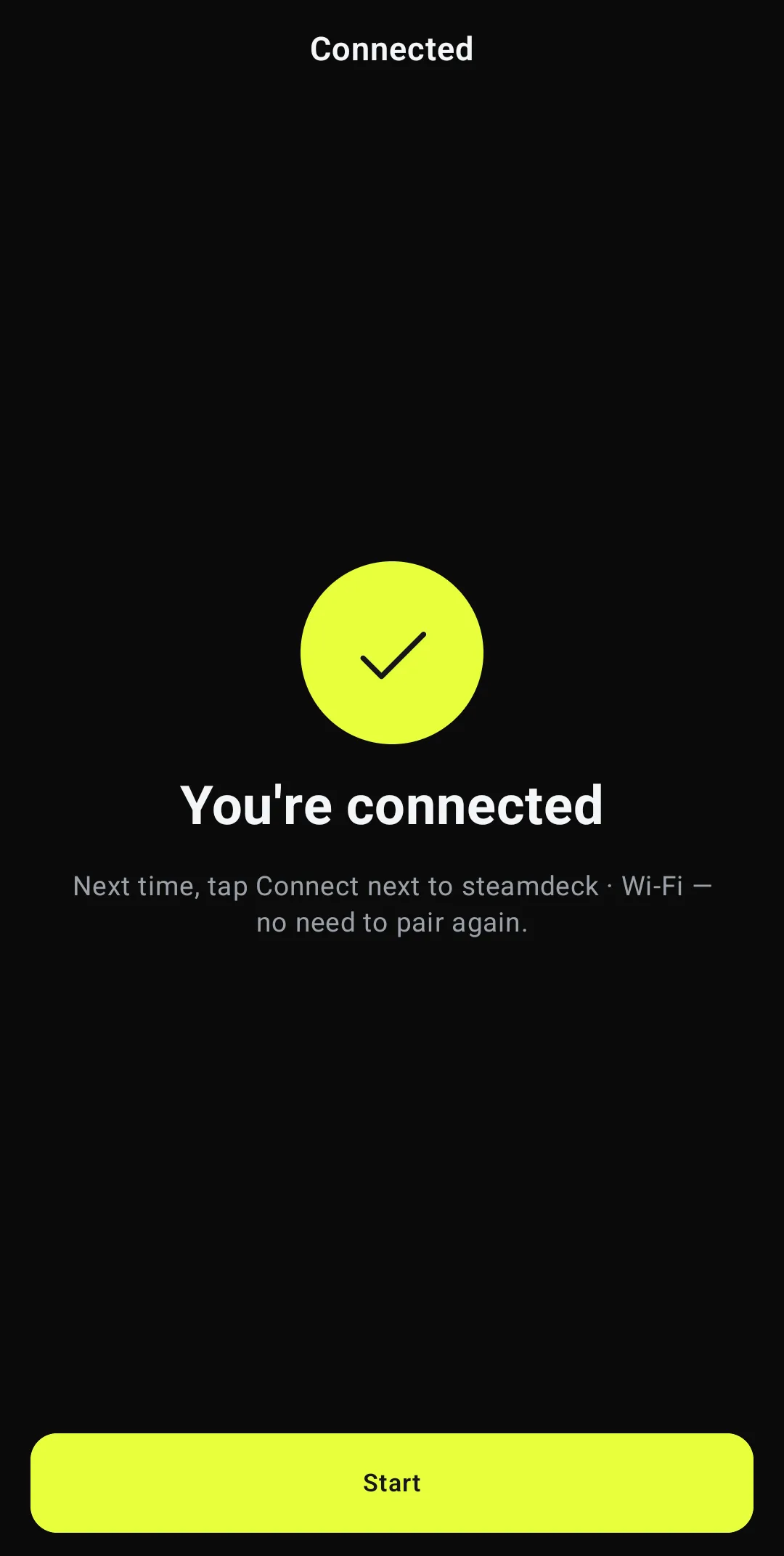
The wizard says Connected to steamdeck over Wi-Fi. Tap Done, next, then Start. Everything works as over Bluetooth: trackpad, keyboard, gamepad, macros.
Next time: one tap
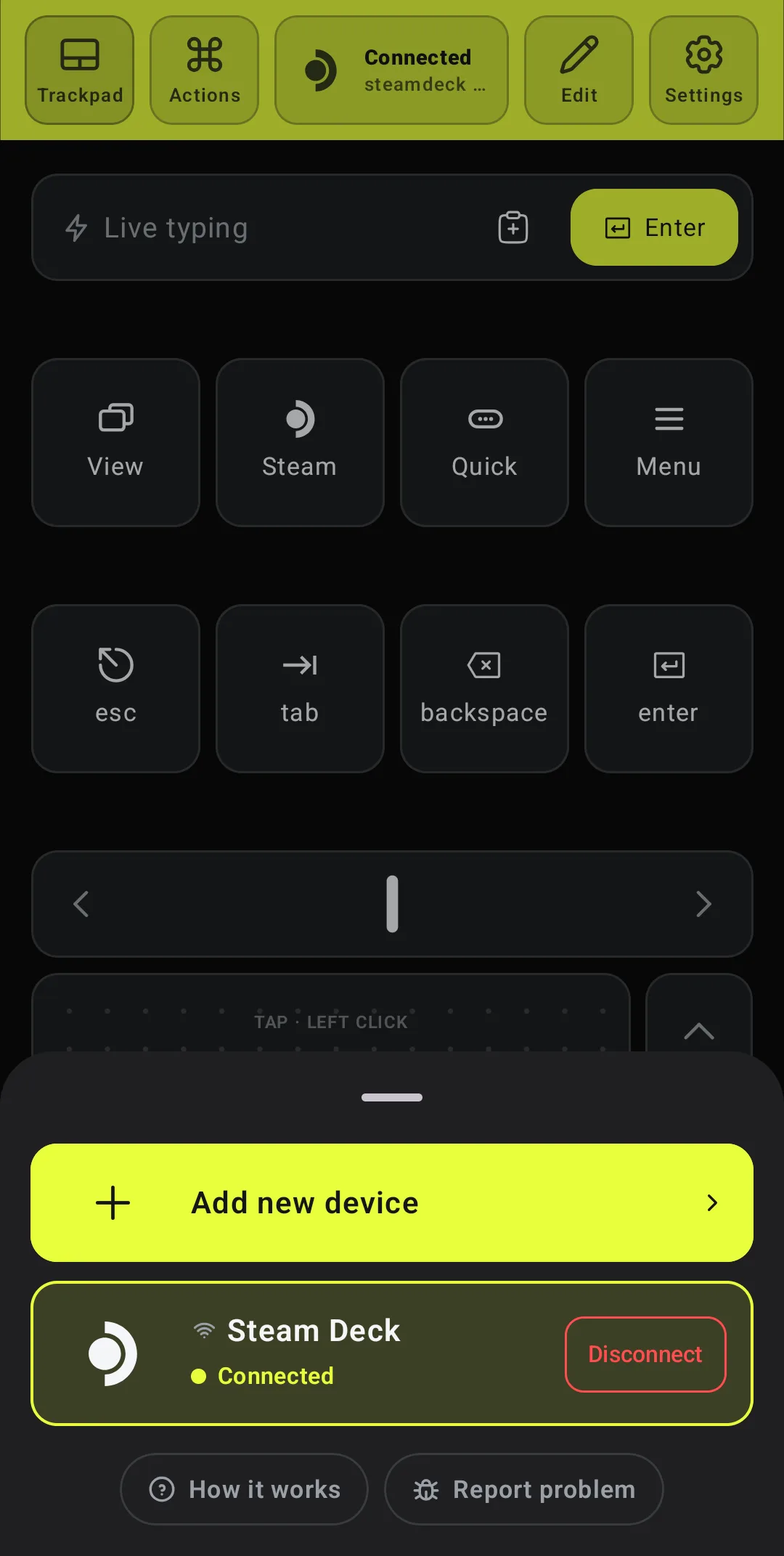
The Deck stays in your device list with a Wi-Fi icon. Open the list from the header and tap Connect. You don't need the code again, and you can stay in Gaming Mode.
The code, later: Deck Pointer in your library
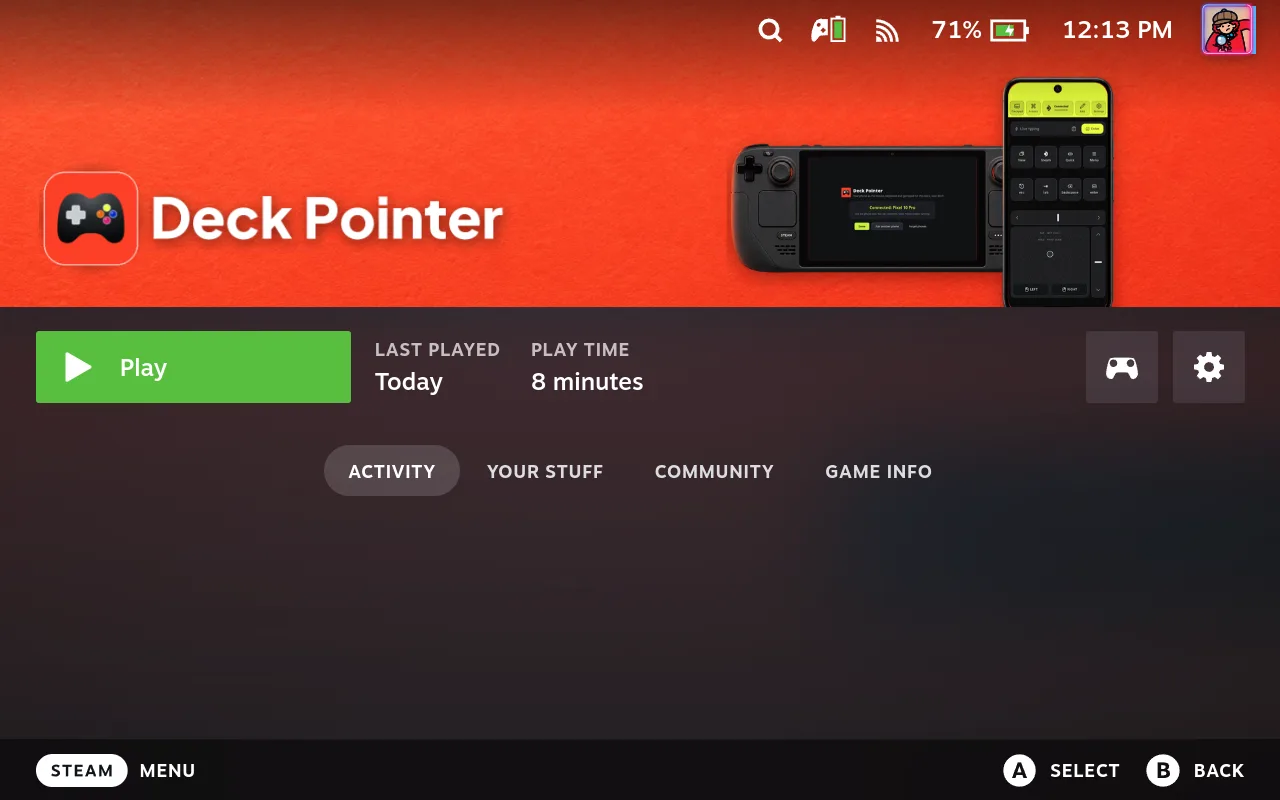
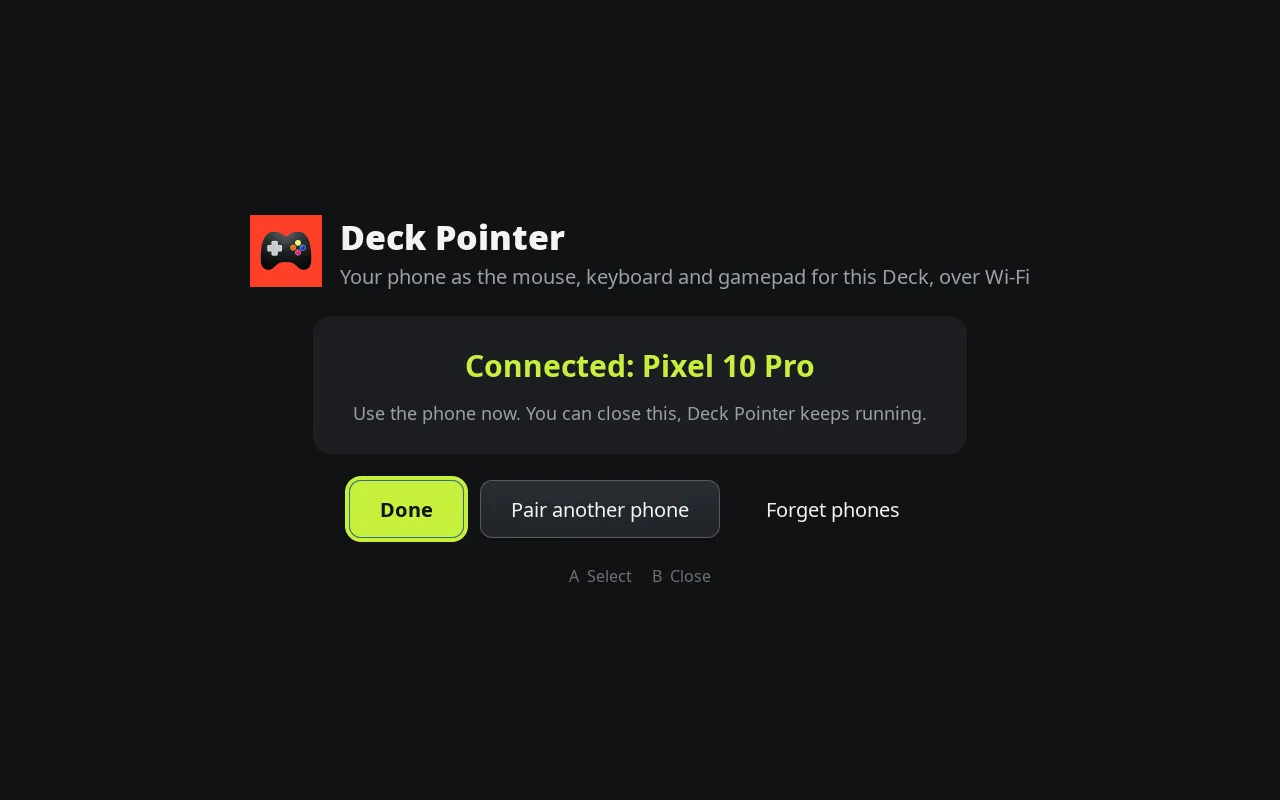
To pair another phone, open Deck Pointer from your Steam library in Gaming Mode (Library → Non-Steam). It shows whether a phone is connected and, with Pair another phone, a new code. Use the D-pad and A to move around it, B to close.
Updates come to the phone
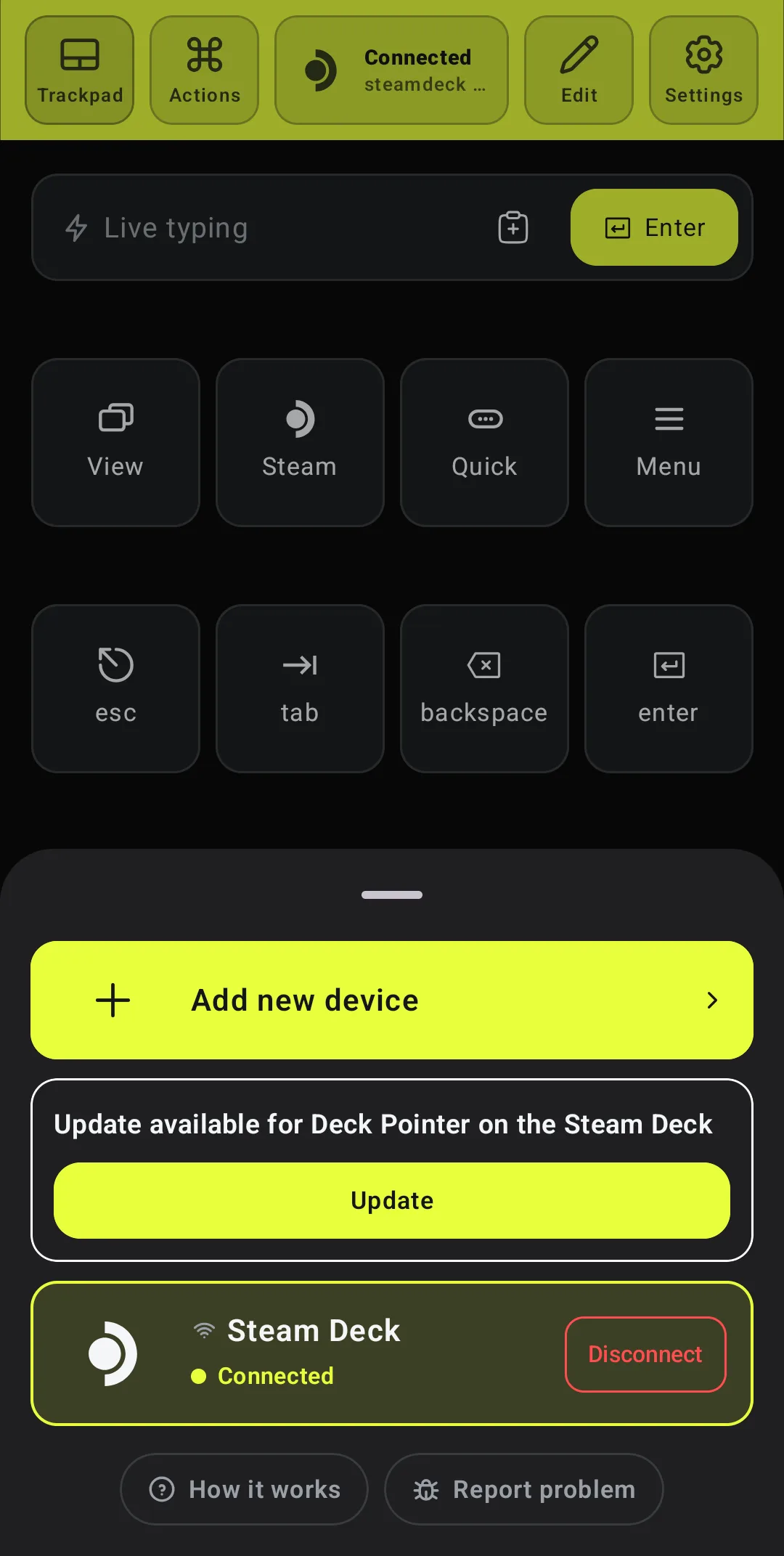
When a new version for the Deck is out, the device list on the phone says so. Tap Update: the Deck downloads it, checks it and restarts Deck Pointer, and the phone reconnects by itself a few seconds later.
What people are saying
A user whose Android phone kept losing its Bluetooth link to the Steam Deck, even after switching SteamOS to Stable and pairing again, asked for another way to connect, such as Wi-Fi.
Questions, answered
Does it work with an iPhone?
Yes. Wi-Fi works in the Deck Pointer beta for iPhone on TestFlight: anyone can join it from the iPhone button on deckpointer.com. The App Store version gets it once Apple approves the update. The steps are the same as on Android. The first time the app looks for the Deck, the iPhone asks to find devices on your local network: tap Allow.
Wi-Fi or Bluetooth: which should I use?
Start with Bluetooth: nothing to install. If it won't pair or keeps dropping, use Wi-Fi. Both give the same controls, and you can switch between them in the device list.
Do the Deck and the phone need to be on the same Wi-Fi?
Yes. The phone finds the Deck on the local network. It also works with the Deck on your phone's own hotspot. Guest and hotel networks often keep devices from seeing each other; there, use Bluetooth.
What does it install on the Deck?
A small background service and the Deck Pointer screen, in your home folder (~/.local/share/deckpointer), plus a Deck Pointer entry in your Steam library. It needs no password and changes no system files, so SteamOS updates leave it alone. It listens only on your local network. The link to the phone is encrypted and paired with the code, so another phone on the same Wi-Fi can't use it.
Does it send anything to the internet?
Your input goes from the phone to the Deck over your Wi-Fi and nowhere else. Once a day the Deck asks deckpointer.com whether there is a newer version, and installs one only when you tap Update.
How do I remove it?
In Desktop Mode, open the app menu and run Uninstall Deck Pointer. It offers to close Steam so the library entry goes too. On the phone, open the device list, tap the Deck and choose Forget.
I use Decky Loader. Is there a plugin?
Yes: deckpointer.com/deck has the Deck Pointer plugin as a ZIP, for Decky → Settings → Developer → Install Plugin from ZIP. It shows the code in Quick Access. Use either the plugin or the install from this guide, not both.
The phone says it can't reach the Deck.
Wake the Deck, check that its Wi-Fi is on and on the same network as the phone, and that Deck Pointer is installed (it is in your library). Then tap Try again.
The phone says the Deck no longer knows it.
Deck Pointer on the Deck was reinstalled or its phones were forgotten. Tap Enter code and type the code shown by Deck Pointer on the Deck.