Steam Deck fixes
Steam Deck keyboard: how to open it and type faster
The Steam Deck has no keys, and the keyboard it draws on screen is moved with the trackpads one letter at a time.
The Steam Deck has no keys. Everything you type goes through the keyboard it draws on screen: in Game Mode you press A on a text field and it slides up, and on the desktop you hold Steam and press X.
That answers the question, and then the real one starts — the thing is slow. Two cursors on the trackpads, one letter per thumb, and a game name takes a quarter of a minute. This guide covers both: how to open the keyboard and drive it properly, and how to stop using it by typing from the phone that is already in your pocket.
Video tutorial
The keyboard in Game Mode
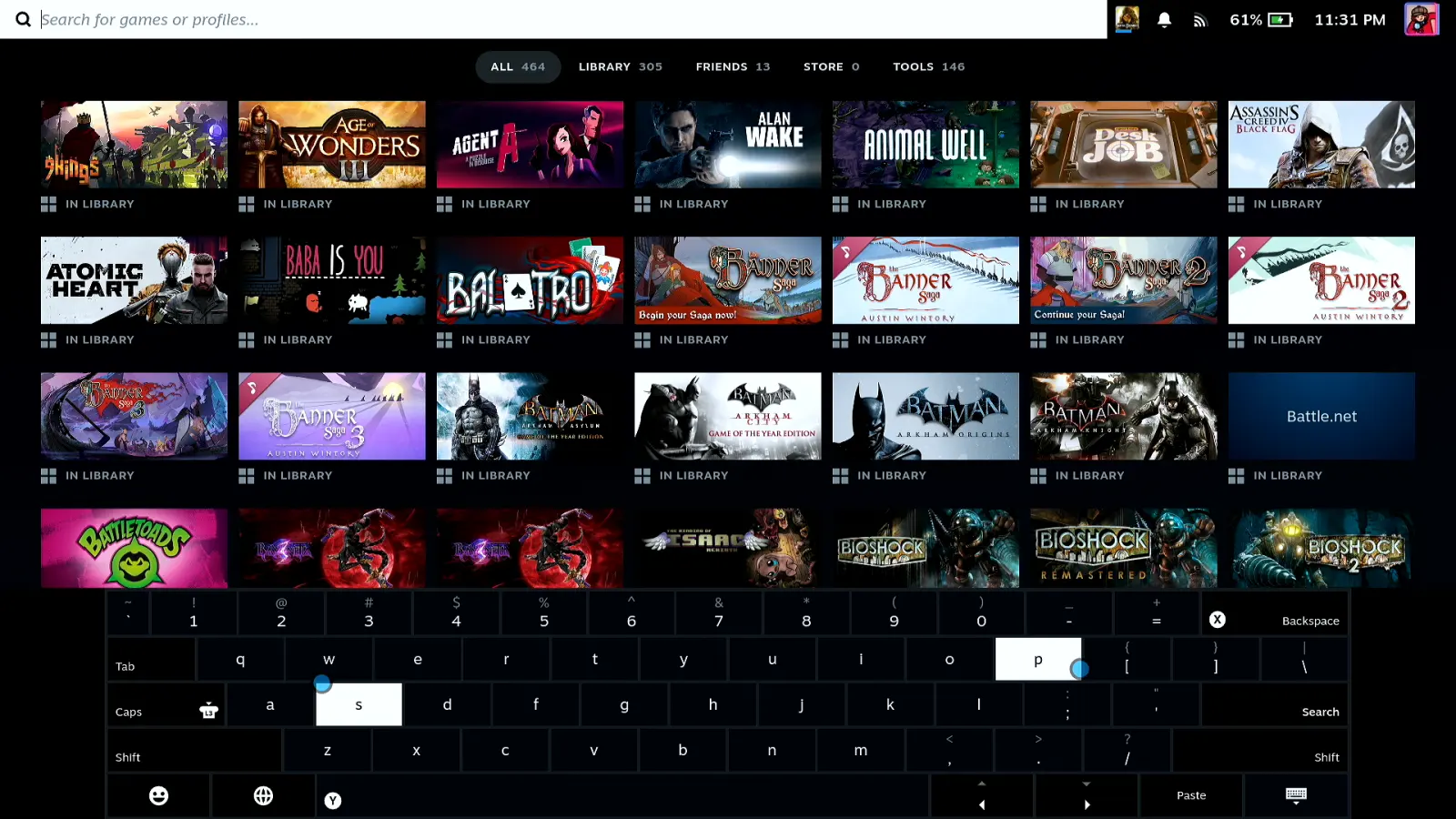
Press A on the text field
Move to a search box or any text field and press A. The keyboard slides up over the bottom half of the screen and the field stays visible above it. This is the one place it appears by itself — you select the field, and it is there.
Type with the trackpads, not the stick
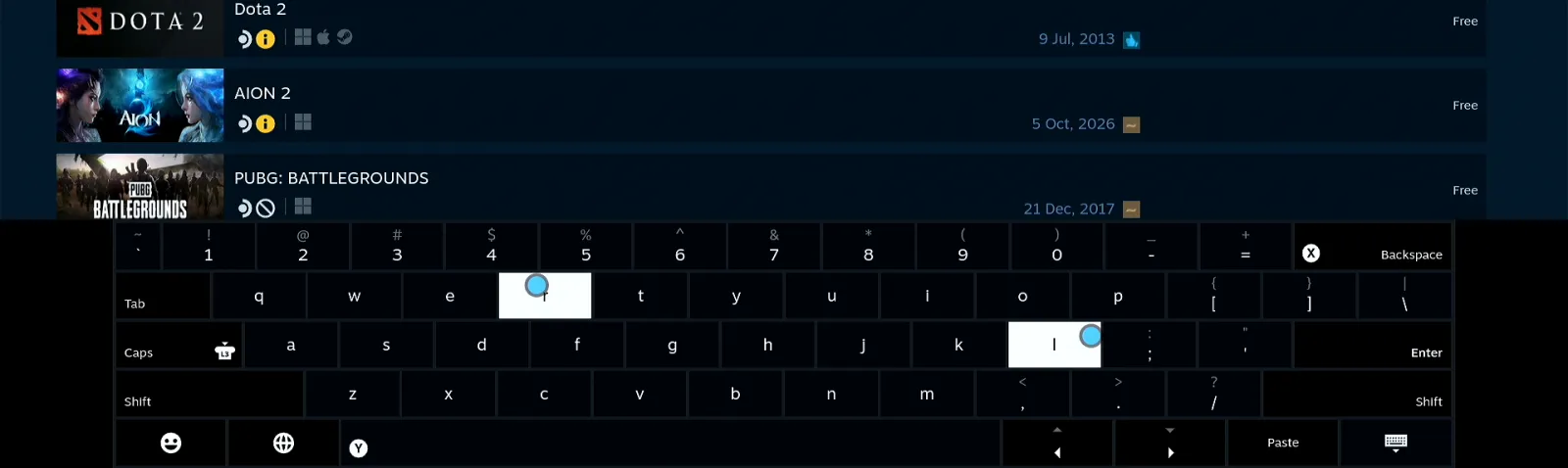
Each trackpad drives its own cursor over the keys, and you press the trackpad down to type the letter under it — two thumbs, two cursors. The shortcuts are printed on the keys themselves: X is Backspace, Y is Space, L2 is Shift, L3 is Caps, and R2 is Enter, which a search box labels Search.
In the Store, reach the field first
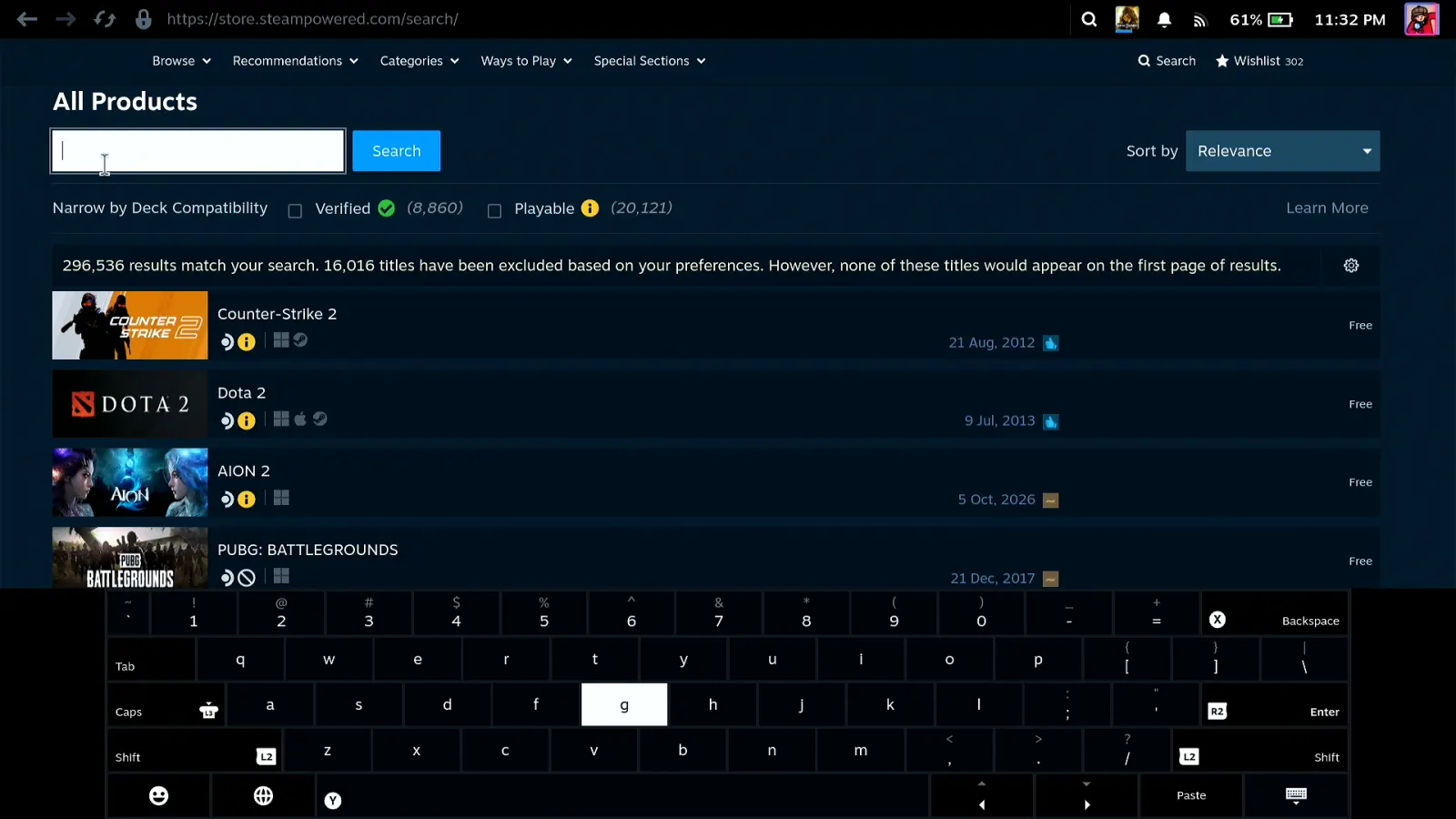
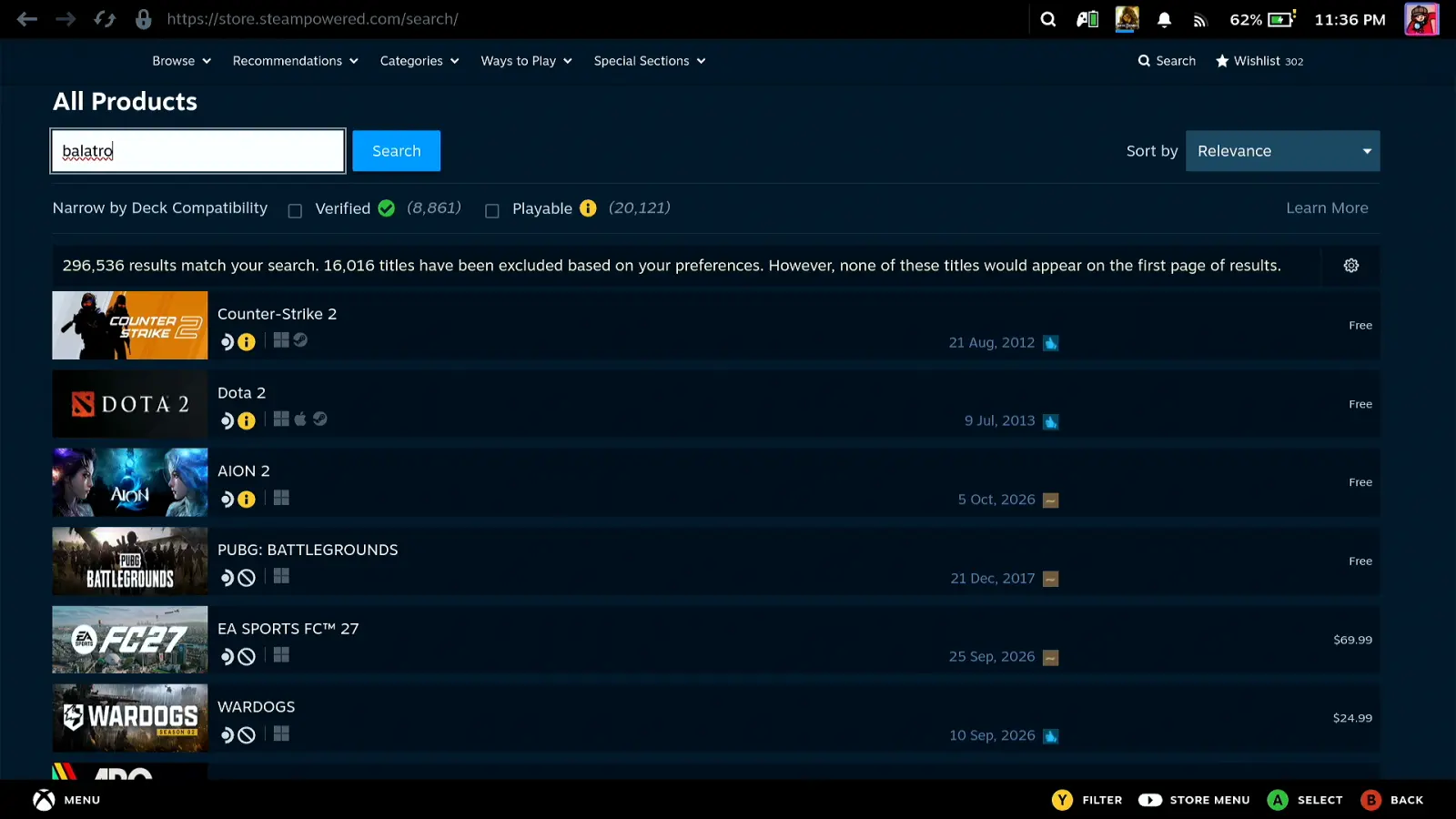
Store pages are web pages, so there is a step before the keyboard: hold Steam and the right trackpad becomes a mouse. Move the pointer onto the search box, press R2 to click it, then press A to bring the keyboard up.
Expect it to be slow, and the stick not to scroll
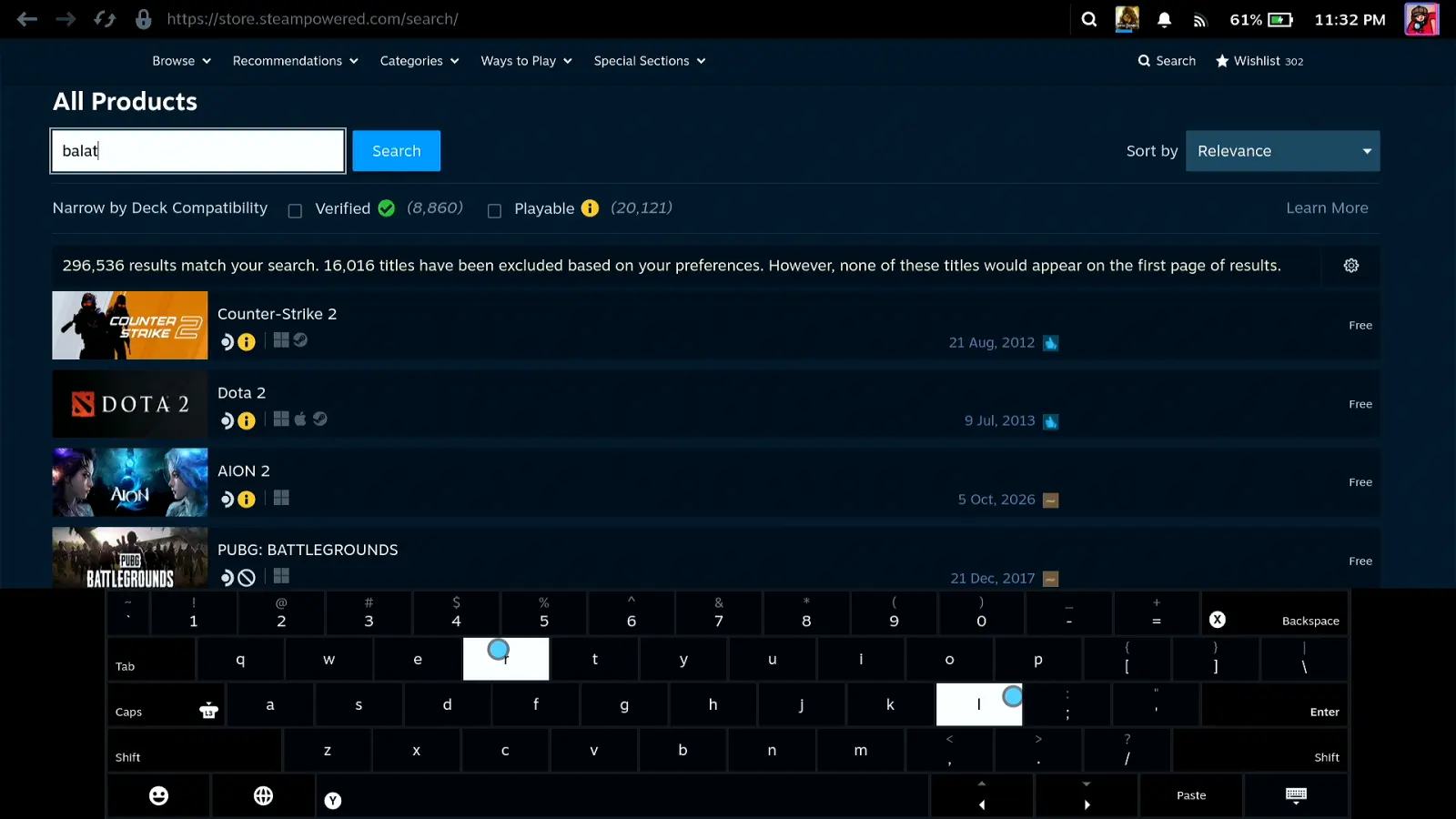
A seven-letter game name takes about fifteen seconds this way — I timed it on camera. Scrolling is the other half: the left stick does not roll the page, it jumps from one element to the next, so a long store page is a series of hops.
The keyboard in Desktop Mode
Click the field, then Steam + X
On the desktop nothing opens the keyboard for you. Click into the field first, then hold Steam and press X, and the same keyboard appears over KDE. Here the right trackpad is the mouse, R2 is left click and L2 is right click, as Valve's desktop FAQ puts it.
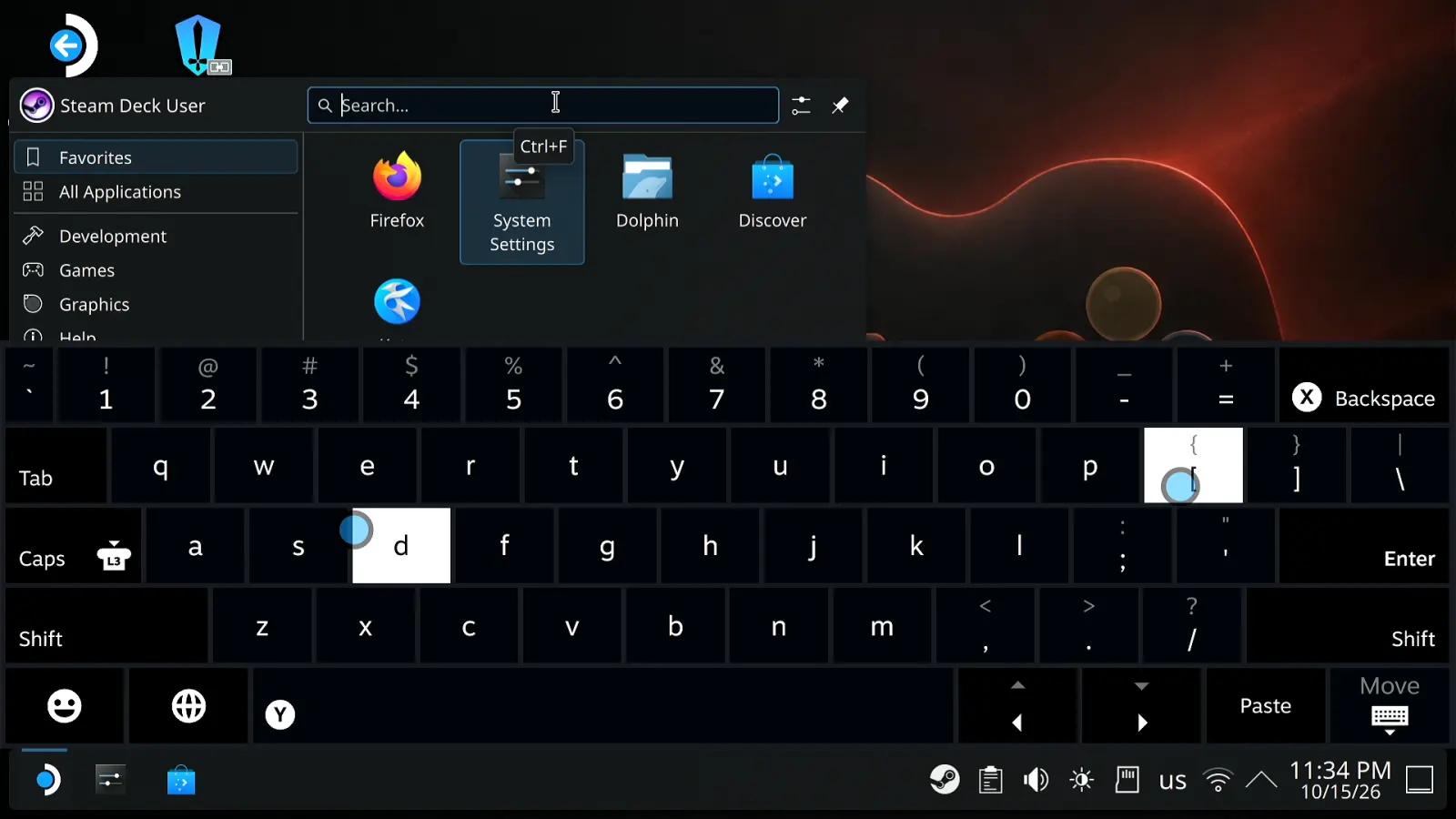
If nothing happens, Steam is closed
The keyboard belongs to Steam, so Steam has to be running for the shortcut to call it. That is the usual reason Steam + X does nothing on the desktop. Holding the Steam button on its own shows the full list of shortcuts your Deck knows.
Typing from your phone
Connect the phone
Your phone already has a keyboard you can touch-type on. Install Deck Pointer, open it, tap Connect next to your Steam Deck, and the Deck shows "Controller Connected" — to SteamOS it is an ordinary Bluetooth keyboard and mouse. Pairing takes about a minute the first time; the setup guide covers it.
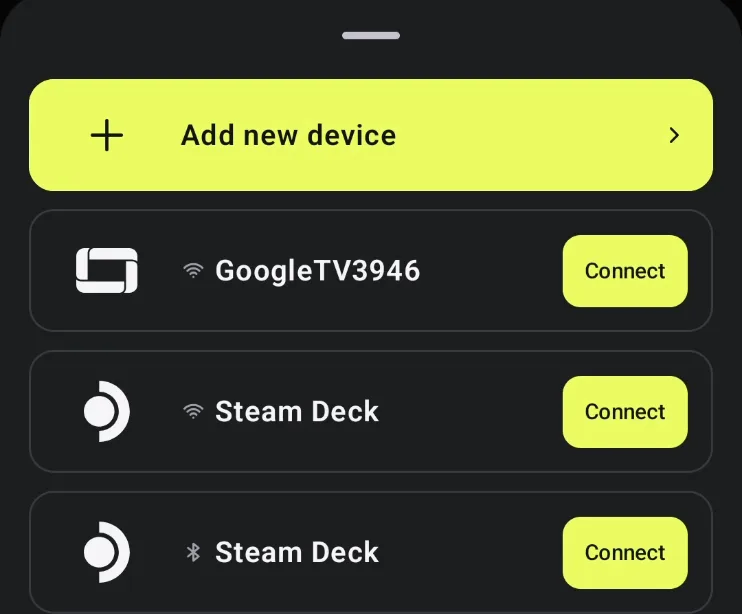
Type on the phone, read it on the Deck
Tap the field on the Deck, type on the phone's own keyboard, and the words arrive as ordinary keystrokes — including what you paste from the phone's clipboard. Nothing goes through a server of ours and nothing is logged. The Deck's own keyboard can stay closed, so the whole page is visible while you type.
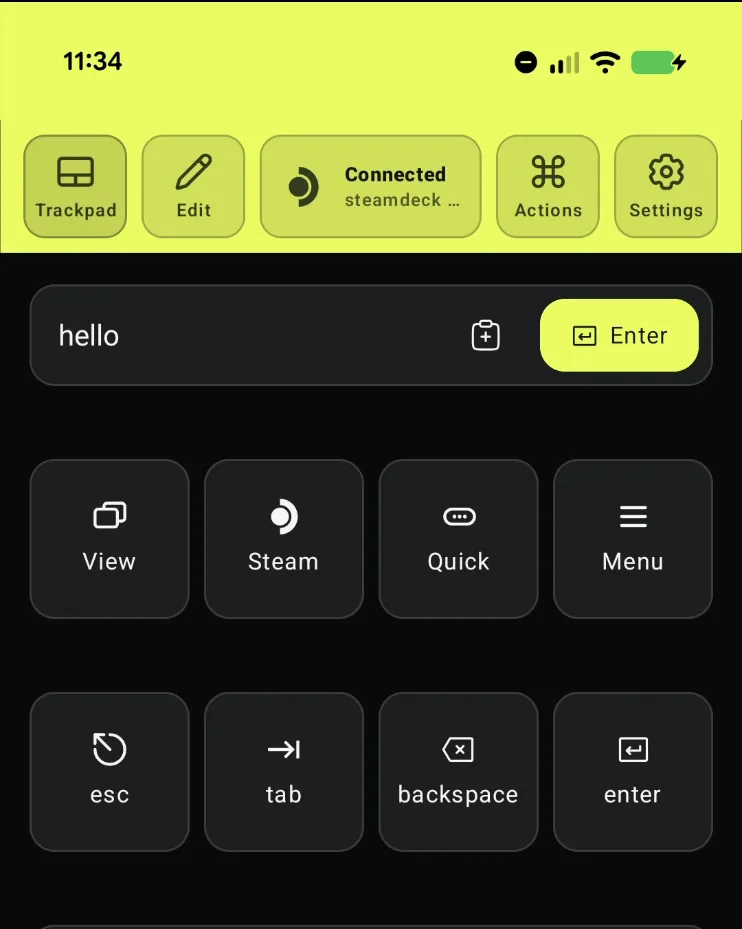
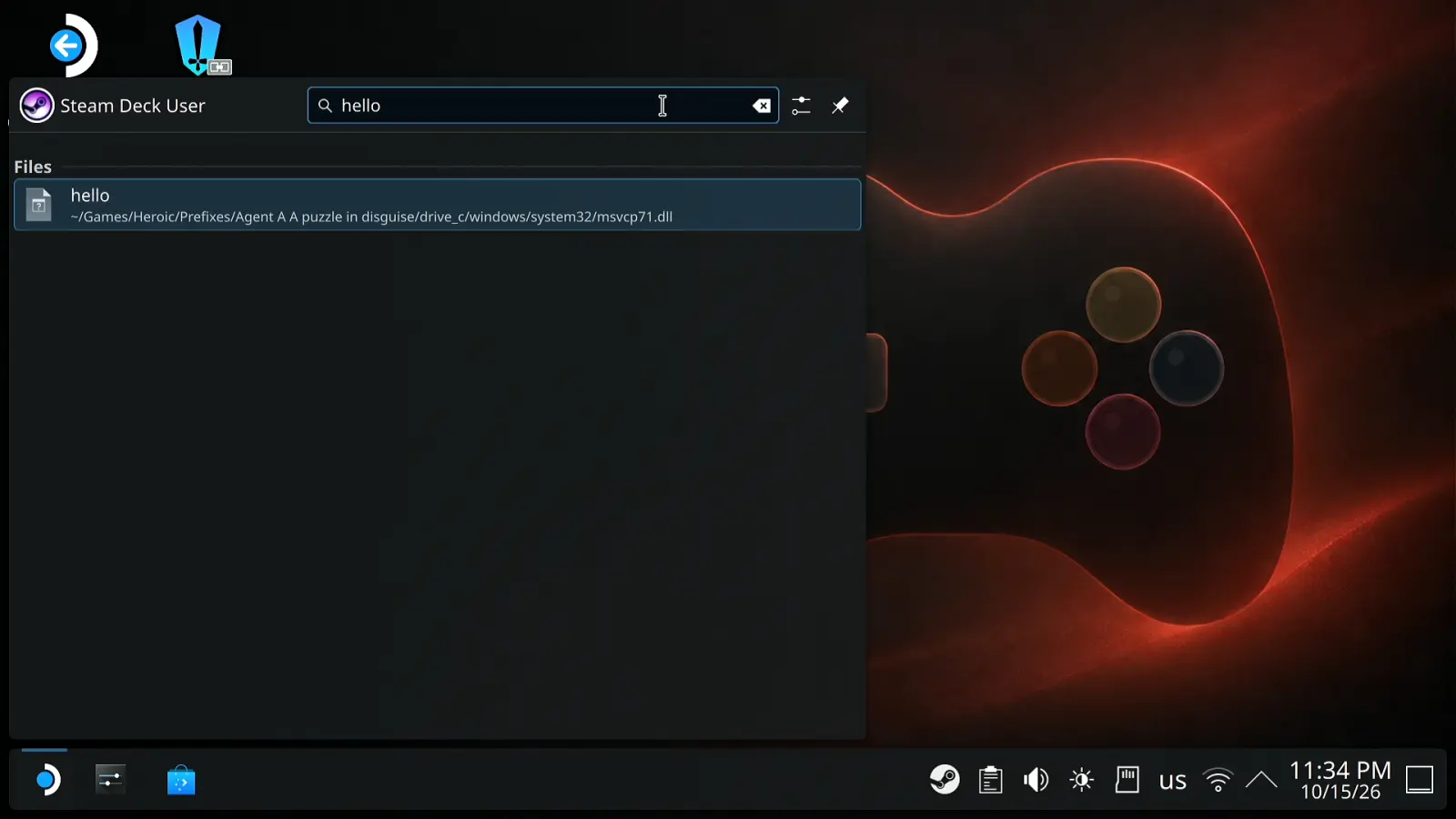
The Deck's own buttons are there too
The Steam Deck layout in the app carries Steam, Quick, the Menu key, esc, tab, backspace and enter, plus a trackpad with left and right click and a scroll rail. So you open the Store, click the search box, type the name, press enter and scroll the page the way you scroll a web page — without touching the Deck.
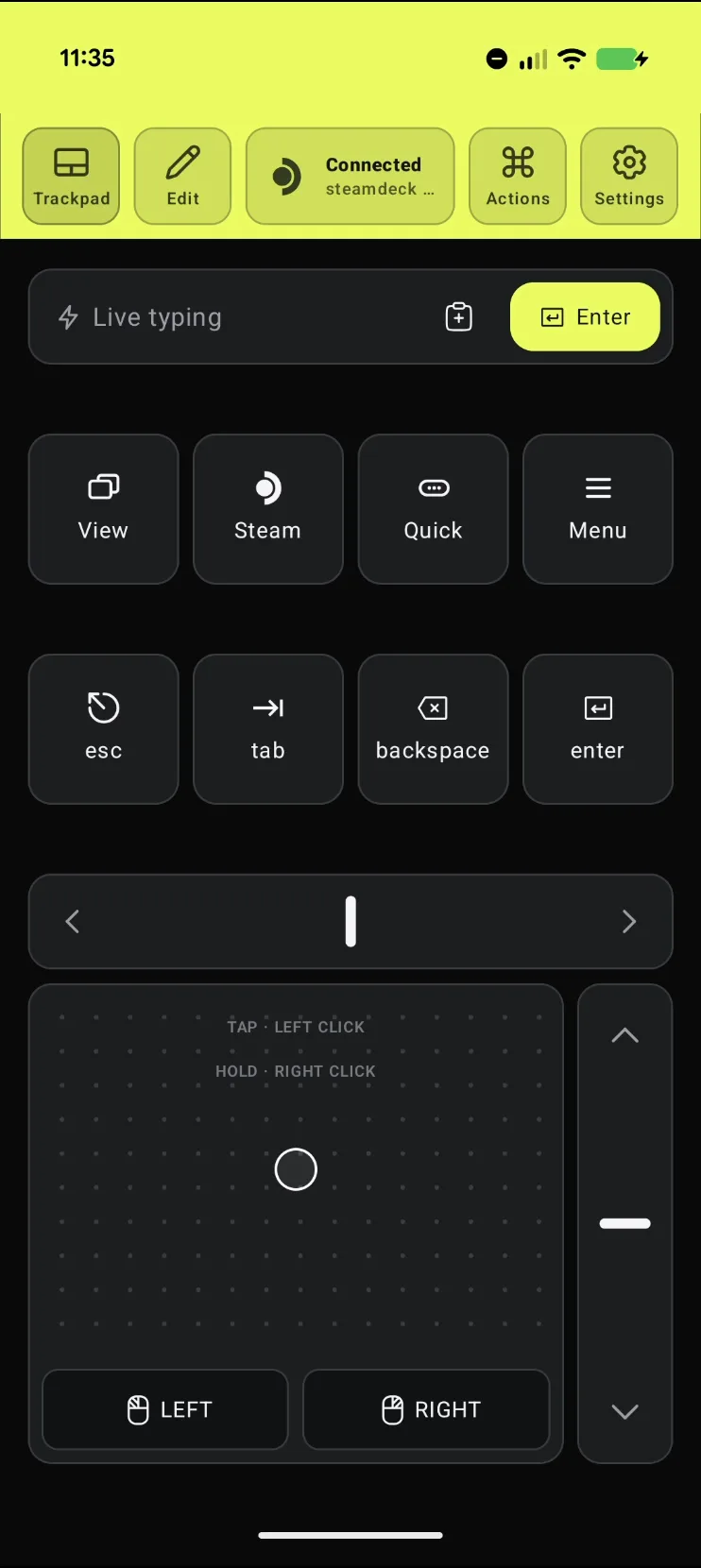
The result: the whole interface from the phone
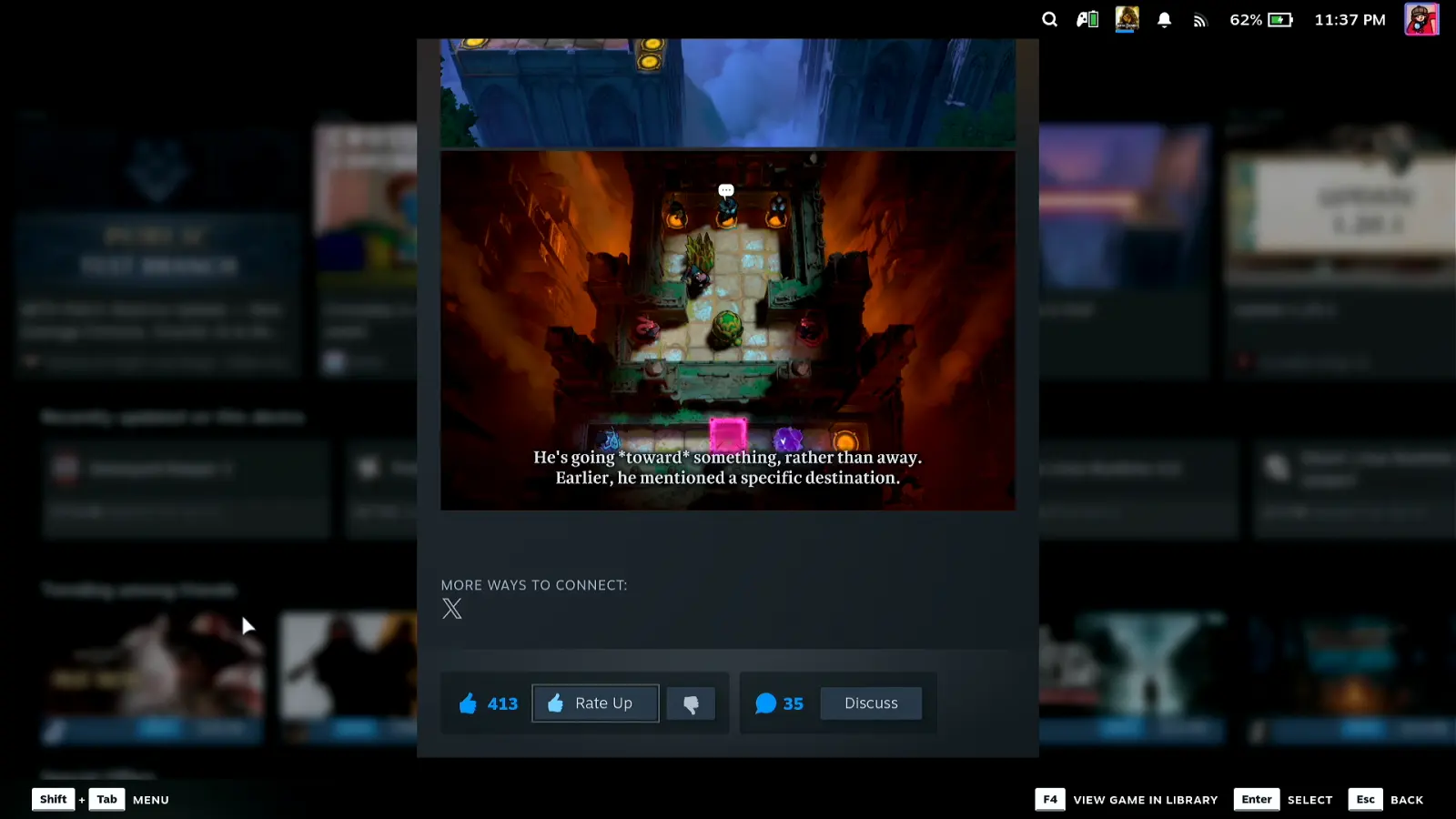
In the video this ends on a game found in the Store, its page scrolled, a news post opened, rated up and closed, all from the phone with the Deck on its stand. That is the test to repeat: if small buttons on a store page are comfortable, typing a Wi-Fi password or a game name is never slow again.
What people are saying
“There are many convenient button shortcuts you can use. For example, you can bring up the on-screen keyboard by pressing Steam + X. Hold down the Steam button to see a list of all available shortcuts.”
“You can use the trackpad as a mouse. Clicking the right trackpad is primary click, clicking left trackpad is secondary click. While Steam is running, if you press STEAM + X, you can bring up an on-screen keyboard.”
“I spent about an hour (because i didn't have internet connection) trying to figure out how to bring up the OSK...”
Jcee, Steam Deck discussions: the on-screen keyboard in Desktop Mode · 2023-09
Questions, answered
How do I bring up the keyboard on a Steam Deck?
In Game Mode, select the text field and press A — the keyboard appears over the bottom half of the screen. On the desktop, click into the field and hold Steam and press X. Valve documents Steam + X as the shortcut for the on-screen keyboard.
Steam + X does nothing. Why?
The keyboard belongs to Steam, so Steam has to be running. In Desktop Mode, if you closed the Steam window the shortcut has nothing to call. Start Steam again and the shortcut works.
What are the keys on the Steam Deck keyboard?
The trackpads move two cursors and pressing a trackpad types the key under it. X is Backspace, Y is Space, L2 is Shift, L3 is Caps and R2 is Enter. Hold the Steam button to see the whole list of system shortcuts.
How do I scroll a page on the Steam Deck without a mouse?
In Game Mode the left stick moves between elements rather than scrolling the page. Holding Steam turns the right trackpad into a mouse, and a connected phone gives you a scroll rail that behaves like a mouse wheel.
Can I use a Bluetooth keyboard with the Steam Deck?
Yes — Settings, Bluetooth, and pair it like any other device. A phone running Deck Pointer connects the same way and you always have it with you.
Does the text I type on the phone go anywhere else?
No. It travels from the phone to the Deck as ordinary keystrokes over the direct link between them. It does not pass through any server of ours and we do not log it.