Steam Deck fixes
How to connect your Android phone to a Steam Deck and use it as a mouse and keyboard
You want to control your Steam Deck from your phone, but you've never paired the two devices and aren't sure where Bluetooth pairing lives on either side.
Pair it once and your Android phone works as a mouse, keyboard and gamepad for the Steam Deck. Deck Pointer’s wizard walks you through the pairing — here is every screen of it, with the Deck screen that answers each step.
Two things catch people out. The Deck lists your phone under its own Bluetooth name, never as “Deck Pointer”, and the pairing code has to be confirmed on both screens within about 20 seconds. Right after pairing, Android also turns the Deck into a Bluetooth speaker for the phone’s audio; the app warns you and shows the one switch that turns it off.
Video tutorial
Step by step
Open Deck Pointer and pick Steam Deck
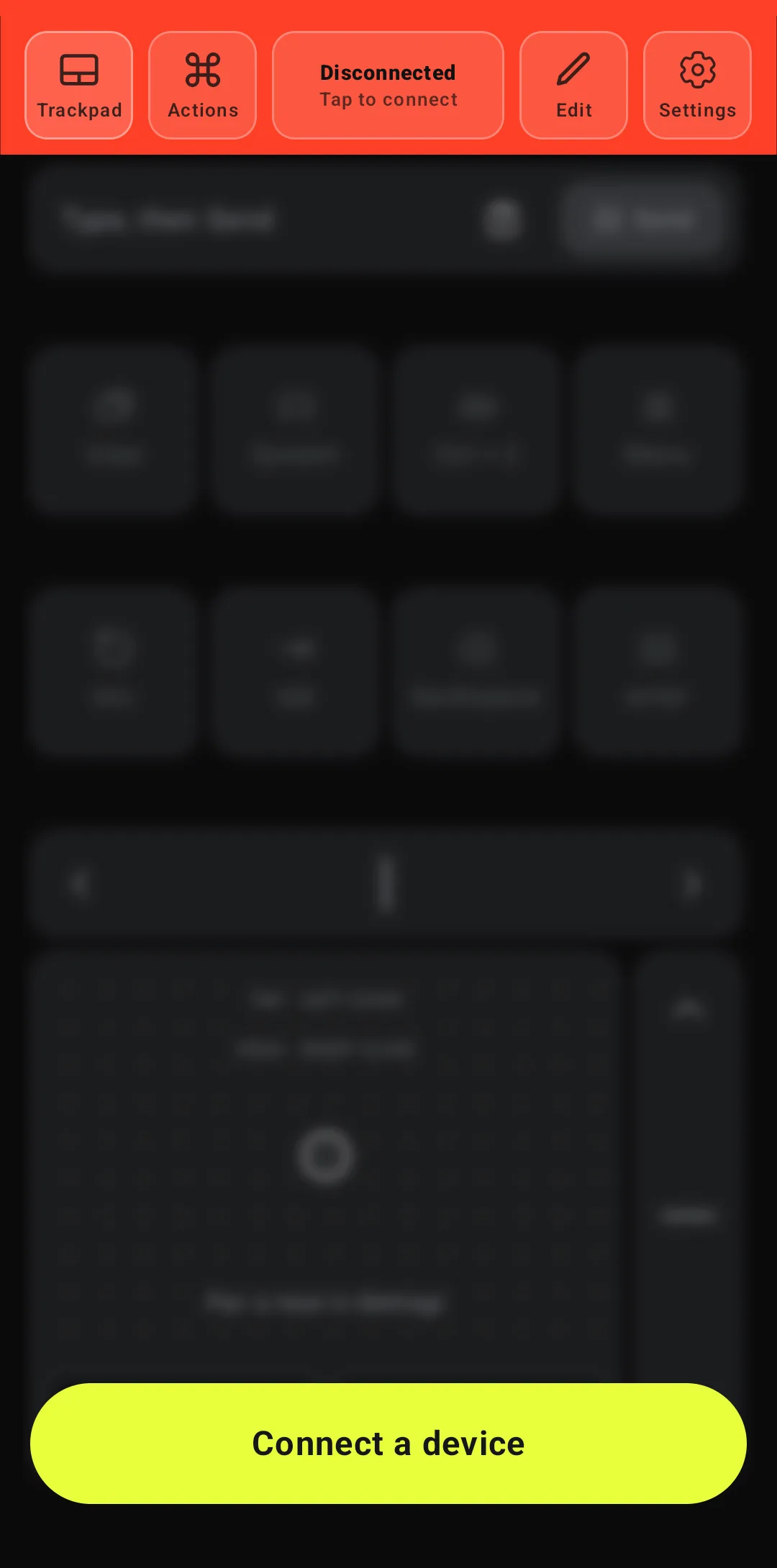
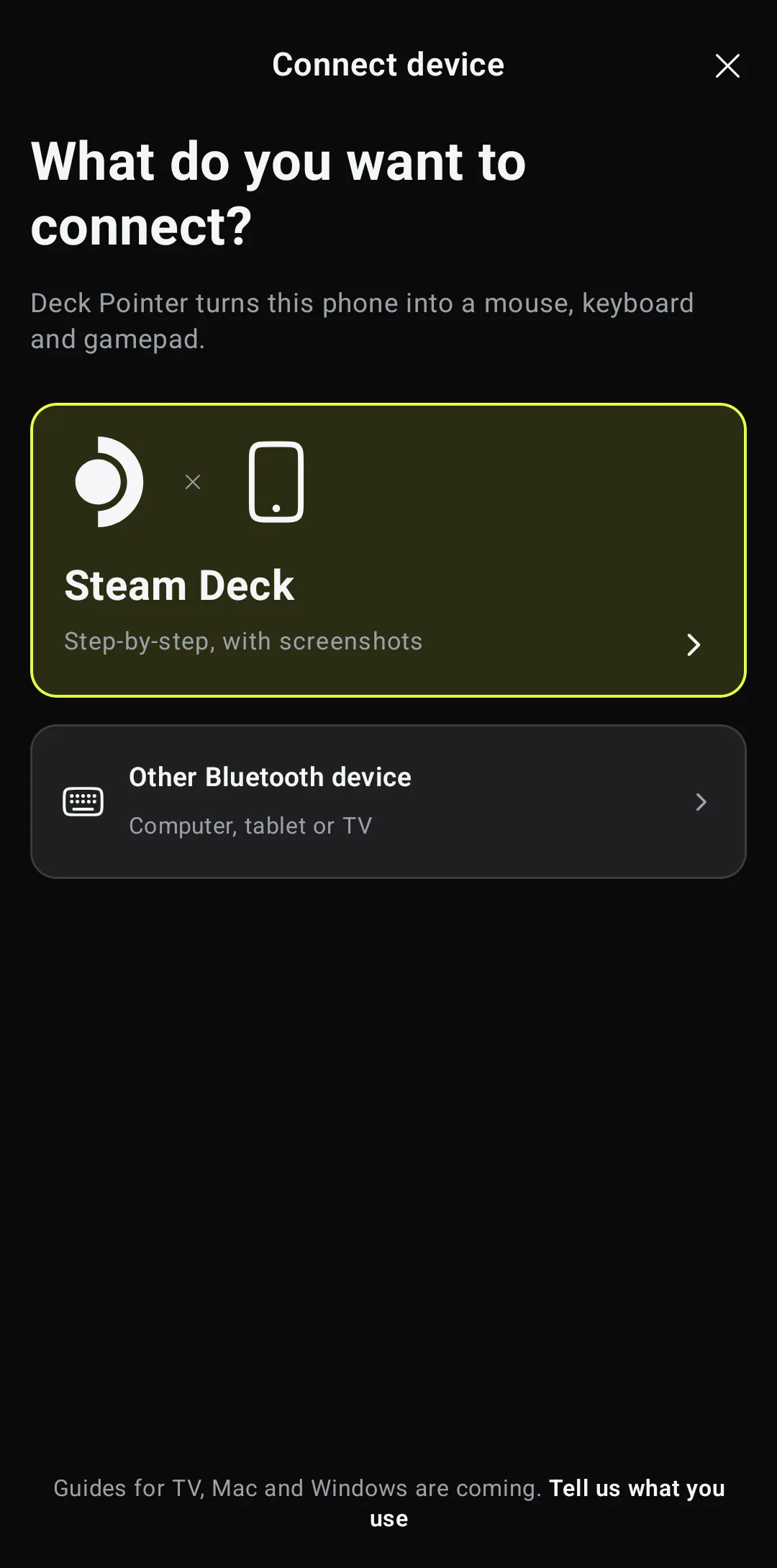
Until a device is connected, the app blurs its controls behind a Connect a device button. Tap it and choose Steam Deck — that is the step-by-step guide with screenshots; Other Bluetooth device is the short generic version for a computer, tablet or TV.
Say whether these two were paired before
Tap "Yes, this is the first time" and the wizard goes straight to pairing. If this Deck and this phone were connected at some point, pick the other answer: the wizard first walks you through removing the old pairing on both devices — the same screens as the last step of this guide.

Tell it which mode the Deck is in
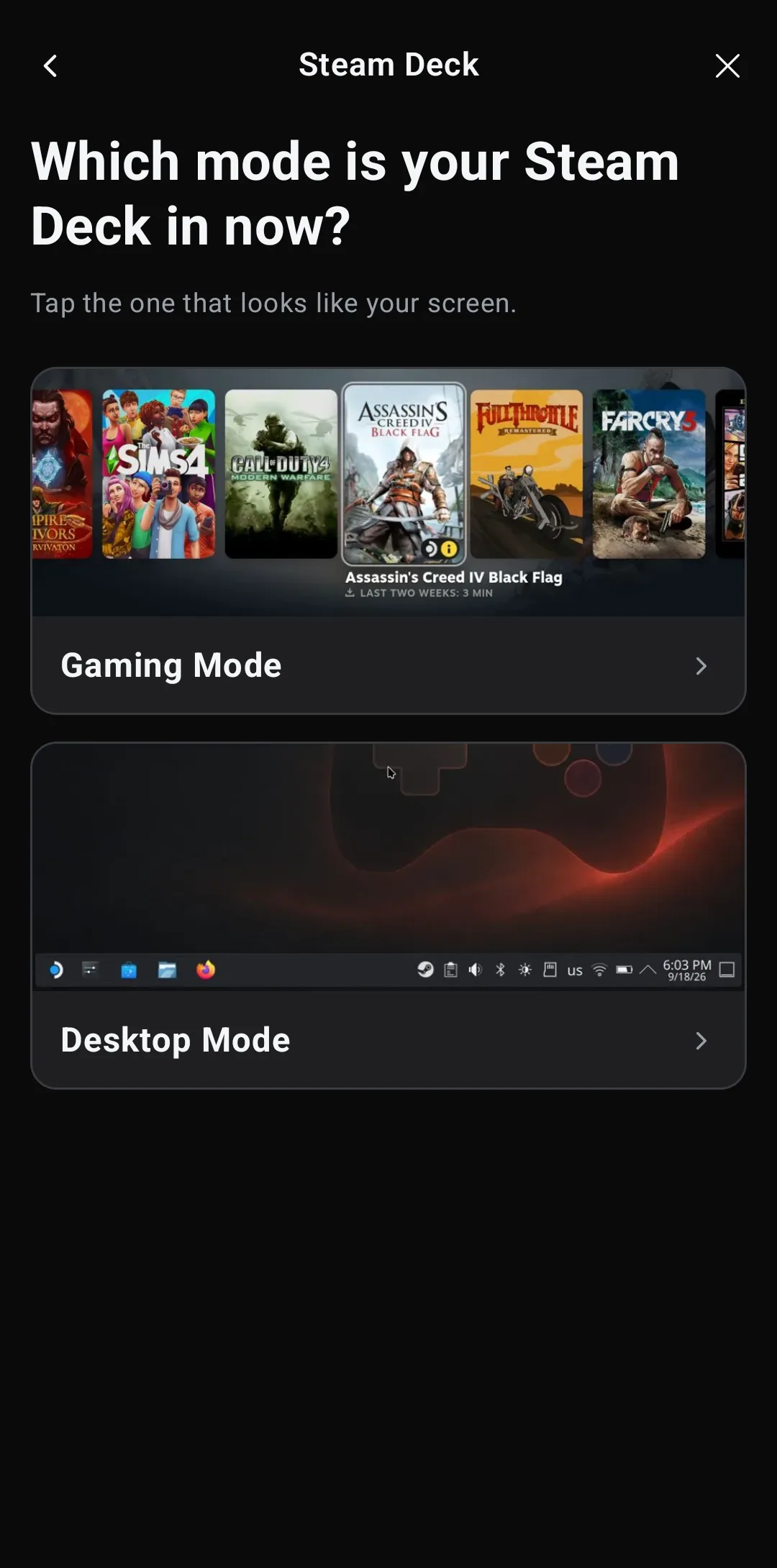
Gaming Mode is the Steam interface the Deck boots into; Desktop Mode is the KDE desktop. The two look nothing alike, and every screenshot the wizard shows from here on matches the one you pick.
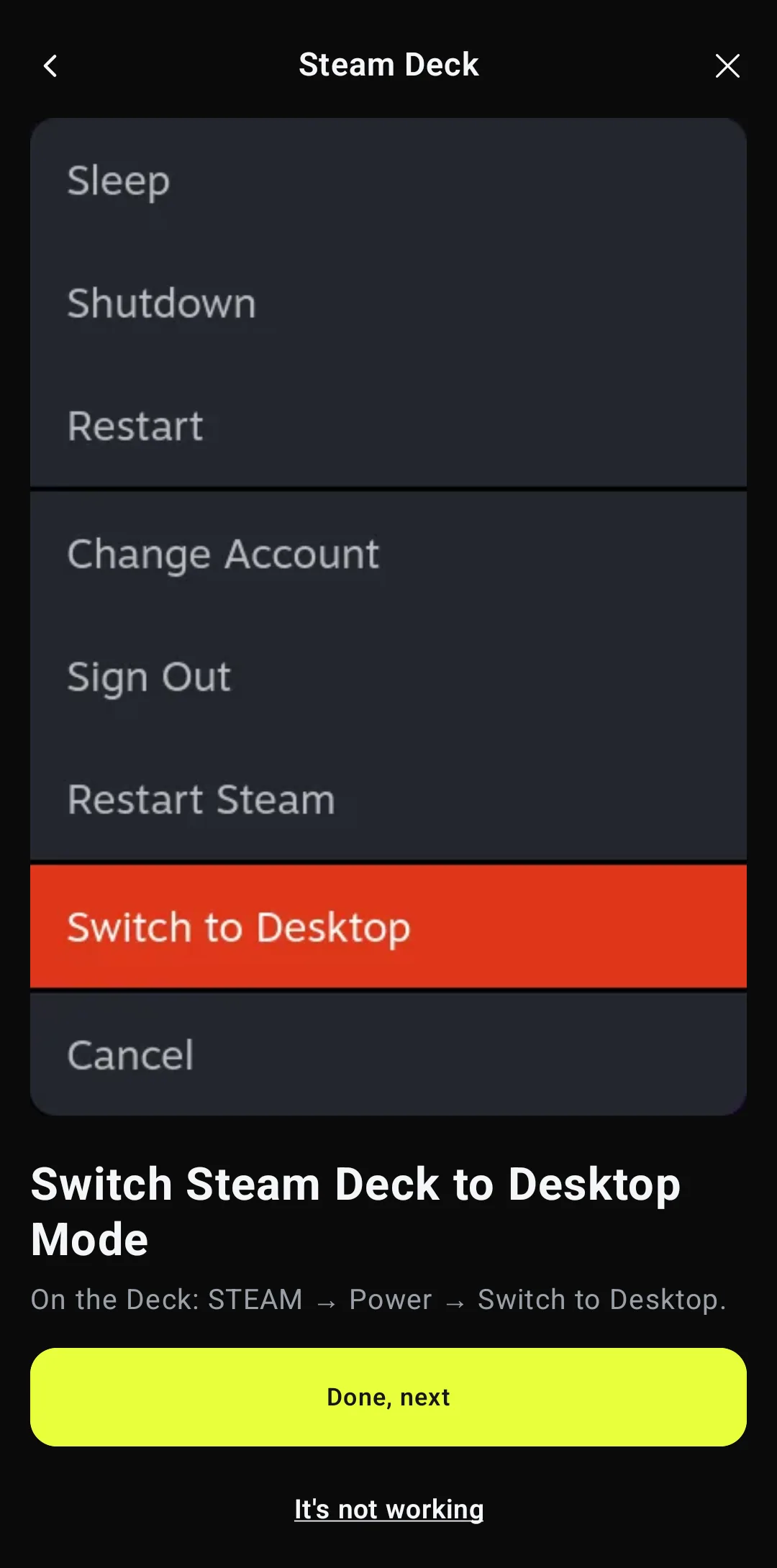
In Gaming Mode: switch the Deck to Desktop Mode
On the Deck: STEAM → Power → Switch to Desktop. The first pairing needs Desktop Mode, only this once — Gaming Mode's Bluetooth screen doesn't show the pairing code your phone asks you to confirm. If the Deck is already on the desktop, the wizard skips this step.
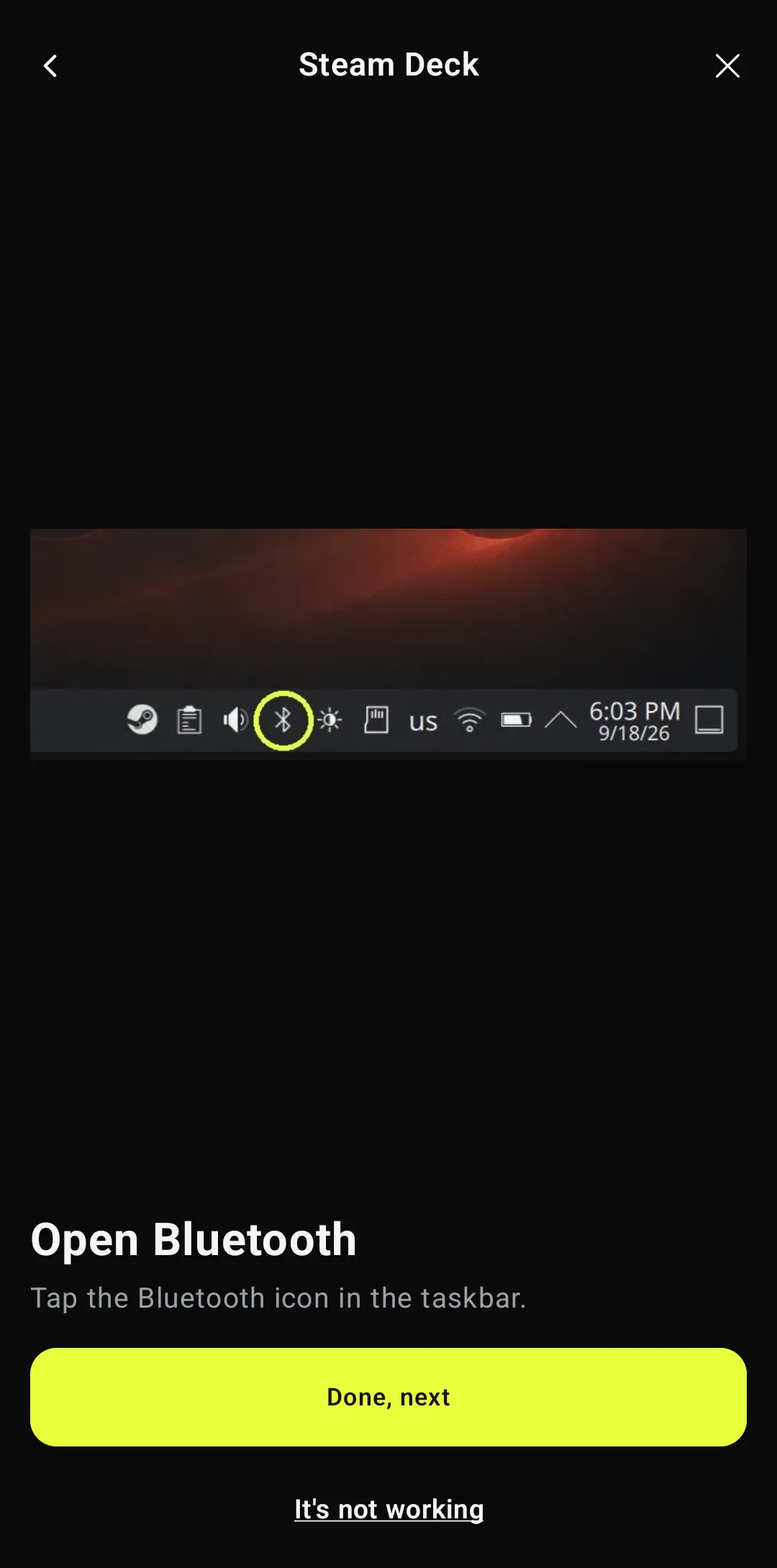
Open Bluetooth on the Deck
Click the Bluetooth icon in the desktop taskbar, at the bottom right, to open the Bluetooth panel. Then tap Done, next in the app.
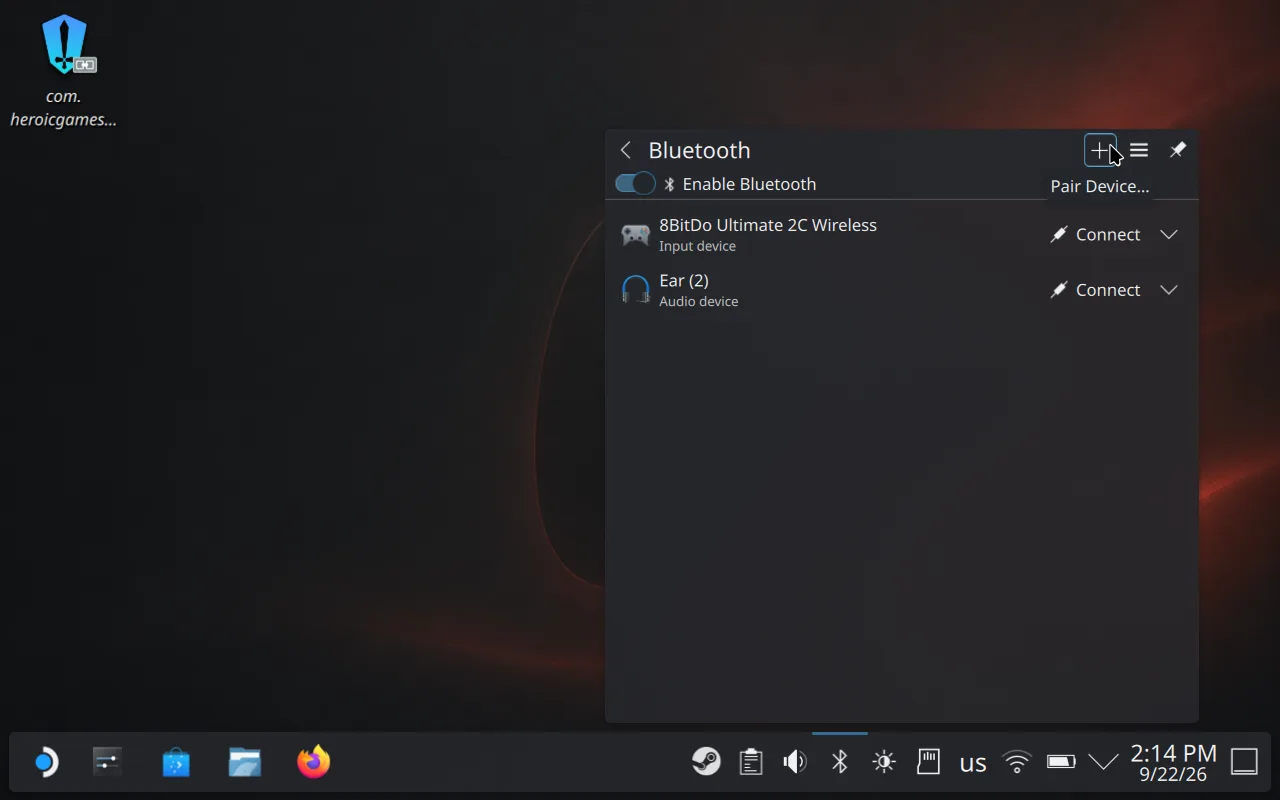
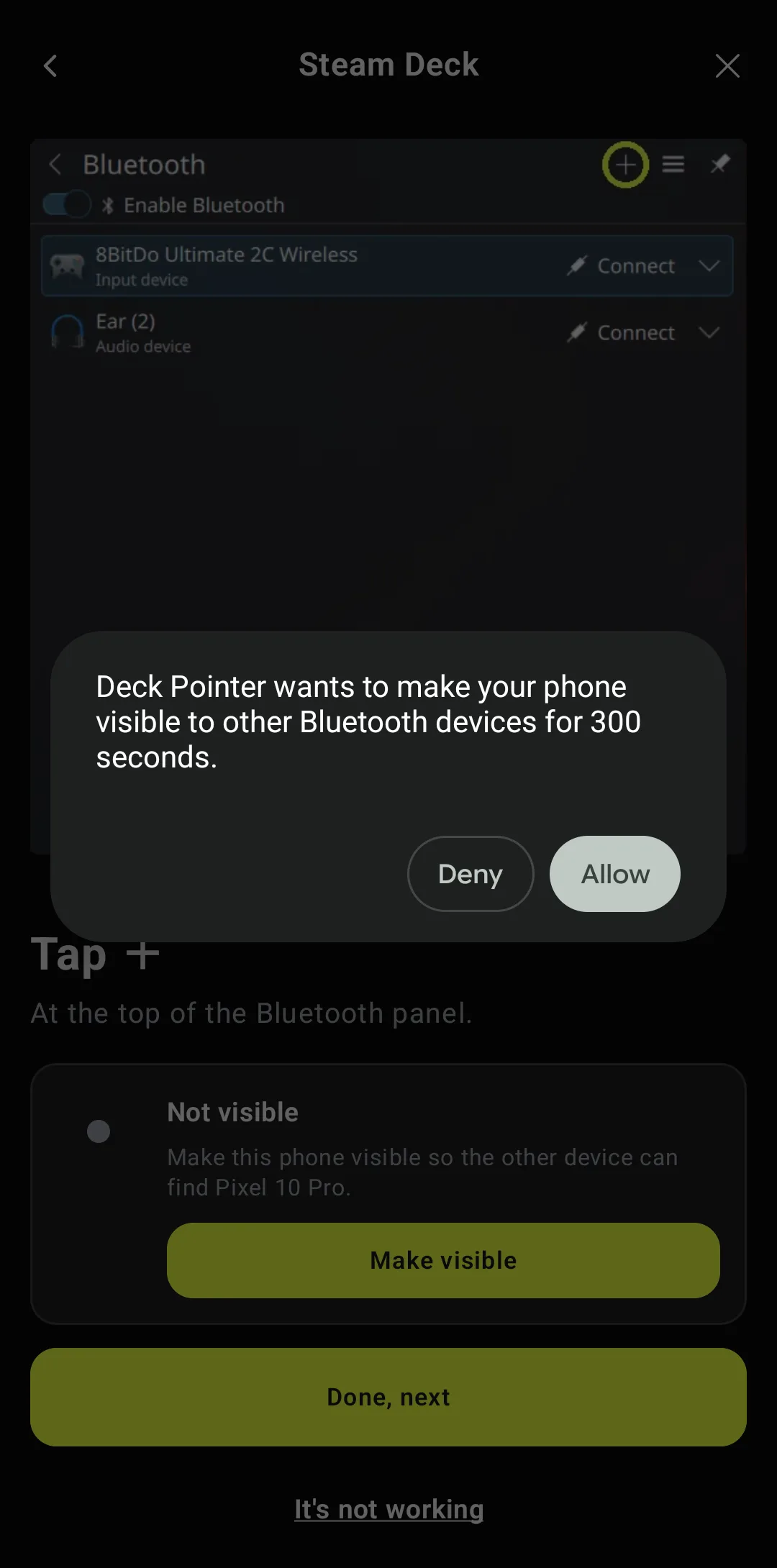
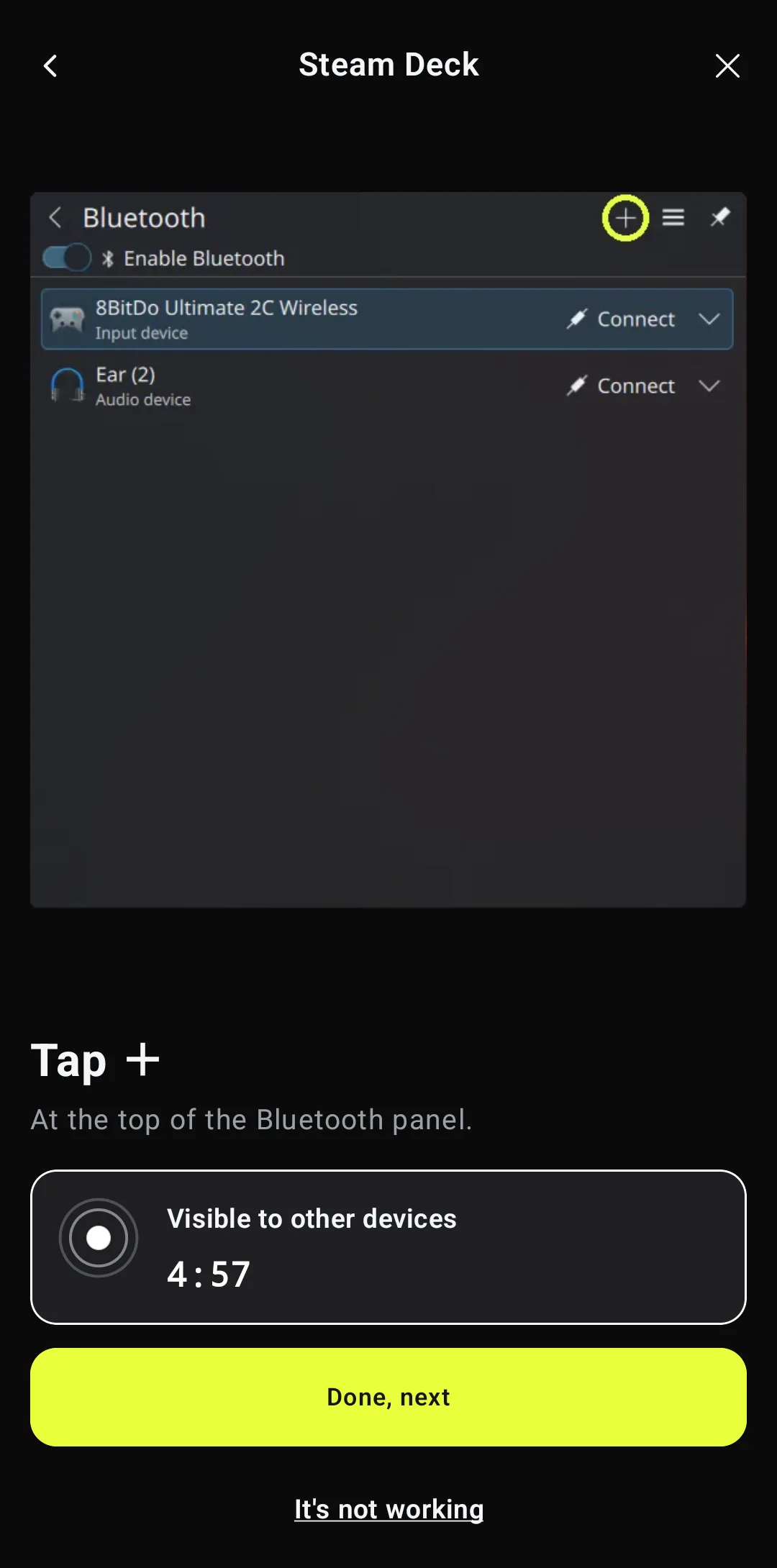
Let the phone be seen, then tap + on the Deck
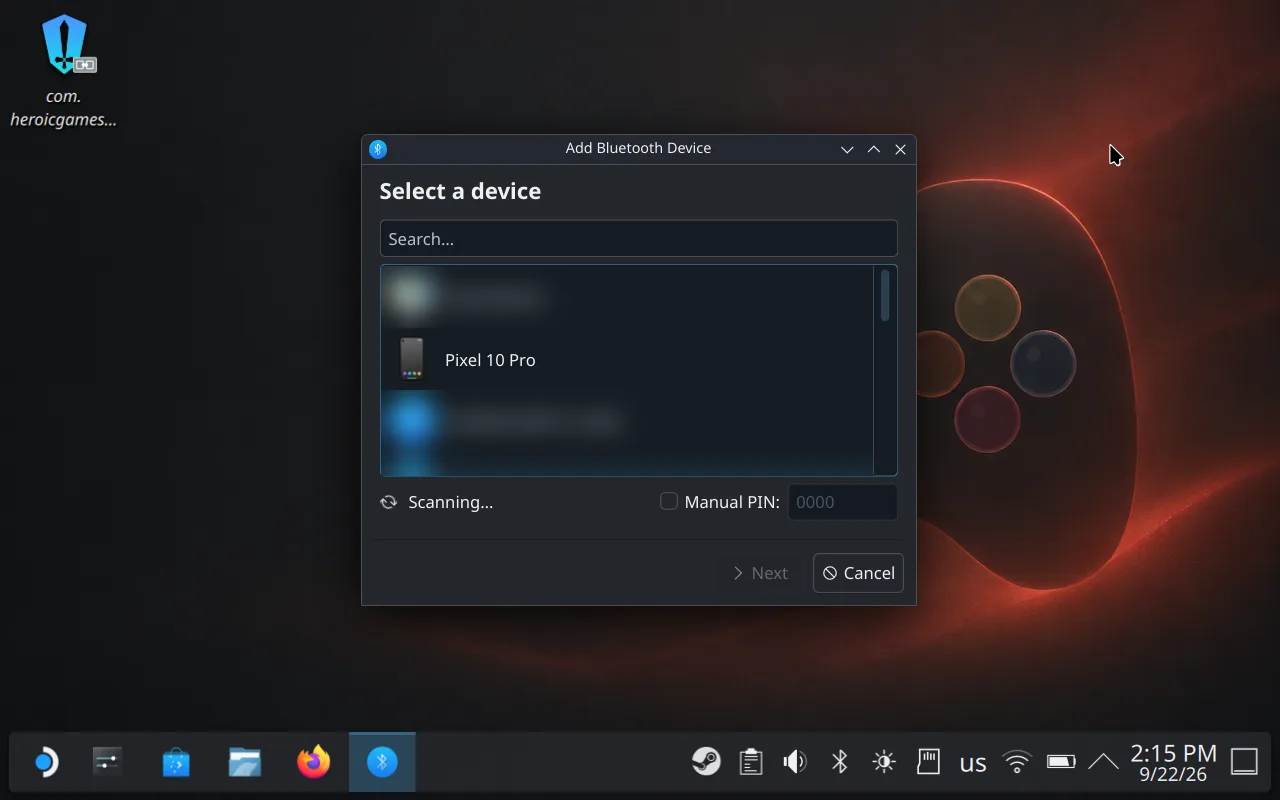
The wizard asks Android to make the phone visible to other Bluetooth devices for 300 seconds — tap Allow. The status card counts the time down. Now press + at the top of the Deck's Bluetooth panel; the Deck starts scanning and your phone appears within a few seconds.
Pick your phone by its own name
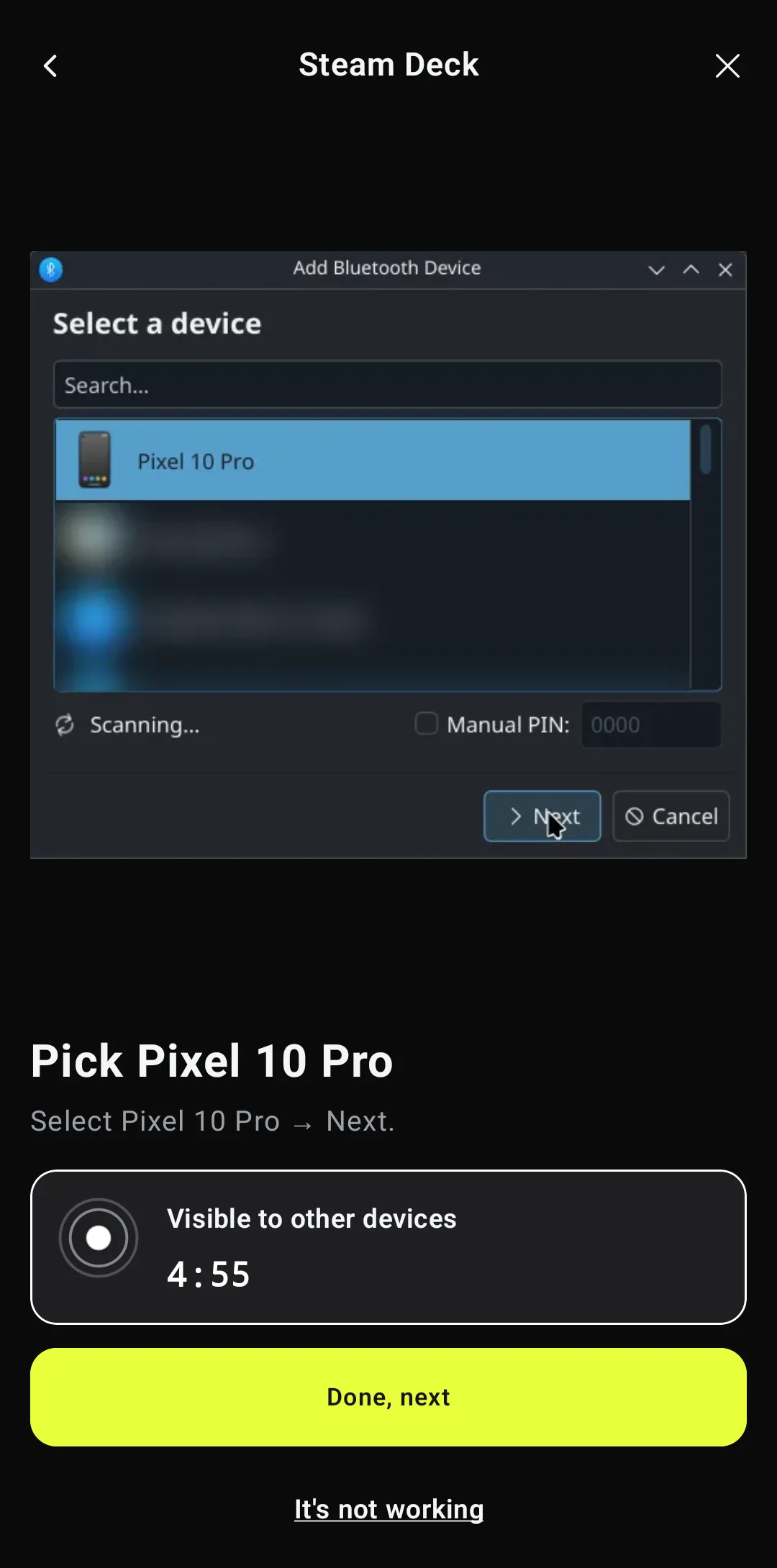
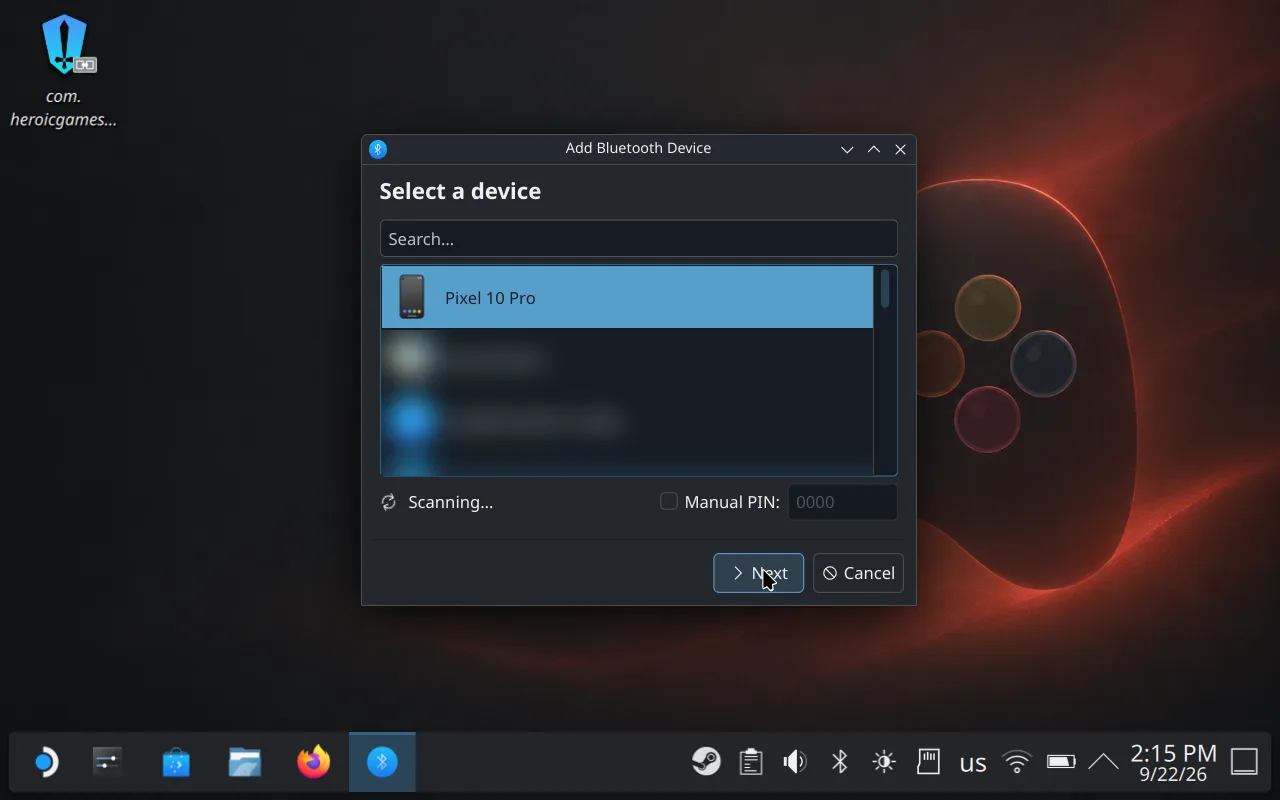
The Deck lists the phone under its own Bluetooth name — here Pixel 10 Pro — not as Deck Pointer; the wizard shows you the exact name to look for. Select it and press Next.
Confirm the code on both screens within 20 seconds
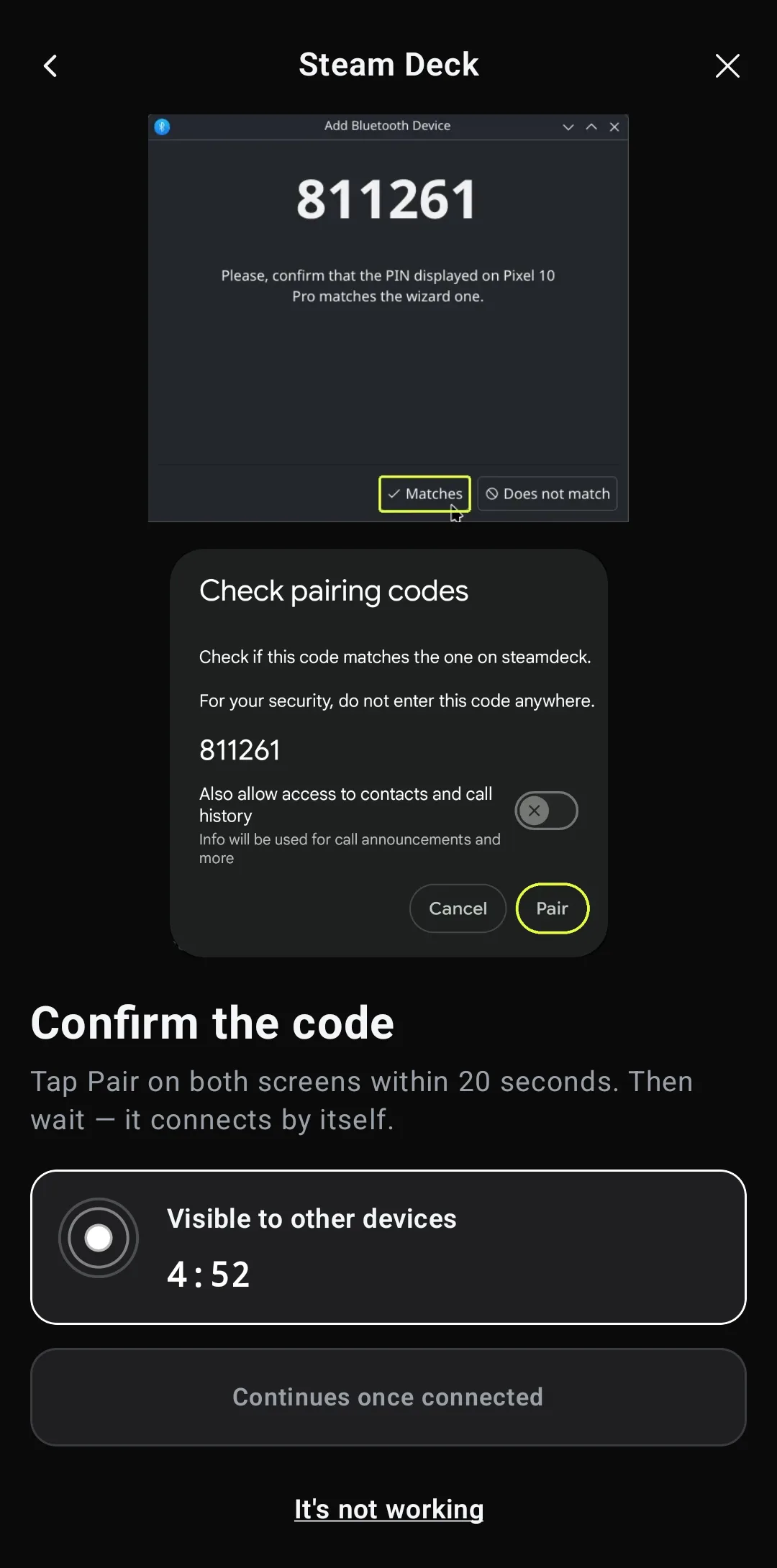
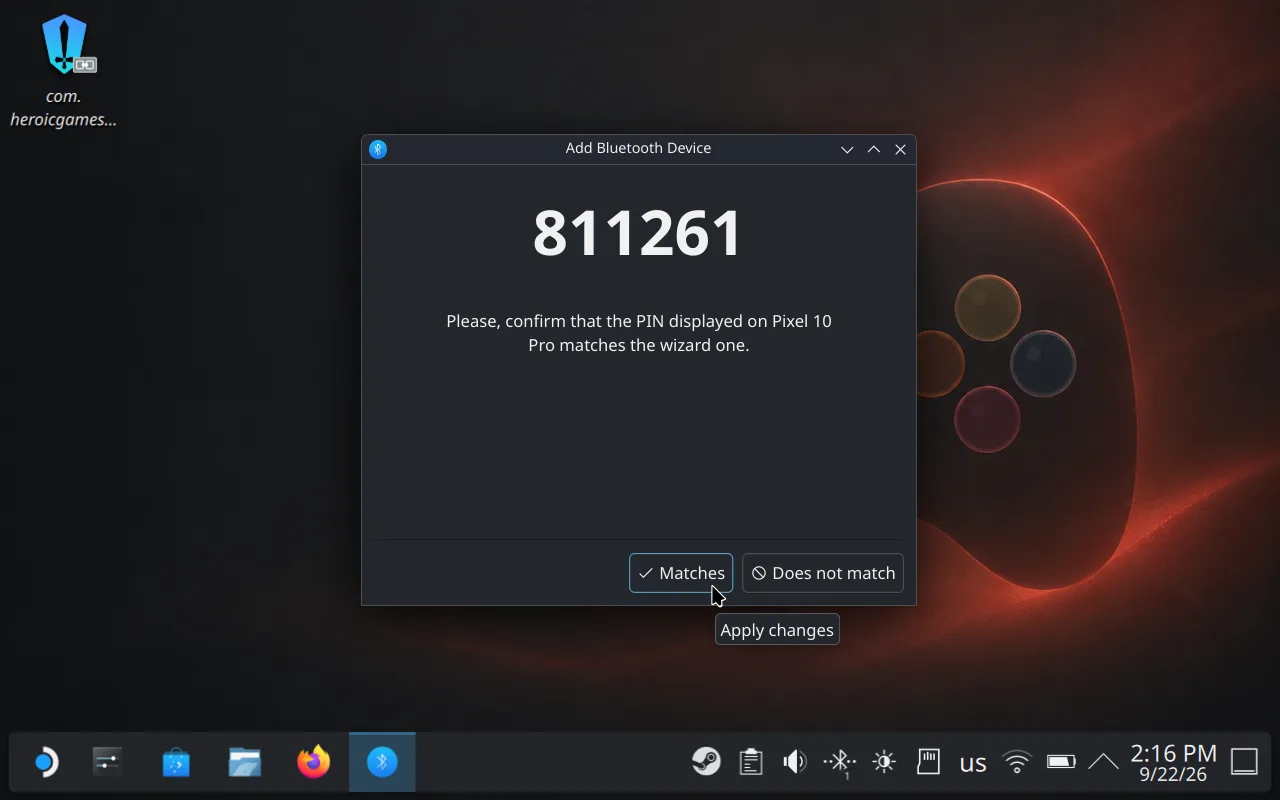
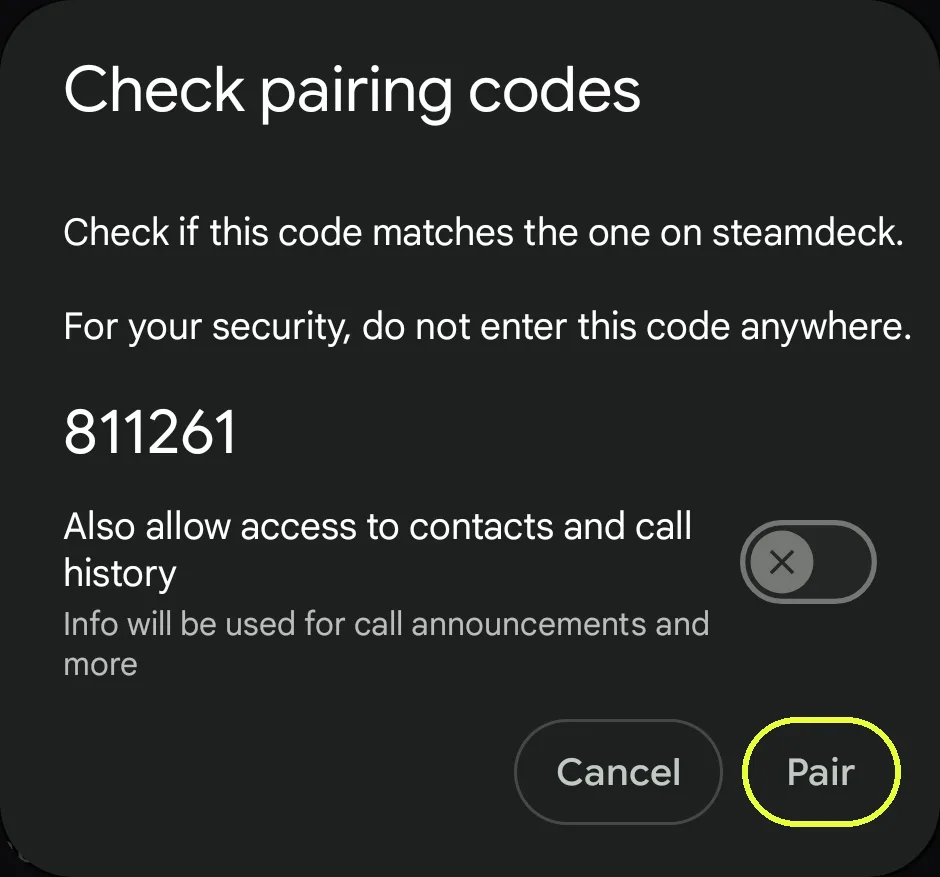
The same six-digit code appears on the Deck and in Android's Check pairing codes dialog. Press Matches on the Deck and Pair on the phone right away — the Deck gives up after about 20 seconds. Leave "Also allow access to contacts and call history" off; the Deck doesn't need it.
Connected
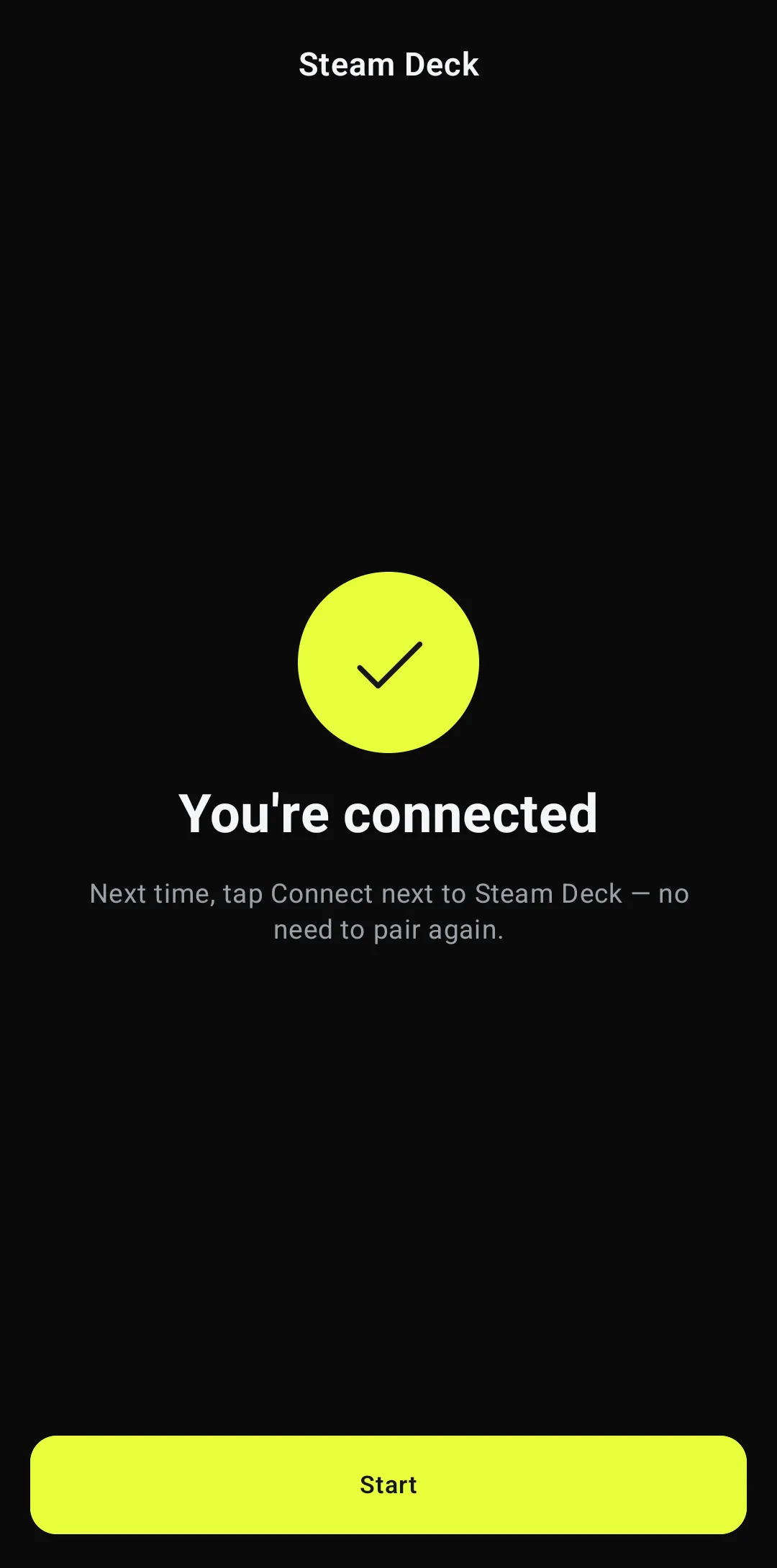
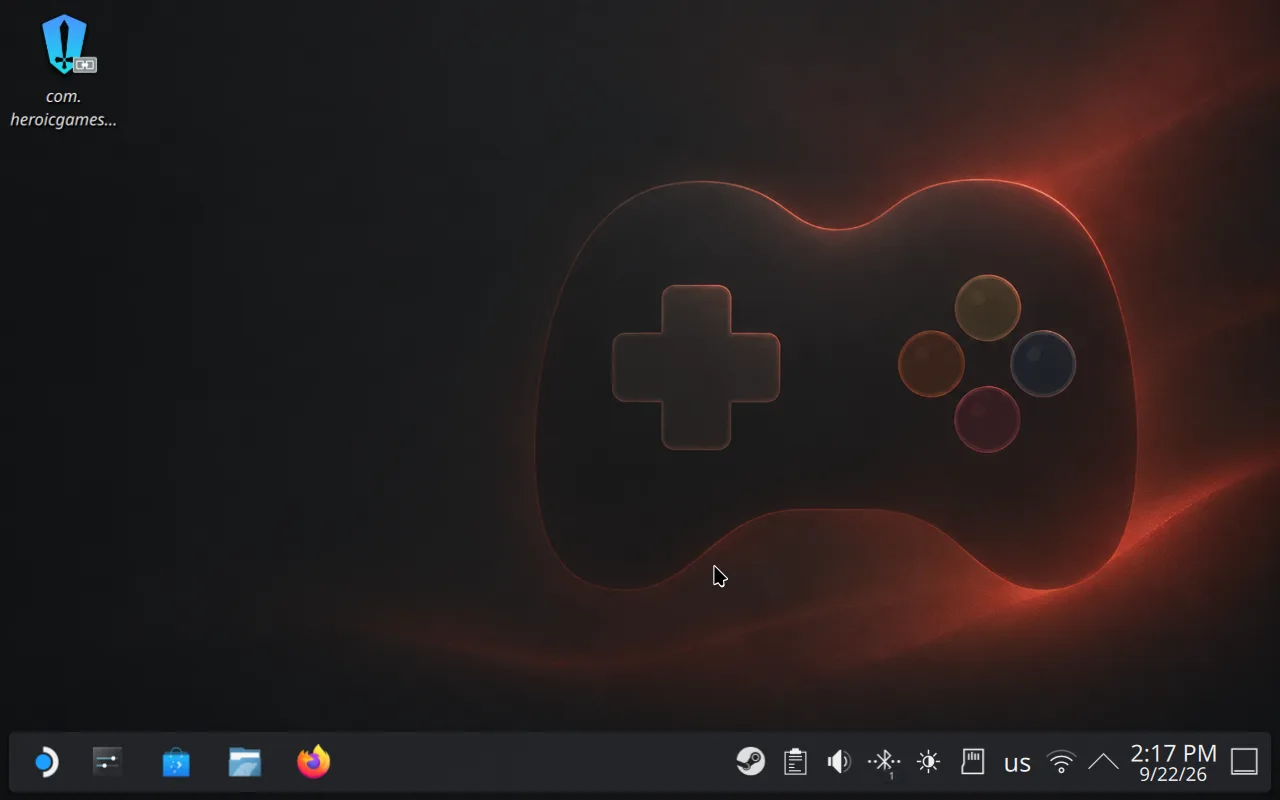
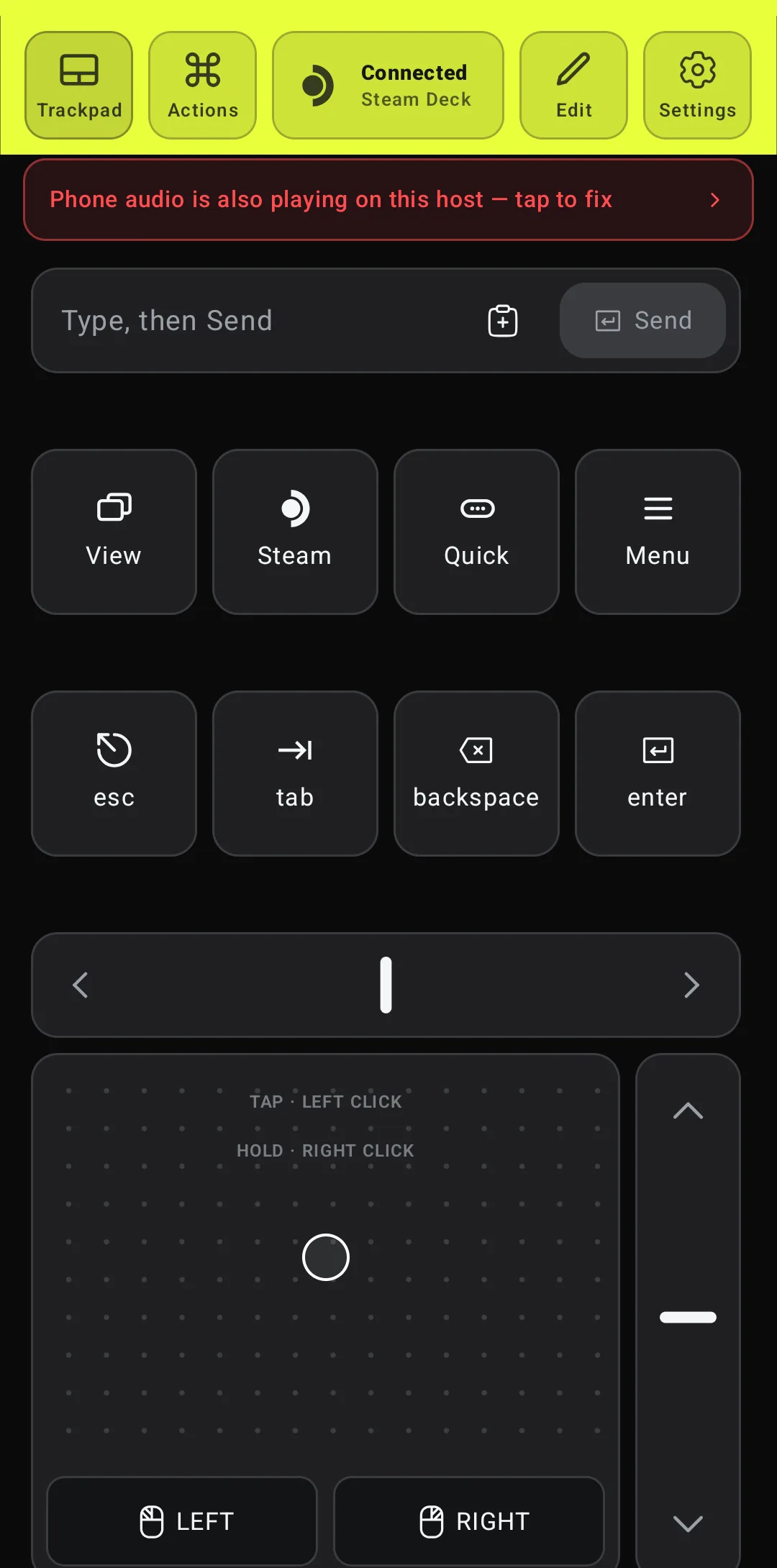
The wizard ends on "You're connected" and saves the Deck; the Deck's tray icon now counts one connected device. Tap Start — the header turns lime and reads Connected · Steam Deck, and the trackpad, keys and text field go live.
Turn off phone audio on the Deck, if you don't want it
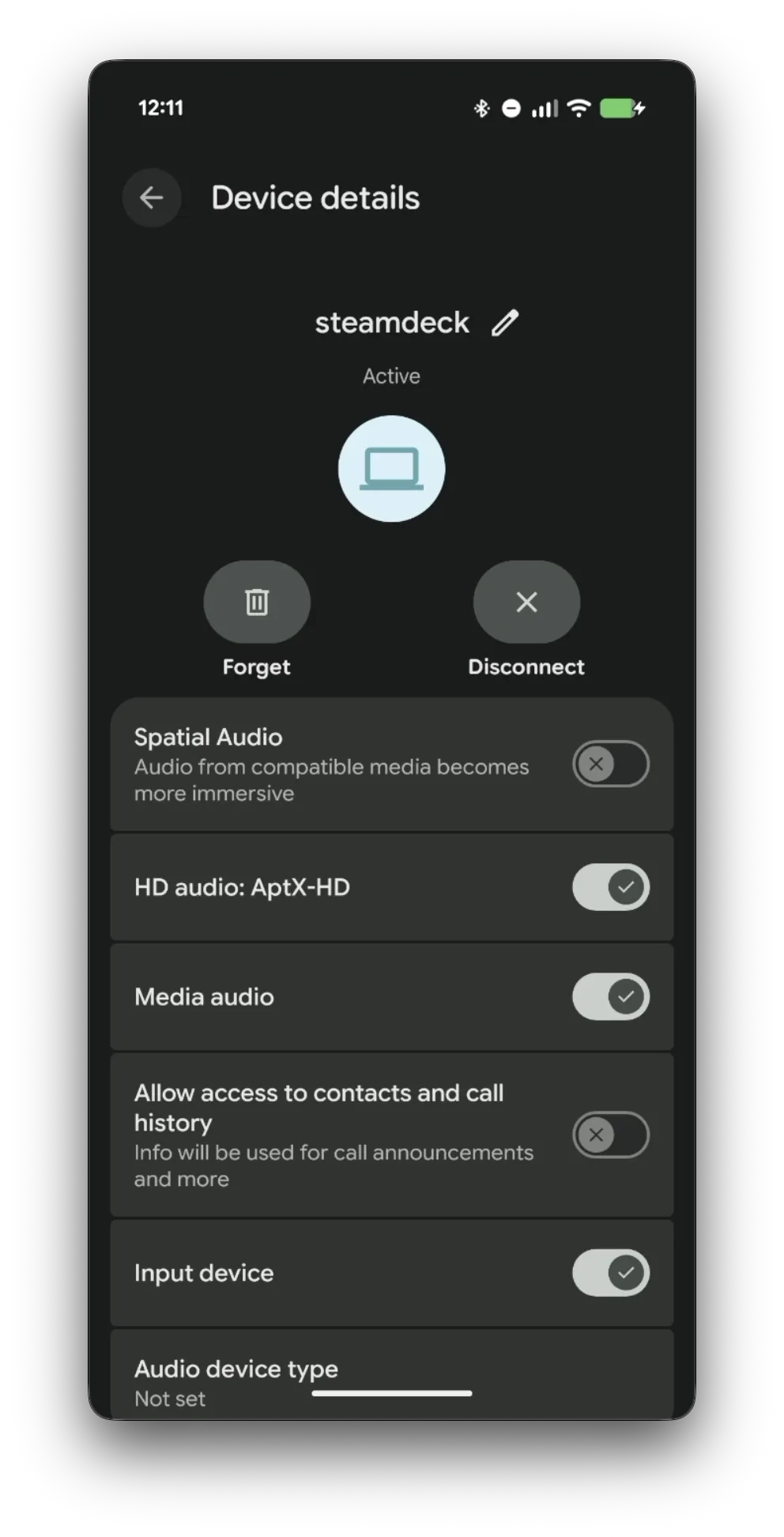
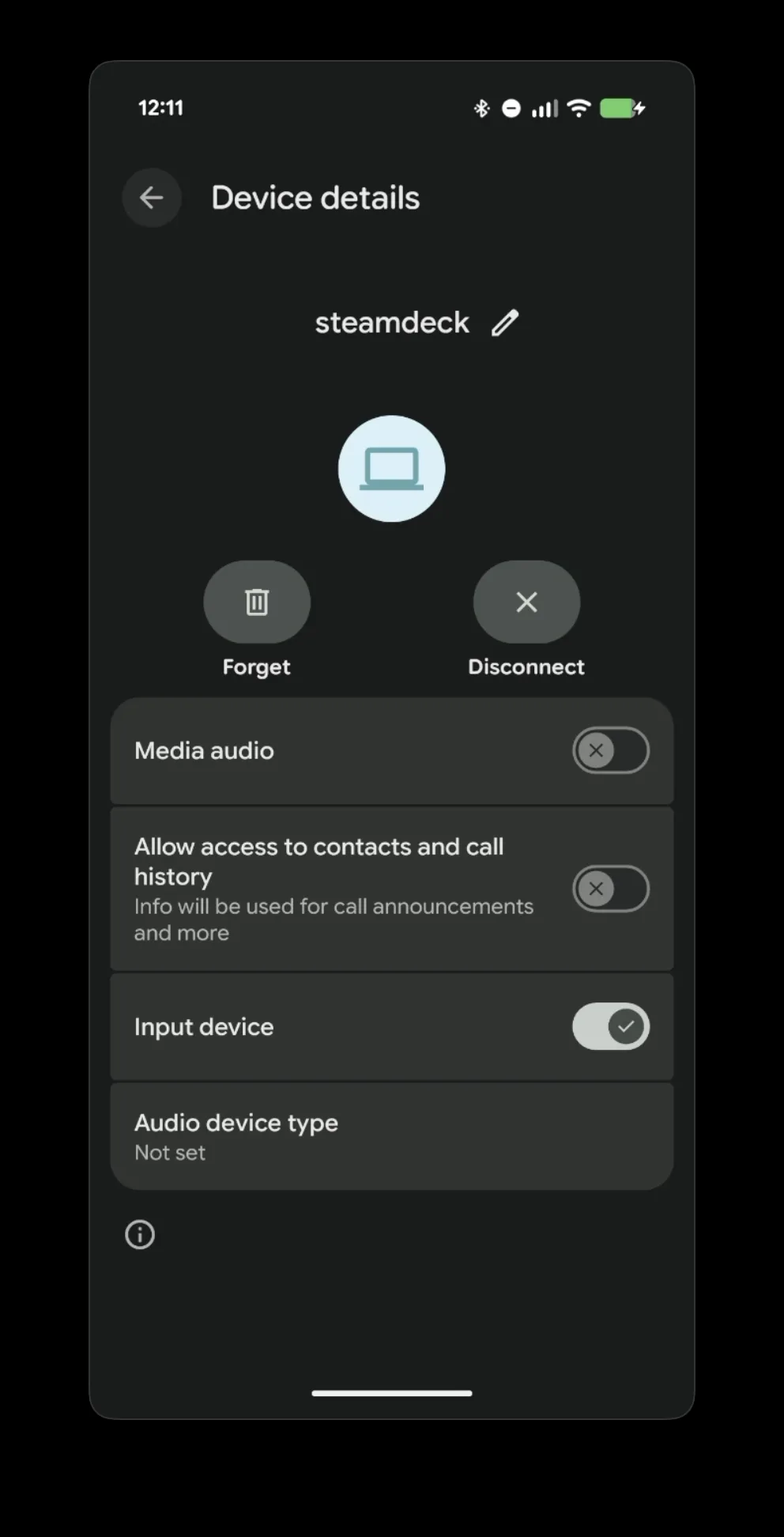
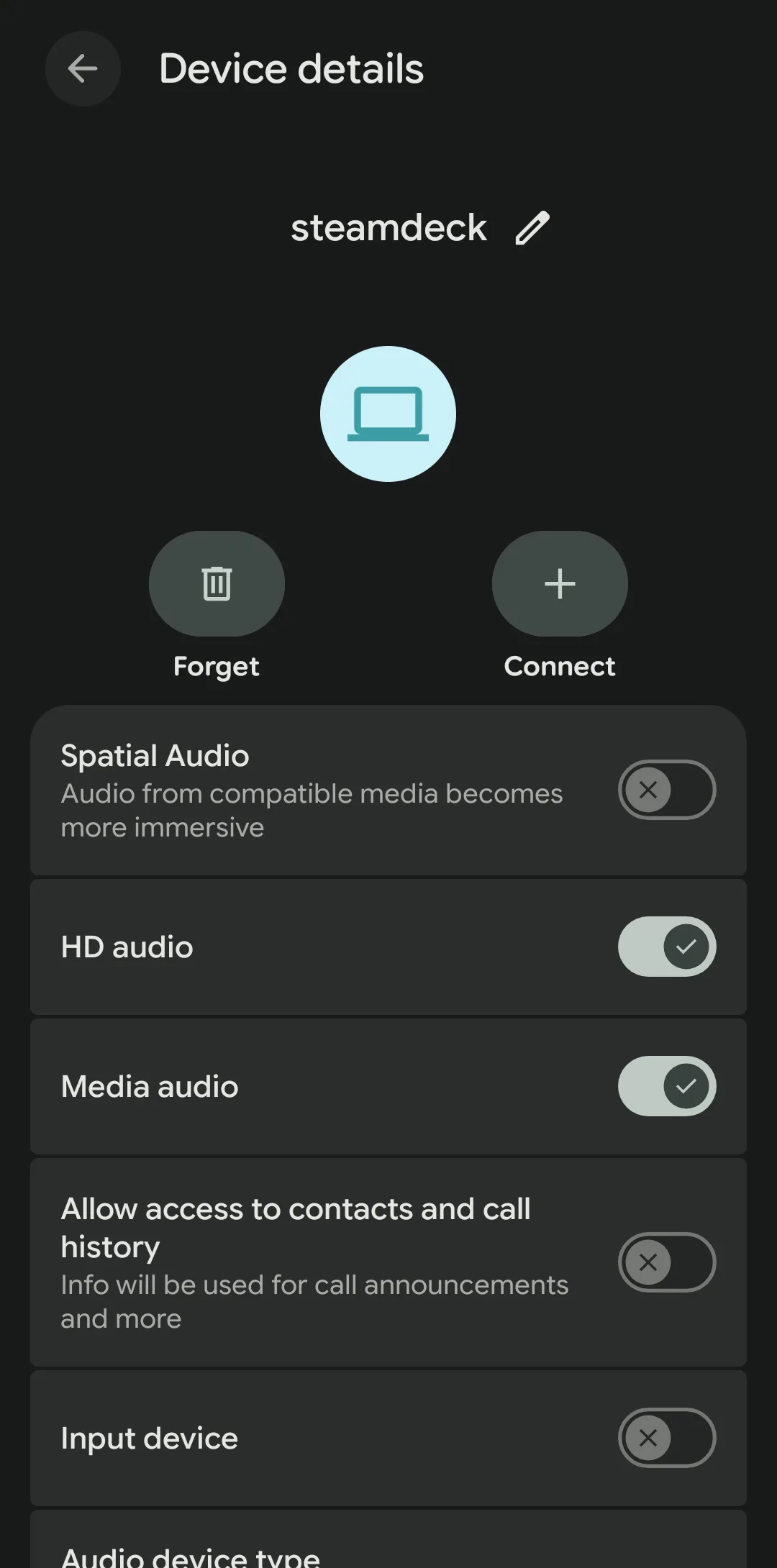
Right after pairing, Android also connects the Deck as a Bluetooth speaker, and Deck Pointer flags it with a red banner under the header. You can leave it — nothing breaks either way — or tap the banner, select the Deck in Android's Bluetooth settings, and turn off Media audio. Input keeps working exactly the same with it off.
Next time: one tap, in either mode
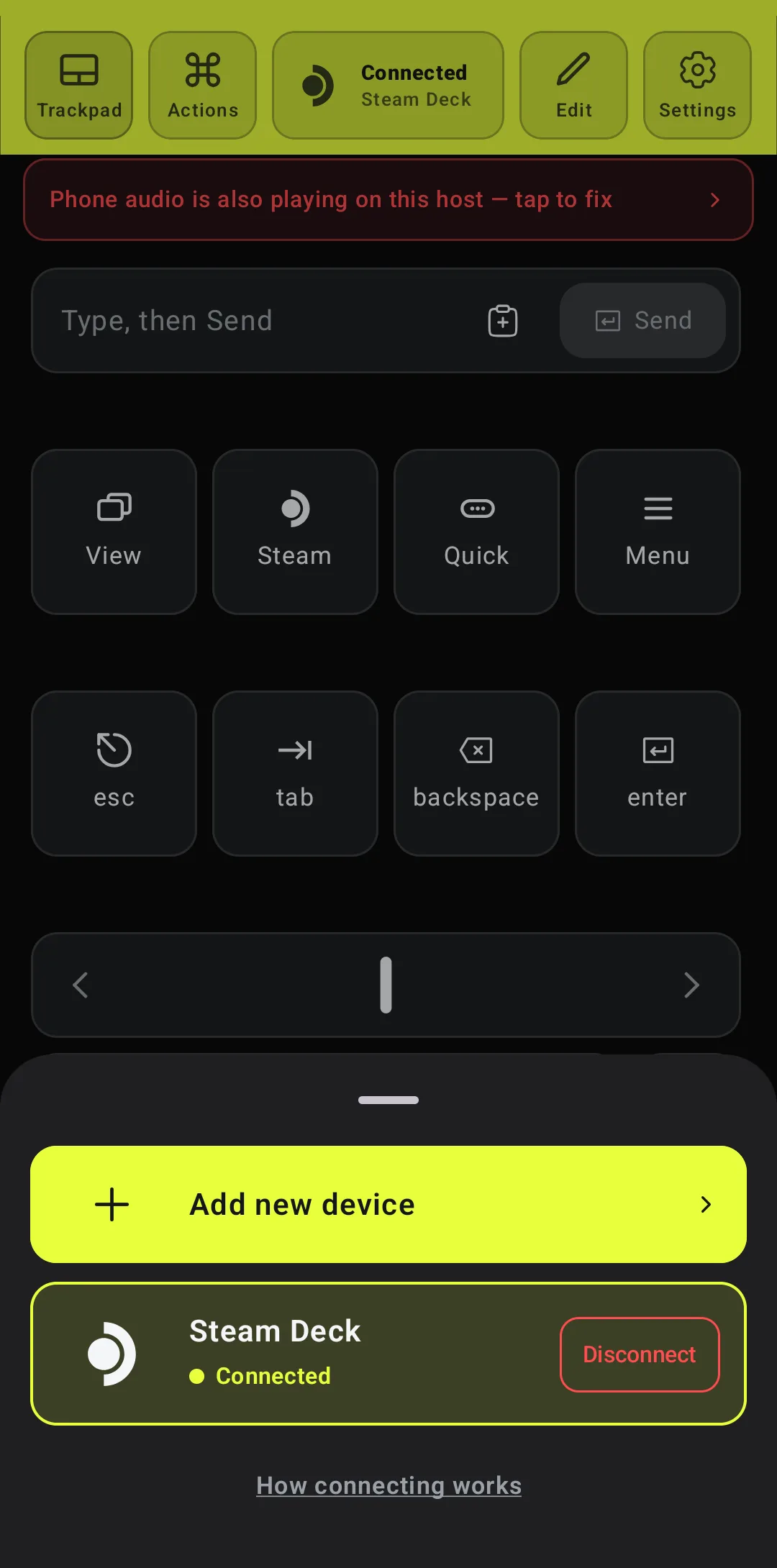
You don't pair again. Wake the Deck, open Deck Pointer, tap the status at the top and press Connect next to Steam Deck — it works from Gaming Mode too. Disconnect in the same sheet stops input but keeps the pairing.
Paired before? Remove the old pairing on both sides
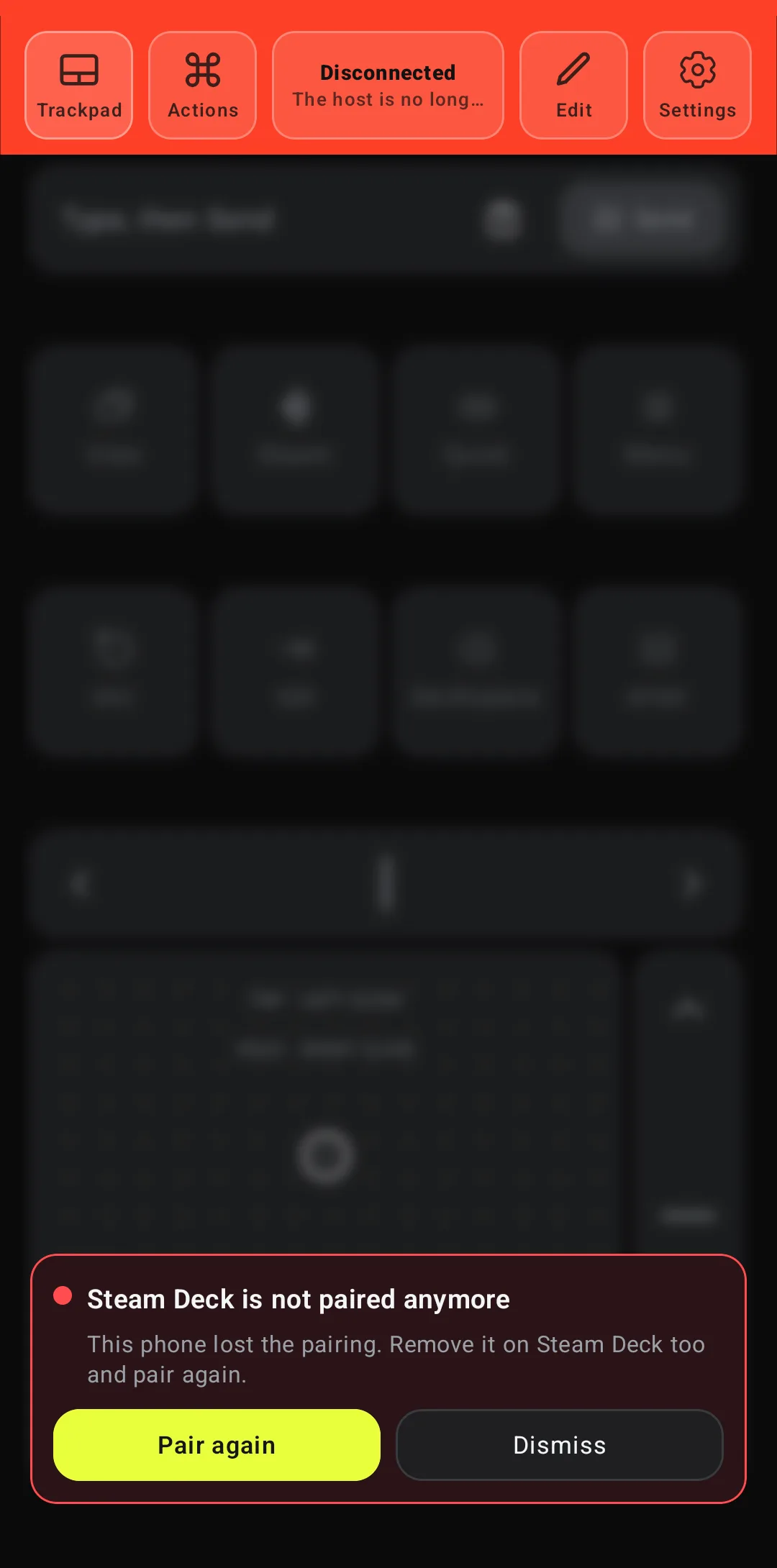
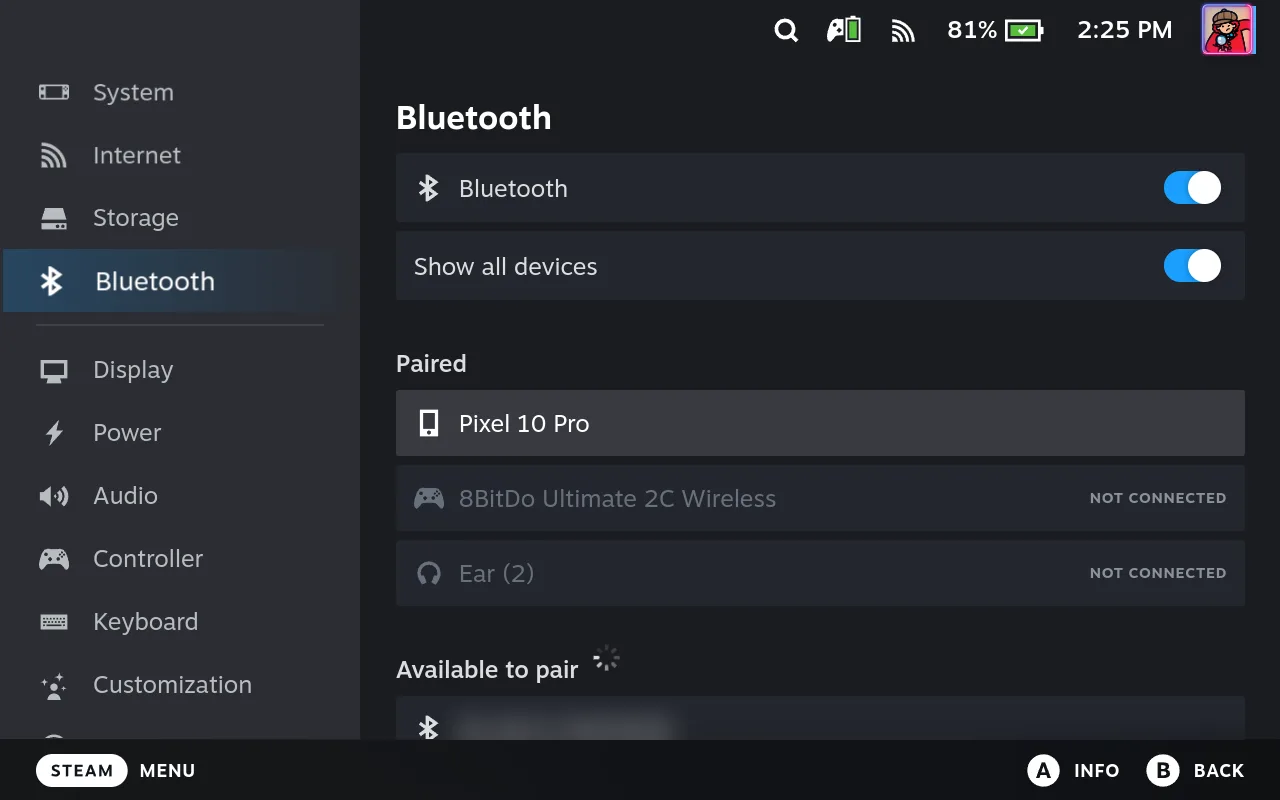
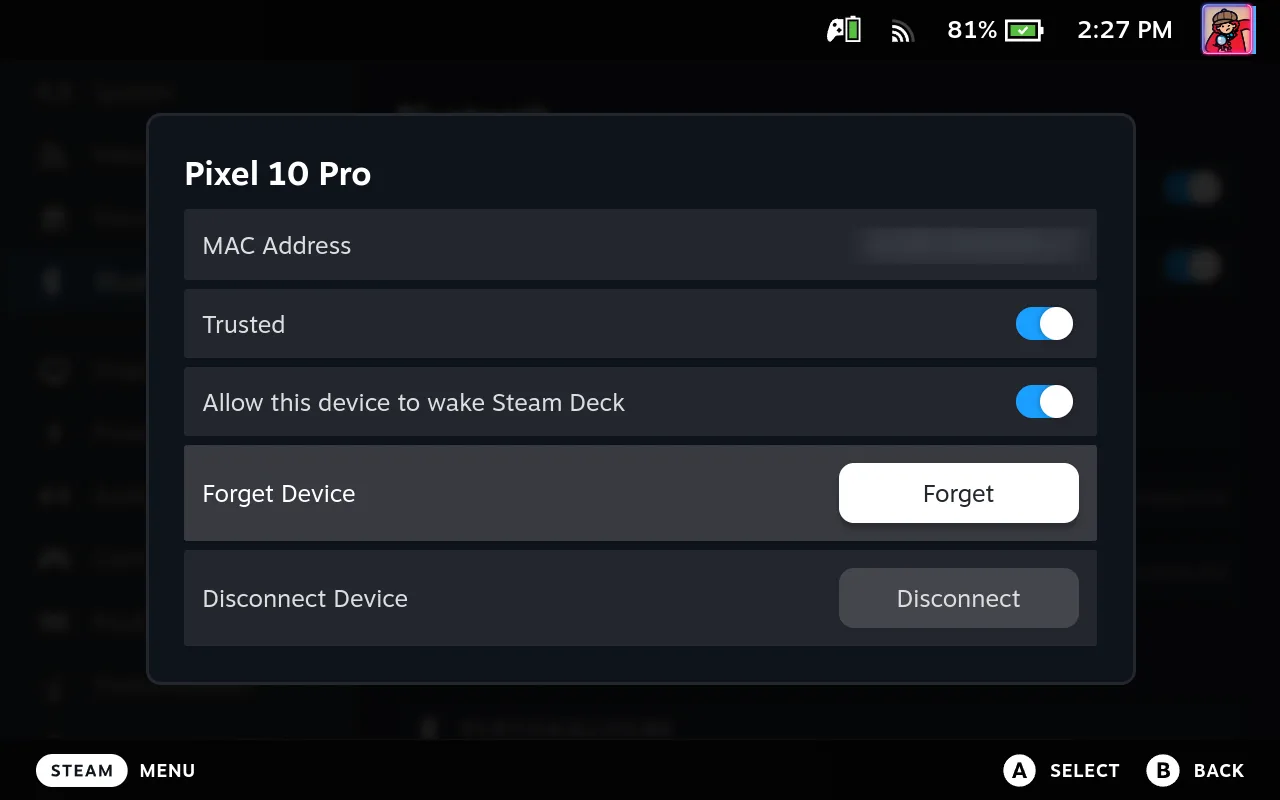
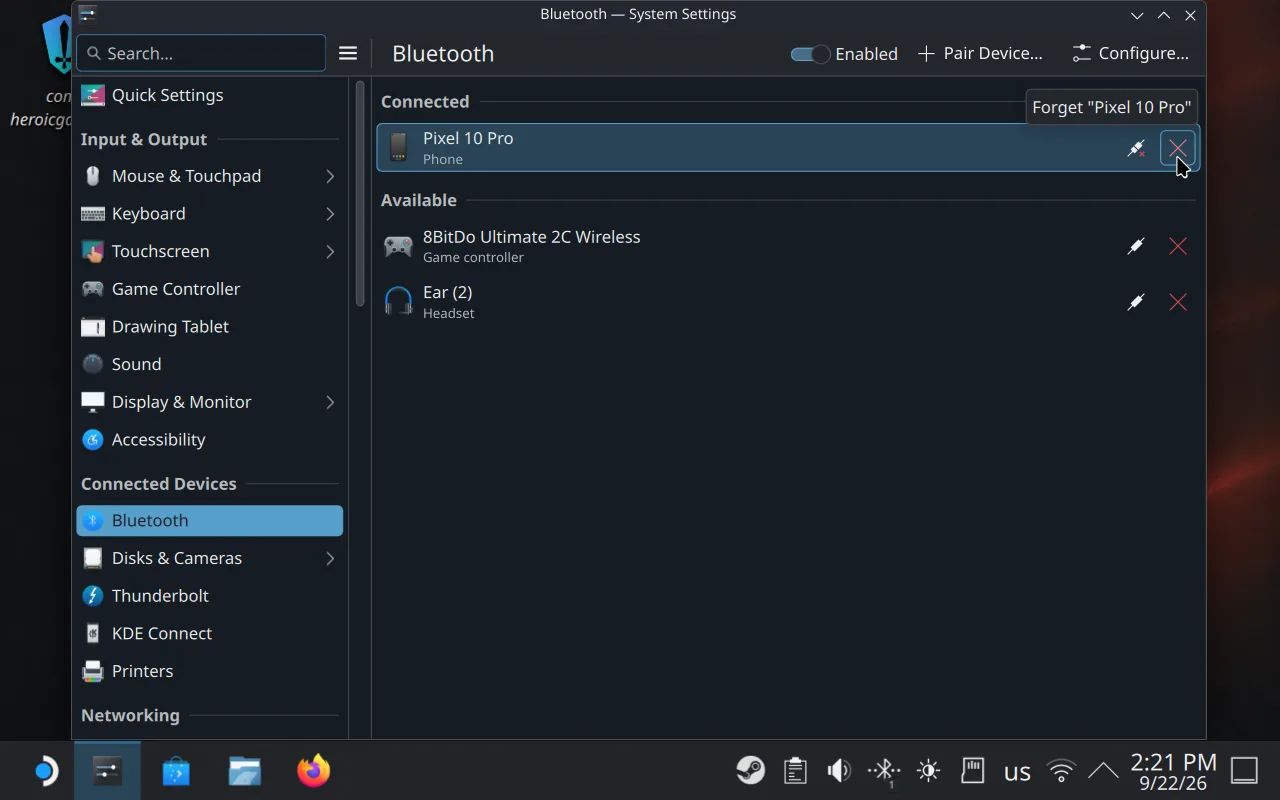
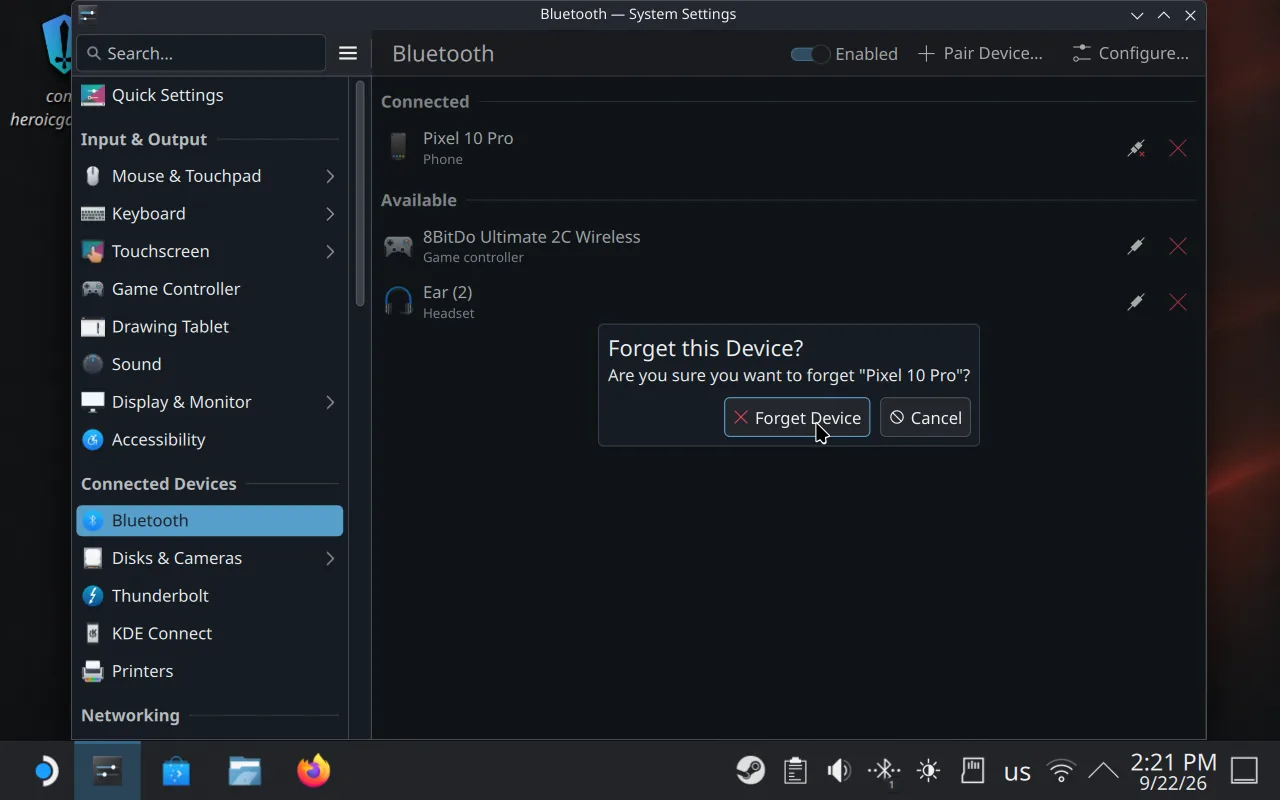
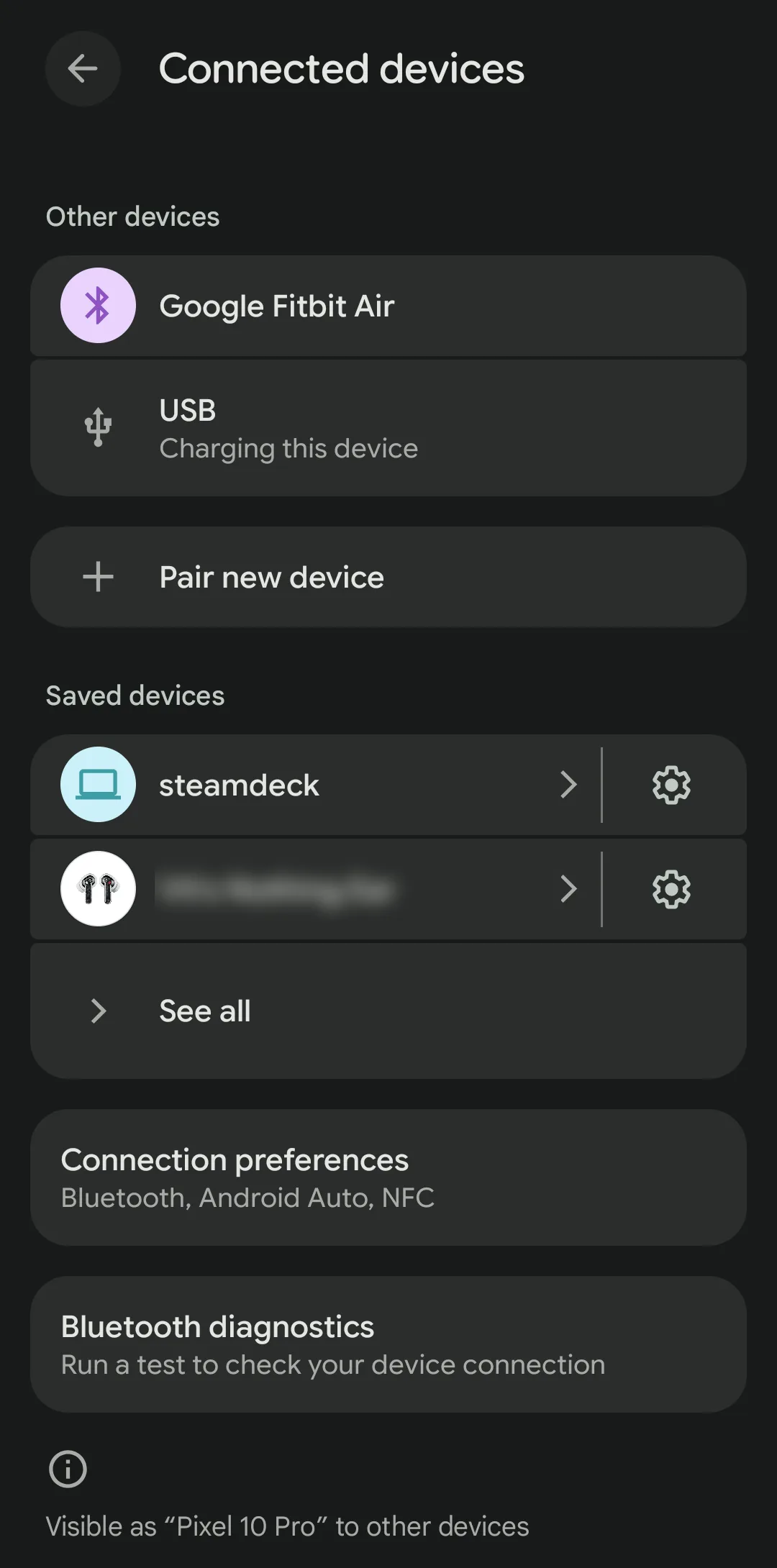
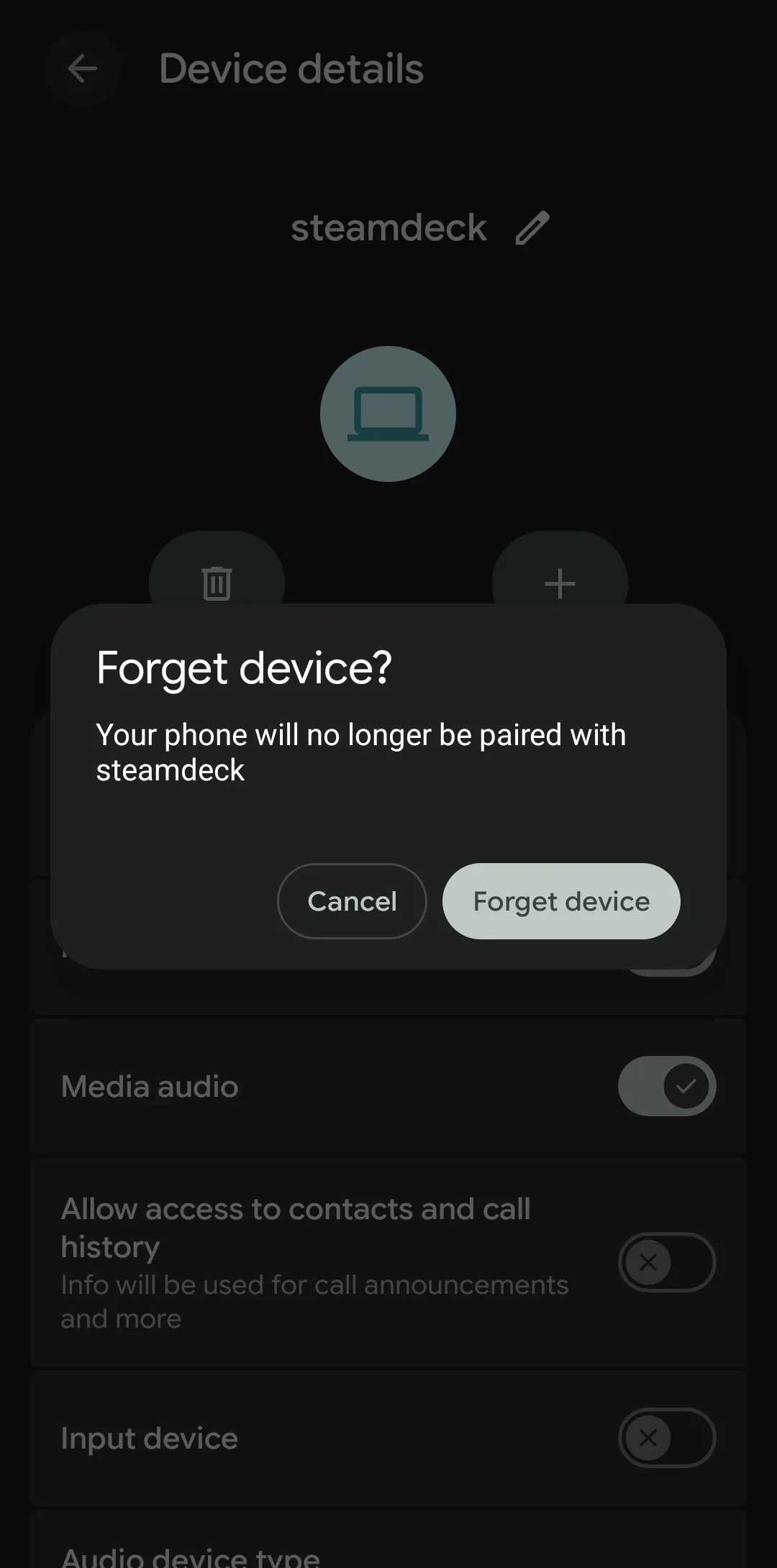
A pairing kept on one side only gives an endless connect-and-drop loop, and a Deck that still remembers the phone won't list it under +. Deck Pointer notices when the phone lost the pairing and offers Pair again. On the Deck in Gaming Mode: Settings → Bluetooth, turn on Show all devices — without it the list shows only controllers and headsets and your phone is hidden — then pick the phone, press A and choose Forget. In Desktop Mode: Bluetooth icon → ☰ → Configure Bluetooth…, then ✕ next to the phone and Forget Device. On the phone: Settings → Connected devices → ⚙ next to steamdeck → Forget → Forget device. Then pair again from the first step.
What people are saying
The original poster needed comfortable input for emulator setup without adding a USB-C hub, and found the Deck's on-screen keyboard and long-path file navigation too awkward for the job.
r/SteamDeck discussion: remote control for emulator setup · 2022-03
The discussion groups the common workarounds into screen streaming, remote-desktop software, network keyboard-and-mouse sharing, and carrying physical peripherals. Each solves a broader problem than direct Bluetooth input.
Questions, answered
The Deck shows my phone's name, not Deck Pointer — is that right?
Yes. The Deck's Bluetooth stack pairs with your phone's radio, so it lists the phone by its model name (like "Pixel 10 Pro"). Deck Pointer is the app making that radio act as a mouse and keyboard, but Bluetooth itself only knows the phone.
Why did my phone's music or notification sounds start playing through the Deck?
Android treats a newly paired Deck as a Bluetooth speaker by default, alongside the input connection. Deck Pointer flags this the first time it happens. Turn off Media audio for the Deck in the phone's Bluetooth settings if you don't want it — input keeps working either way.
Do I have to use Desktop Mode every time?
Only for the first pairing. After that, Deck Pointer reconnects to the saved Steam Deck from Game Mode or Desktop Mode without repeating the setup.
What if the Deck never finds my phone?
Check the phone is still inside its 300-second visibility window — the wizard shows a countdown and a Make visible button once it runs out. If the Deck still remembers the phone from an earlier pairing, it won't list it under + at all: forget it on the Deck first (last step). If the Deck's own scan seems stuck, toggle Bluetooth off and on in the Deck's quick settings and try again.
The Deck says "The setup of … has failed". What now?
The pairing request timed out — the Deck gives up after about 20 seconds without Matches on the Deck and Pair on the phone. Press Close, then + again, pick your phone and confirm on both screens straight away.
My phone isn't in the Deck's Bluetooth list in Gaming Mode. Where is it?
Gaming Mode's Settings → Bluetooth shows only controllers and headsets by default. Turn on Show all devices at the top of that screen and the phone appears under Paired.
My Steam Deck won't go to sleep, or wakes up right away. Why?
Two things keep it awake. First, the Bluetooth page in the Deck's Settings: while it is open, the Deck keeps reconnecting paired devices and wakes straight back up, so leave that page before you press the power button. Second, Deck Pointer itself: when the Deck sleeps, the phone sees the connection drop and tries to reconnect, which wakes the Deck. Tap Disconnect in Deck Pointer before putting the Deck to sleep. When you wake the Deck again, it reconnects to the phone on its own.
Do I have to pair again every time?
Normally, no. Pair once, then reconnect to the saved Steam Deck from Deck Pointer in later sessions. If either device forgets the Bluetooth bond, pair it again.
Which Android phones are supported?
Deck Pointer requires Android 9 or later and a phone whose firmware exposes Android's Bluetooth HID device profile. Some manufacturers remove that profile, so compatibility is not universal.
Is Deck Pointer a remote desktop or screen-mirroring app?
No. Deck Pointer turns your Android phone into Bluetooth input hardware. You still watch the Deck's own screen or a connected TV or monitor.
Does it need Wi-Fi or internet access?
No. Control travels directly over Bluetooth, so it also works before the Deck is connected to Wi-Fi. If Bluetooth won't hold, you can connect over Wi-Fi instead: see the Wi-Fi guide.