Steam Deck fixes
Rockstar Games Launcher on Steam Deck: how to start Red Dead Redemption 2 with your phone
The first launch of Red Dead Redemption 2 from Steam opens the Rockstar Games Launcher installer, a Windows program built for a mouse, and Steam warns that the launcher doesn't support controller input.
Valve rates Red Dead Redemption 2 Playable on Steam Deck (checked on its Steam store page on 3 October 2026). Valve's panel warns that the game's launcher may need the touchscreen or virtual keyboard, that some interface text is small to read, and that first-time setup needs an internet connection.
Red Dead Redemption 2 installs the Rockstar Games Launcher the first time you press Play, and Steam warns that the launcher doesn’t work with the controller. With Deck Pointer on your phone as the mouse, you click through the installer, scroll the terms and get to the game’s main menu, all in Game Mode.
Video tutorial
Step by step
Connect Deck Pointer to the Deck in Game Mode
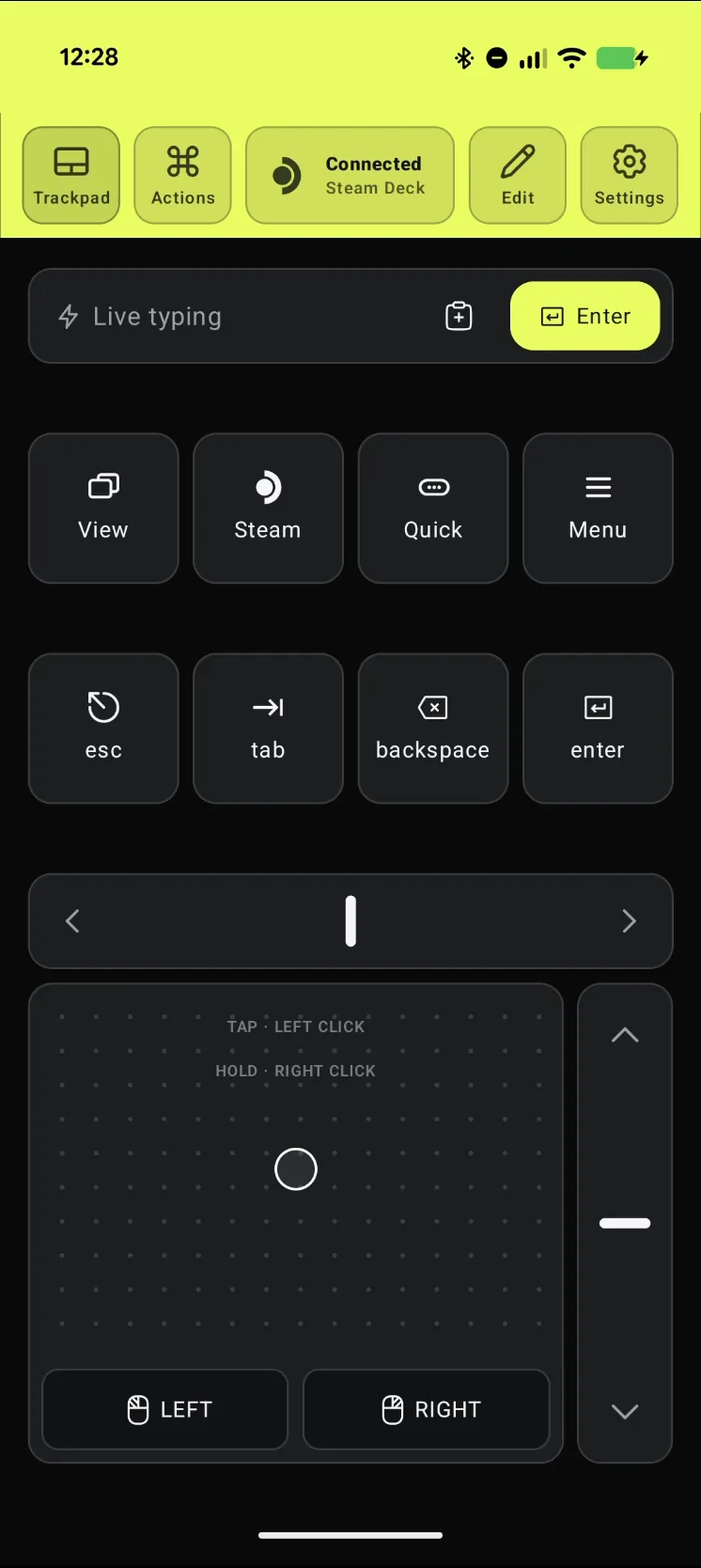
Open Deck Pointer on your phone and check that the chip at the top reads Connected. Haven't paired yet? Follow the pairing guide first, it takes about a minute. Nothing needs installing on the Deck.
Press Play on Red Dead Redemption 2
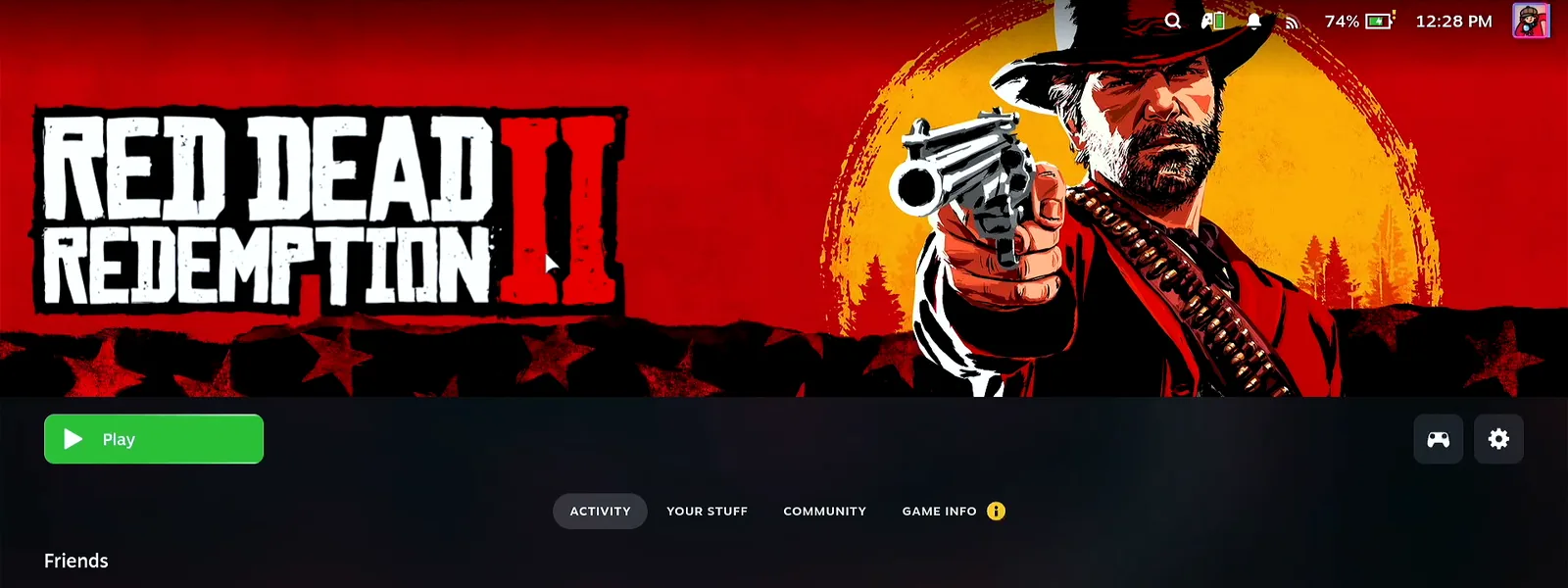
In your Steam library, open Red Dead Redemption 2 and press Play. On the first launch Steam runs a couple of install scripts, then starts the Rockstar Games Launcher installer.
Pick a language and continue
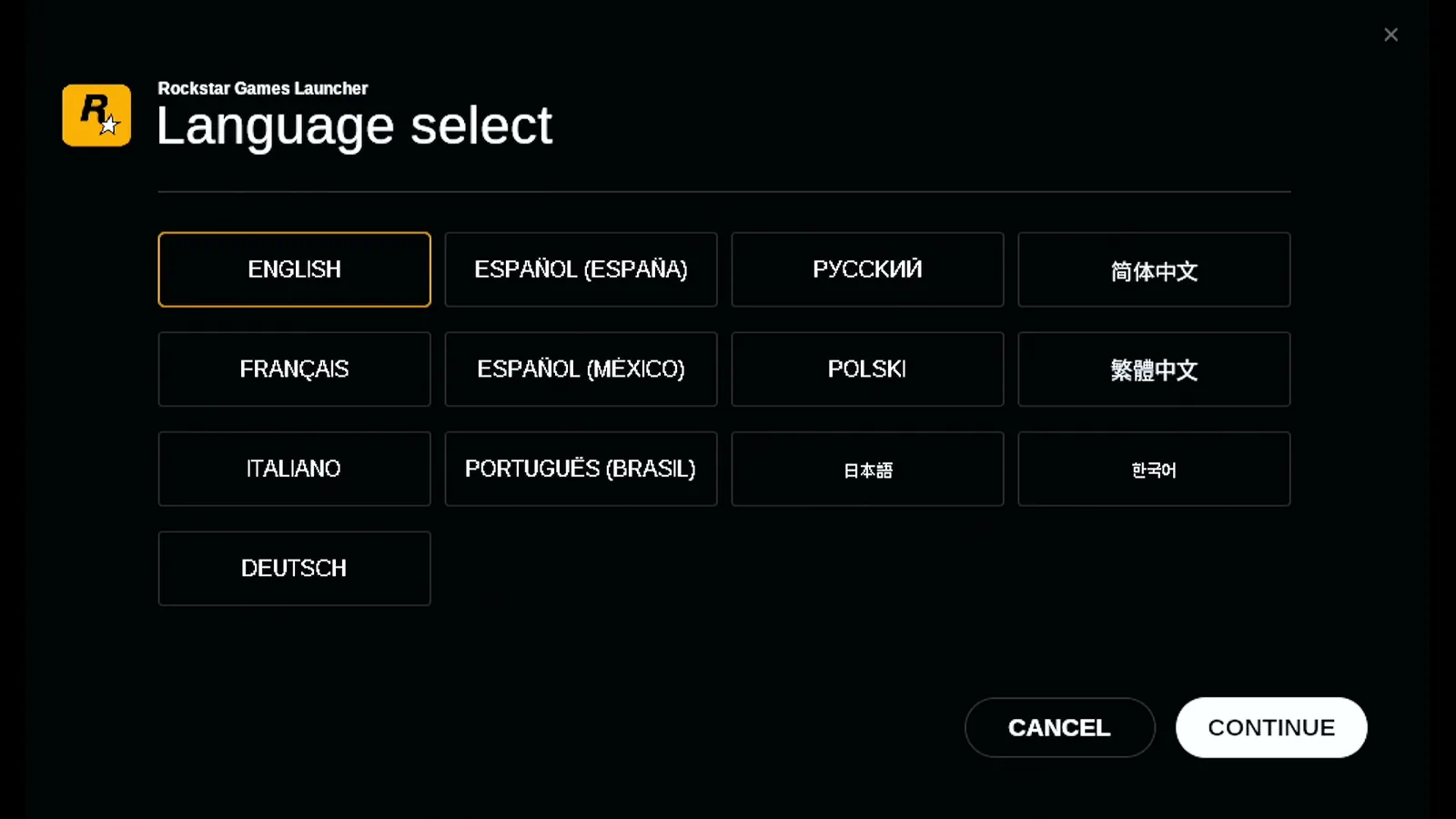
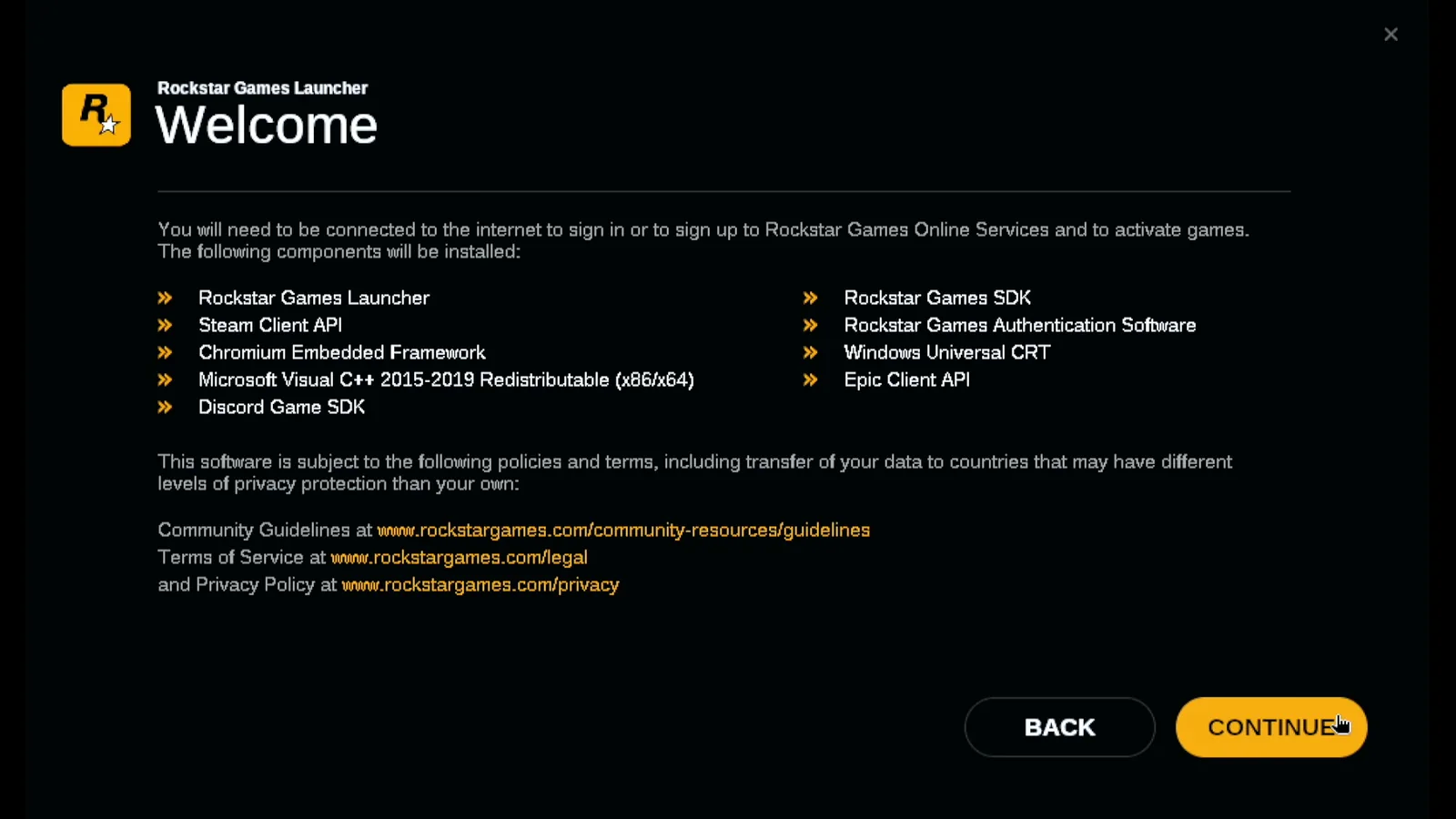
The installer opens at Language select. Move the pointer with the phone's trackpad, tap English or your language, and press Continue. The Welcome screen lists what gets installed; press Continue again.
Scroll the terms and accept
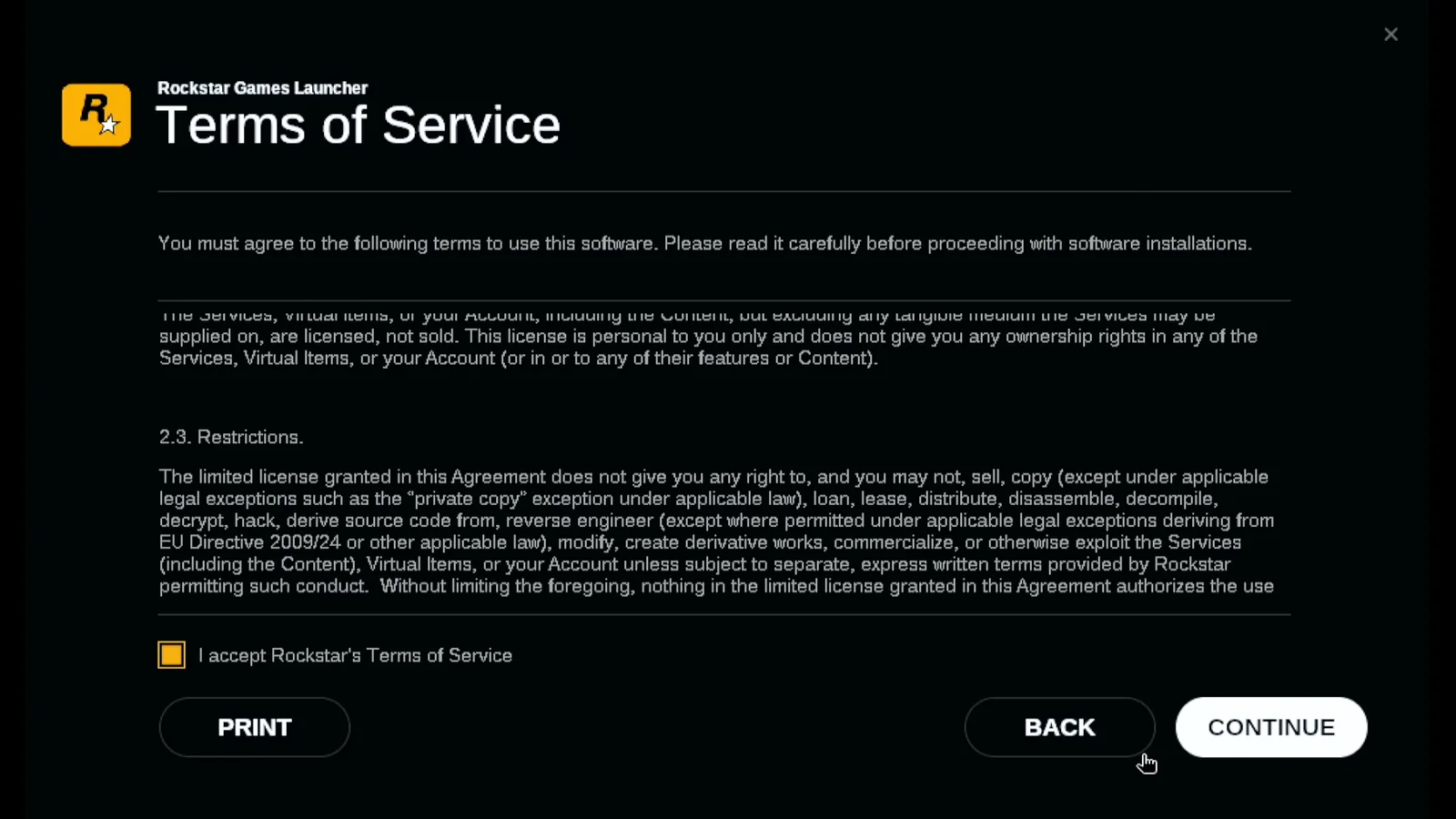
Scroll the Terms of Service with the scroll rail on the right of Deck Pointer's trackpad, tick I accept Rockstar's Terms of Service, and press Continue.
Keep the install location and let it install
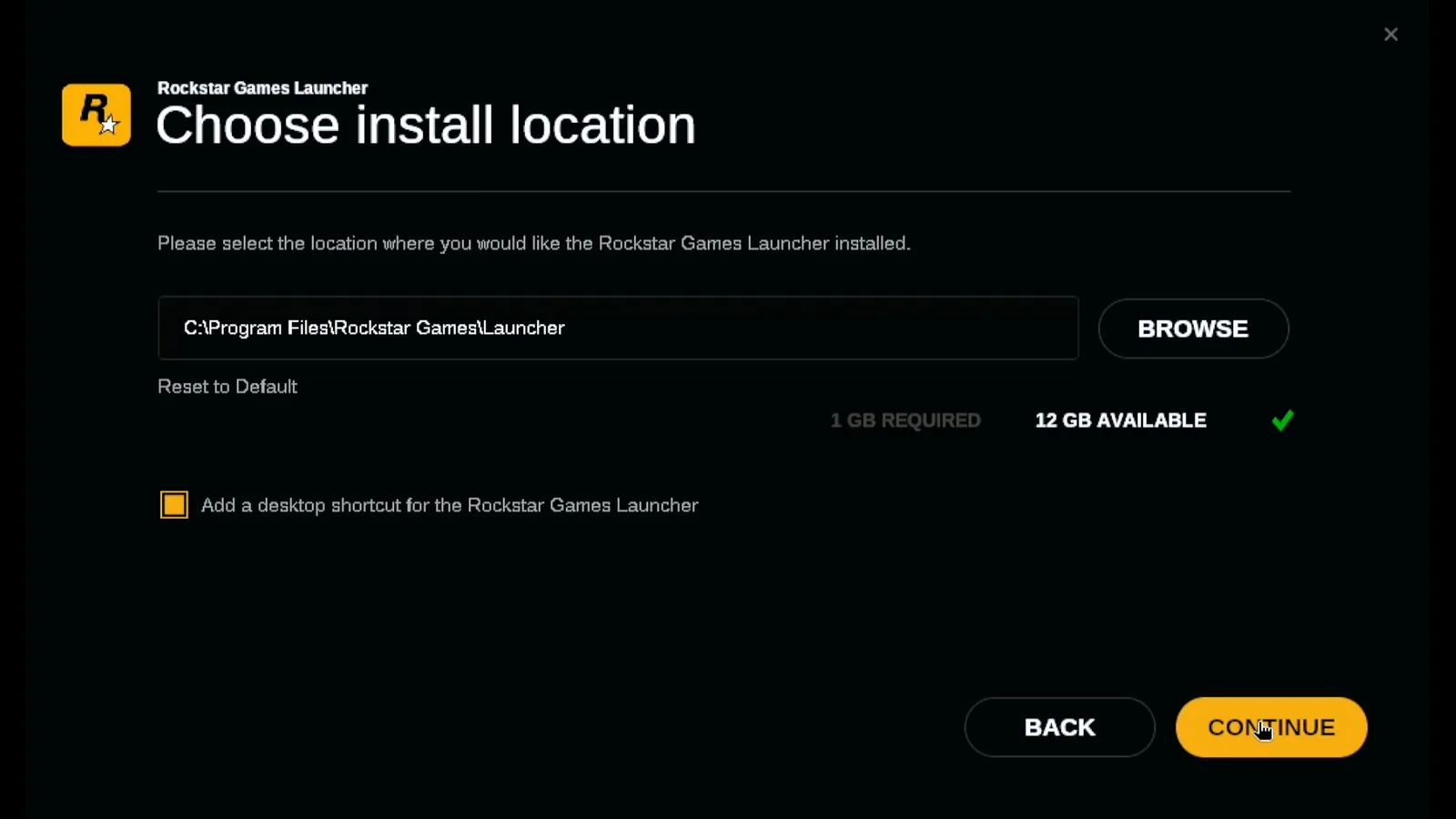
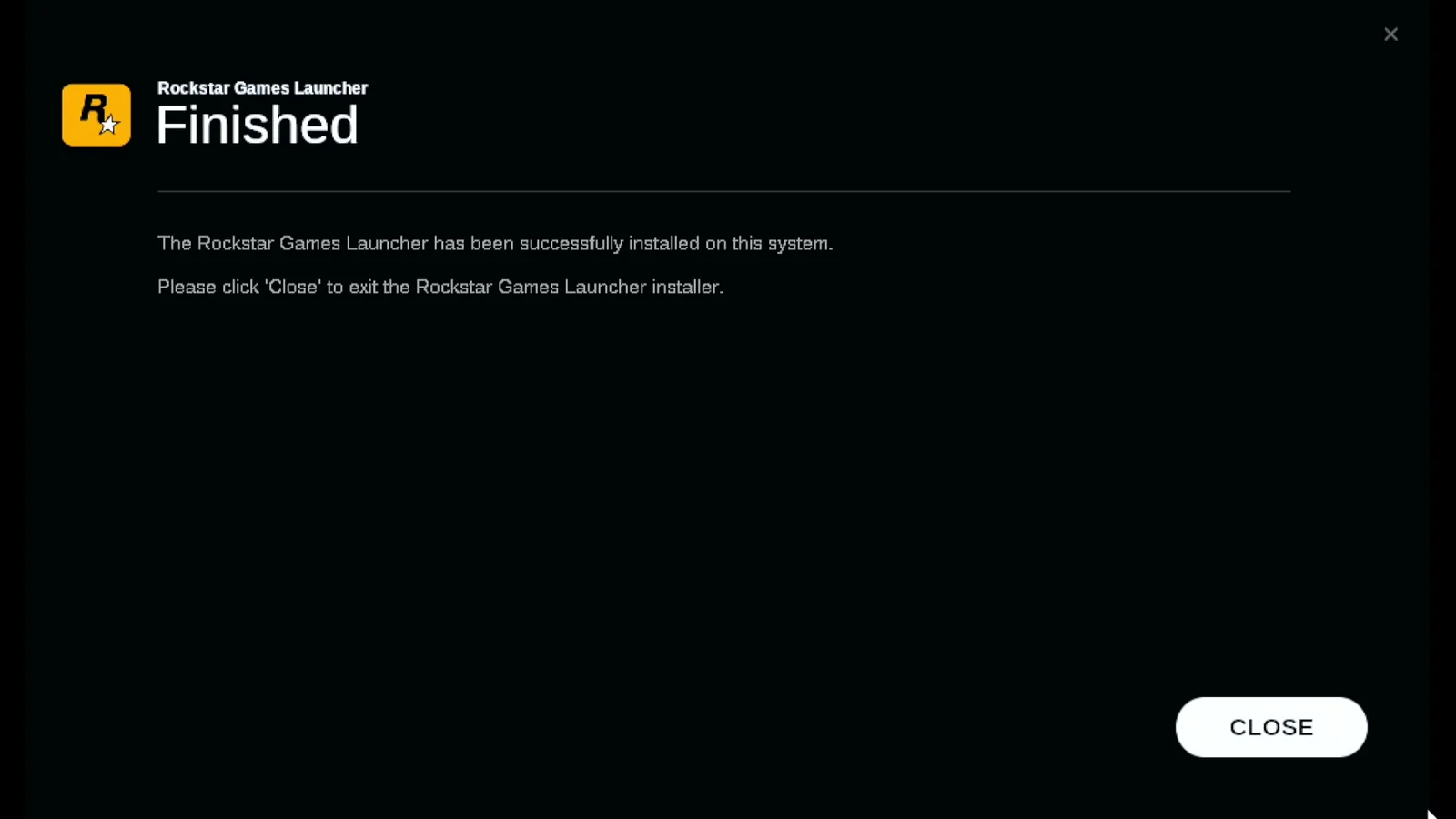
Leave the default folder and press Continue. The installer sets up its Visual C++ components by itself. When Finished appears, press Close.
Dismiss Steam's Launchers notice
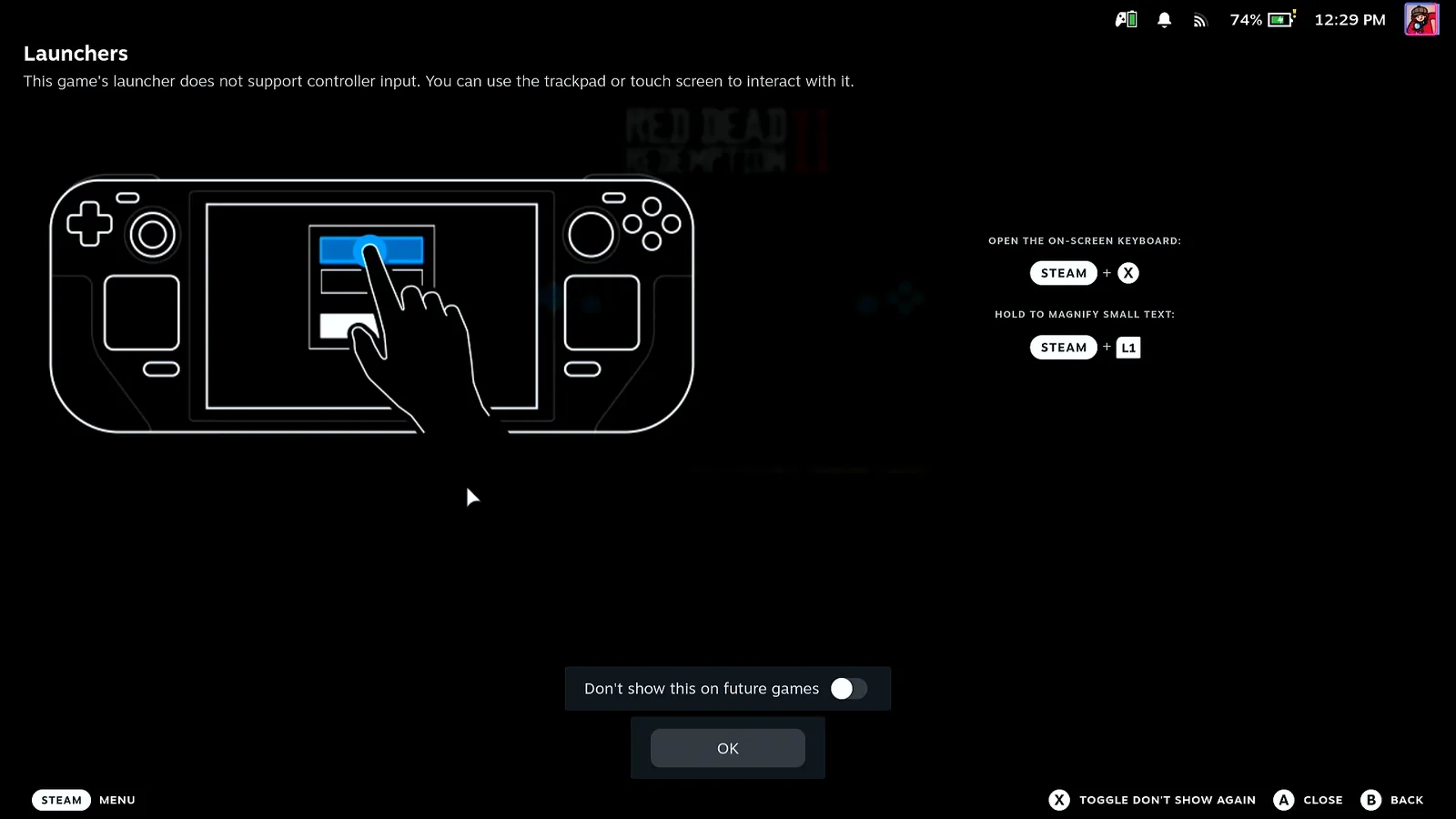
Steam now says this game's launcher doesn't support controller input and suggests the trackpad or the touchscreen. Your phone is the mouse, so tap OK and carry on.
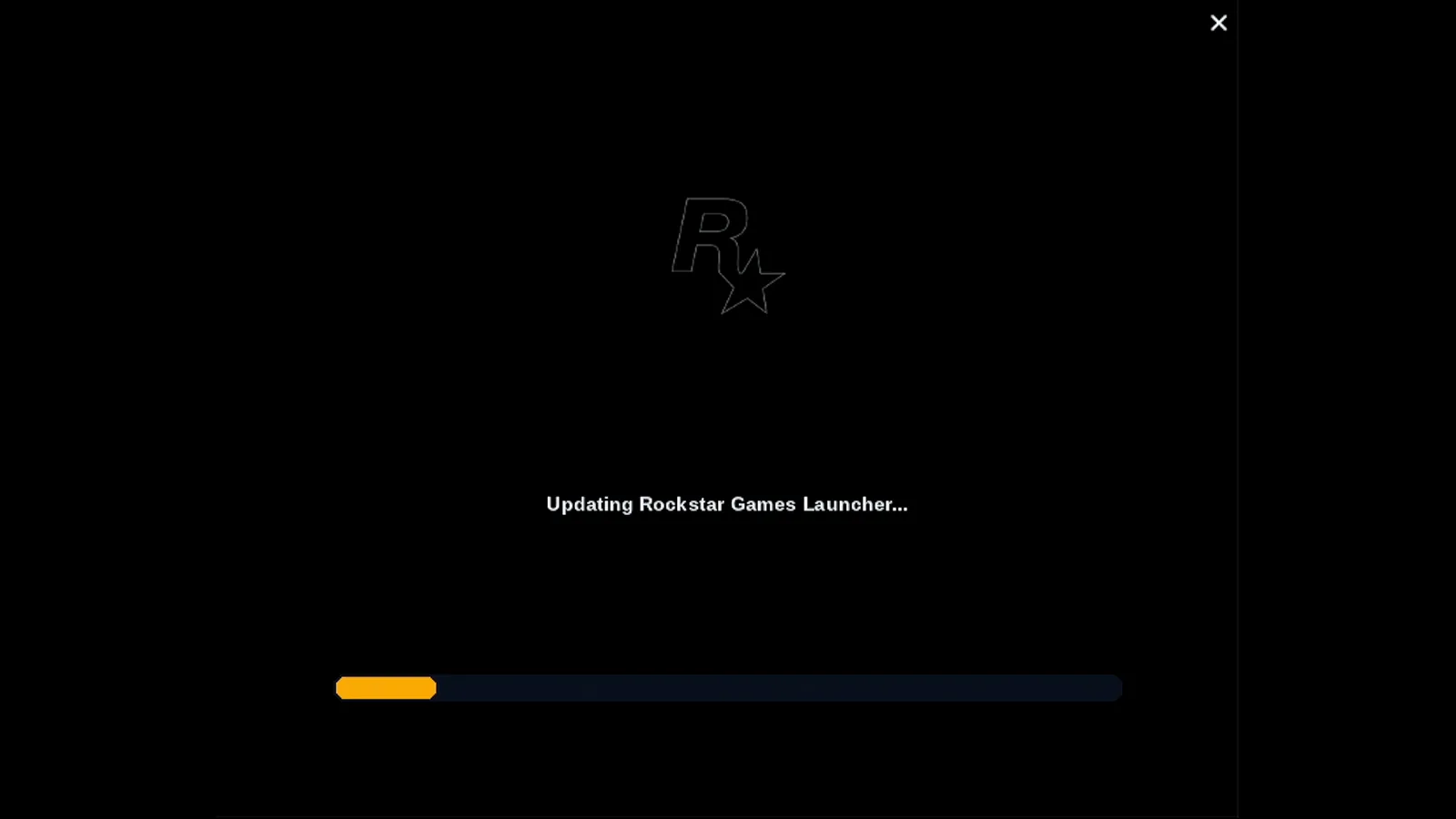
Wait while the launcher updates and connects
The launcher updates itself and connects to Rockstar Games Services. This takes a minute and needs no clicks. In the video Rockstar signed in by itself and showed a Has signed in notice; if yours asks for an e-mail and a code, the GTA V guide shows how to paste them from the phone.
Answer the Cloud Saves prompt
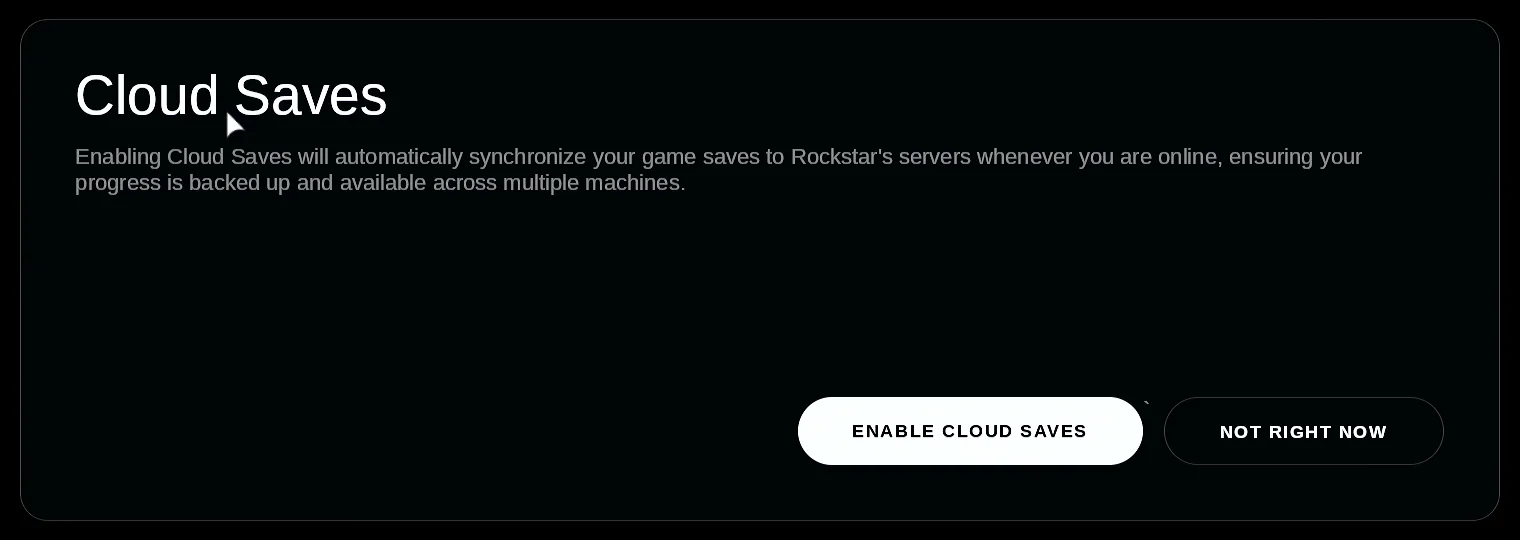
Rockstar offers Cloud Saves, which keep your progress on its servers. Press Enable cloud saves, or Not right now if you'd rather not.
Set brightness and subtitles
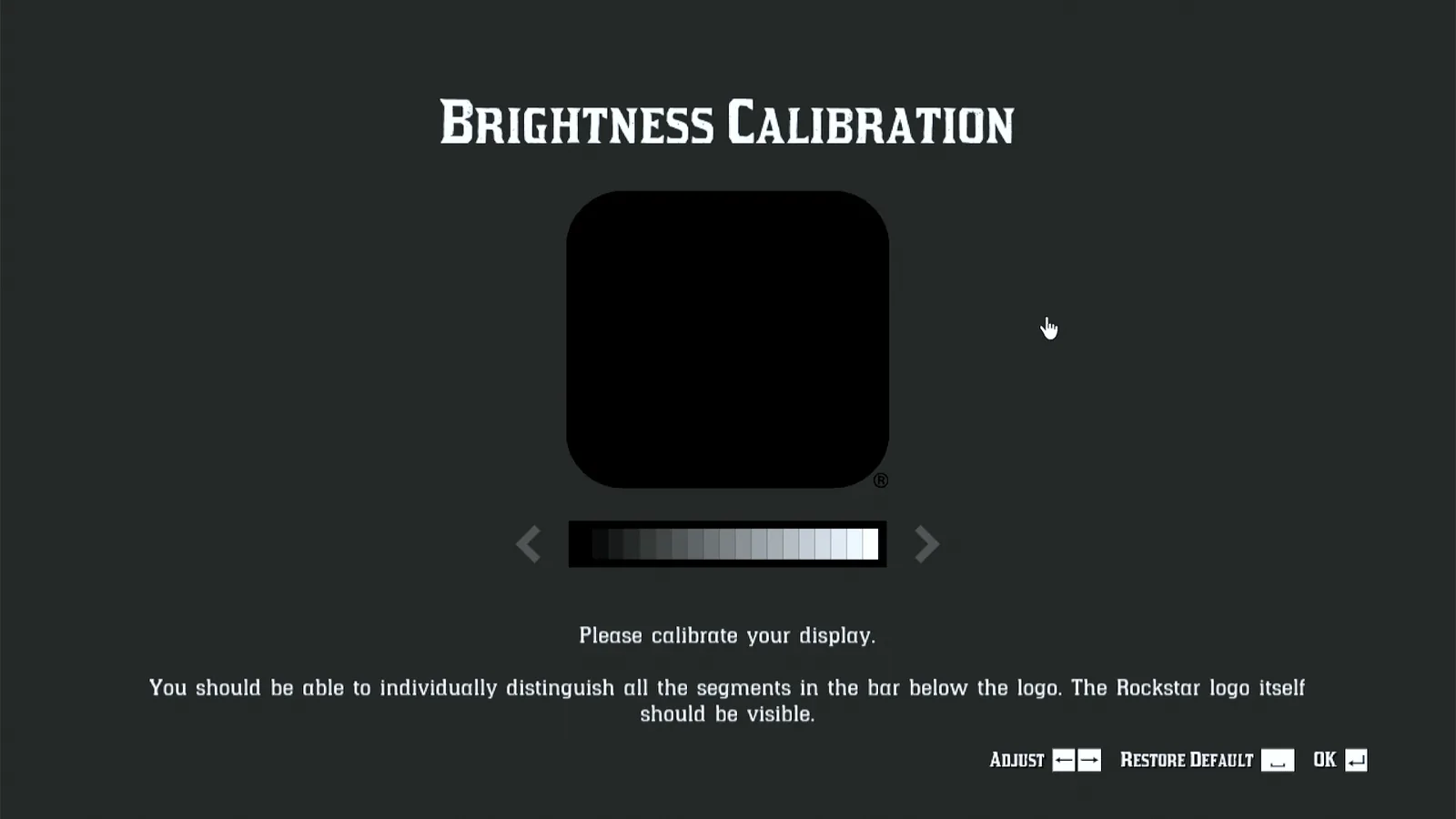
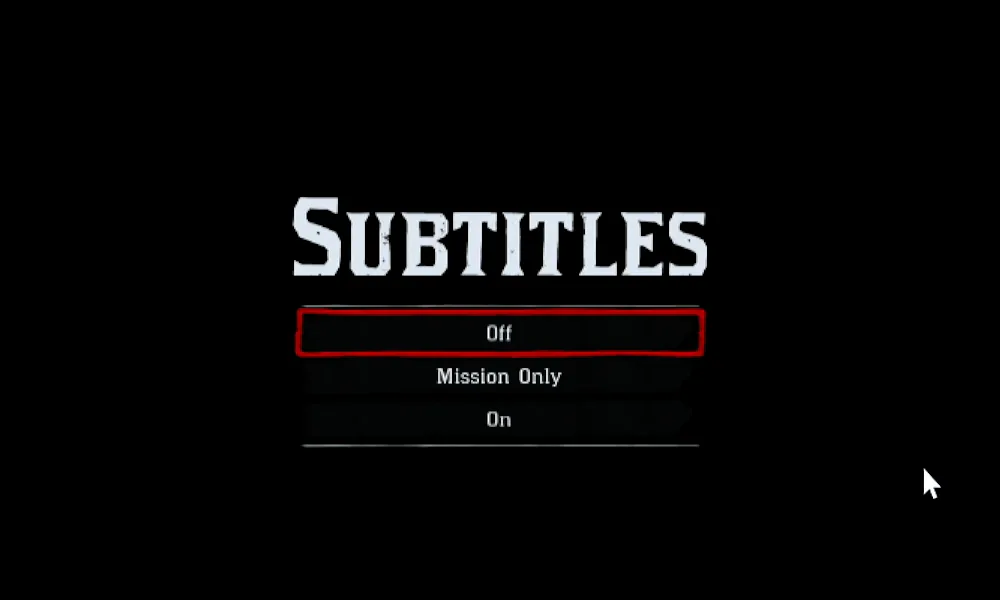
The game opens with two first-run questions. Adjust the brightness until the Rockstar logo is just visible and confirm, then choose a subtitles option. Both take a click from the phone.
You're at the main menu
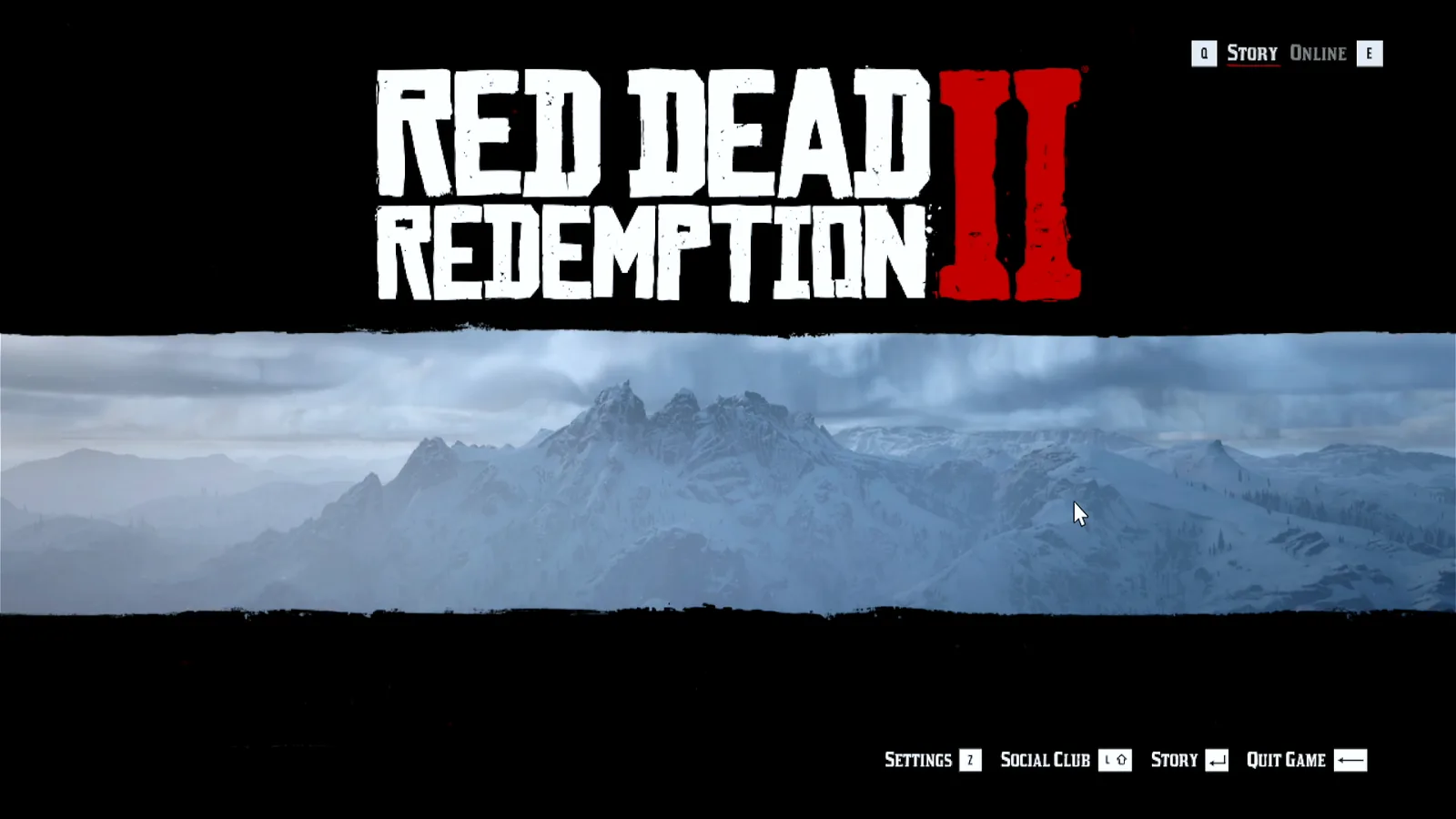
That's the whole first run: the installer, the terms, Steam's notice and the game's first questions, all from the phone, with no mouse or keyboard plugged into the Deck. Red Dead Redemption 2 is at its main menu with Story and Online, and from here it plays with the Deck's own controls.
What people are saying
“This game's launcher does not support controller input. You can use the trackpad or touch screen to interact with it.”
Steam's "Launchers" notice, shown on the Steam Deck once the Rockstar Games Launcher is installed for Red Dead Redemption 2 · 2026-10
“I had to use a Bluetooth keyboard”
Issues with Rockstar Launcher on Steam Deck (r/SteamDeck) · 2025-06
Questions, answered
Why does Red Dead Redemption 2 open a launcher at all?
It's a Rockstar game, so Steam starts it through the Rockstar Games Launcher. On the first run that launcher has to be installed before the game itself opens.
Do I need to install anything on the Steam Deck?
Not for Bluetooth: the Deck sees your phone as a Bluetooth keyboard and mouse, so Deck Pointer needs no software on it. Only the optional Wi-Fi connection (Android) uses a small app on the Deck, from deckpointer.com/deck.
What if the launcher asks me to sign in?
Type your e-mail and password in Deck Pointer's text field on the phone, and paste the e-mailed code the same way. The GTA V guide walks through that sign-in step by step.
Does this work with an iPhone?
Yes. Deck Pointer runs on iPhone and Android and connects to the Deck the same way over Bluetooth.
Is Deck Pointer free?
Yes, it's free on Android and iPhone.