Steam Deck fixes
How to connect your iPhone to a Steam Deck and use it as a mouse and keyboard
You want to point and type on your Steam Deck from your iPhone, and need the pairing walked through on both devices at once.
Pair it once and your iPhone works as a mouse, keyboard and gamepad for the Steam Deck. Deck Pointer’s wizard walks you through the pairing — here is every screen of it, with the Deck screen that answers each step.
Video tutorial
Step by step
Pick Steam Deck
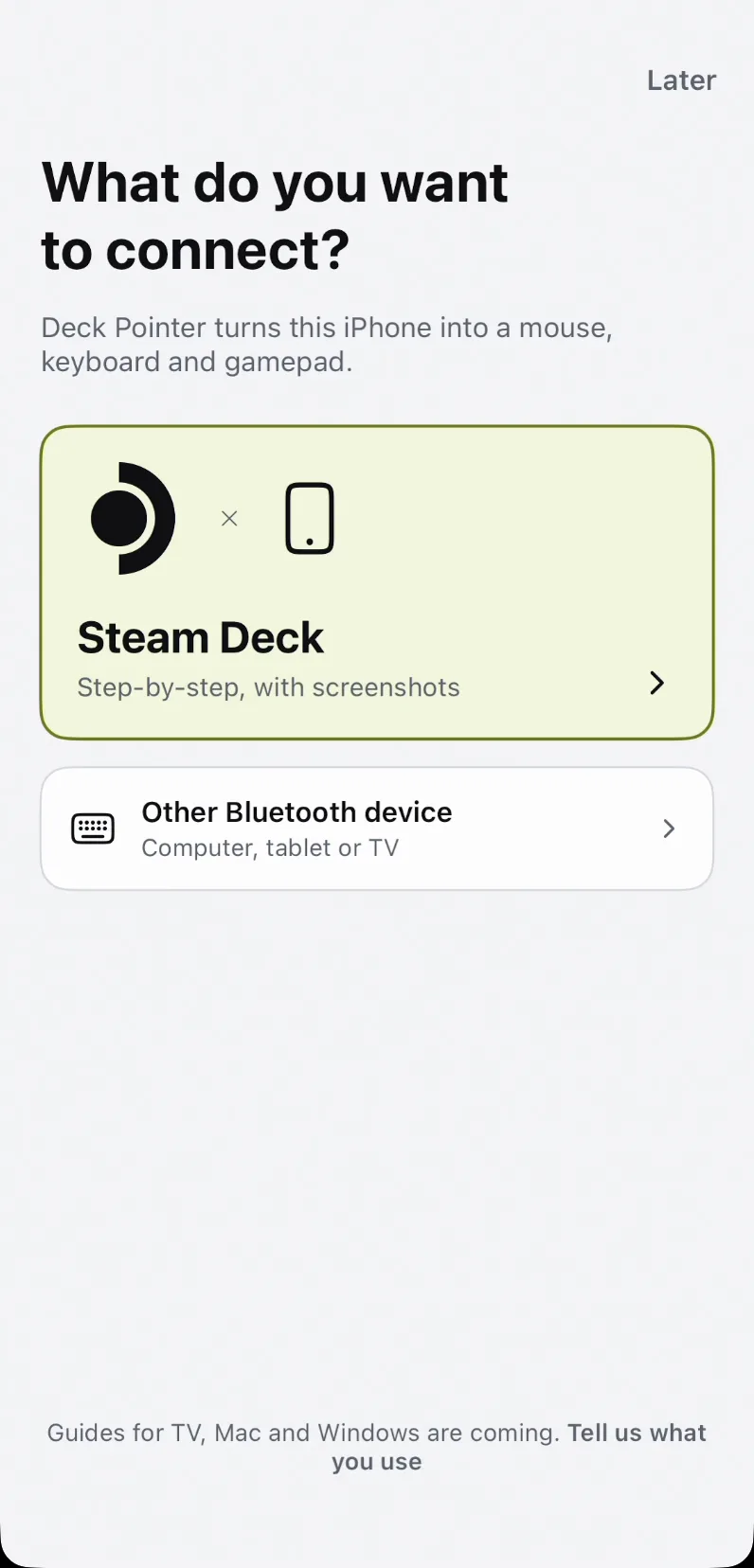
Open Deck Pointer and choose Steam Deck. That picks the step-by-step guide with screenshots; Other Bluetooth device is the shorter generic version for a computer, tablet or TV.
Say whether these two were paired before
Tap "No, this is the first time" and the wizard goes straight to pairing. If the Deck and this iPhone were connected at some point, pick the other answer: the wizard first walks you through removing the old pairing on both devices, which is also the last step here.

Tell it which mode the Deck is in
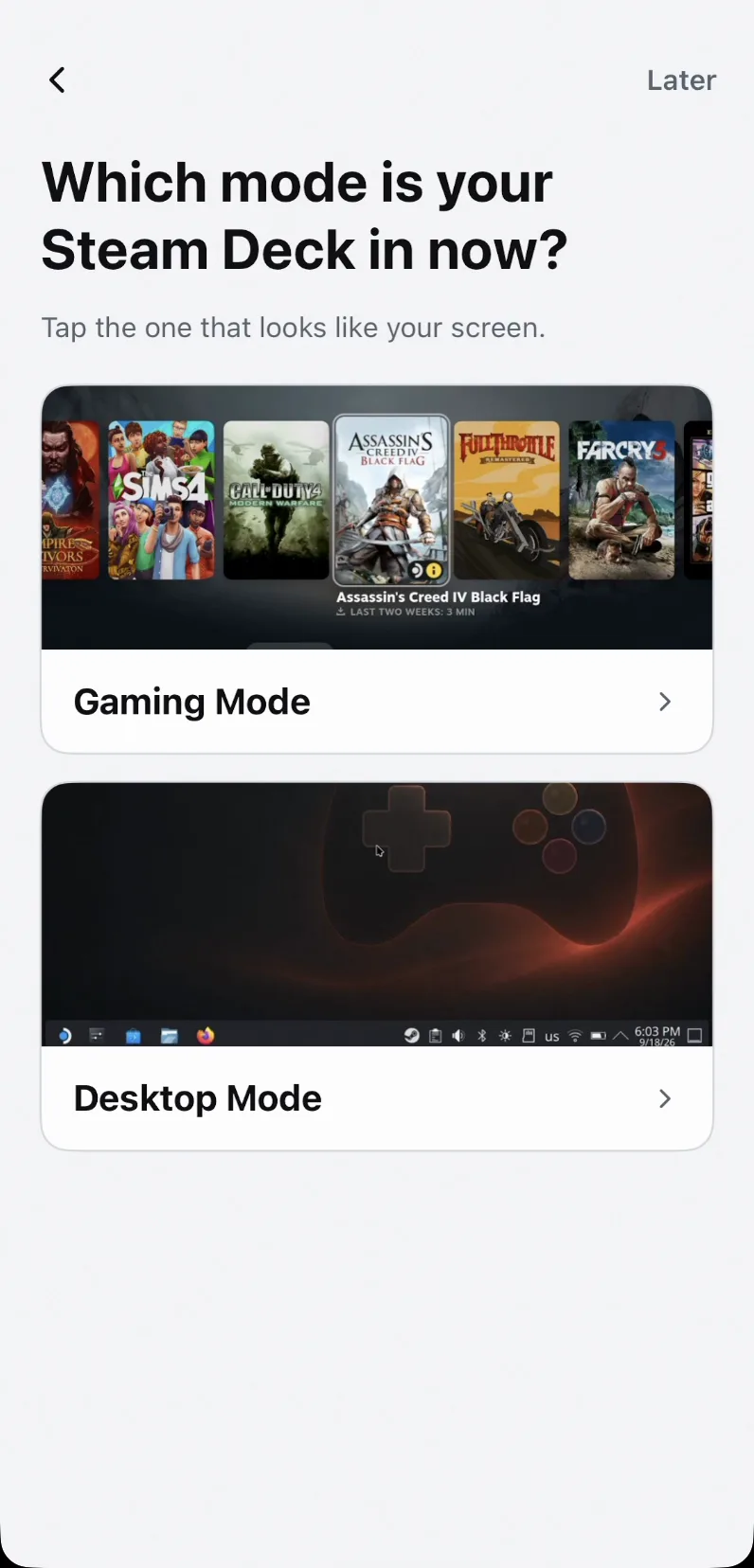
Gaming Mode is the Steam interface the Deck boots into; Desktop Mode is the KDE desktop. The two look nothing alike, and every screenshot the wizard shows from here on matches the one you pick.
Allow Bluetooth
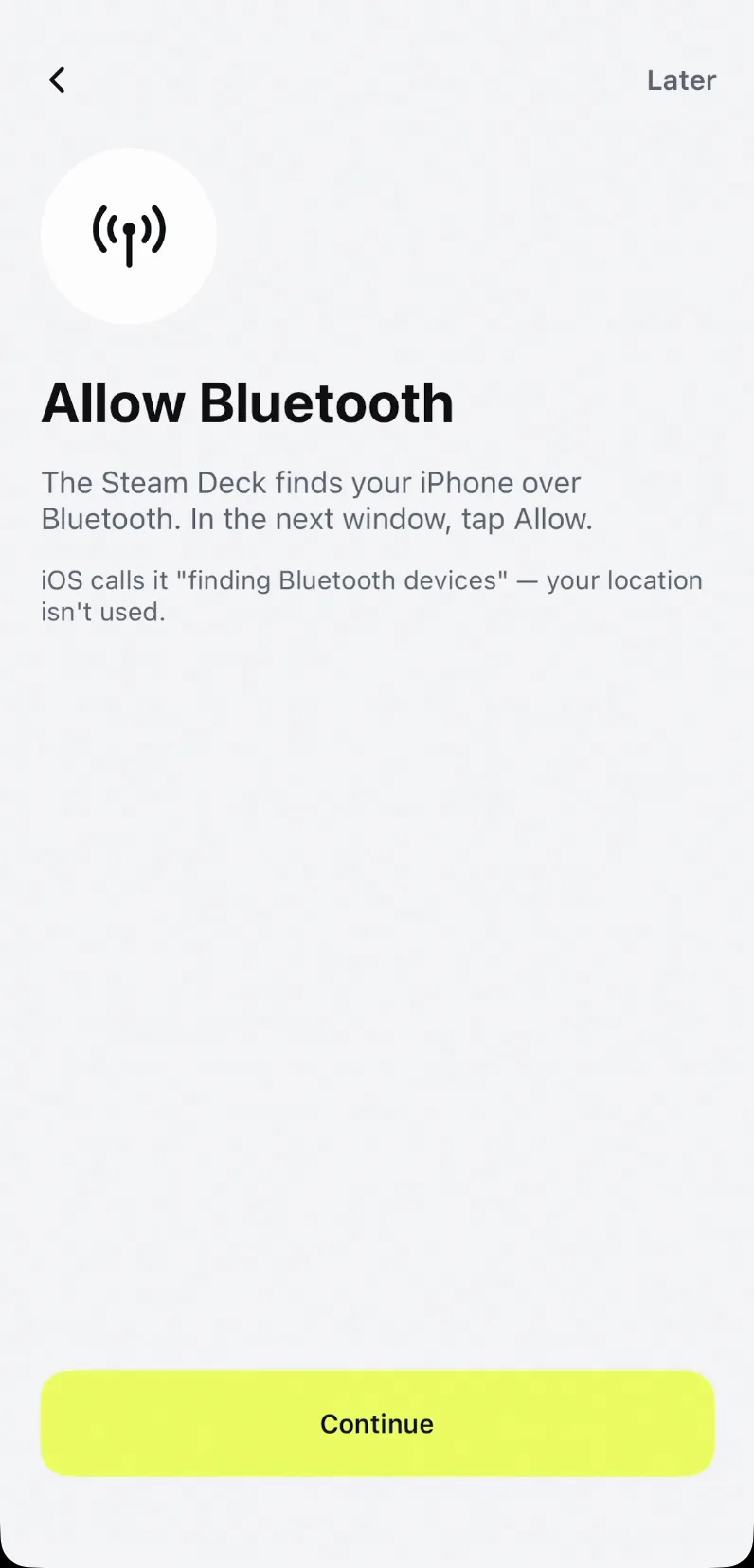
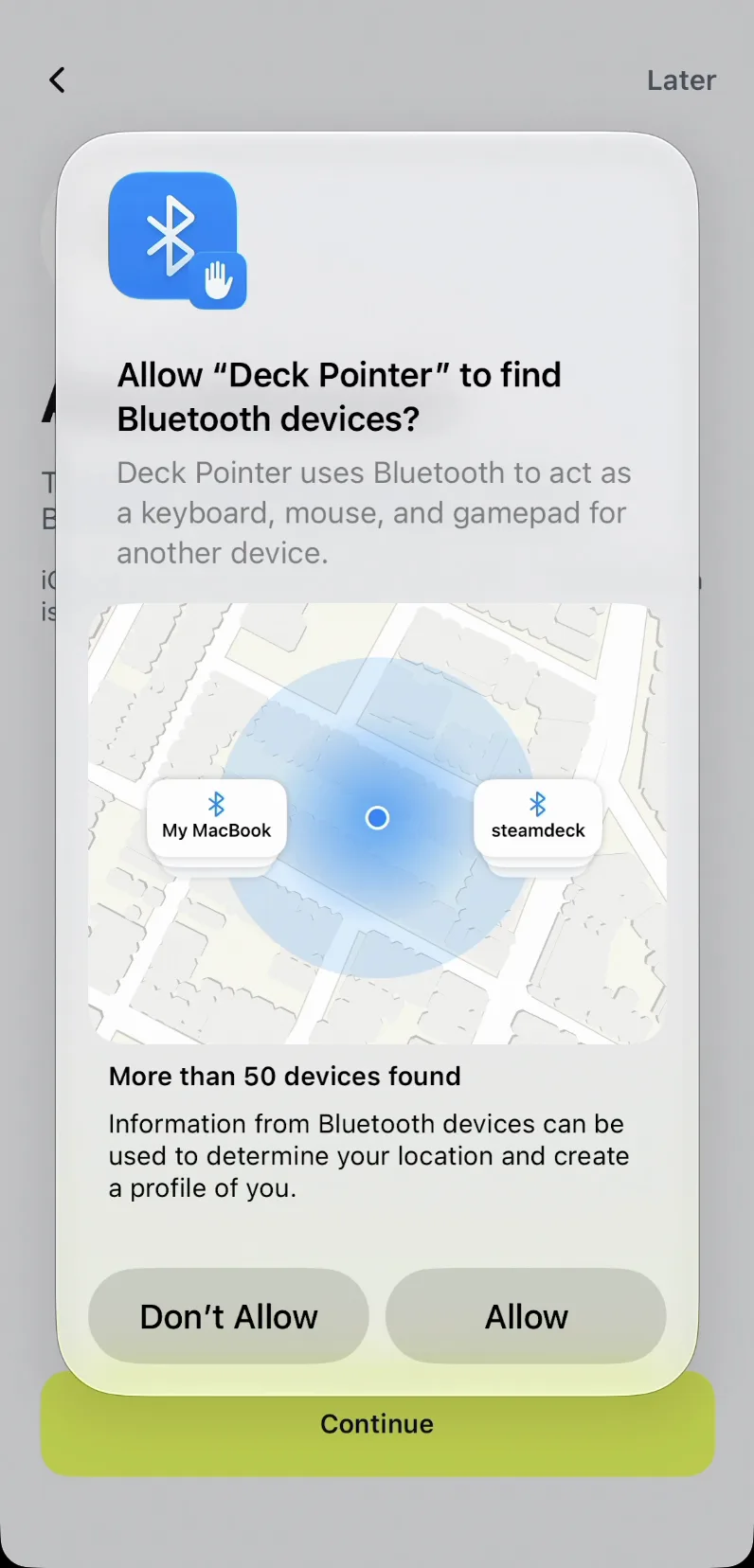
The Deck finds your iPhone over Bluetooth, so iOS asks for permission first. Tap Continue, then Allow. iOS words it as "finding Bluetooth devices" and mentions location because that is its standard wording for every app — Deck Pointer does not use your location.
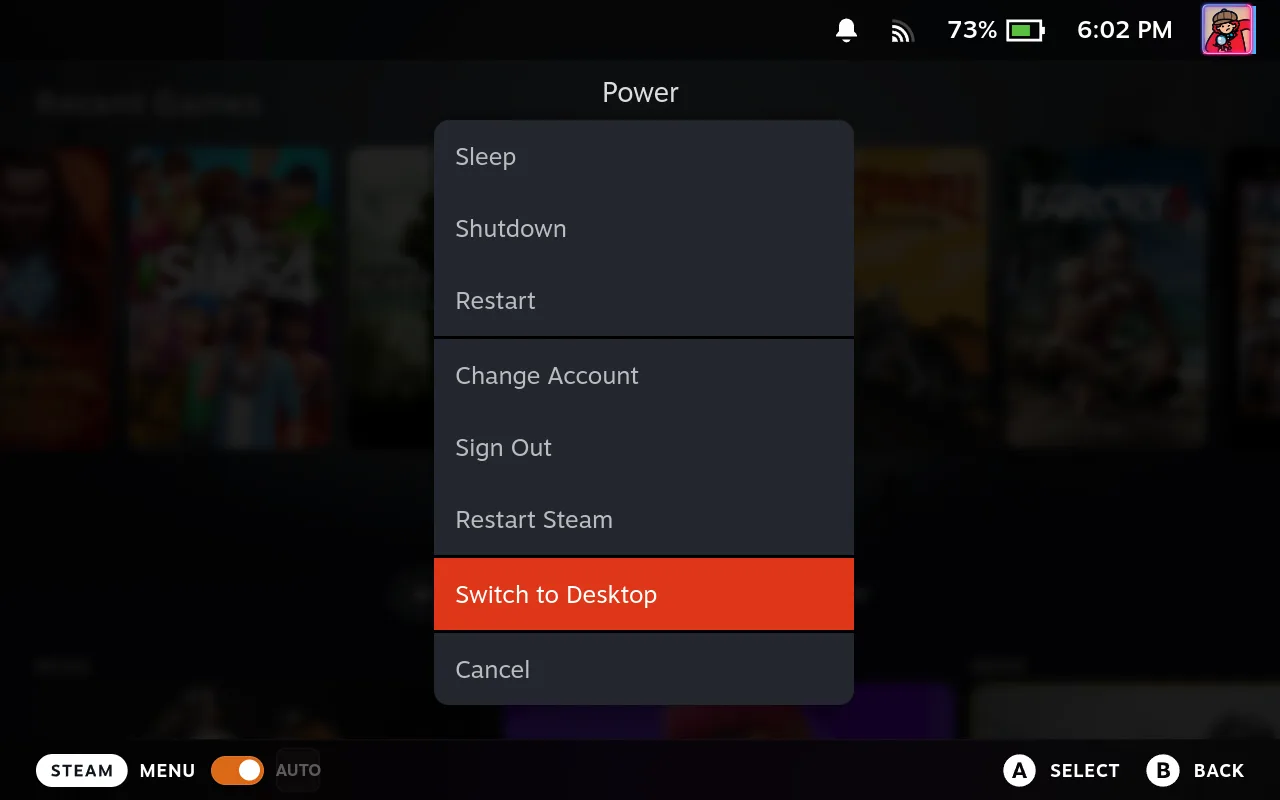
Step 1 of 6 — switch the Deck to Desktop Mode
On the Deck: STEAM → Power → Switch to Desktop. This is the only part that needs Desktop Mode, and only this once — Gaming Mode's Bluetooth screen never shows the pairing code an iPhone has to confirm. Tap Done, next once you are on the desktop.
STEAM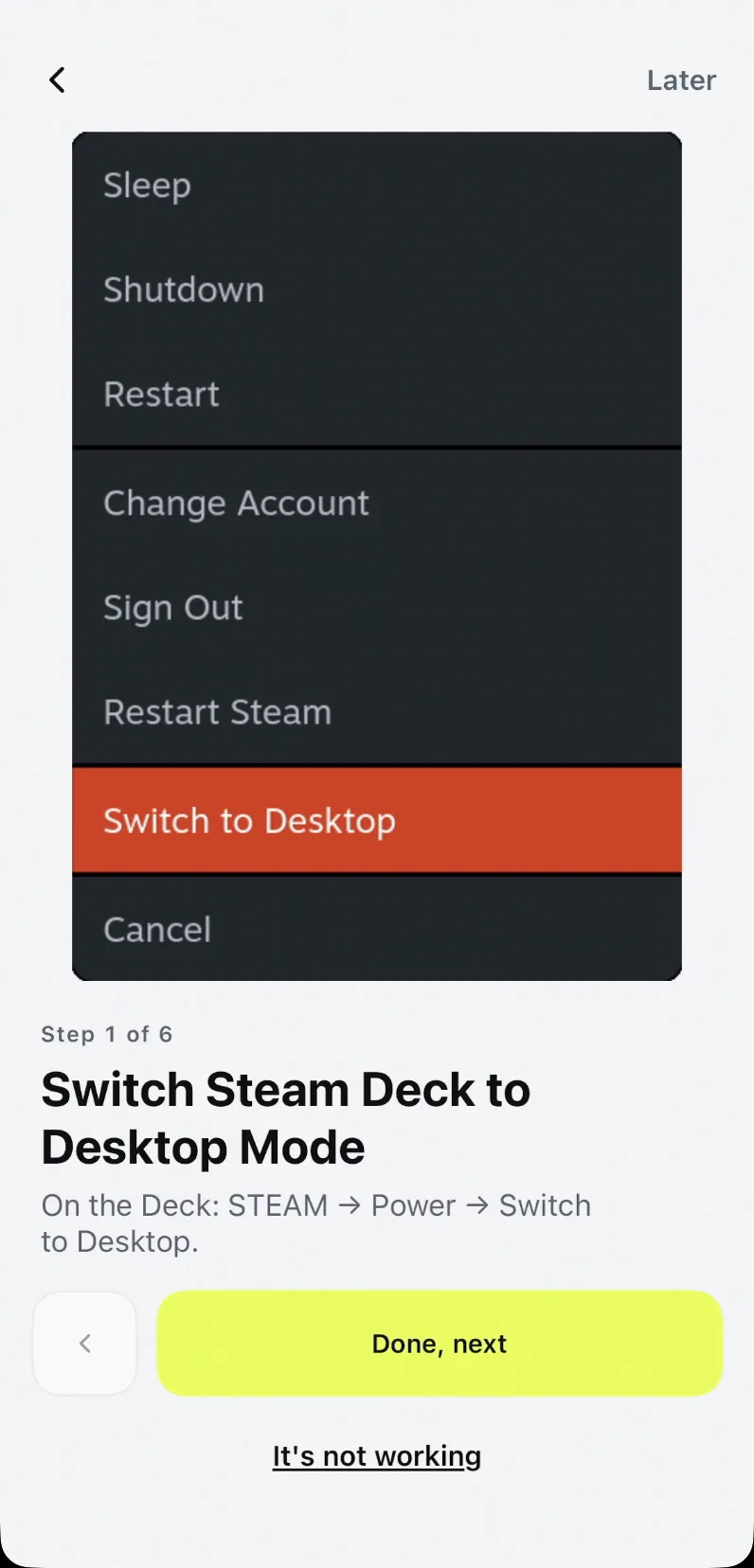
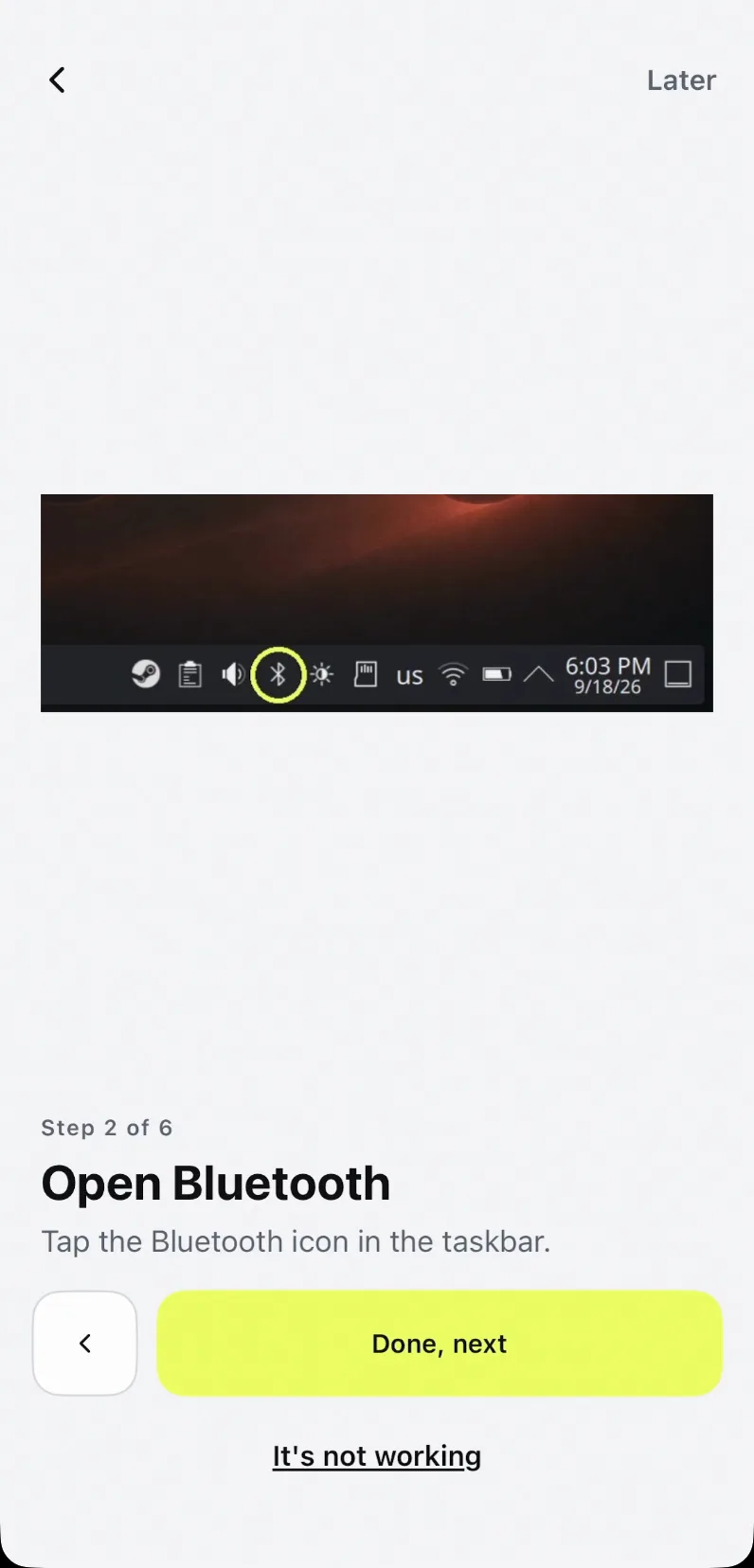
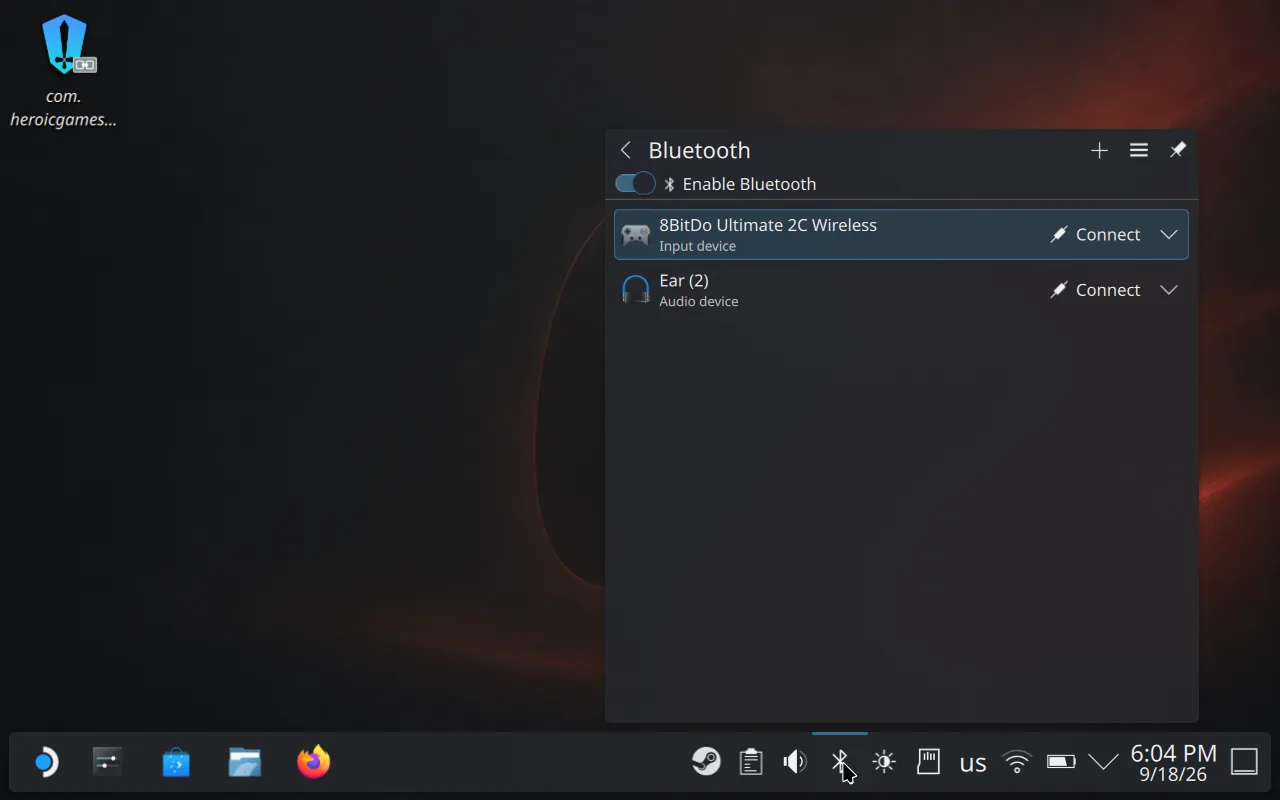
Step 2 of 6 — open Bluetooth on the Deck
Click the Bluetooth icon in the desktop taskbar, at the bottom right, to open the Bluetooth panel.
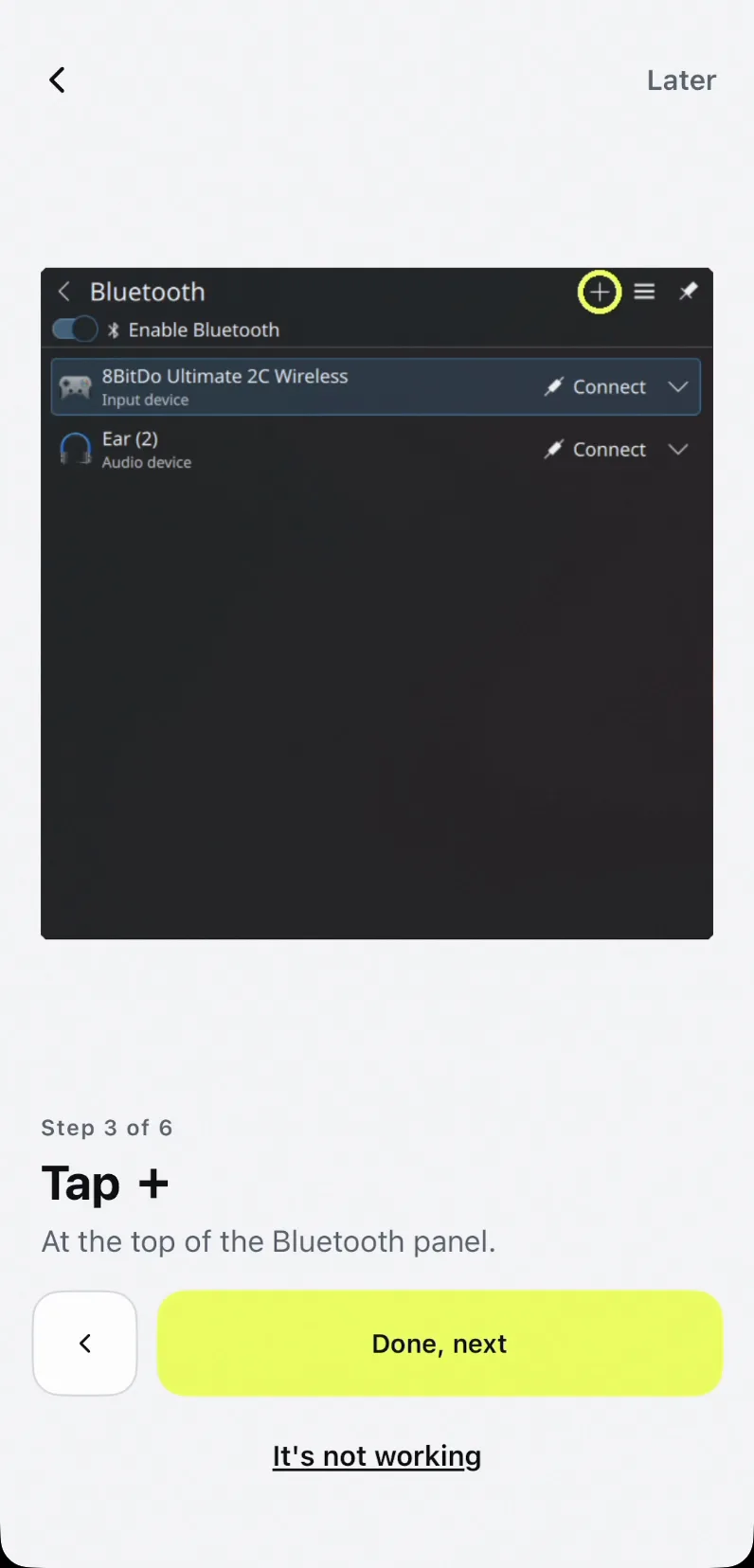
Step 3 of 6 — tap +
Press + at the top of the Bluetooth panel to start adding a device. The Deck begins scanning; your iPhone is already advertising, because the wizard started that when you allowed Bluetooth.
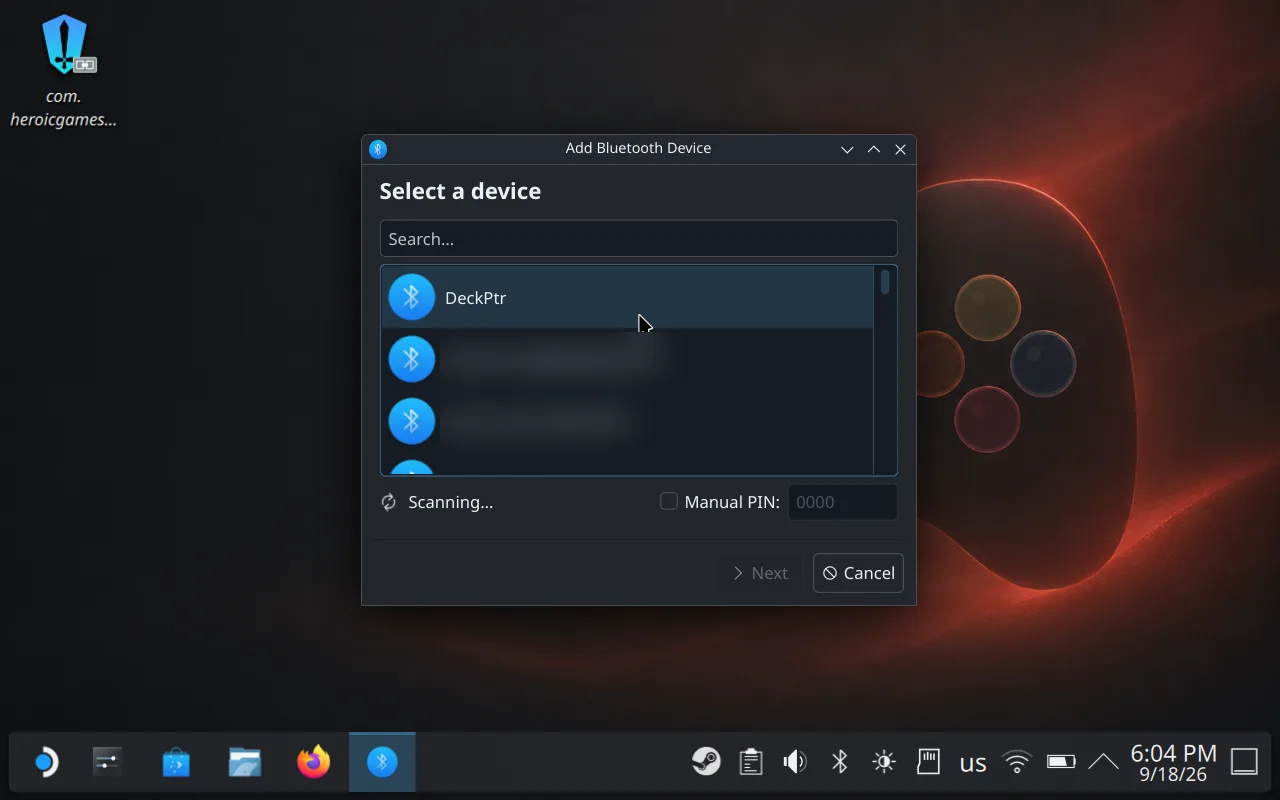
Step 4 of 6 — pick DeckPtr
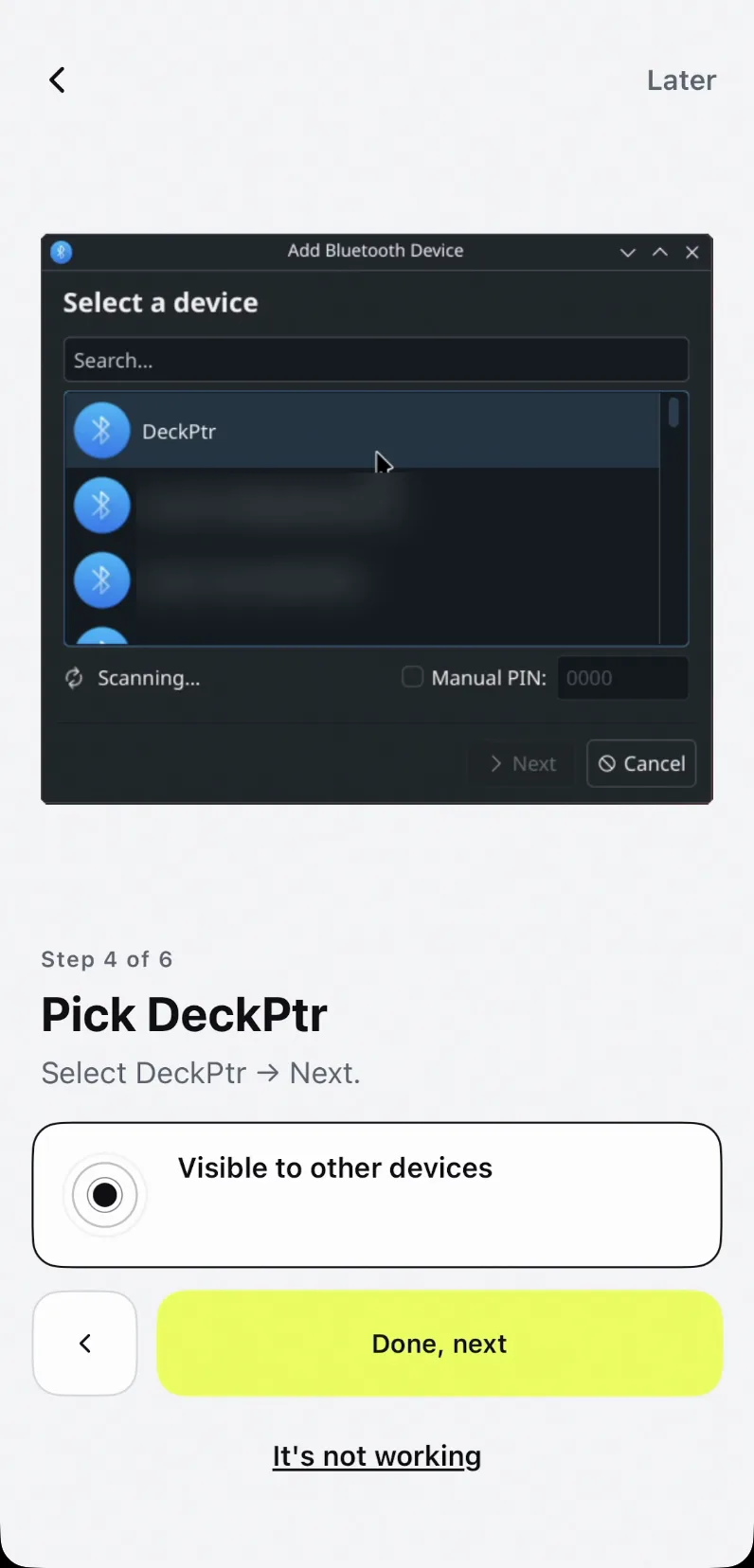
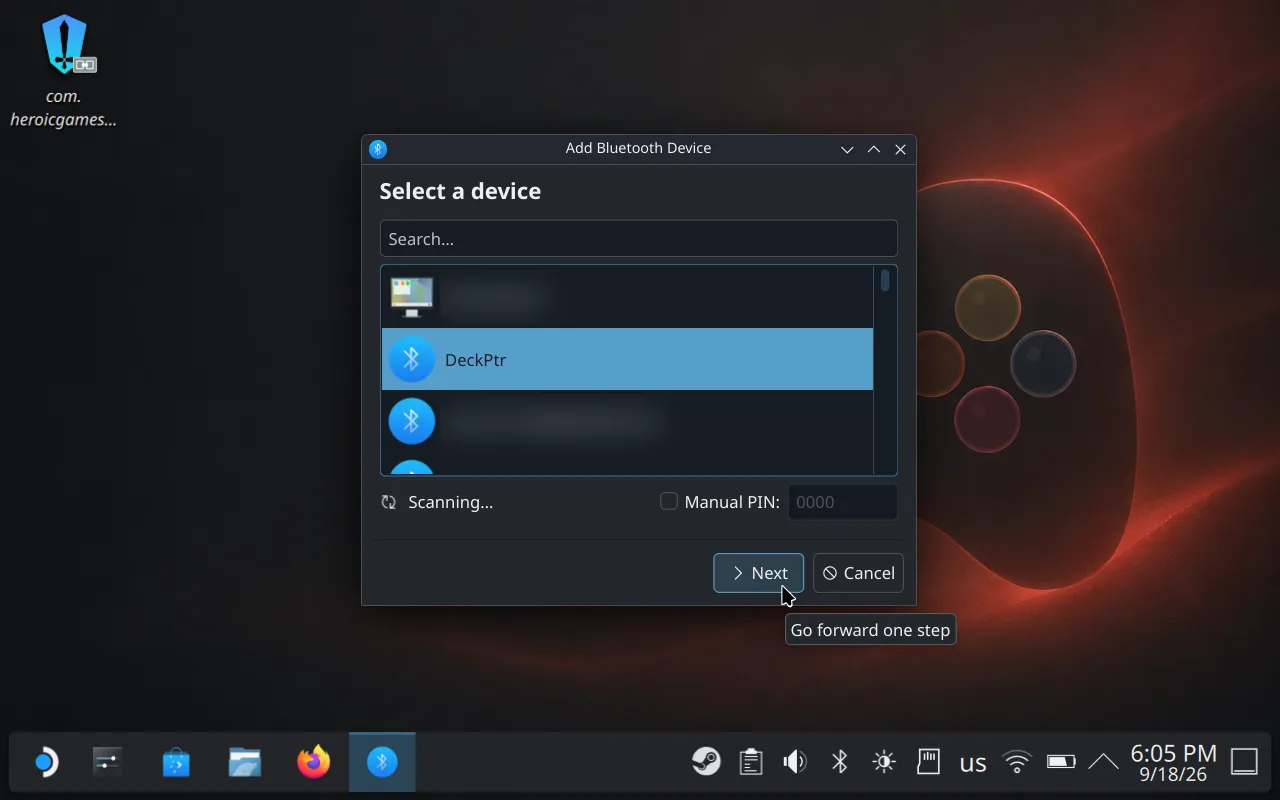
Your iPhone shows up as DeckPtr, not under your own iPhone name — that entry is Deck Pointer advertising itself as a controller. Select it and press Next.
Step 5 of 6 — confirm the code within 20 seconds
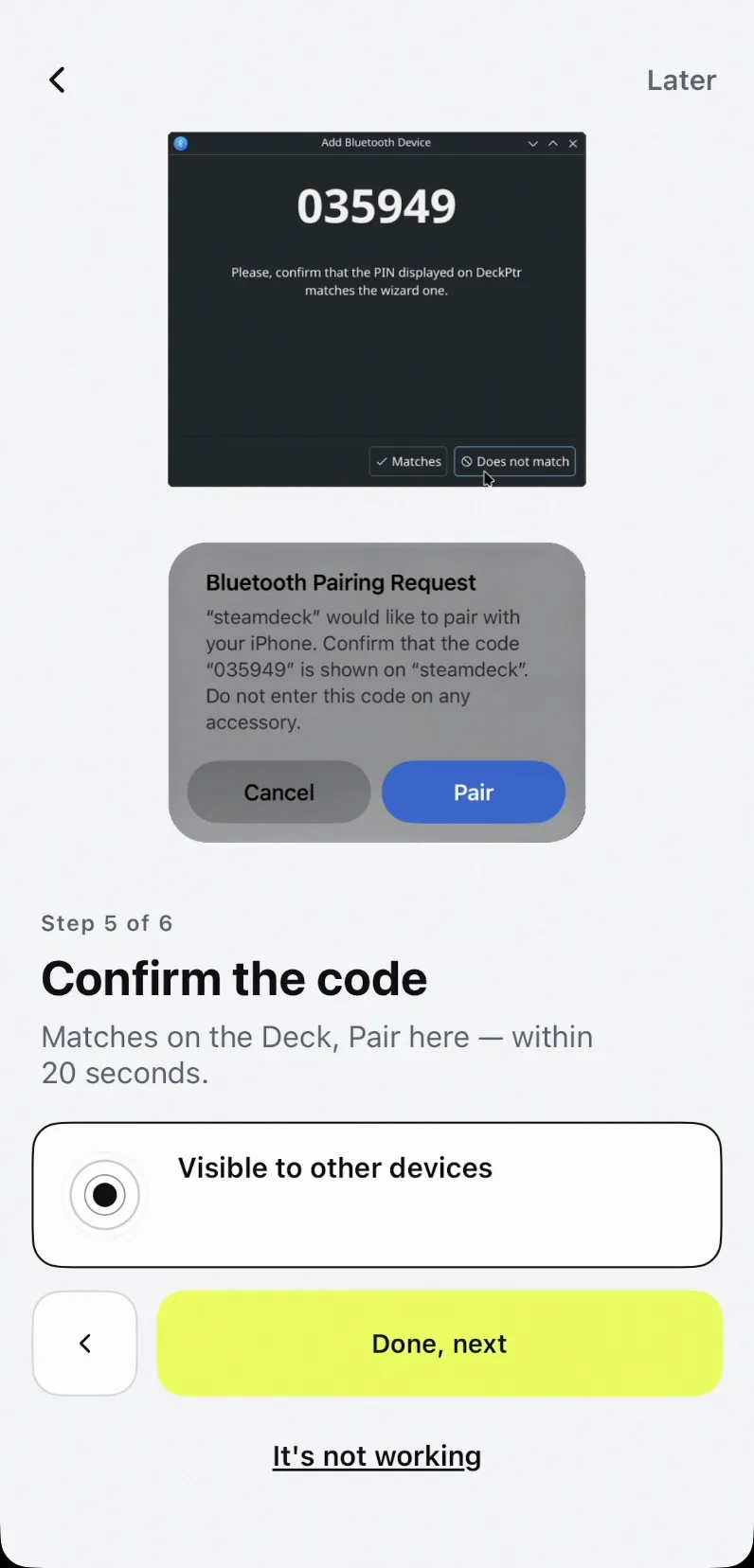
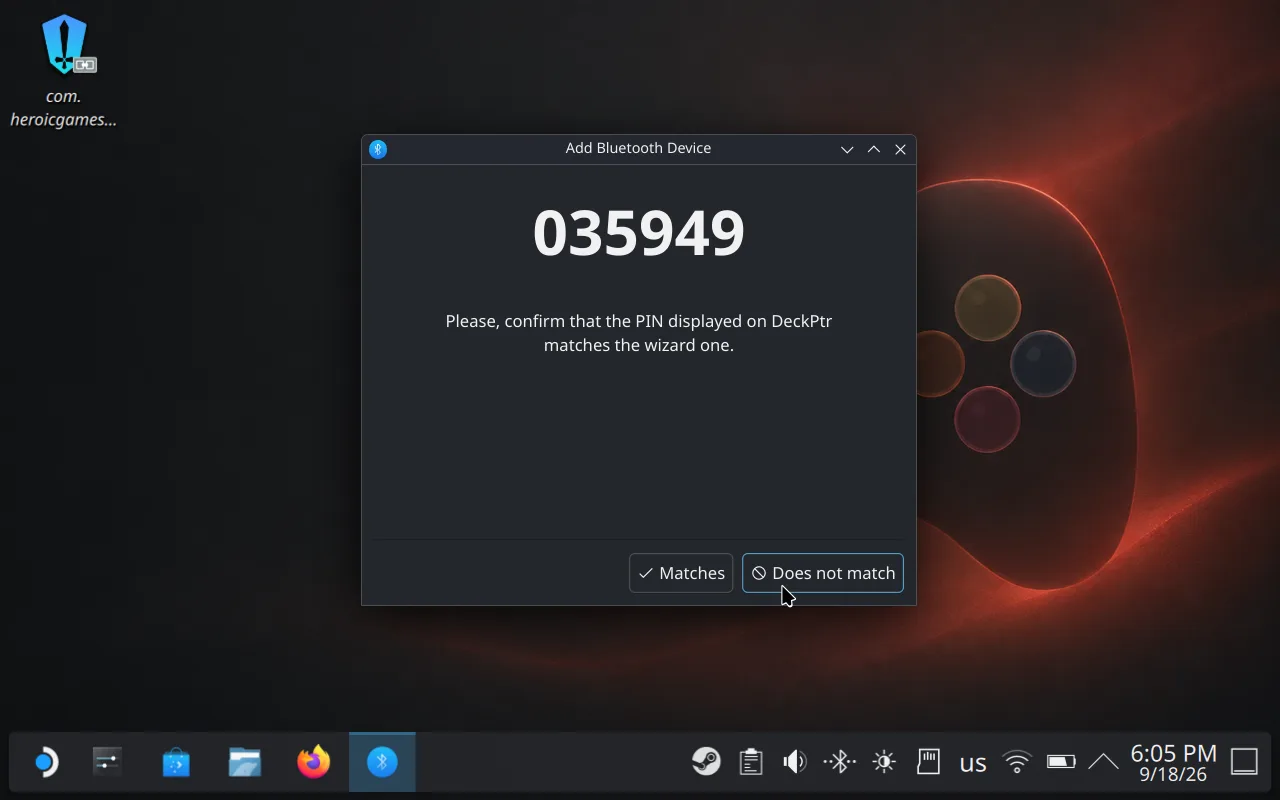
The same six-digit code appears on both screens. Tap Matches on the Deck and Pair on the iPhone, right away — the request expires after about 20 seconds, and the Deck's retry then fails with "Page Timeout" because the iPhone has already rotated its private Bluetooth address. If that happens: cancel on the Deck, press + again, pick DeckPtr, and confirm immediately.
Connected — the app saves the pairing itself
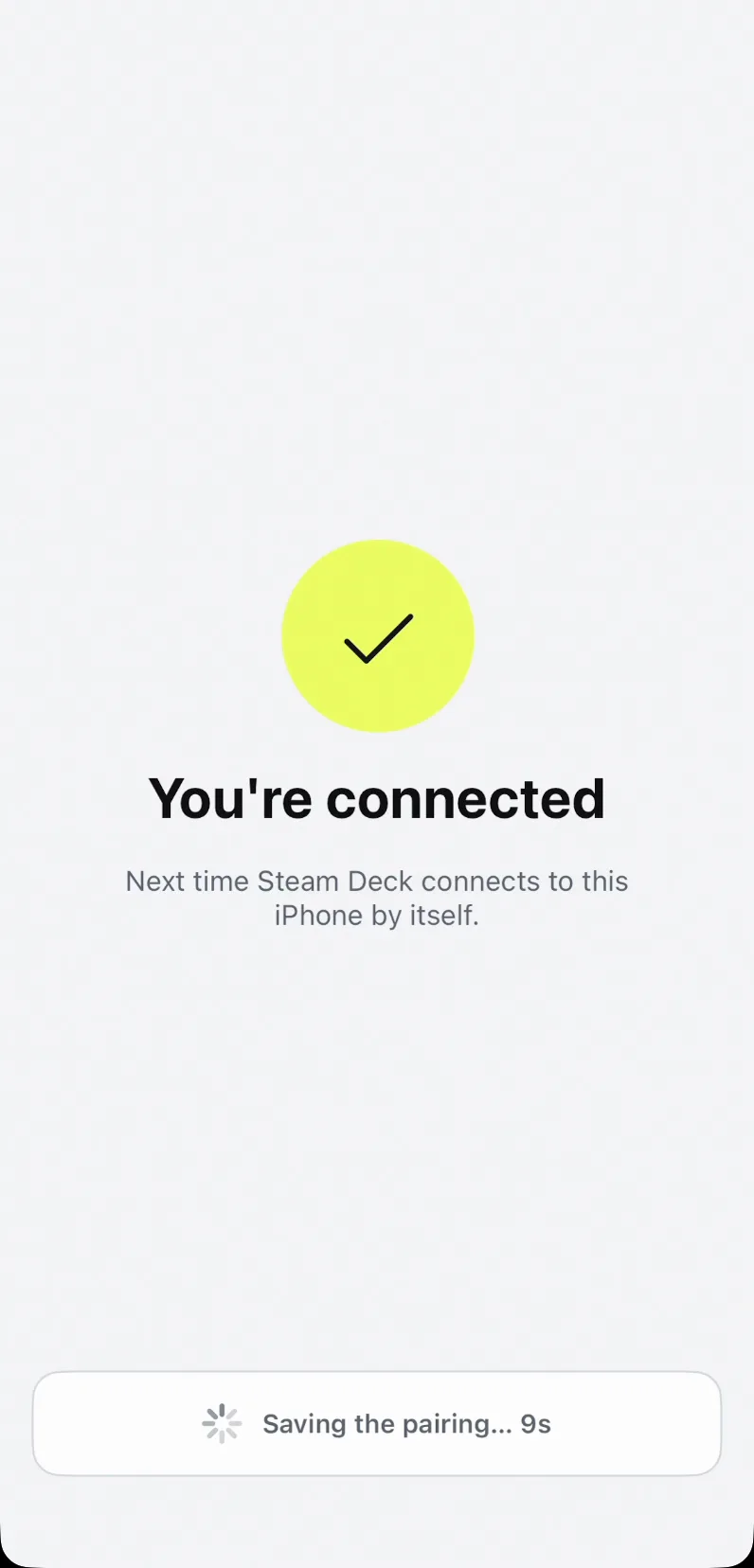
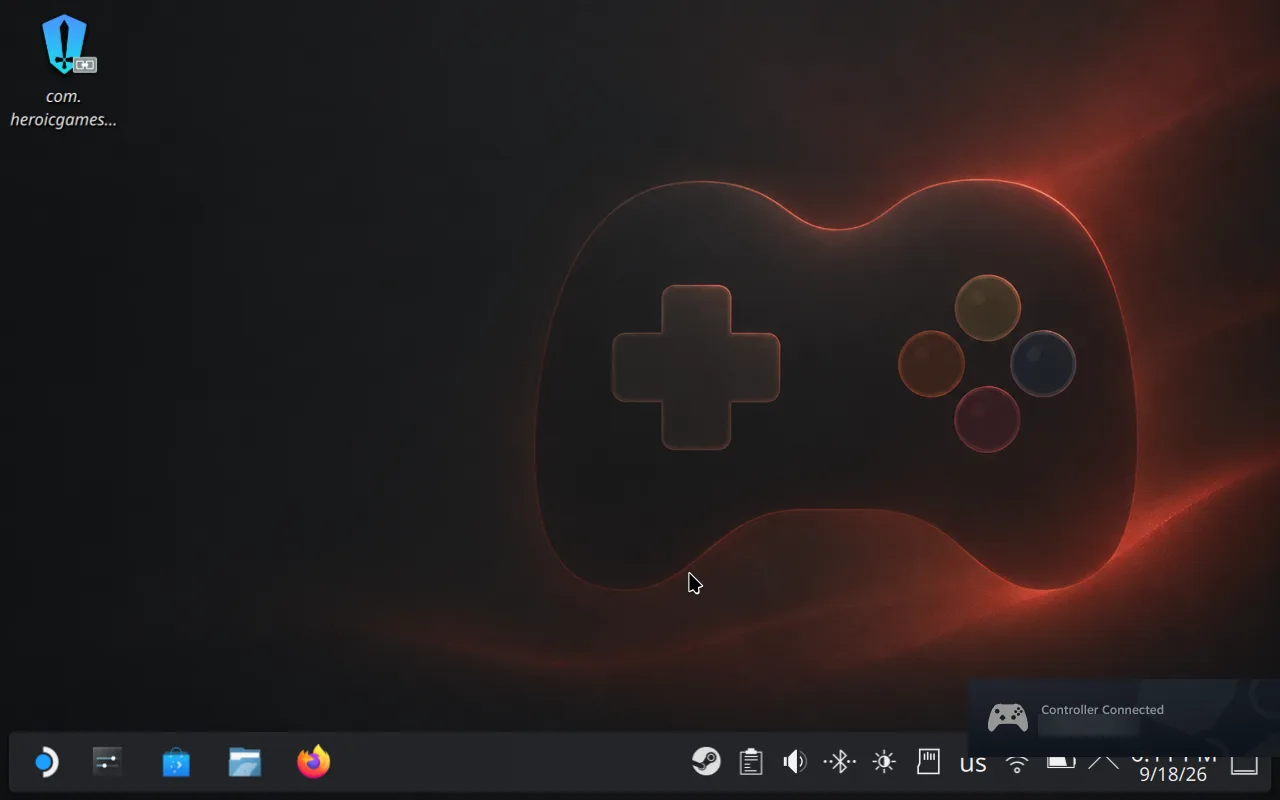
The wizard ends on "You're connected" and saves the pairing in the background; the Deck shows a Controller Connected notification with your iPhone's name. Nothing else to confirm.
Use it: tap to click, hold to right-click, type to type
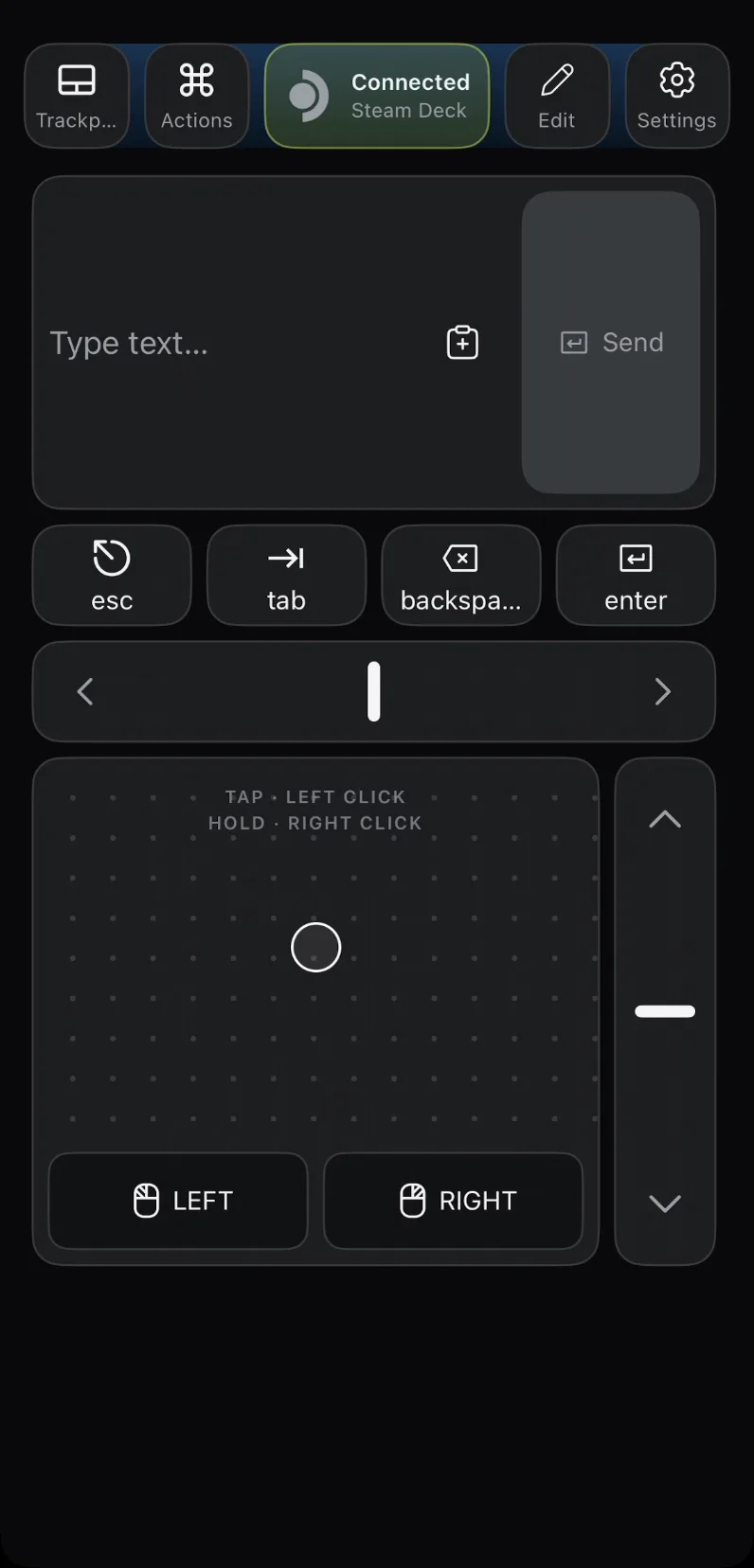
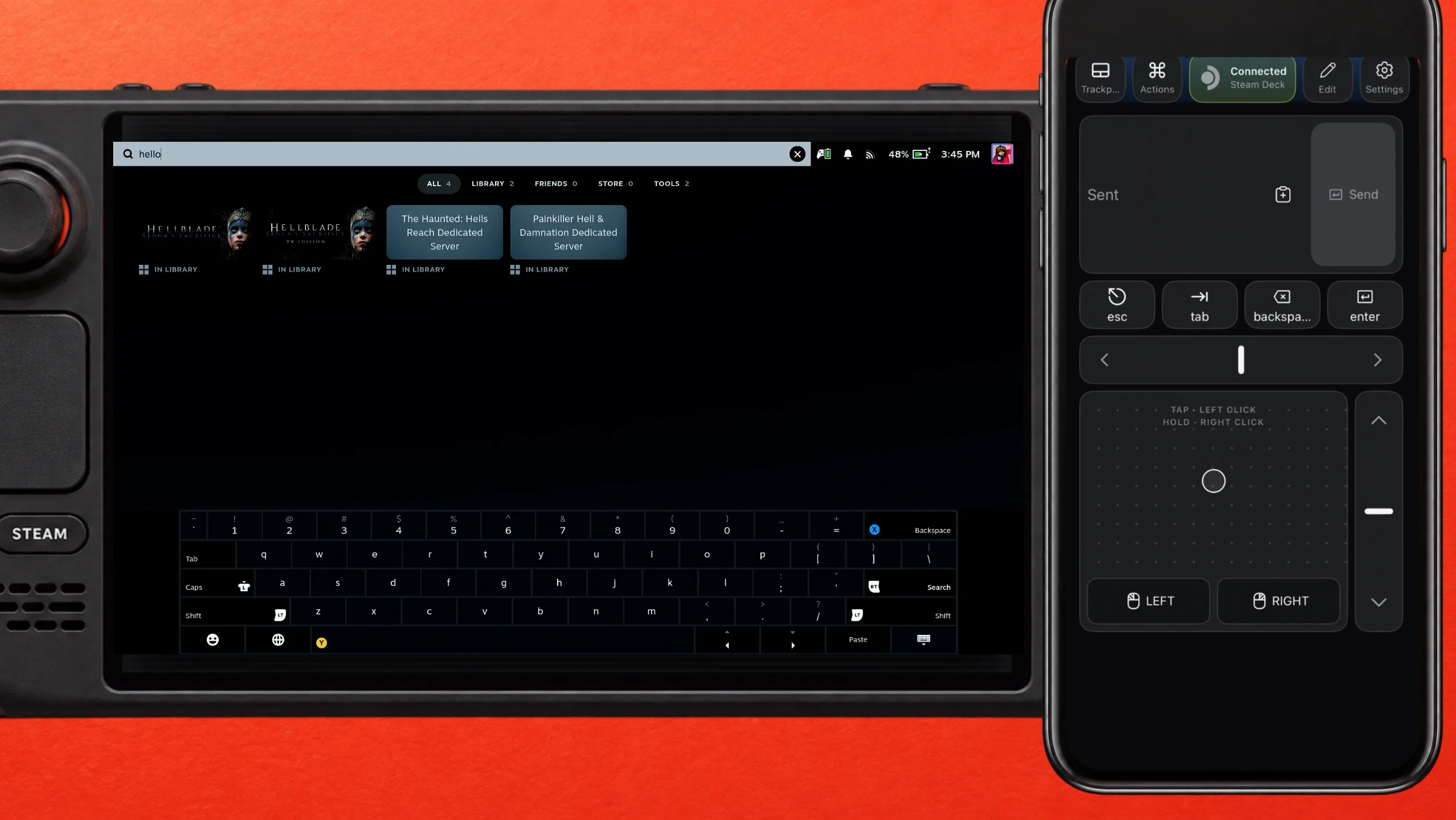
The trackpad moves the cursor, a tap is a left click, and touch and hold is a right click. The text field sends whatever you type straight to the Deck, which is the point of the whole exercise for Wi-Fi passwords and launcher logins.
Back in Game Mode it keeps working
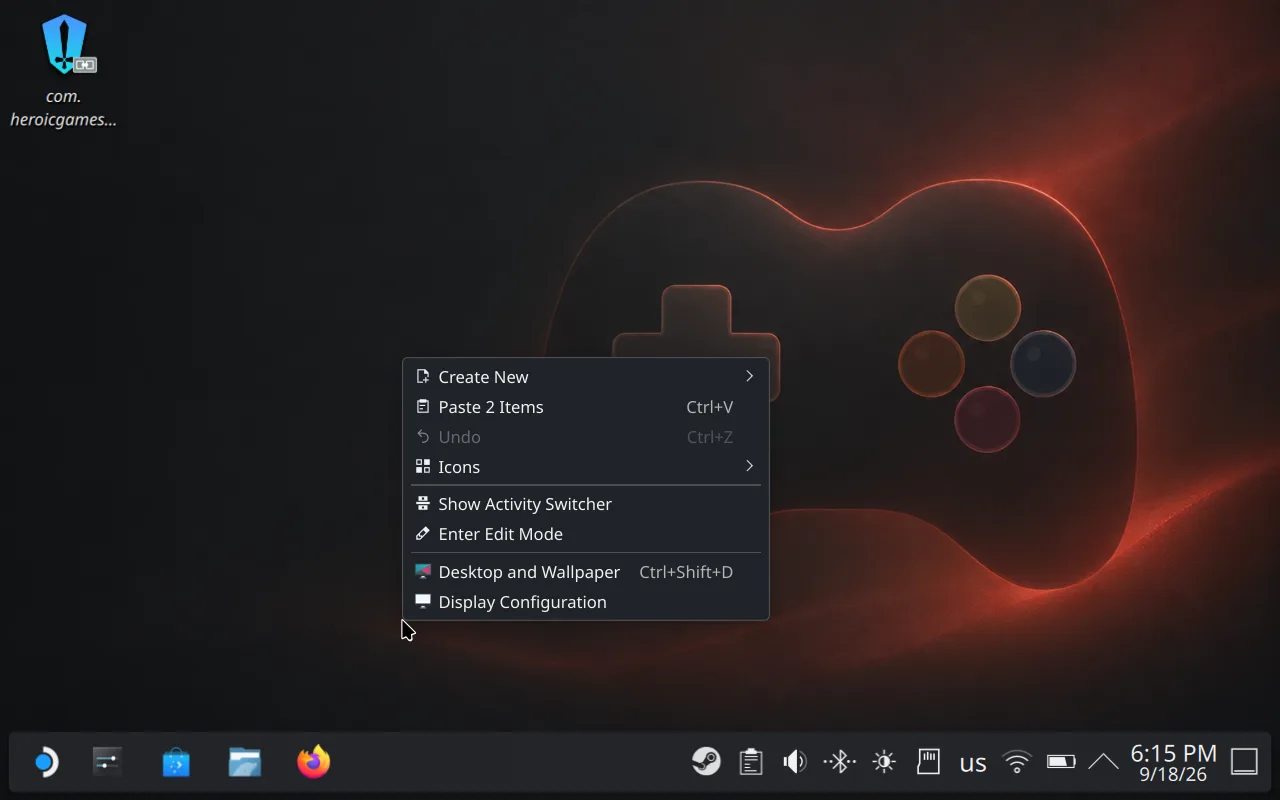
Return to Gaming Mode from the desktop shortcut. The iPhone stays paired and keeps working there — Desktop Mode was only needed for the code.
Next time: open Bluetooth on the Deck
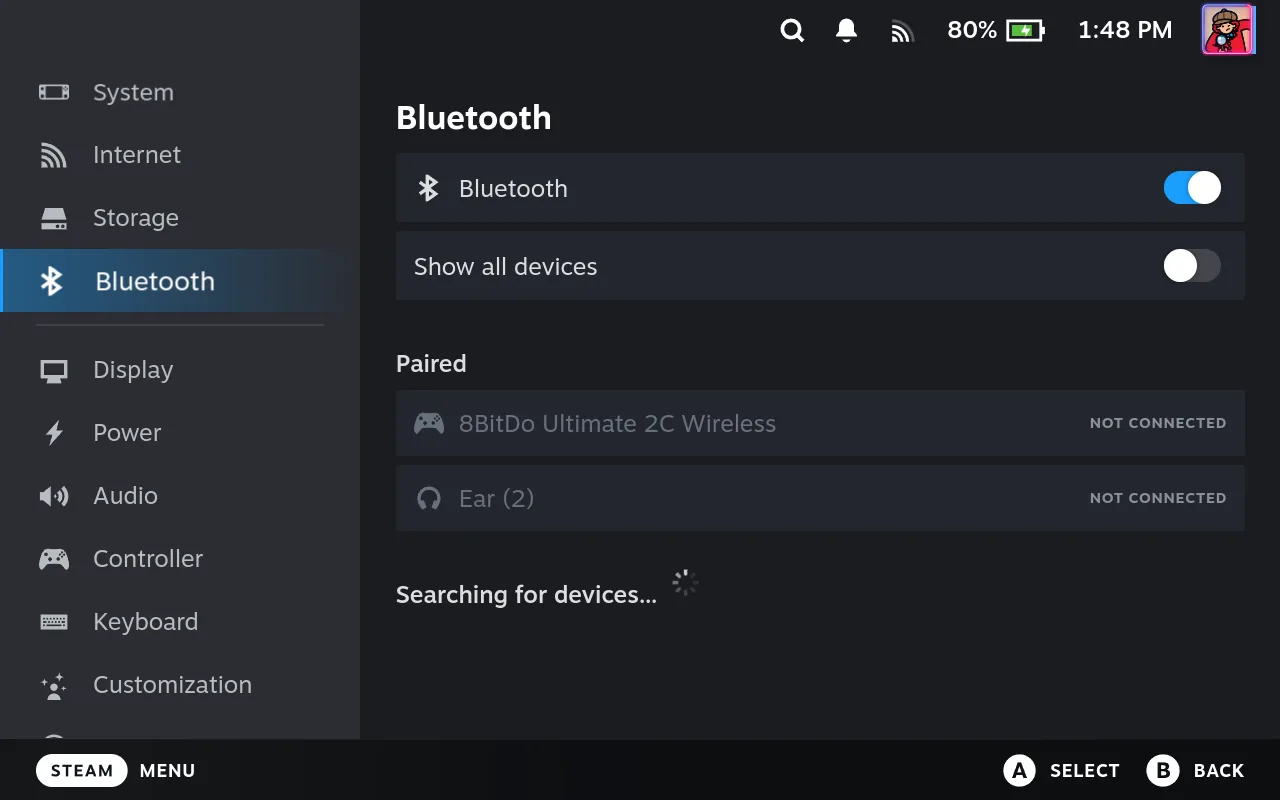
After the Deck sleeps or restarts, it needs a Bluetooth search to find the iPhone again. Open Deck Pointer, then on the Deck press STEAM → Settings → Bluetooth and wait: the Deck finds the saved iPhone within a few seconds. Don't select anything. In Desktop Mode: Bluetooth icon in the taskbar → +, and once Deck Pointer shows Connected, cancel that window.
STEAMDidn't connect? Show all devices → DeckPtr → Connect
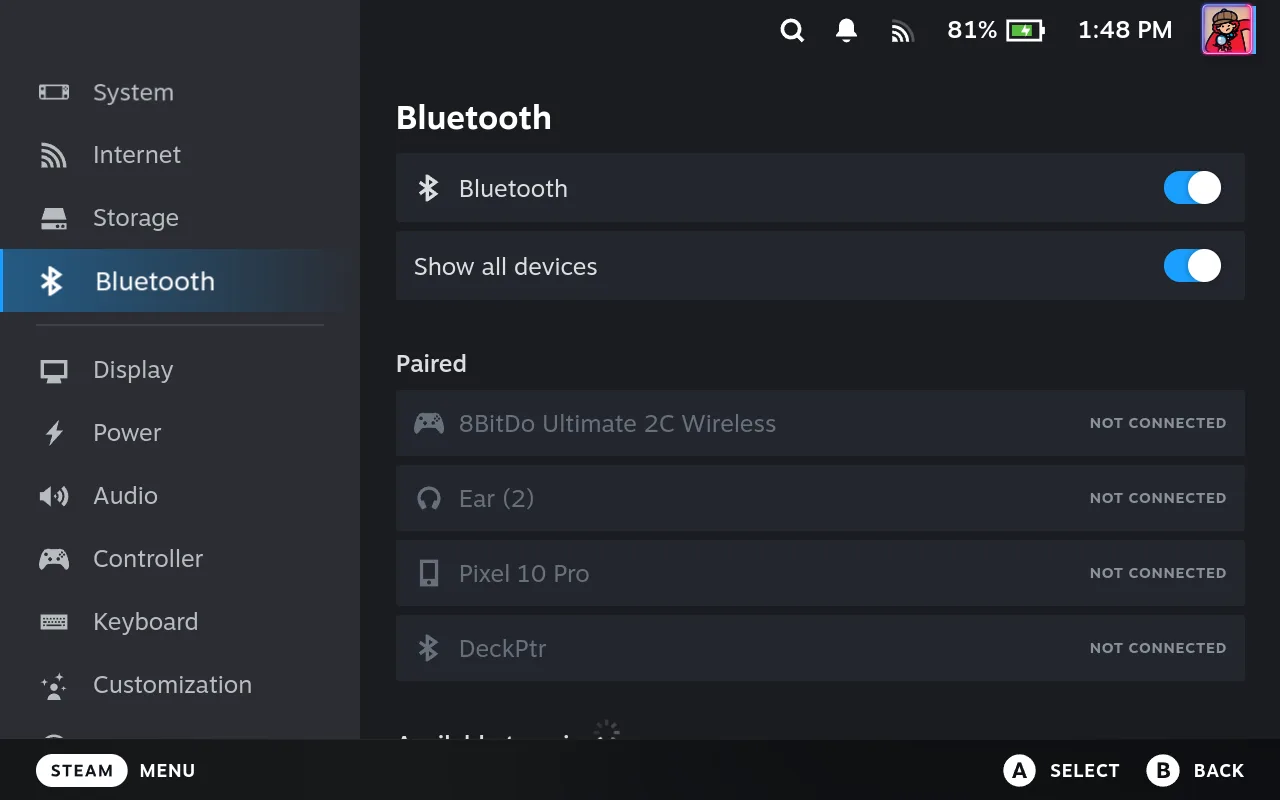
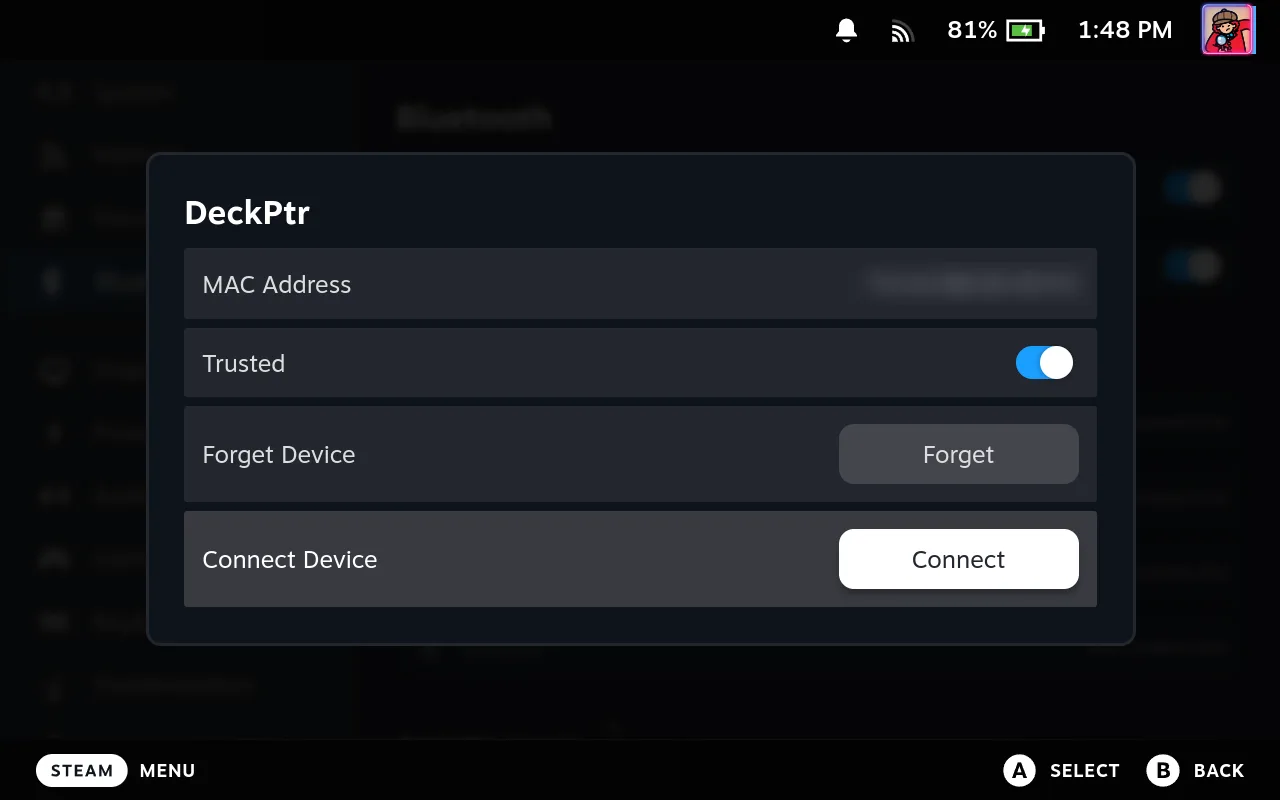
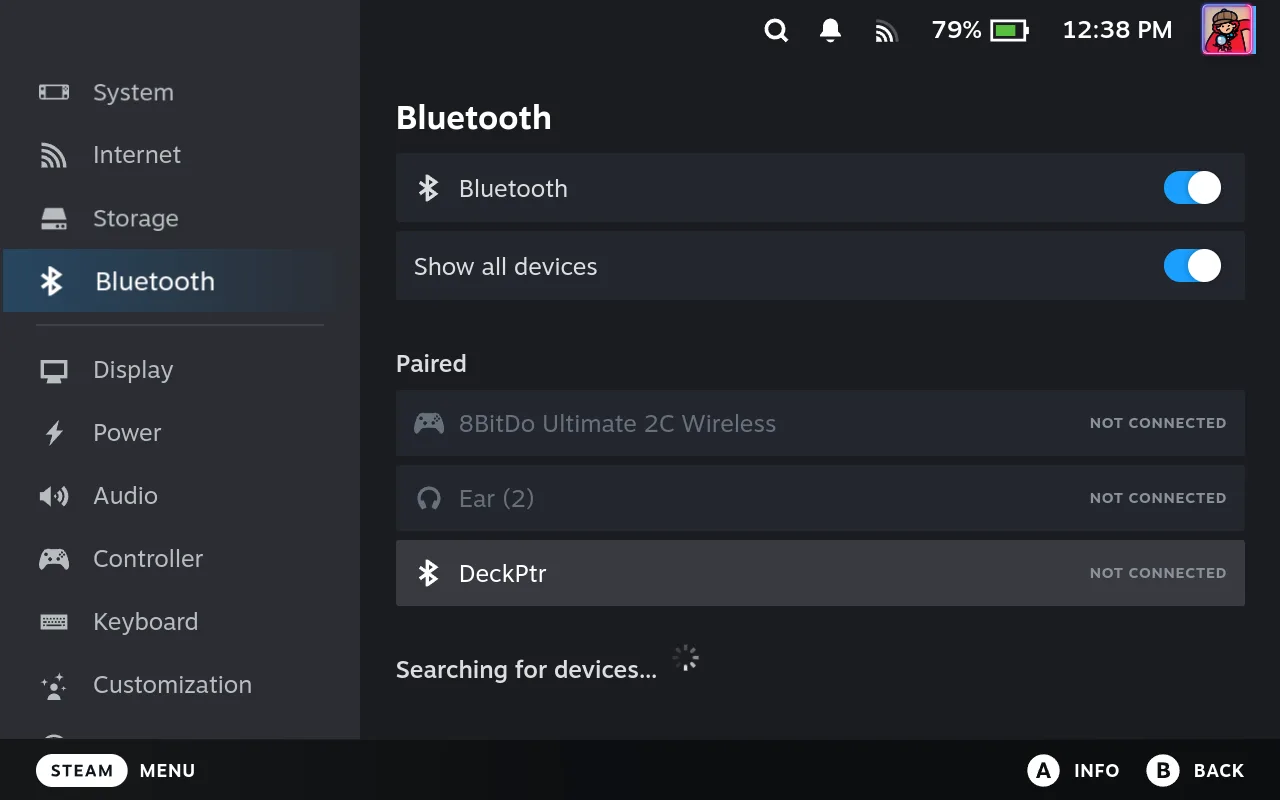
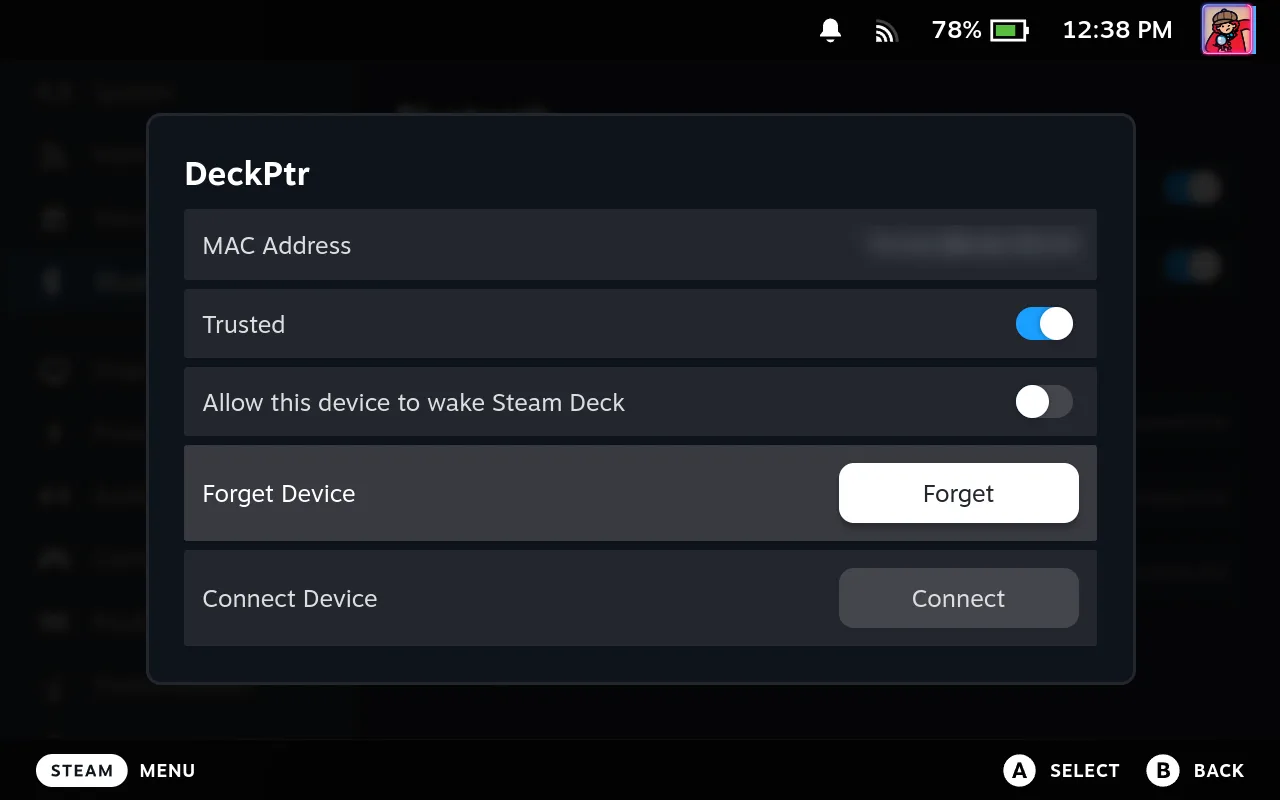
If Deck Pointer was closed, updated or stopped by iOS while the Deck was connected, and the Deck then restarted or shut down before reconnecting, the Deck forgets the iPhone is a controller: the Bluetooth screen searches and never connects, and DeckPtr disappears from Paired. No need to pair again. Turn on Show all devices (Steam turns it off on every restart), select DeckPtr, press Connect and wait up to 20 seconds. This also repairs the Deck, so next time the Bluetooth screen alone works again. In Desktop Mode, keep the + window searching, click the Bluetooth icon and press Connect next to DeckPtr or your iPhone's name — Connect on its own times out.
Paired before? Remove the old pairing on both sides
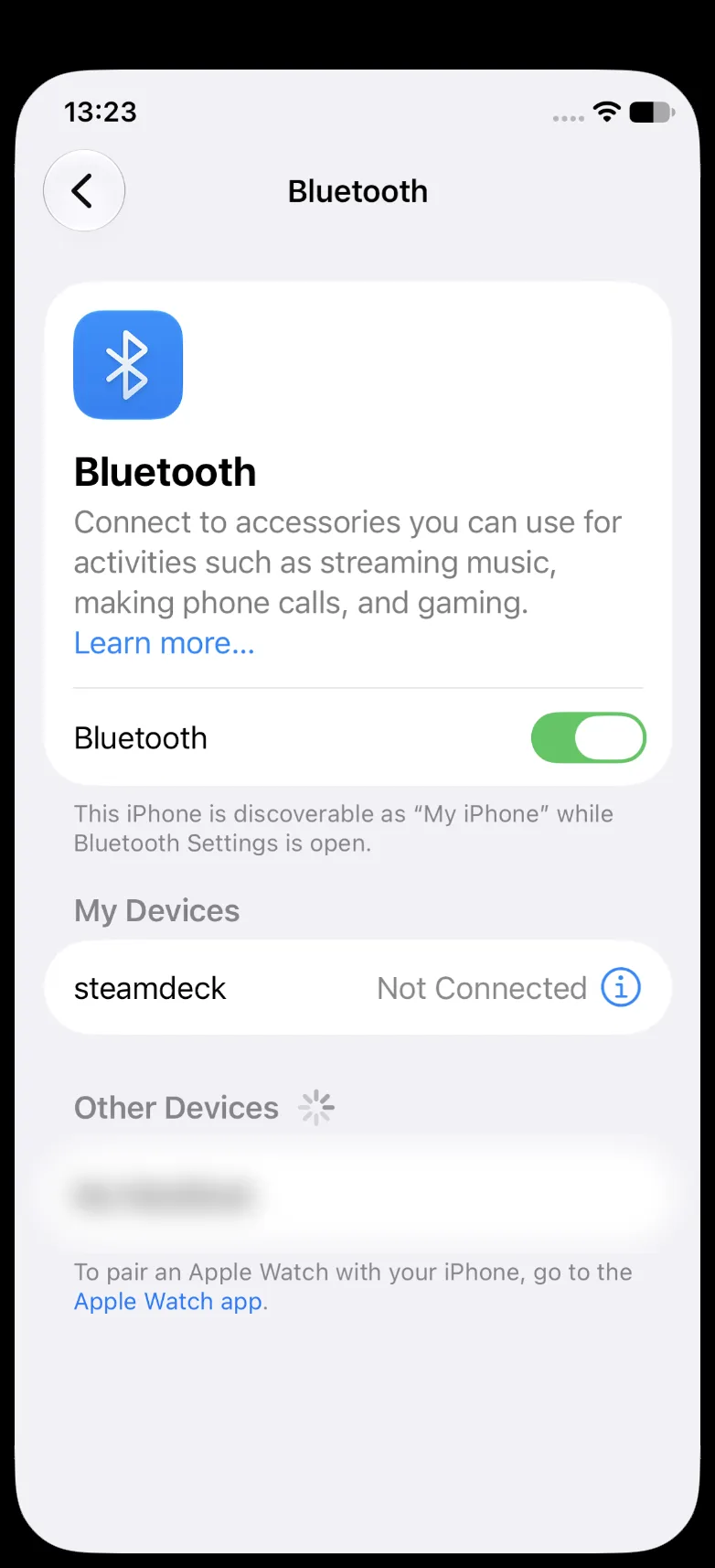
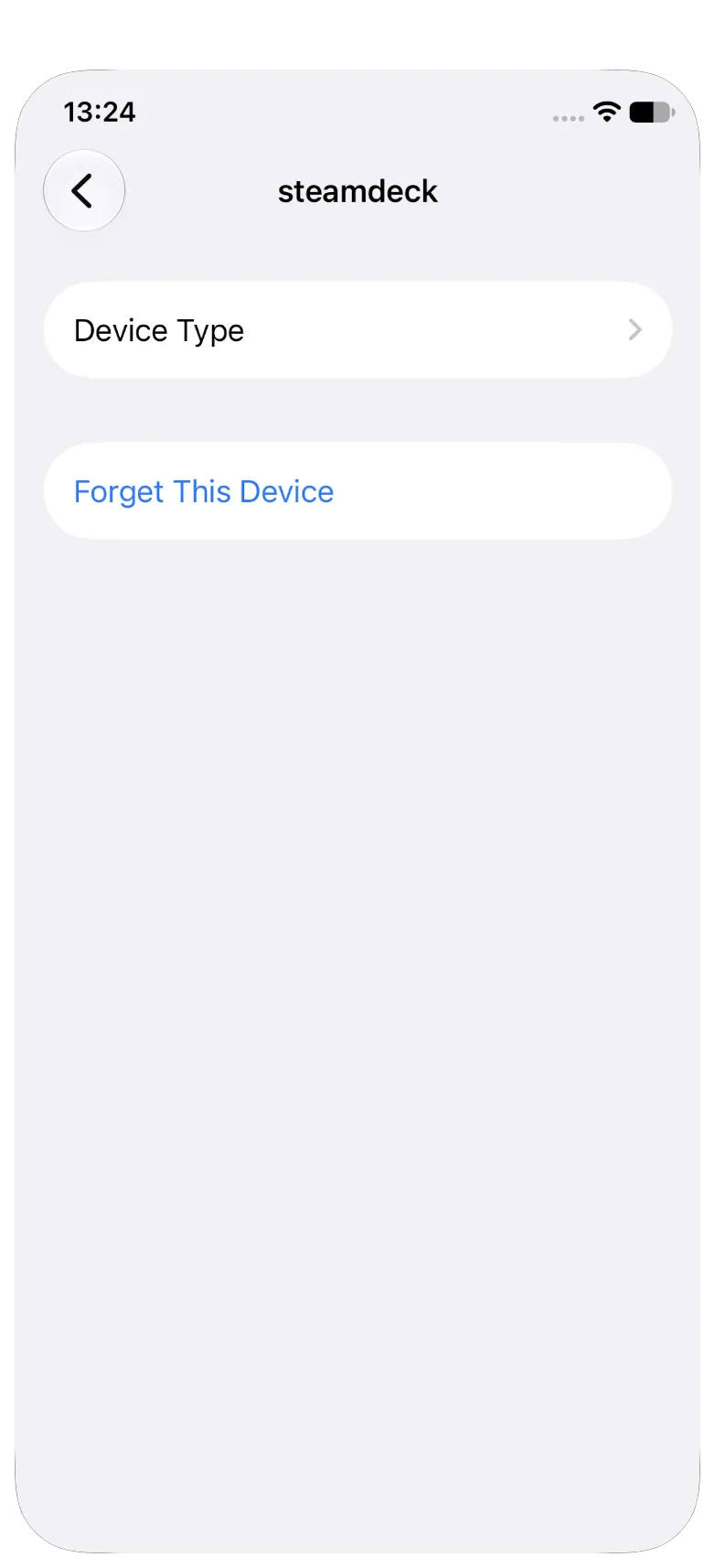
A bond kept on one side only produces an endless connect-and-drop loop. On the Deck in Gaming Mode: Settings → Bluetooth → DeckPtr → Forget. In Desktop Mode: Bluetooth icon → ☰ → Configure Bluetooth…, then ✕ next to the iPhone and Forget Device. On the iPhone: Settings → Bluetooth → ⓘ next to steamdeck → Forget This Device. Then start again from the first step.
What people are saying
“after switch to desktop mode and bt pairing go well :) so after switch to game mode again now bt is enabled and working fine! CASE CLOSED :D”
SteamDeck Bluetooth not working (can't see any devices) · 2022-06
“No issues here but I always paired in Desktop mode, bluetooth tray icon and add new device, tried a mouse keyboard and switch pro controller they all worked first time”
Can't pair any bluetooth device, and other devices don't see the Steam Deck · 2022-10
Pairing tested end to end on an iPhone 11 Pro (iOS 27) and a Steam Deck (SteamOS 3.10): the Deck's pairing request expires after about 20 seconds, and the wizard's own retry then fails with "Page Timeout" because the iPhone has rotated its private Bluetooth address. Cancelling the wizard and pressing + again works.
Deck Pointer hardware tests · 2026-09
Reconnect tested on the same iPhone and Deck: when Deck Pointer was closed while the Deck was connected and the Deck then restarted, the Bluetooth screen searched without connecting and DeckPtr was hidden from Paired. Show all devices → DeckPtr → Connect brought it back 4 times out of 4, in 4–14 seconds, and after the next restart the Bluetooth screen alone reconnected it again.
Deck Pointer hardware tests · 2026-09
Questions, answered
Do I have to use Desktop Mode every time?
No — only for the first pairing. Gaming Mode can connect a controller it already knows, but it never displays the six-digit code iOS requires before it will bond. Once the pairing is saved, you reconnect from Gaming Mode: open Settings → Bluetooth on the Deck and it finds your iPhone by itself.
Should I press Connect on the Steam Deck?
Usually not: open Settings → Bluetooth on the Deck and it connects the saved iPhone by itself within a few seconds. Press Connect when that screen keeps searching and DeckPtr is gone from Paired — turn on Show all devices, select DeckPtr, press Connect and wait up to 20 seconds. In Desktop Mode, Connect only works while the + window is searching.
The Deck's Bluetooth screen keeps searching and DeckPtr is gone. Do I have to pair again?
No, the pairing is still there. It happens when Deck Pointer was closed or updated while the Deck was connected and the Deck then restarted: the Deck forgets the iPhone is a controller, so Steam hides it and the search never connects it. Turn on Show all devices, select DeckPtr and press Connect. That also fixes it for next time, so the Bluetooth screen alone works again.
Why does the Deck call my iPhone DeckPtr in Gaming Mode and something else in Desktop Mode?
Gaming Mode lists the app's advertised controller name, DeckPtr. KDE's Bluetooth settings in Desktop Mode list the phone by its own iPhone name instead — "My iPhone", or whatever yours is called. Same device, two labels, so look for either.
The pairing request disappeared before I could tap Pair. What now?
It timed out — the Deck gives up after about 20 seconds. Retrying from the same dialog tends to fail with "Page Timeout", because the iPhone rotates its private Bluetooth address between attempts and the Deck can't follow it until they are bonded. Cancel on the Deck, press + again, pick DeckPtr, and confirm on both screens straight away.
The Deck lists DeckPtr as paired, but the cursor doesn't move. Is it connected?
The Deck keeps DeckPtr in its paired list, battery icon and all, whether or not input is flowing — the Bluetooth link can be up with no controller behind it. Trust Deck Pointer's own status chip and the Deck's Controller Connected / Disconnected notifications instead.
How do I disconnect without unpairing?
Tap the status chip in Deck Pointer and press Disconnect. Input stops at once and the pairing is kept, so Connect — or simply reopening the app — picks it back up.
Which iPhones work?
Any iPhone on iOS 17 or later. Control travels over Bluetooth and the Deck sees the phone as an ordinary keyboard, mouse and gamepad — nothing to install on the Deck.
Do I need Wi-Fi or an internet connection?
No. Everything runs over Bluetooth, which is why this works for typing a Wi-Fi password into a Deck that isn't online yet.
Is this screen mirroring or remote desktop?
No. Your iPhone becomes input hardware; you keep watching the Deck's own screen or whatever display it is plugged into.