Steam Deck fixes
How to use Steam Deck Desktop Mode with your phone as a mouse and keyboard
Desktop Mode expects a mouse and keyboard, and the Deck's trackpads and on-screen keyboard make browsing, the terminal, and typing passwords slow going.
Desktop Mode turns the Steam Deck into a regular Linux PC, and a regular PC wants a mouse and a keyboard. The Deck’s trackpads get you there eventually, but crossing a wide desktop, selecting text, or typing a long terminal command on the on-screen keyboard is slow.
This guide starts from an already paired phone. First the basics — pointer speed, clicks, scrolling, and typing — then two changes that make the desktop much faster to use: a one-tap Ctrl+T key for new browser tabs, and a big left mouse button that’s easy to hold for dragging.
Video tutorial
Step by step
Connect Deck Pointer to the Deck
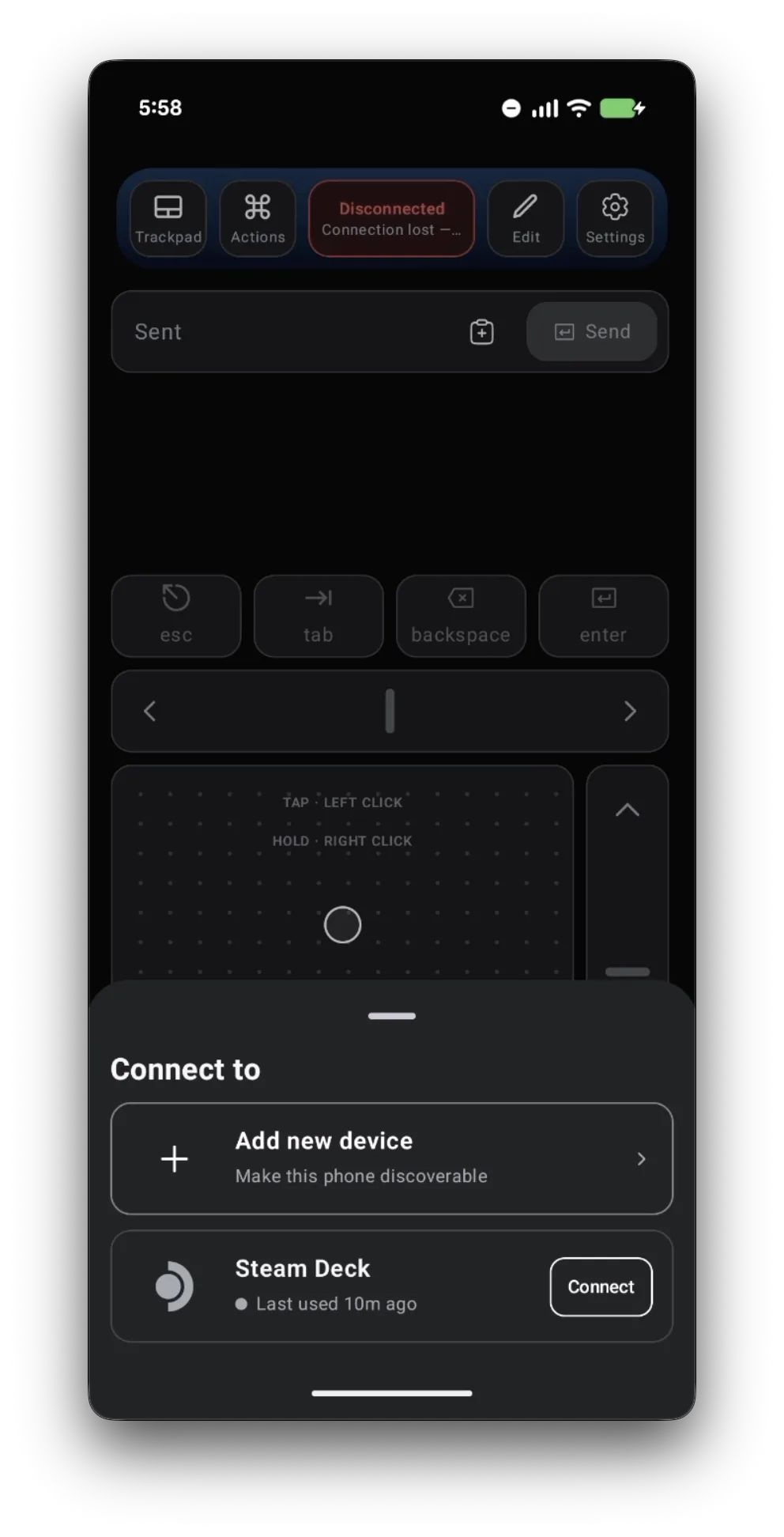
Switch the Deck to Desktop Mode, open Deck Pointer, tap the connection chip at the top, and tap Connect next to your Steam Deck. Haven't paired yet? Follow the pairing guide first — it takes about a minute.
Raise the pointer speed
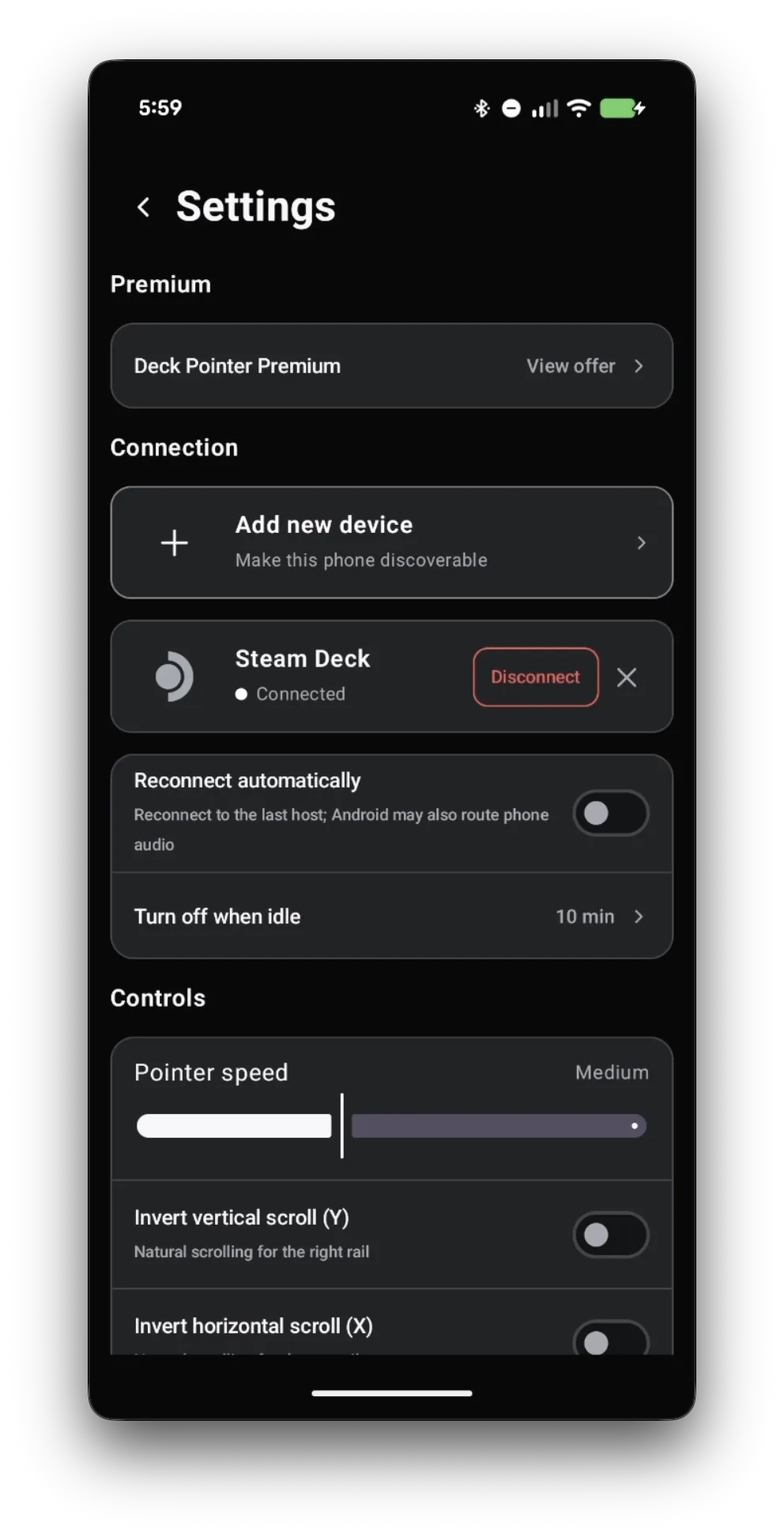
The Deck's desktop is wide, so a faster cursor saves a lot of swiping. Open Settings and drag Pointer speed to the right until one swipe crosses the screen comfortably.
Move, click, scroll, and type
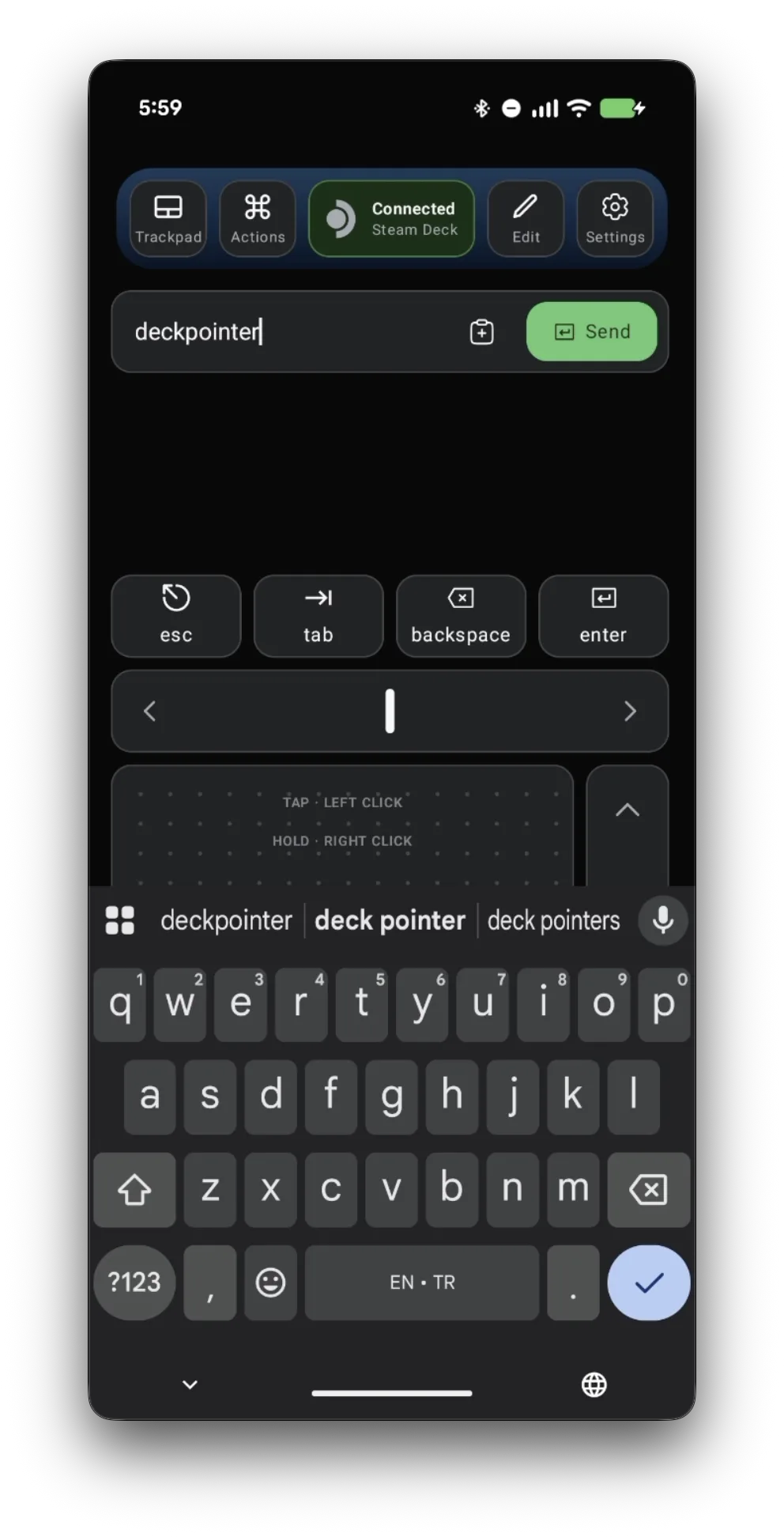
Slide a finger on the trackpad to move the cursor: tap for a left click, hold for a right click. The rail on the right scrolls pages. To type, click a field on the Deck, enter text in the field at the top of the app, and tap Send — it arrives as ordinary keystrokes. Esc, Tab, Backspace, and Enter sit right above the trackpad.
Open the layout editor
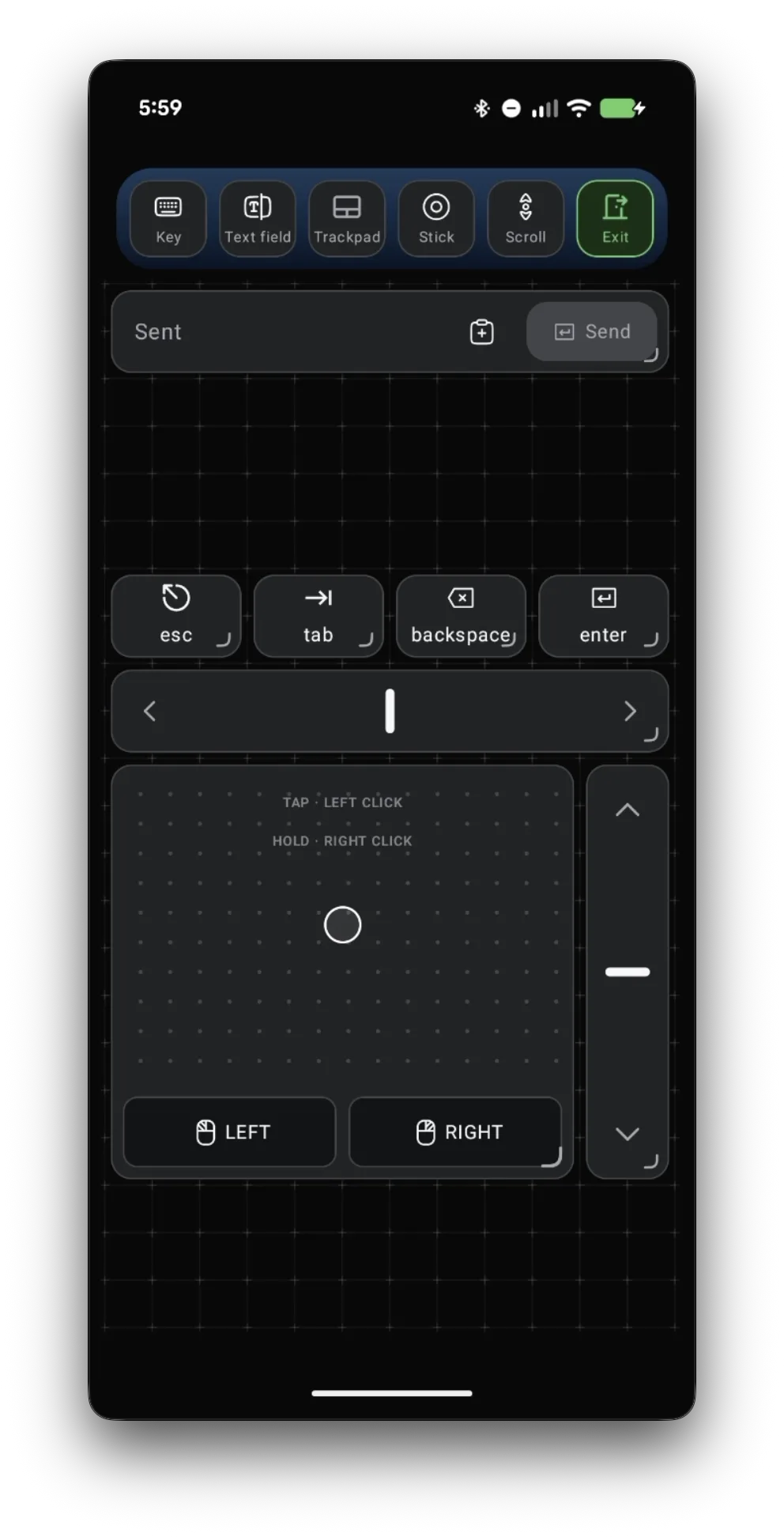
Tap Edit. The screen turns into a grid, and the top bar lists what you can add: Key, Text field, Trackpad, Stick, and Scroll. Exit leaves the editor.
Add a key for your shortcut
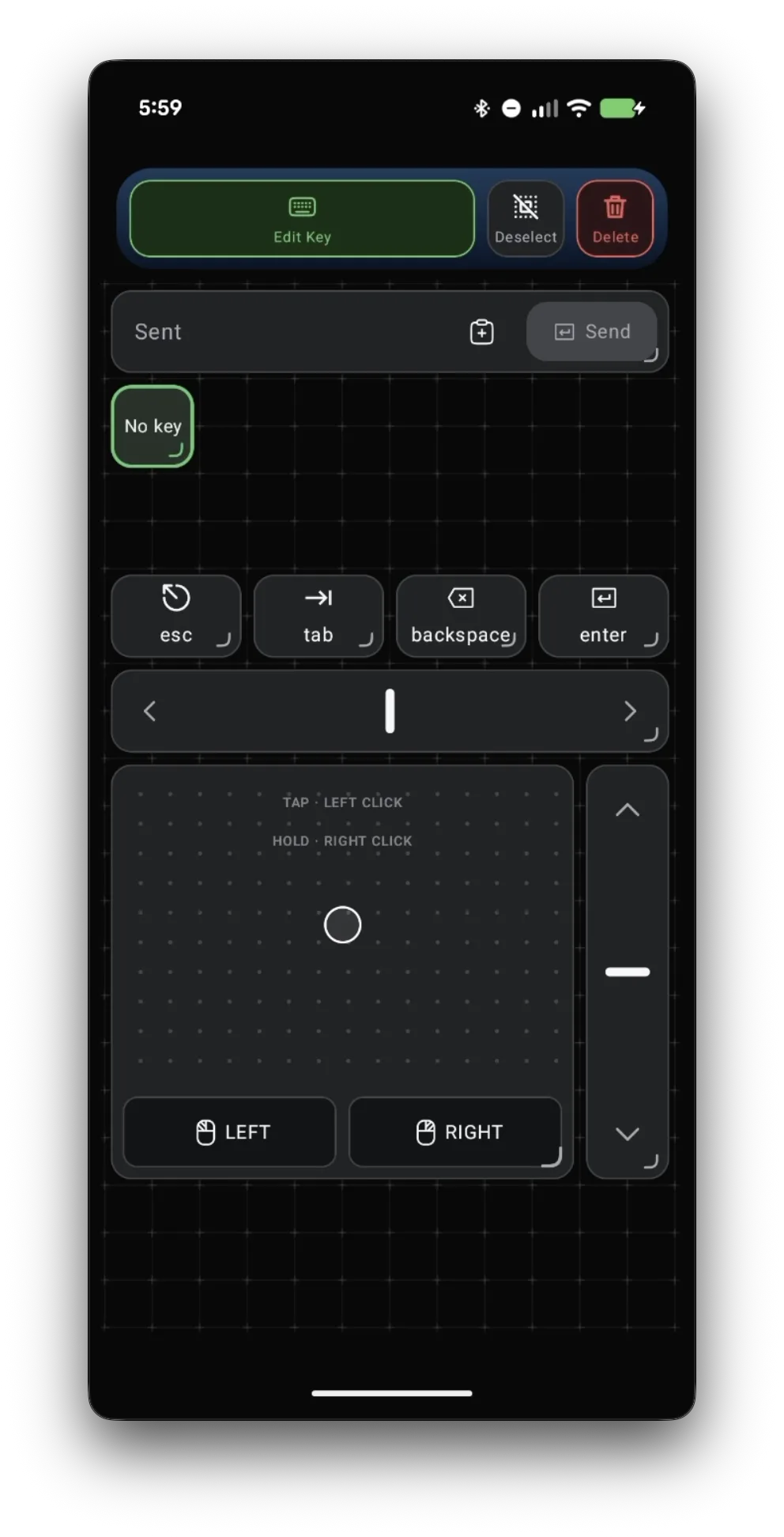
Tap Key. A new "No key" button appears on the grid, already selected. Tap Edit Key to choose what it presses.
Set it to Ctrl+T and give it a name
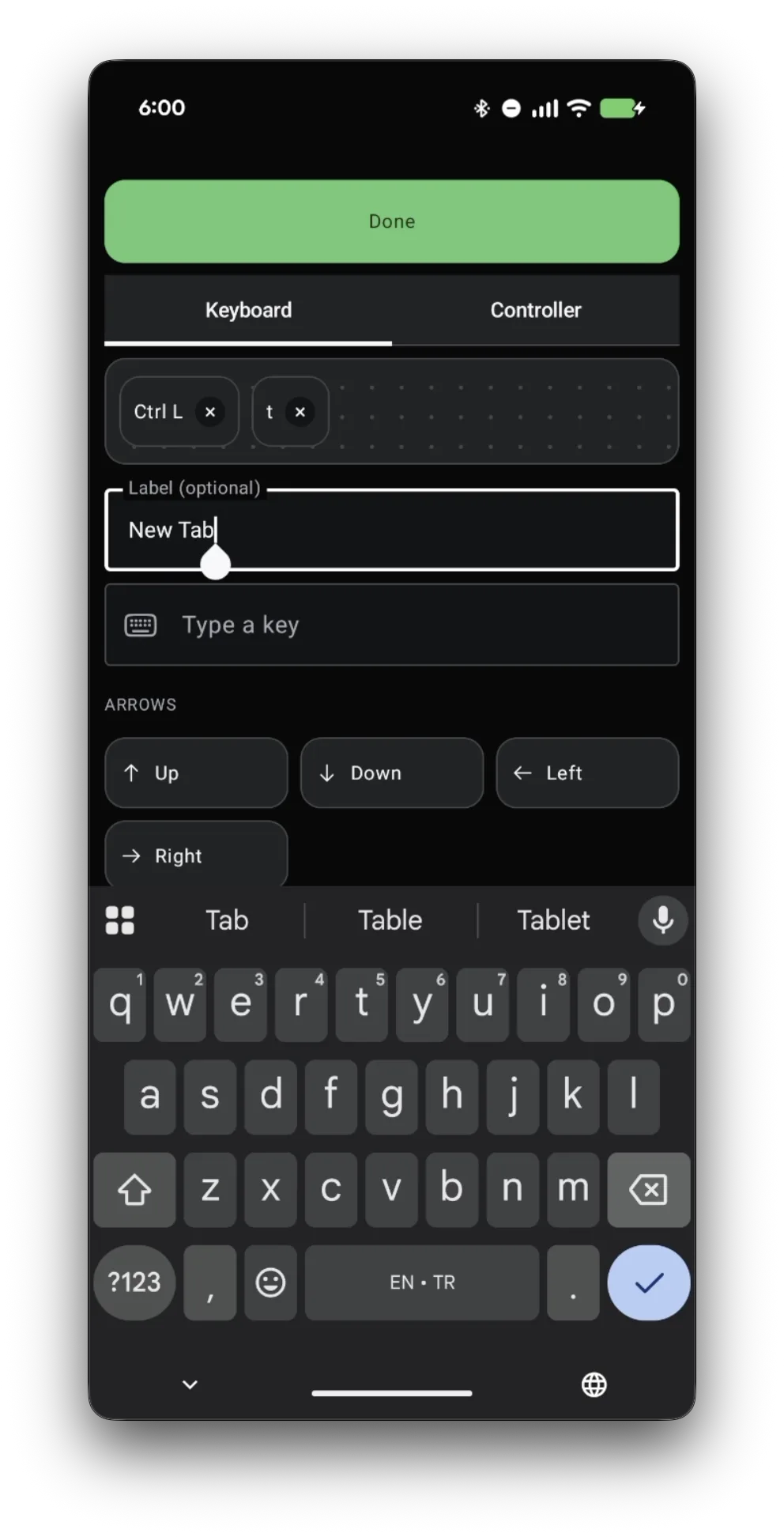
On the Keyboard tab, add Ctrl and then T, so one tap presses both together — that's New tab in the Deck's browser. The label is optional; type something like "New Tab" so you remember what the button does, then tap Done.
Save the layout
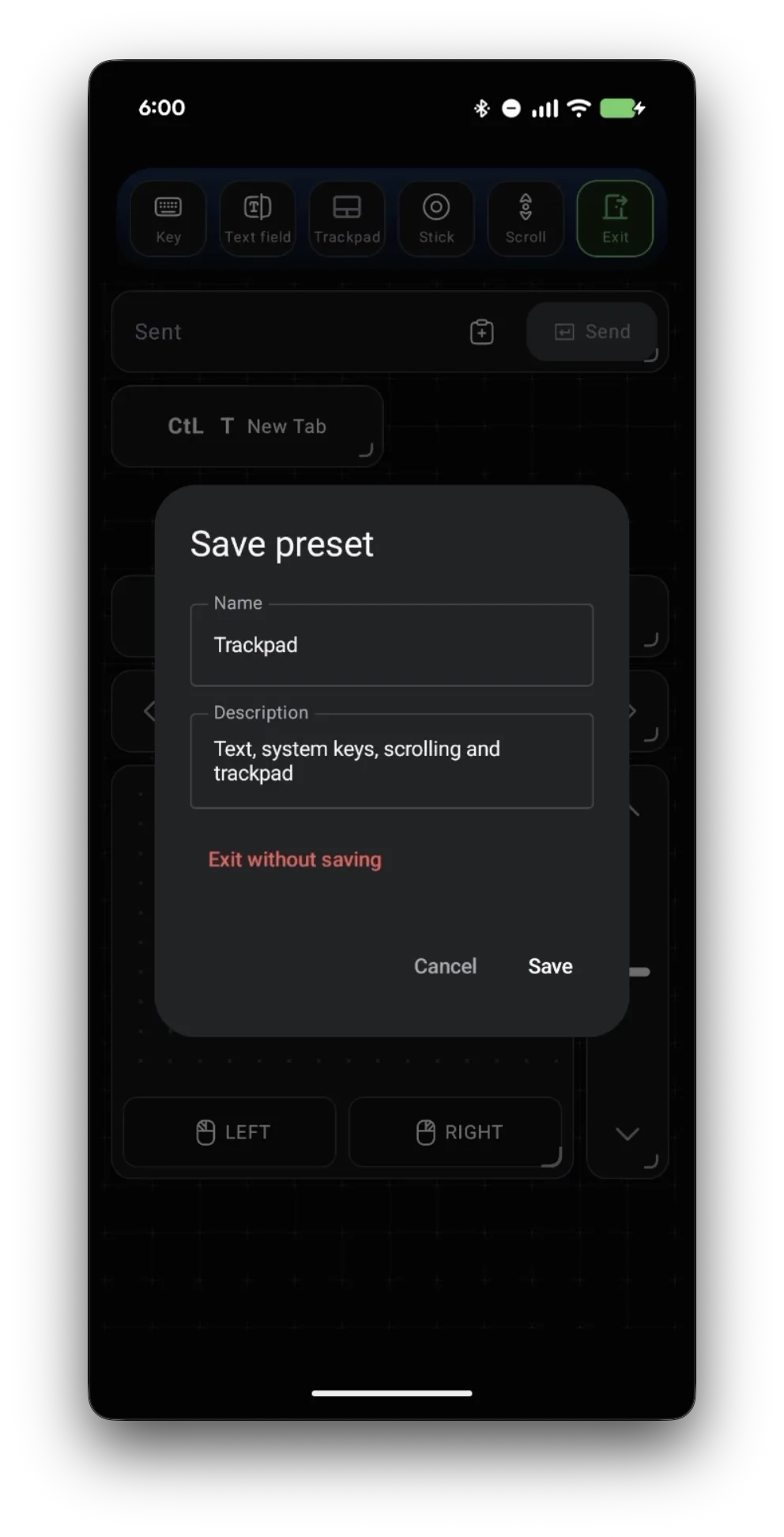
Tap an empty spot on the grid to deselect, then Exit, and tap Save. Back on the Deck, tap your new button and the browser opens a new tab. Add as many shortcut keys as you need the same way.
Split the mouse buttons off the trackpad
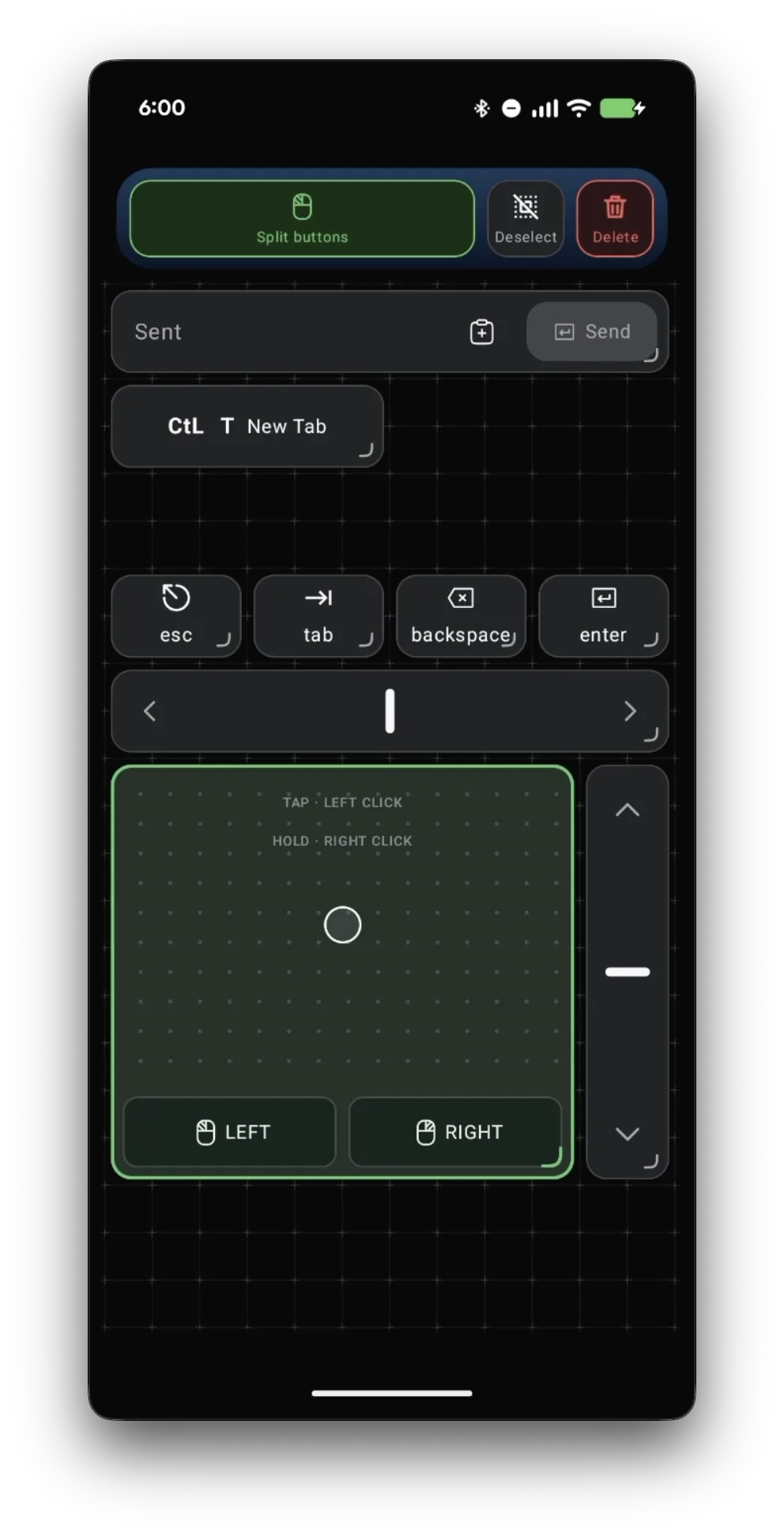
Want separate left and right mouse buttons you can place anywhere? In the editor, tap the trackpad to select it, then tap Split buttons.
Make the left button bigger
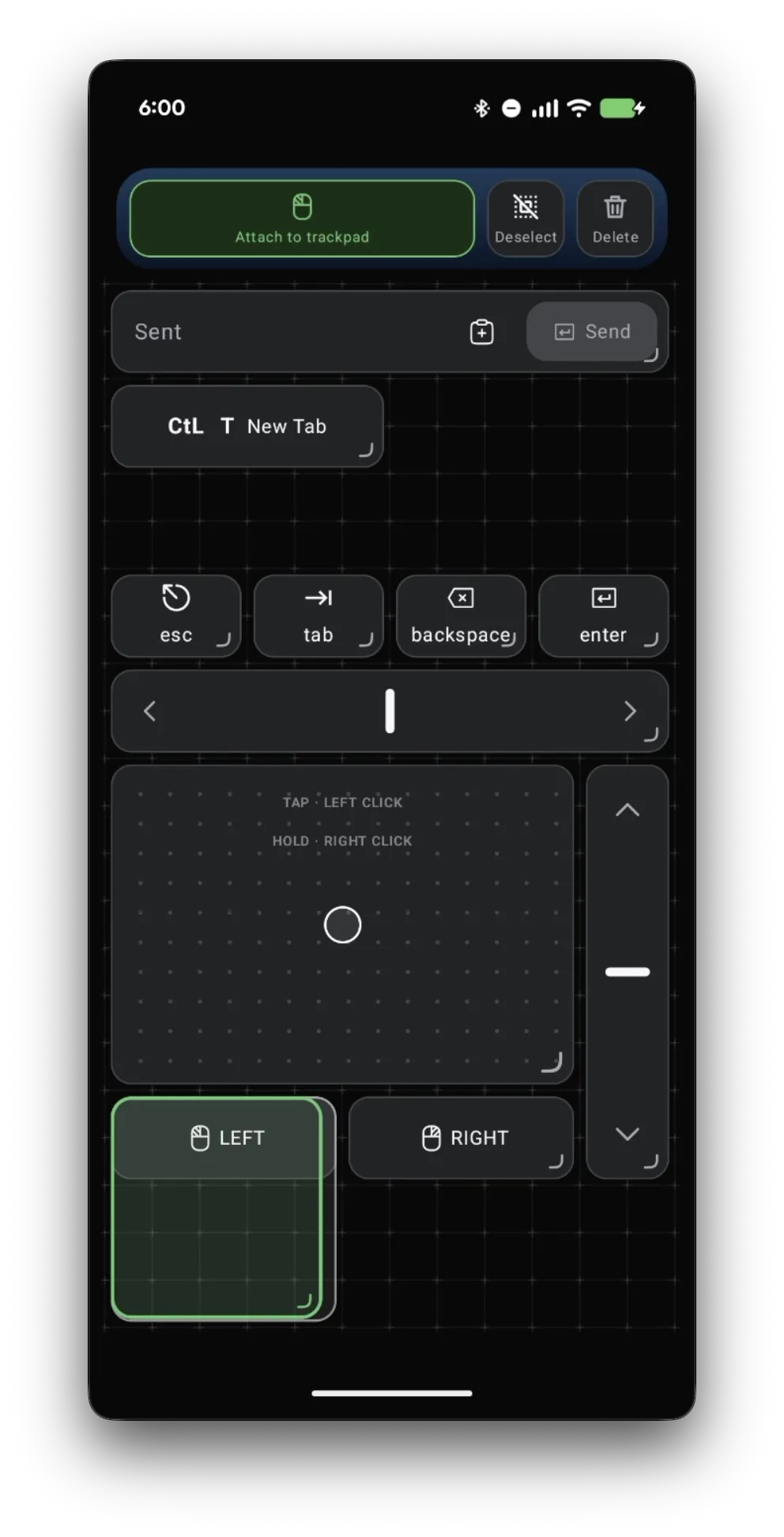
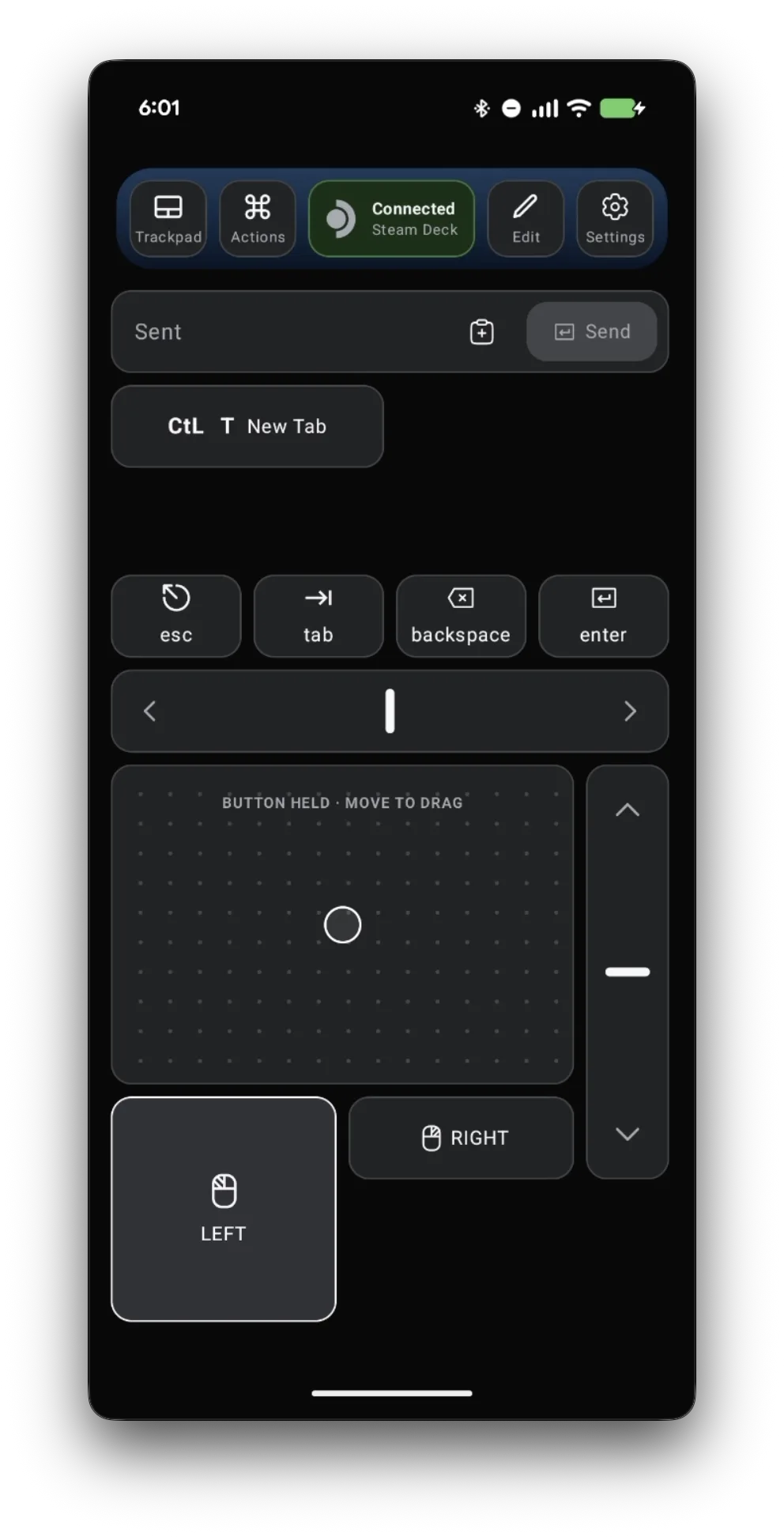
Select LEFT and drag its corner handle to resize it — a bigger button is easier to hit without looking. Tap an empty spot, then Exit and Save.
Drag, use the terminal, and type passwords
Hold the big LEFT button with one finger and move the cursor with another to drag windows and files. The same text field works in Konsole, the Wi-Fi password prompt, and anywhere else on the desktop. What you type goes over Bluetooth straight to the Deck as keystrokes — it doesn't pass through our servers, and we don't log it.
What people are saying
The original poster needed comfortable input for emulator setup without adding a USB-C hub, and found the Deck's on-screen keyboard and long-path file navigation too awkward for the job.
r/SteamDeck discussion: remote control for emulator setup · 2022-03
The discussion groups the common workarounds into screen streaming, remote-desktop software, network keyboard-and-mouse sharing, and carrying physical peripherals. Each solves a broader problem than direct Bluetooth input.
Questions, answered
Does my custom layout stay after I close the app?
Yes. When you tap Save, the layout is stored on your phone in that preset, and it's there the next time you open Deck Pointer.
Can a key press more than one key at once?
Yes. Add several keys on the Keyboard tab — for example Ctrl and T — and one tap presses them together, like a shortcut on a physical keyboard.
How do I put the mouse buttons back on the trackpad?
Open Edit, select one of the split buttons, and tap Attach to trackpad.
Does this also work in Game Mode?
Yes. Deck Pointer is a Bluetooth mouse and keyboard to the Deck, so the same trackpad, keys, and text field work in Game Mode — Desktop Mode is simply where you need them most.
Can I type my Wi-Fi password with it?
Yes. Click the password field on the Deck, type the password in Deck Pointer, and tap Send. Control travels over Bluetooth, so it works before the Deck is online.
Is what I type sent anywhere?
No. Text goes from your phone to the Deck over Bluetooth as ordinary keystrokes. It doesn't pass through any server of ours, and we don't log it.