Steam Deck fixes
Battle.net on Steam Deck: how to install it with NonSteamLaunchers and your phone as a mouse
Battle.net isn't on Steam, so getting it onto the Deck means Desktop Mode: a browser, a GitHub page, a file manager, an installer window, and a login form — all built for a mouse and keyboard.
Battle.net isn’t sold on Steam, so Blizzard’s games don’t show up in the Deck’s store. NonSteamLaunchers, a free open-source project by moraroy, fixes that: it installs Battle.net under Proton and adds it to your Steam library, so you can launch it from Game Mode like any other game. It isn’t ours and we’re not affiliated with it — this guide simply shows how to get it running. The catch is that you set it up in Desktop Mode: a browser, a GitHub page, a file manager, and an installer window, all of which expect a mouse and keyboard.
Deck Pointer turns your phone into that mouse and keyboard over Bluetooth. This guide walks through the whole install, then logs in to Battle.net by pasting the password instead of typing it on the on-screen keyboard, and ends where you can install Blizzard games as usual — in the video that’s Hearthstone, my own example.
Video tutorial
Step by step
Search for NonSteamLaunchers from your phone
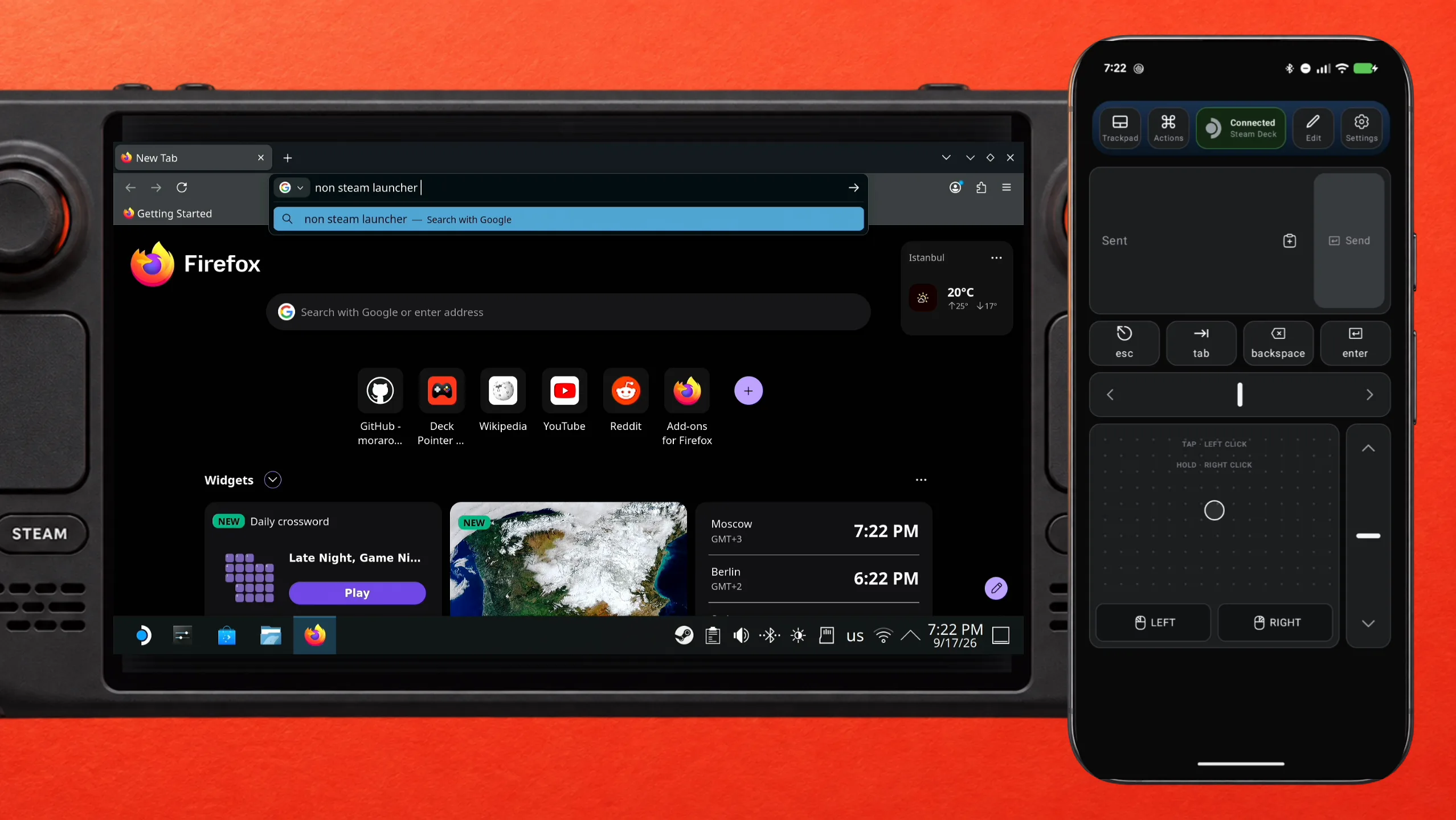
Switch the Deck to Desktop Mode, connect Deck Pointer, and open Firefox. Click the search bar with the trackpad, type "non steam launcher" in Deck Pointer's text field, and tap Send — the text lands in the Deck's search bar as ordinary keystrokes.
Open the GitHub page and skip the first Download button
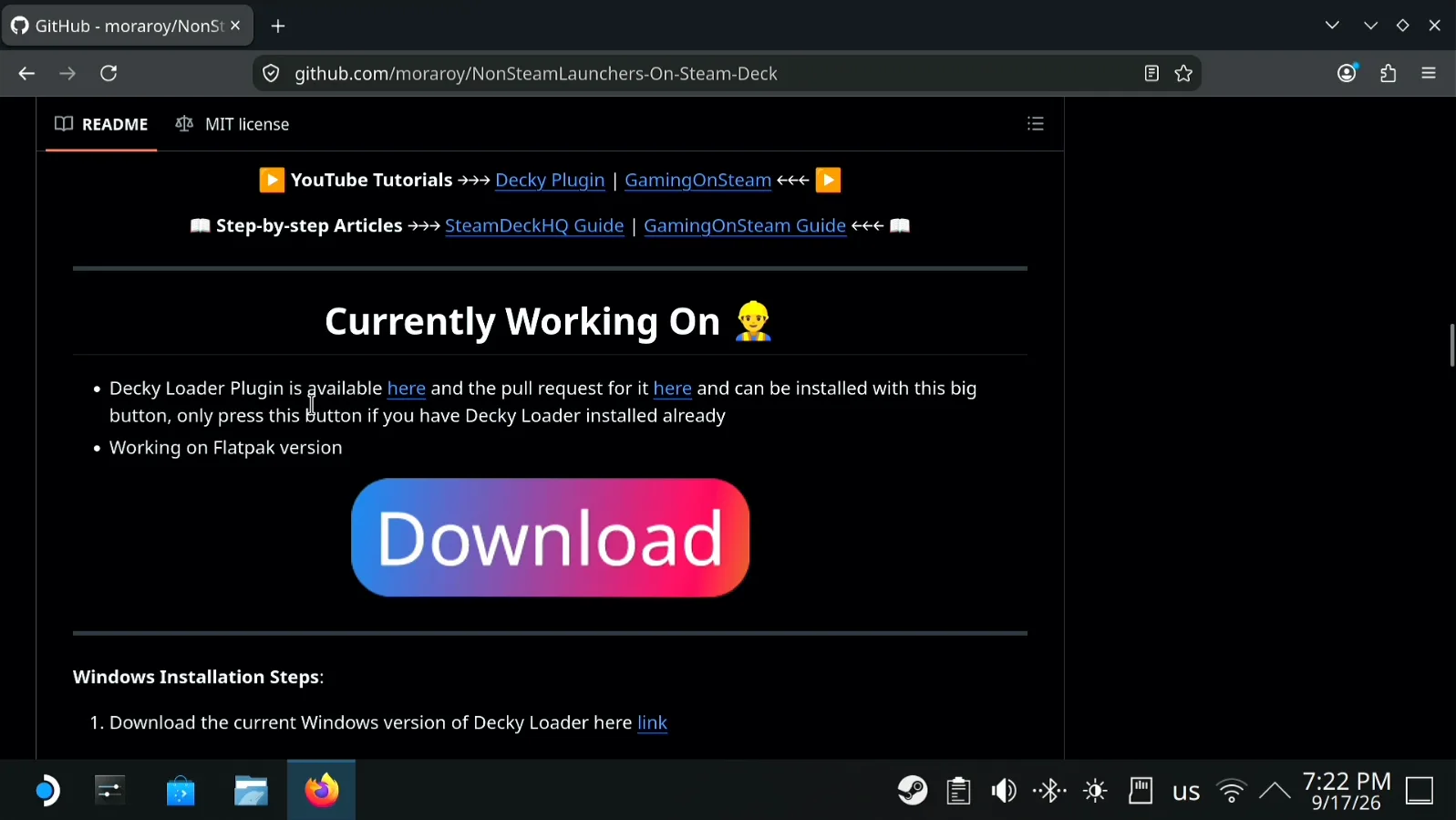
Open the NonSteamLaunchers-On-Steam-Deck page on GitHub and scroll down with the rail on the right of the trackpad. The first big Download button, under Currently Working On, is the Decky Loader plugin — you don't need it for this.
Download the Desktop version
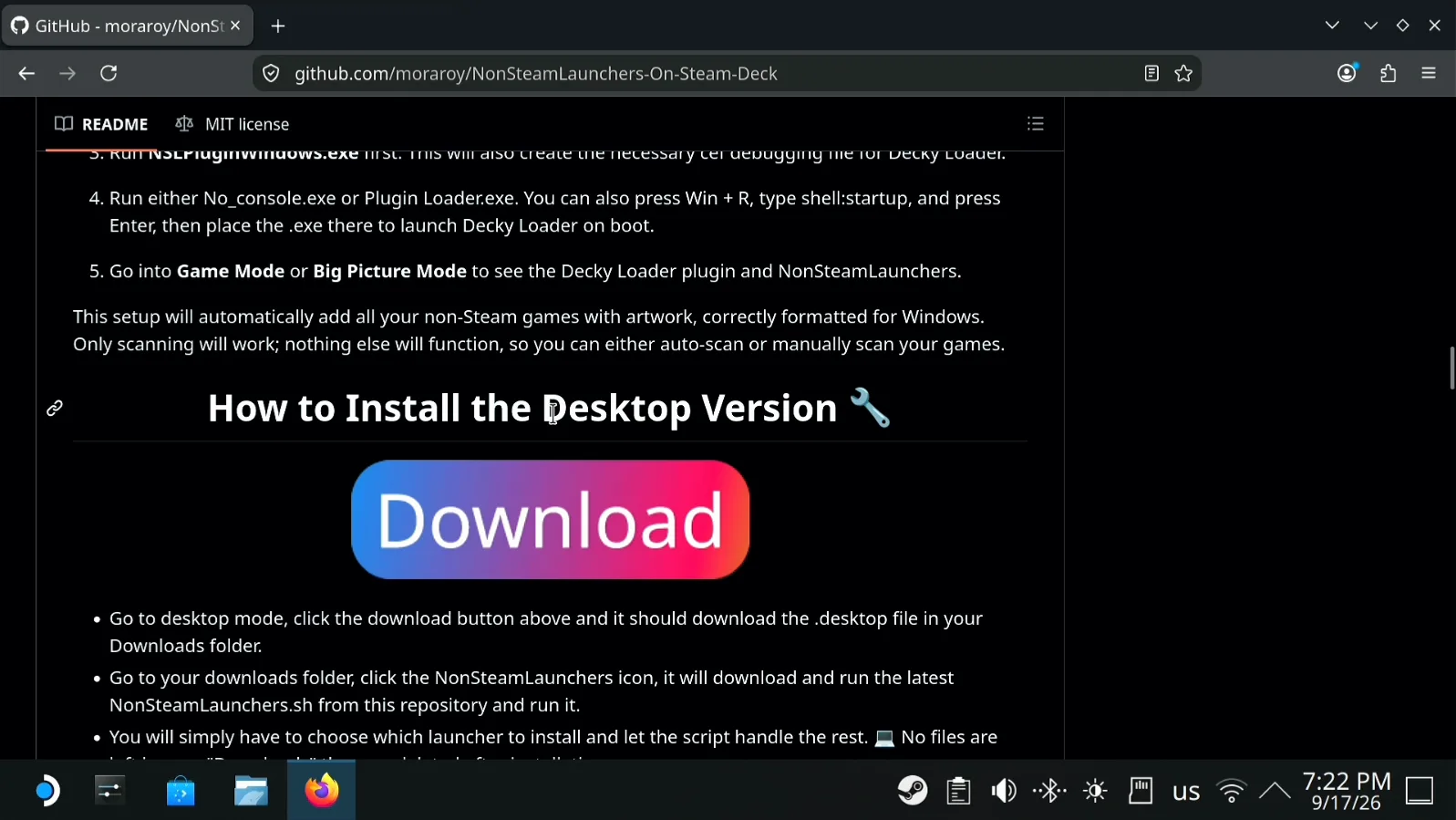
Keep scrolling to How to Install the Desktop Version and click its Download button. A small NonSteamLaunchers file lands in your Downloads folder.
Run it from Downloads
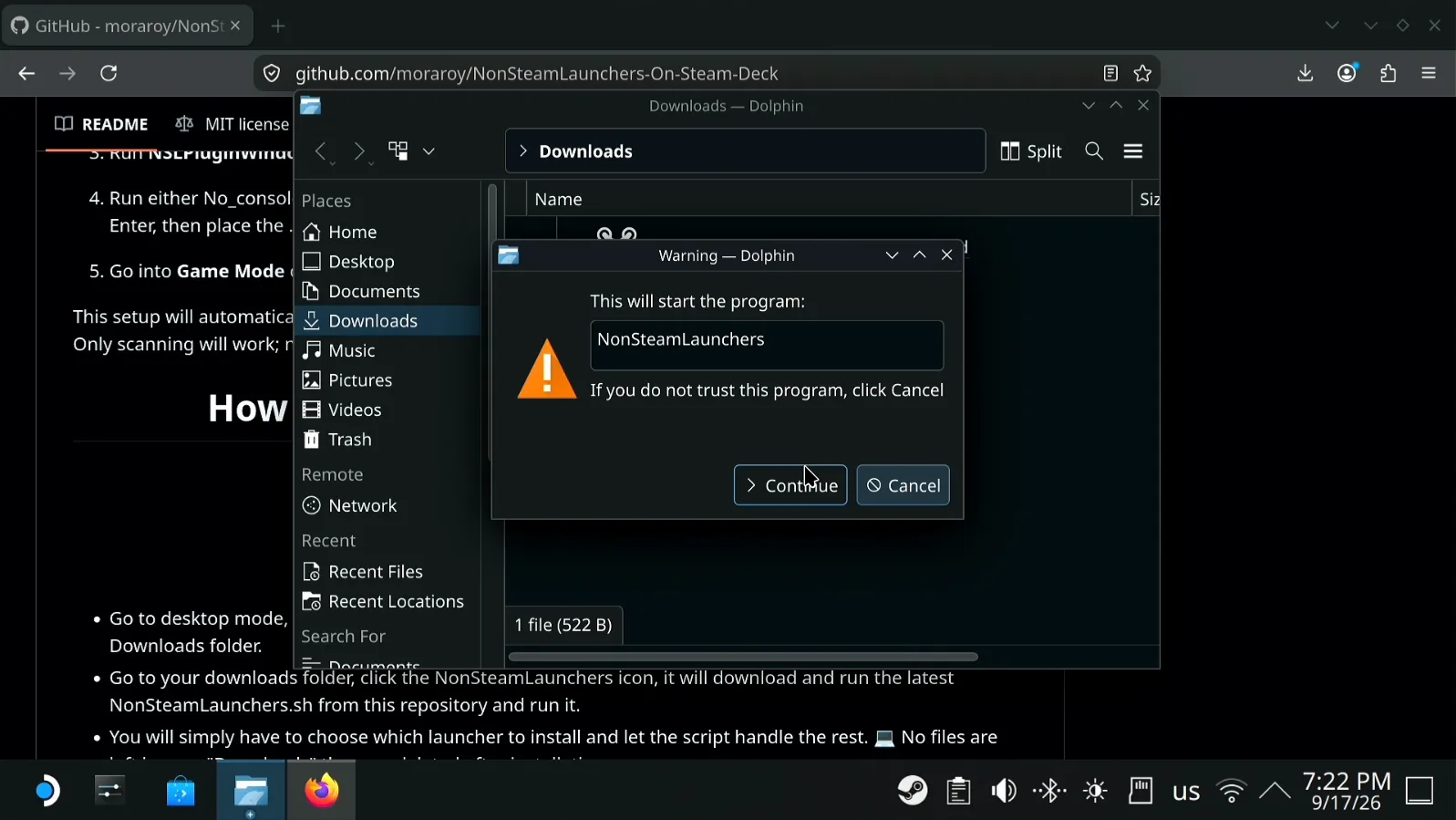
Open the Downloads folder in Dolphin, click the NonSteamLaunchers file, and click Continue when the warning asks whether to start the program.
Shrink the installer window if it doesn't fit
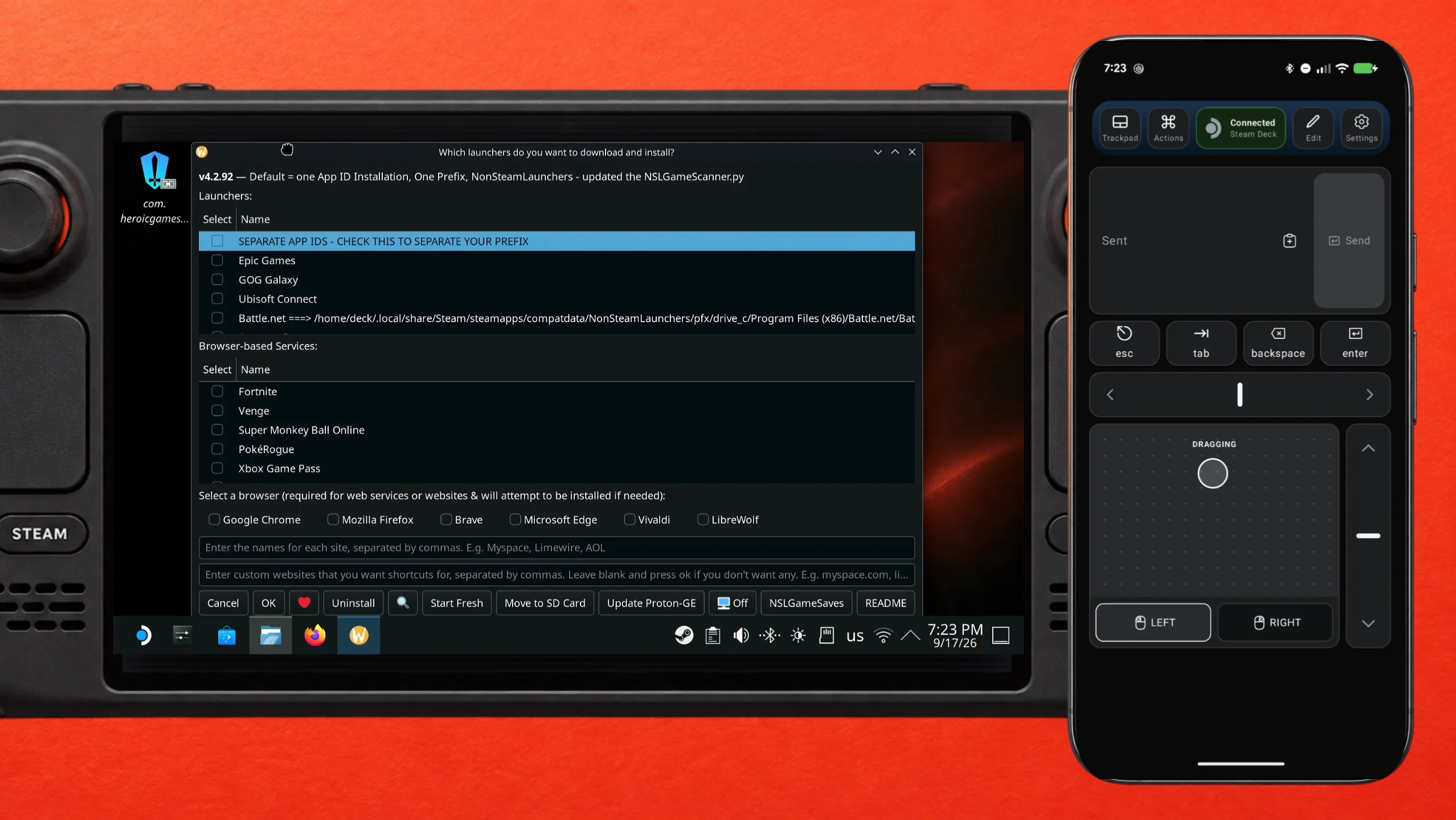
The launcher picker can open wider than the screen, hiding its buttons. Hold LEFT on Deck Pointer and move your finger on the trackpad to drag the window's edge until you can see the buttons along the bottom.
Tick Battle.net and click OK
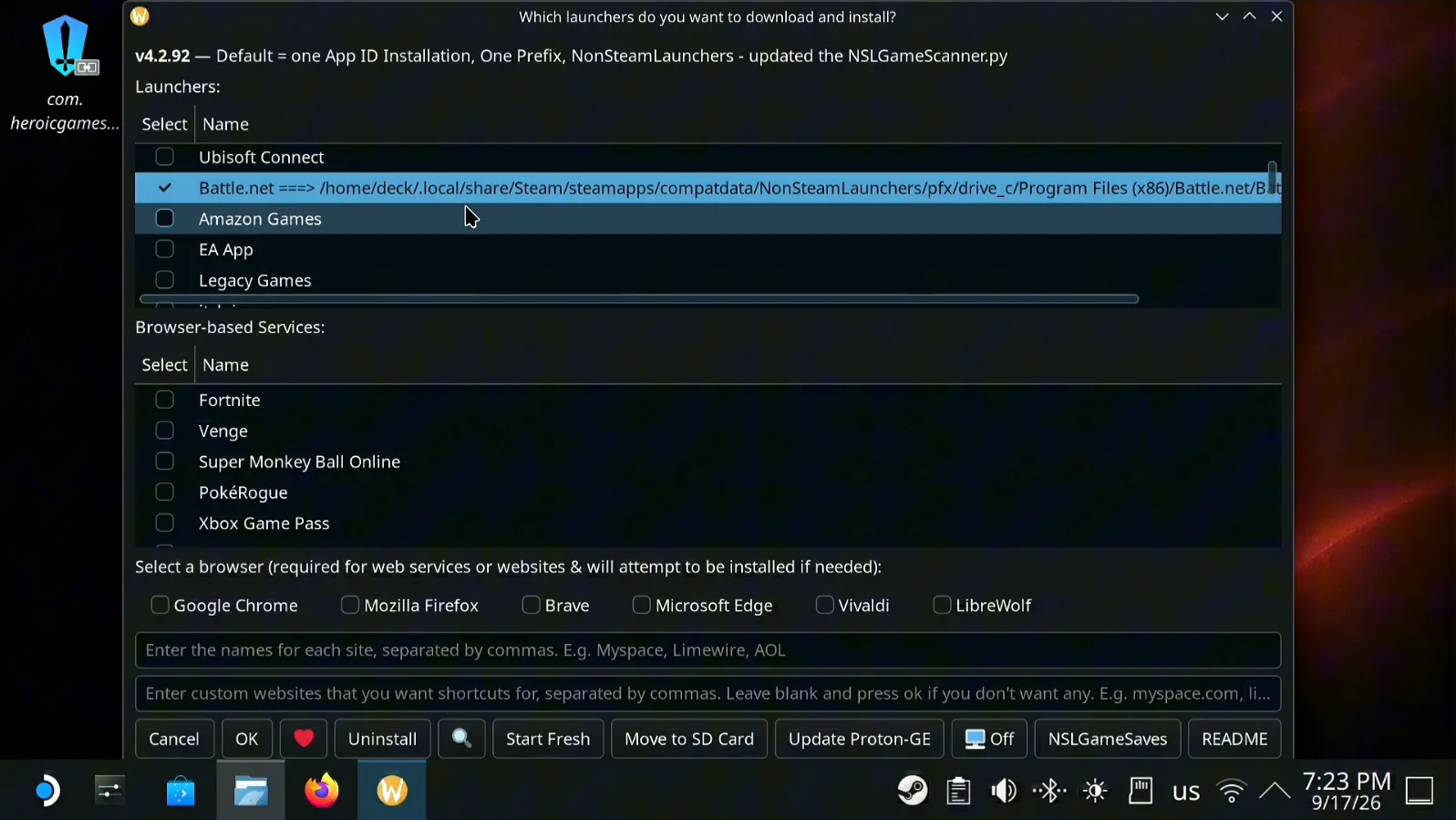
Check Battle.net in the Launchers list and click OK. If you've tried installing it before, the row shows a long install path after the name, like here — on a first install it just says Battle.net. NonSteamLaunchers then downloads GE-Proton and a lot of other dependencies, so give it a while.
Launch Battle.net from your library
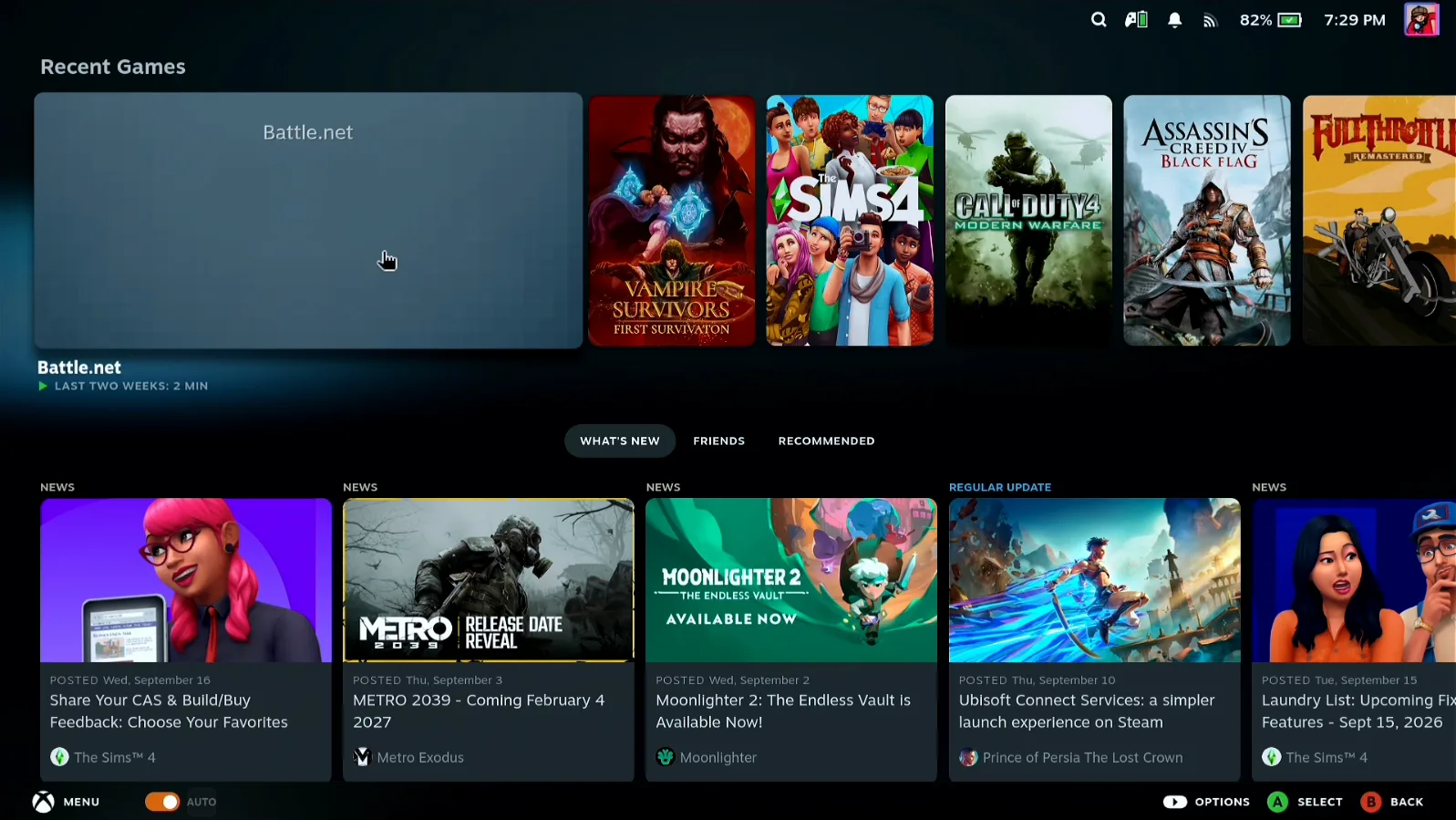
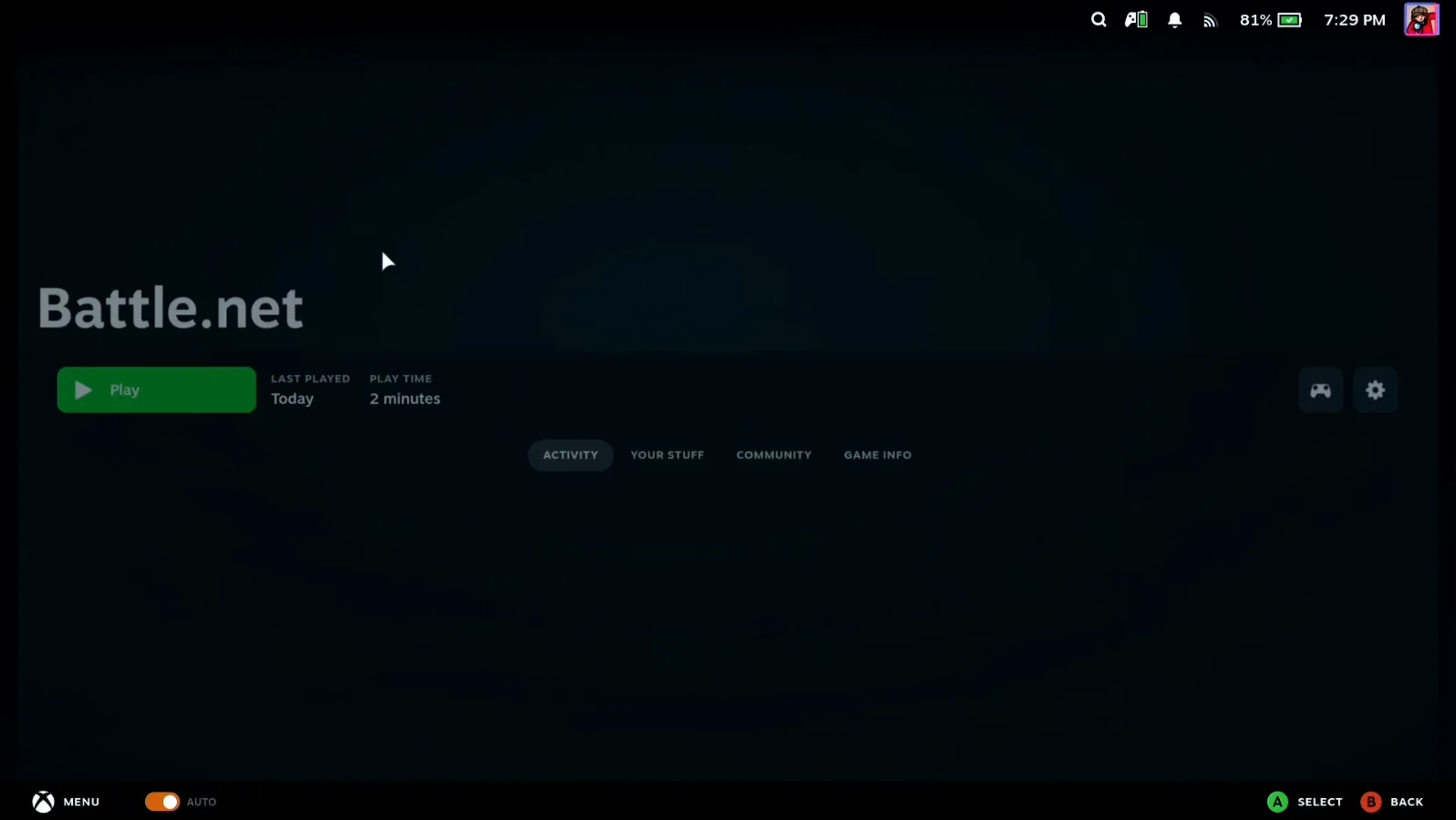
The script adds Battle.net to your Steam library itself, so when the installation finishes you can switch straight back to Game Mode. Battle.net is already there — select it and press Play.
Paste your password instead of typing it
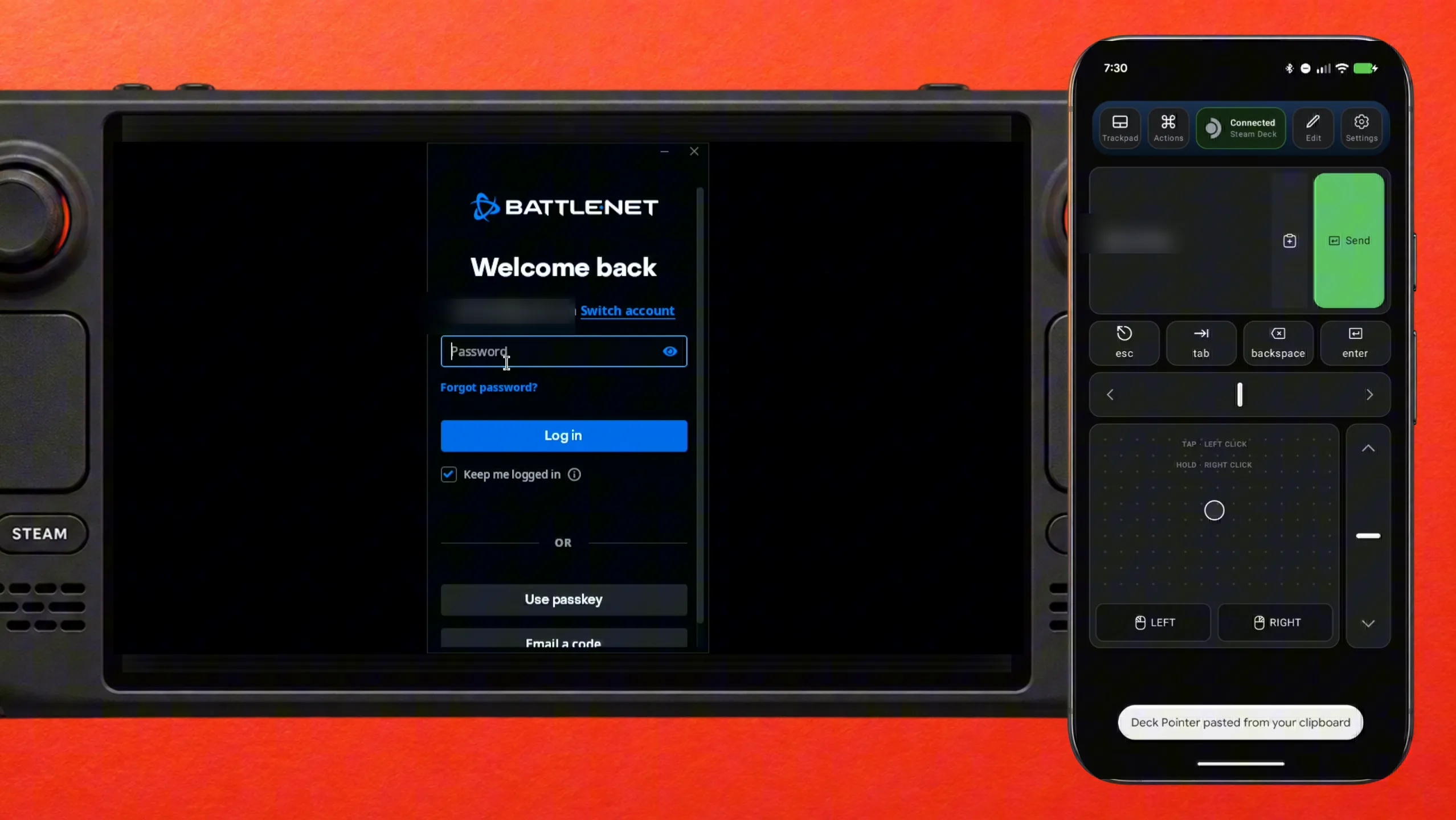
Click the Password field with the trackpad, paste the password into Deck Pointer's text field from your phone's clipboard, tap Send, and click Log in. On a first login, type your e-mail the same way. Tick Keep me logged in so Battle.net doesn't ask again next time.
Install your games
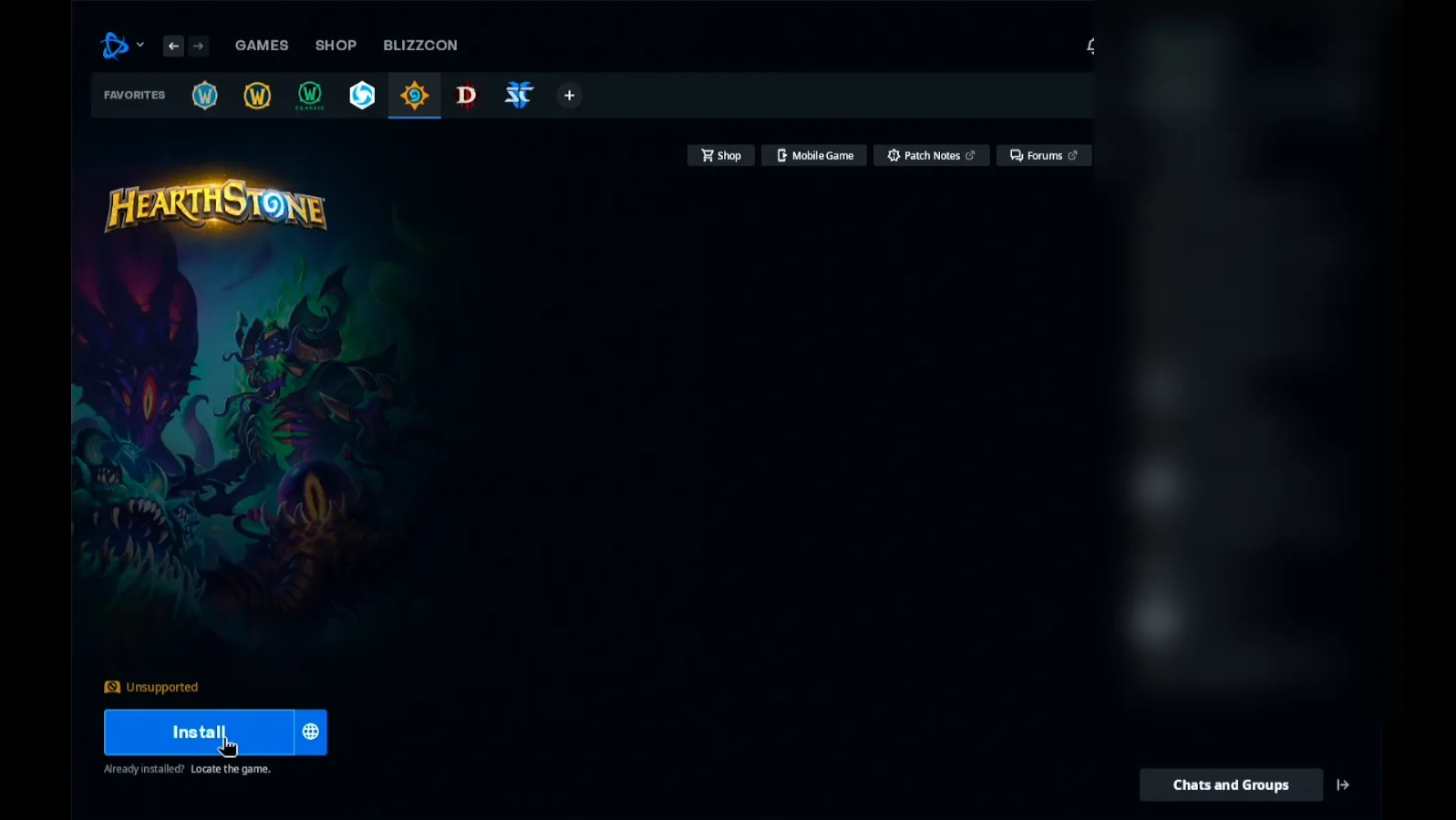
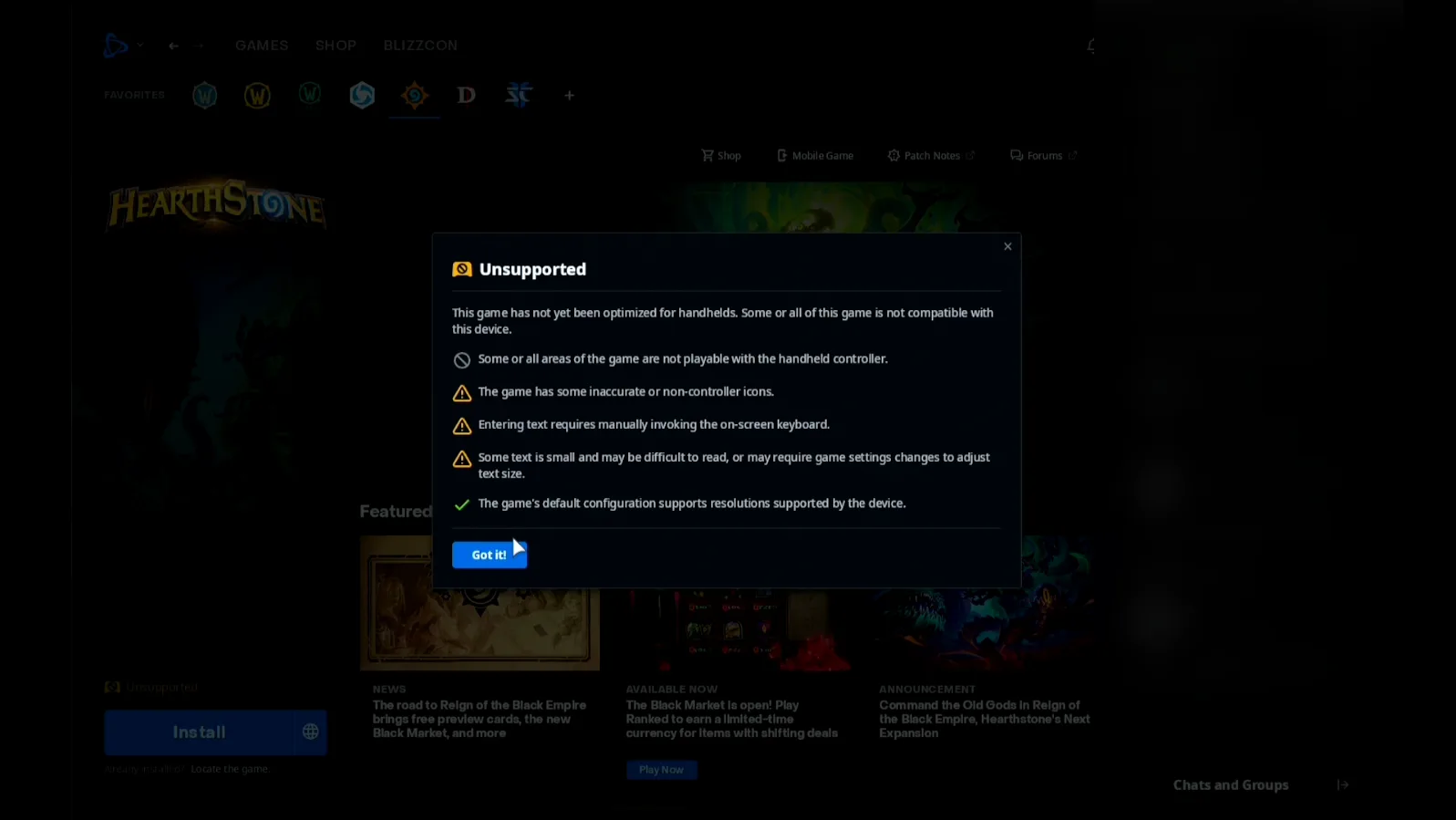
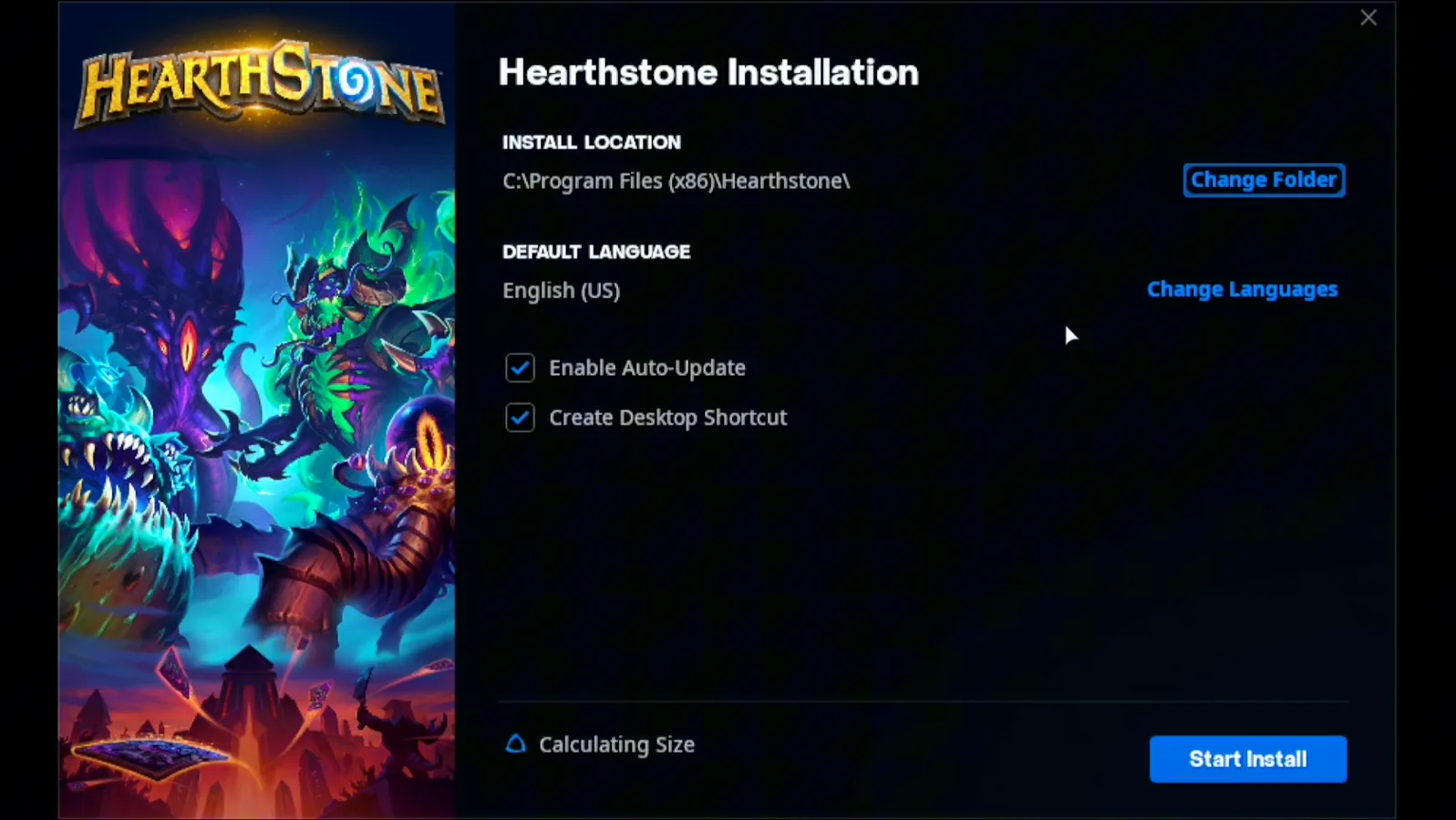
You're in your Battle.net account and everything works as it does on a PC: pick a game and click Install. Battle.net may mark it Unsupported on a handheld and list why — click Got it — then click Start Install. In the video that game is Hearthstone, my own example.
What people are saying
“When Battle.net opens its login window the Steam on-screen keyboard began to glitch like mad - opening and closing in a super fast loop.”
Steam Deck & Battle.net issues · 2023-10
“Entering text requires manually invoking the on-screen keyboard.”
Battle.net's handheld notice for Hearthstone, on the Steam Deck
Questions, answered
Is NonSteamLaunchers part of Deck Pointer?
No. It's a separate open-source project by moraroy, and we're not affiliated with it — we only describe how to install it. Its home page is github.com/moraroy/NonSteamLaunchers-On-Steam-Deck. Deck Pointer is just the mouse and keyboard you use to run the installer and log in.
Do I need to install anything on the Deck for Deck Pointer?
No. The Deck sees your phone as an ordinary Bluetooth mouse and keyboard, so nothing gets installed on the Deck for it — not in Desktop Mode, not in Game Mode. Only the optional Wi-Fi connection (Android) uses a small app on the Deck, from deckpointer.com/deck.
Why does my Battle.net row show a long path?
It shows where Battle.net is already installed. You'll see it if you've run the installer before; on a clean first install the row just says Battle.net.
Does the password I paste go anywhere?
No. It goes from your phone to the Deck over Bluetooth as ordinary keystrokes. It doesn't pass through any server of ours, and we don't log it.
Battle.net logged me out. Do I have to paste the password every time?
You can record the login once as an Action in Deck Pointer and replay it with a tap, the same way as the Ubisoft Connect password fix.