Steam Deck fixes
How to browse the Steam Sale on Steam Deck with your phone as a mouse
The Steam store in Game Mode is a web page. With the stick you hop between items one by one, scrolling a long sale page takes ages, and it's hard to land on the right button, tab or trailer.
The Steam store on the Steam Deck is a web page, and browsing a sale with the stick means hopping from item to item. With Deck Pointer on your phone as a trackpad and scroll wheel you move a cursor, scroll long pages, watch trailers, add games to your wishlist and cart, and get to checkout in Game Mode.
Video tutorial
Step by step
Connect Deck Pointer and open the store
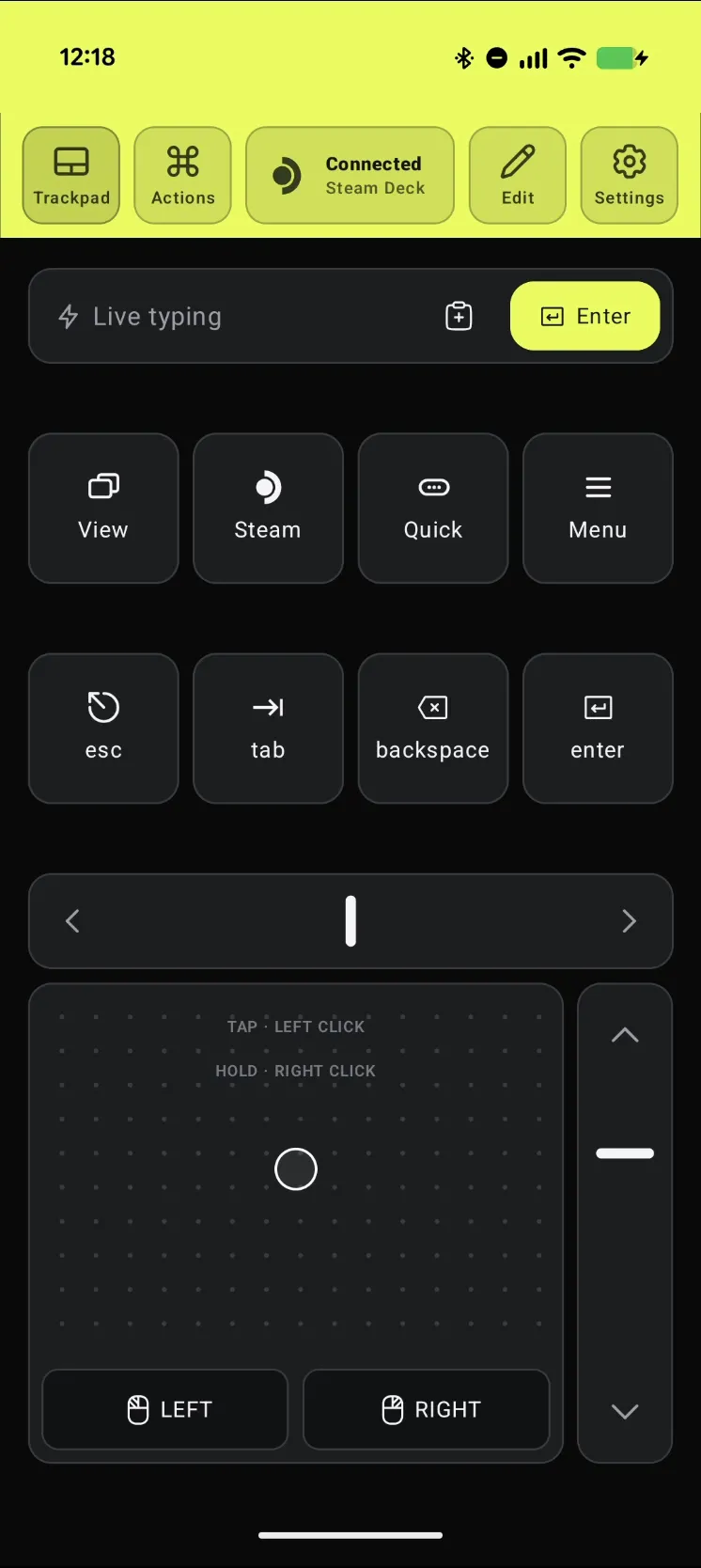
Open Deck Pointer on your phone and check that the chip at the top reads Connected. On the Deck, open the Steam store in Game Mode. Nothing needs installing on the Deck.
Move with the trackpad, scroll with the rail
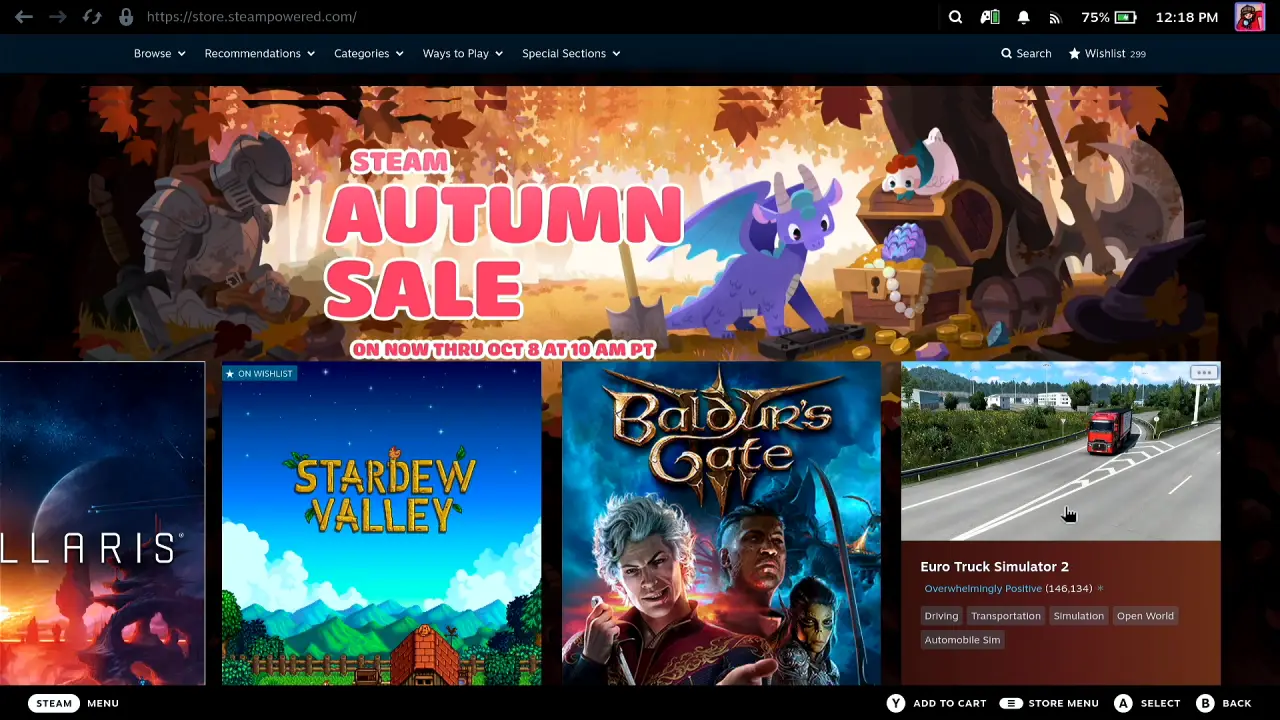
Move the pointer with one finger on the phone's trackpad and tap to click. Drag the scroll rail on the right to move through long pages. Esc on the phone goes back a page, and you can put the keys you use most on the layout. Open a game, read about it, and the price and Add to Cart are right there.
Go through the sale and watch trailers
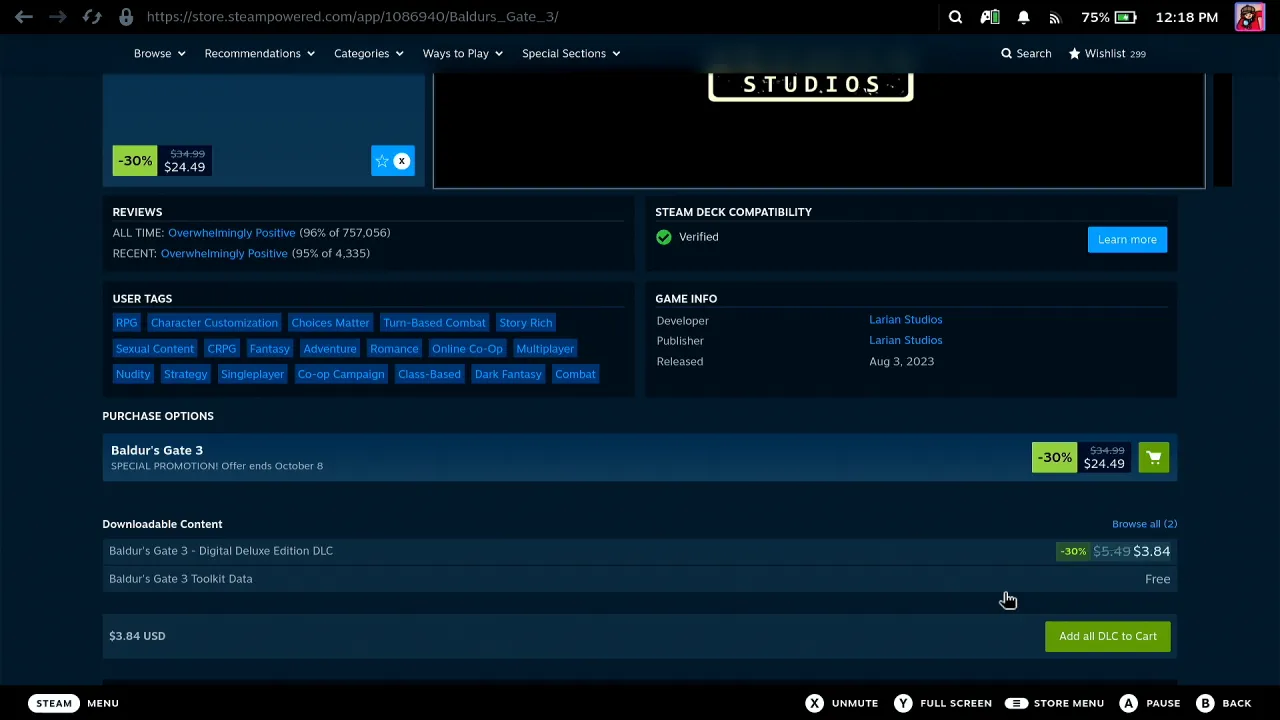
Click into Explore Your Discovery Queue, the sale tabs and the recommendations. Trailers play in the store; with the Deck connected to a TV they play on the big screen.
Check how a game runs on the Deck
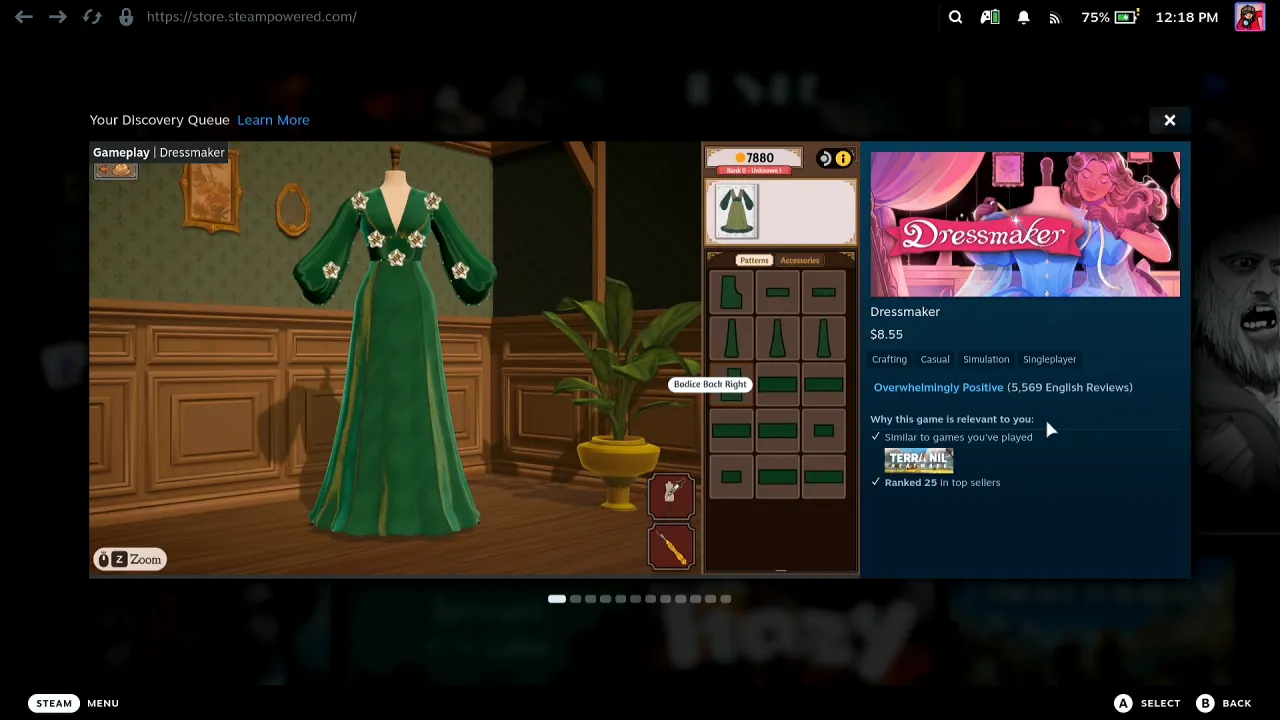
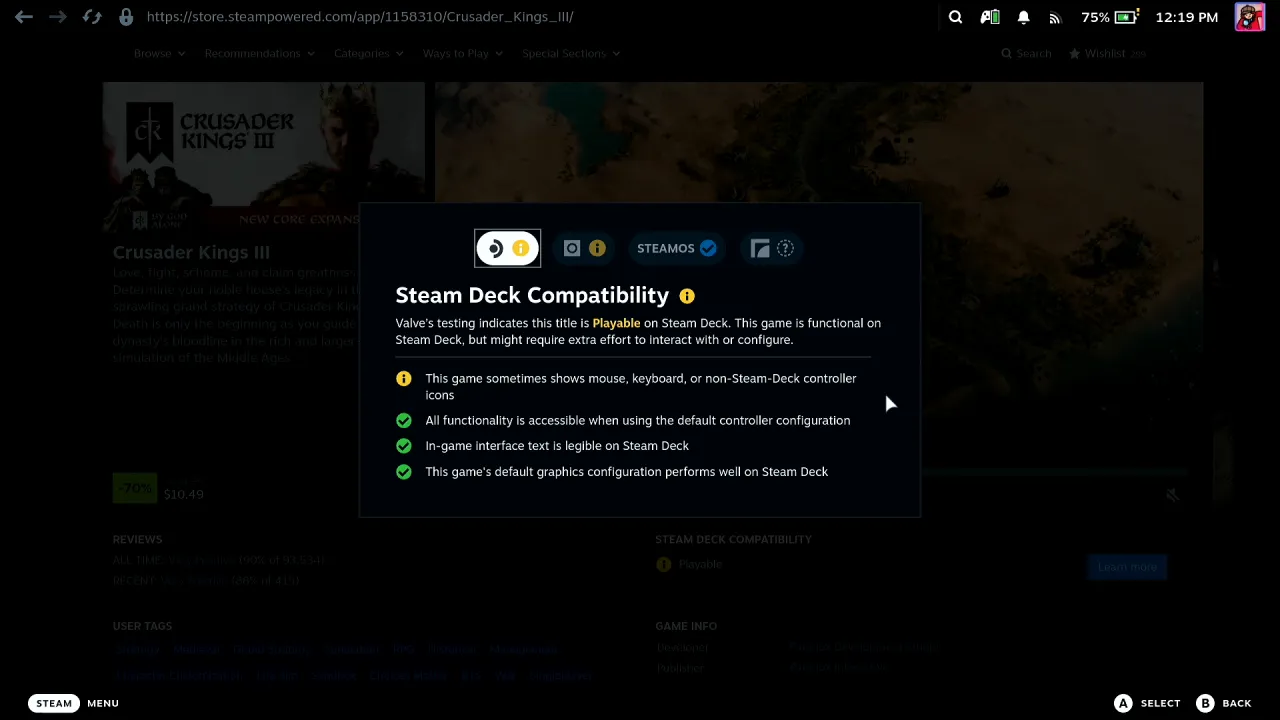
On a game's page, open Steam Deck Compatibility. For Crusader Kings III Valve says Playable and warns that the game sometimes shows mouse, keyboard or non-Steam-Deck controller icons. A game that wants a mouse is fine when your phone is one.
Add it to your wishlist
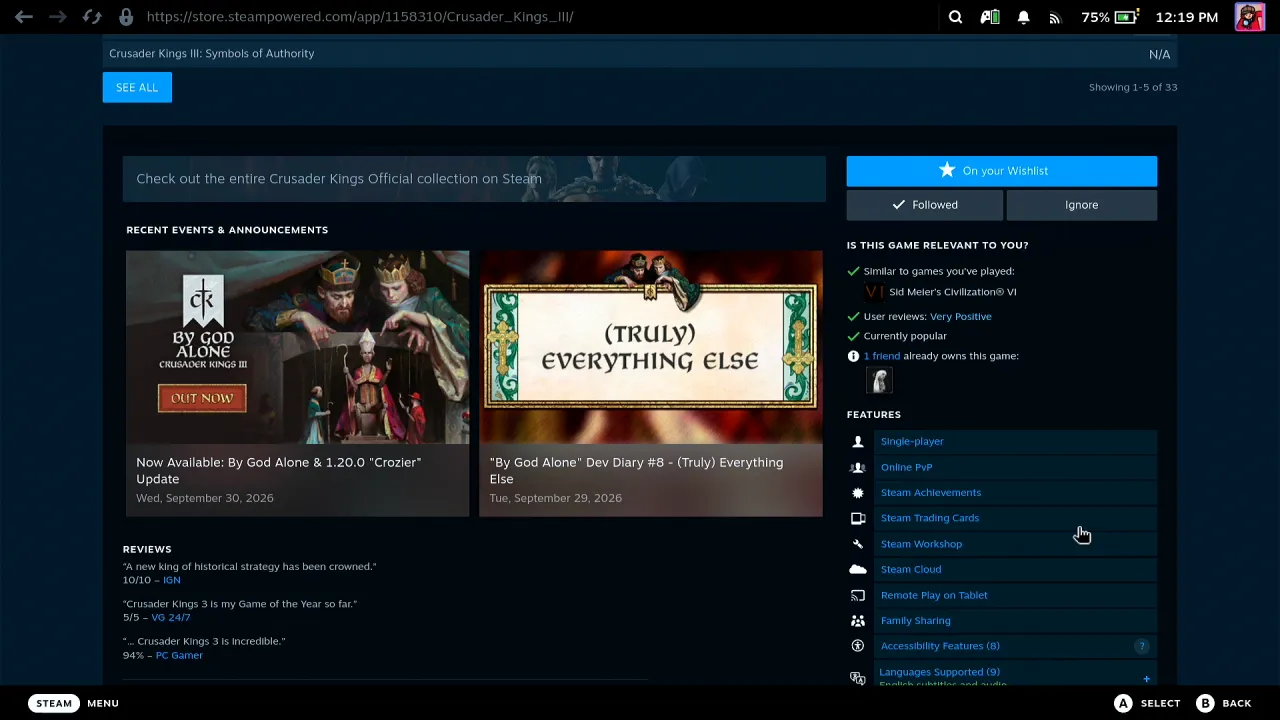
Scroll down with the rail to Add to your wishlist and tap it. The button turns into On your wishlist.
Add it to the cart
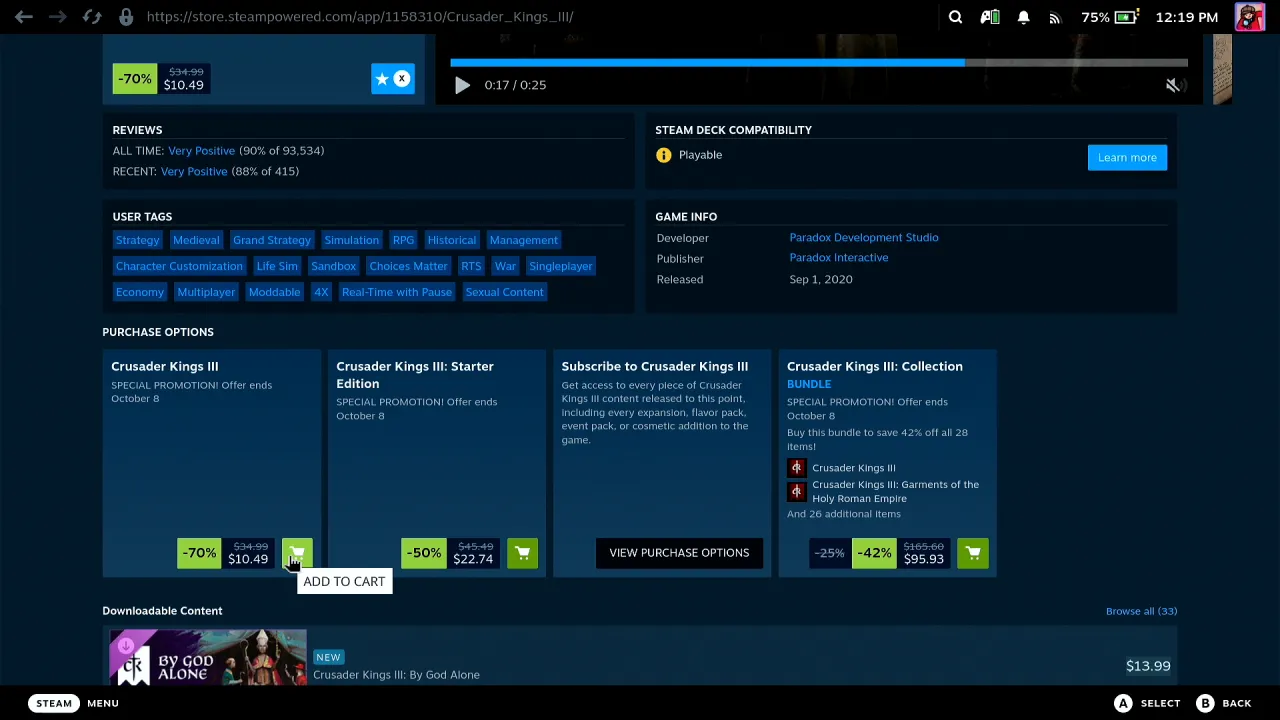
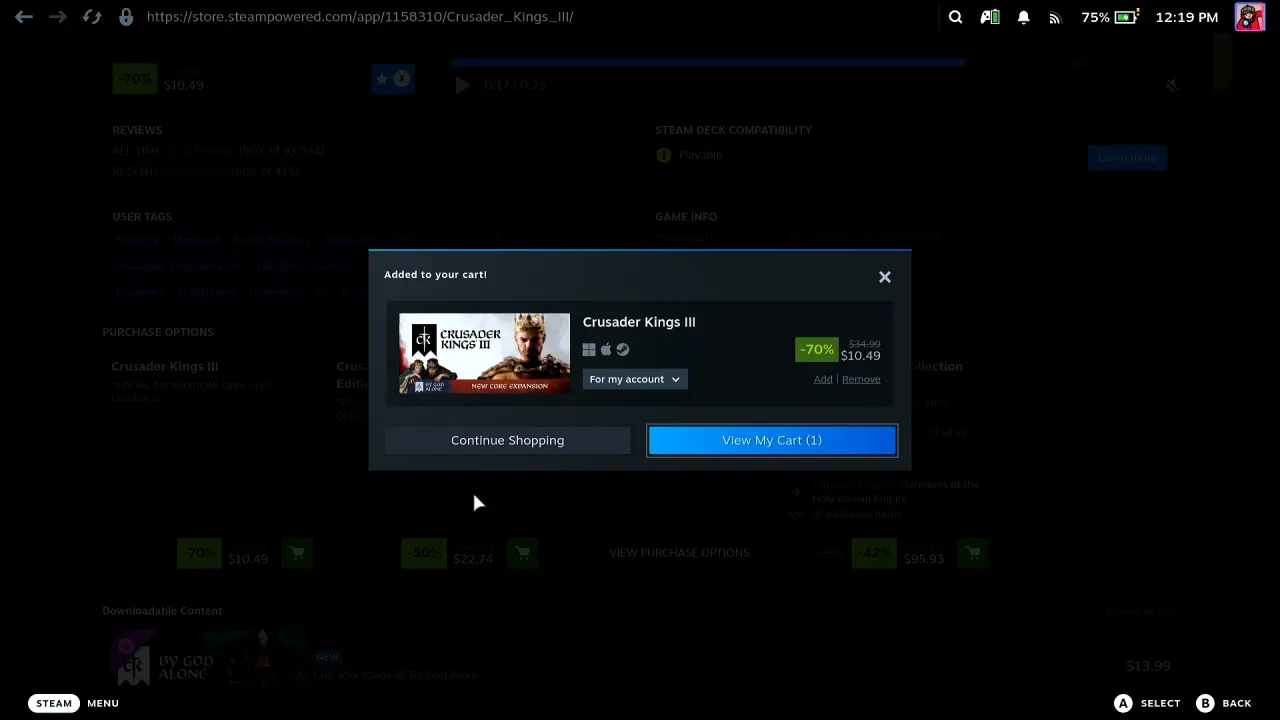
Under the purchase options, click the green cart button next to the edition you want. Steam shows Added to your cart!; click View My Cart.
It worked: from the cart to payment
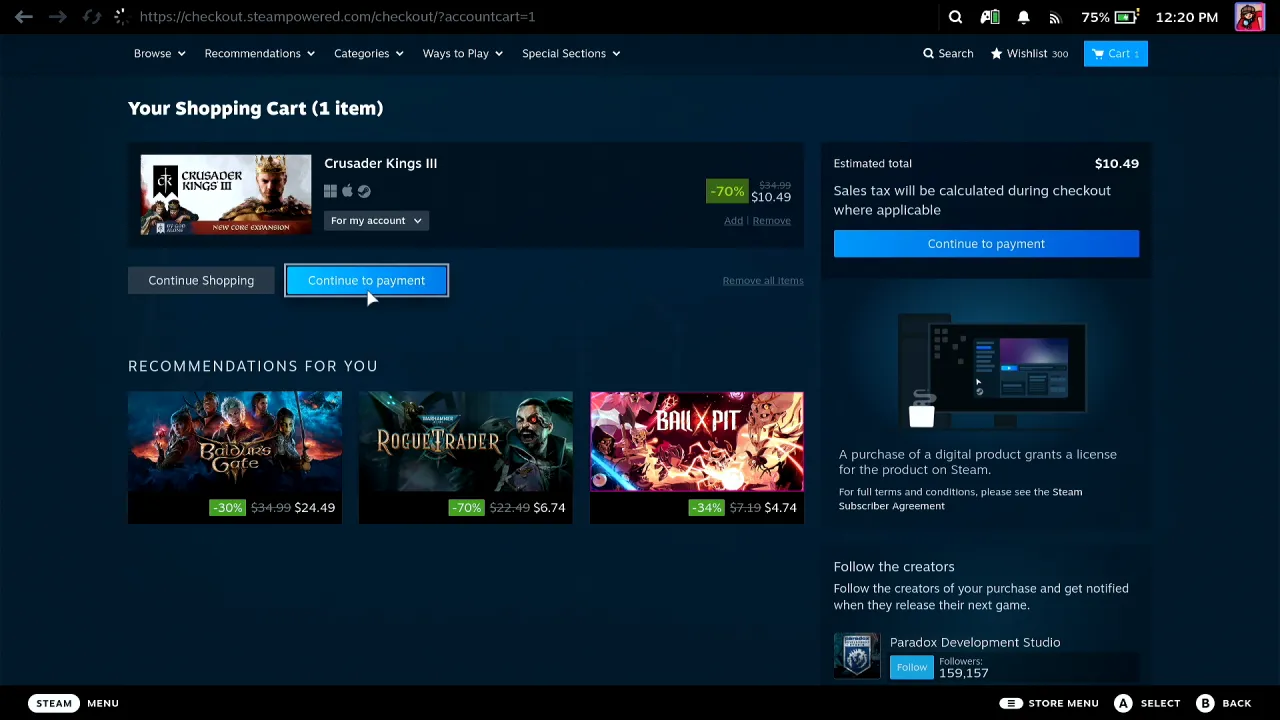
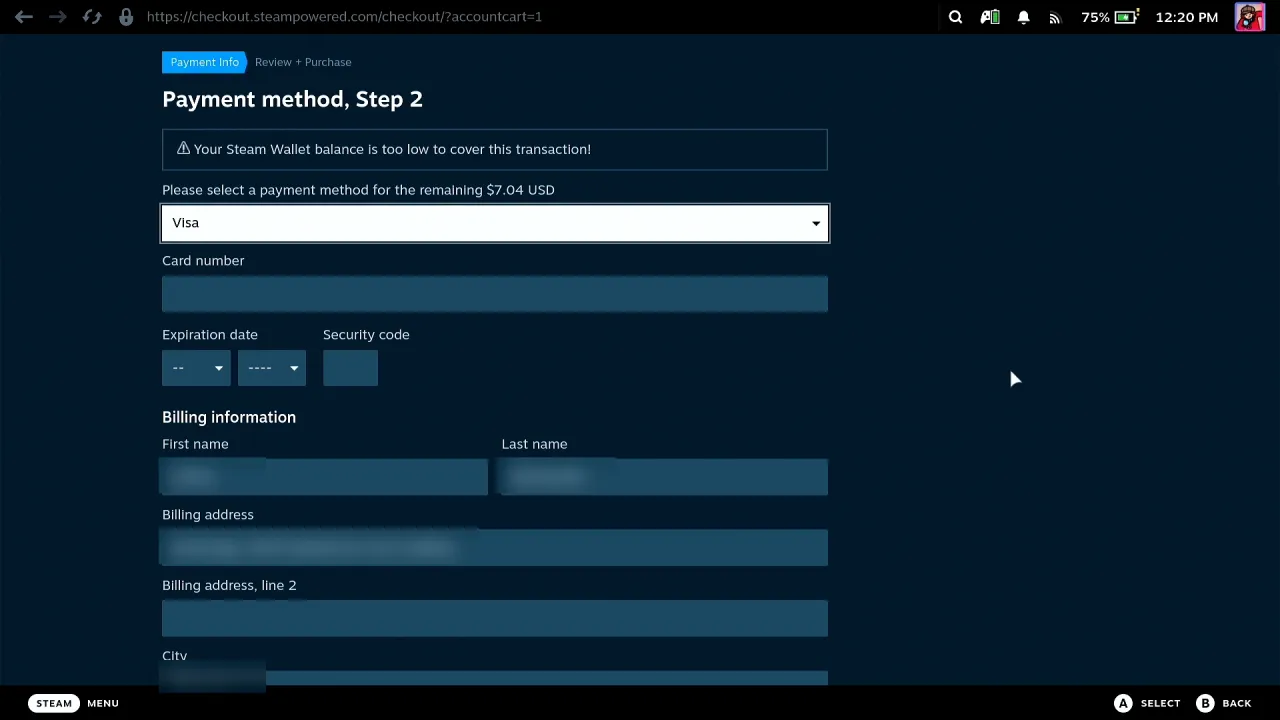
Your Shopping Cart shows the game and the total. Click Continue to payment and you're on Steam's payment form. Click a field with the trackpad and type the card details from Deck Pointer's text field, no on-screen keyboard. The whole trip from the sale page to checkout was done from the phone.
What people are saying
“Use trackpad”
Steam's own hint in the Steam Deck's top bar on the store's cart page, Game Mode · 2026-10
“This game sometimes shows mouse, keyboard, or non-Steam-Deck controller icons”
Questions, answered
Can't I just use the Deck's own trackpads?
You can, and the right trackpad moves a cursor in the store. Deck Pointer is for when the Deck sits docked or across the room on a TV: the phone is a full-size trackpad with a scroll rail and keys in your hand.
Can I type card details from the phone?
Yes. Click the field on the Deck, then type in Deck Pointer's text field; it arrives as keyboard input. I didn't type mine on camera.
Do I need to install anything on the Steam Deck?
Not for Bluetooth: the Deck sees your phone as a Bluetooth keyboard and mouse, so Deck Pointer needs no software on it. Only the optional Wi-Fi connection (Android) uses a small app on the Deck, from deckpointer.com/deck. Pair it once, the way you pair any Bluetooth keyboard.
Does this work with an iPhone?
Yes. Deck Pointer runs on iPhone and Android and connects to the Deck the same way over Bluetooth.
Is Deck Pointer free?
Yes, it's free on Android and iPhone.