Steam Deck fixes
Ubisoft Connect on Steam Deck: fix the password prompt in Assassin's Creed IV Black Flag (2013)
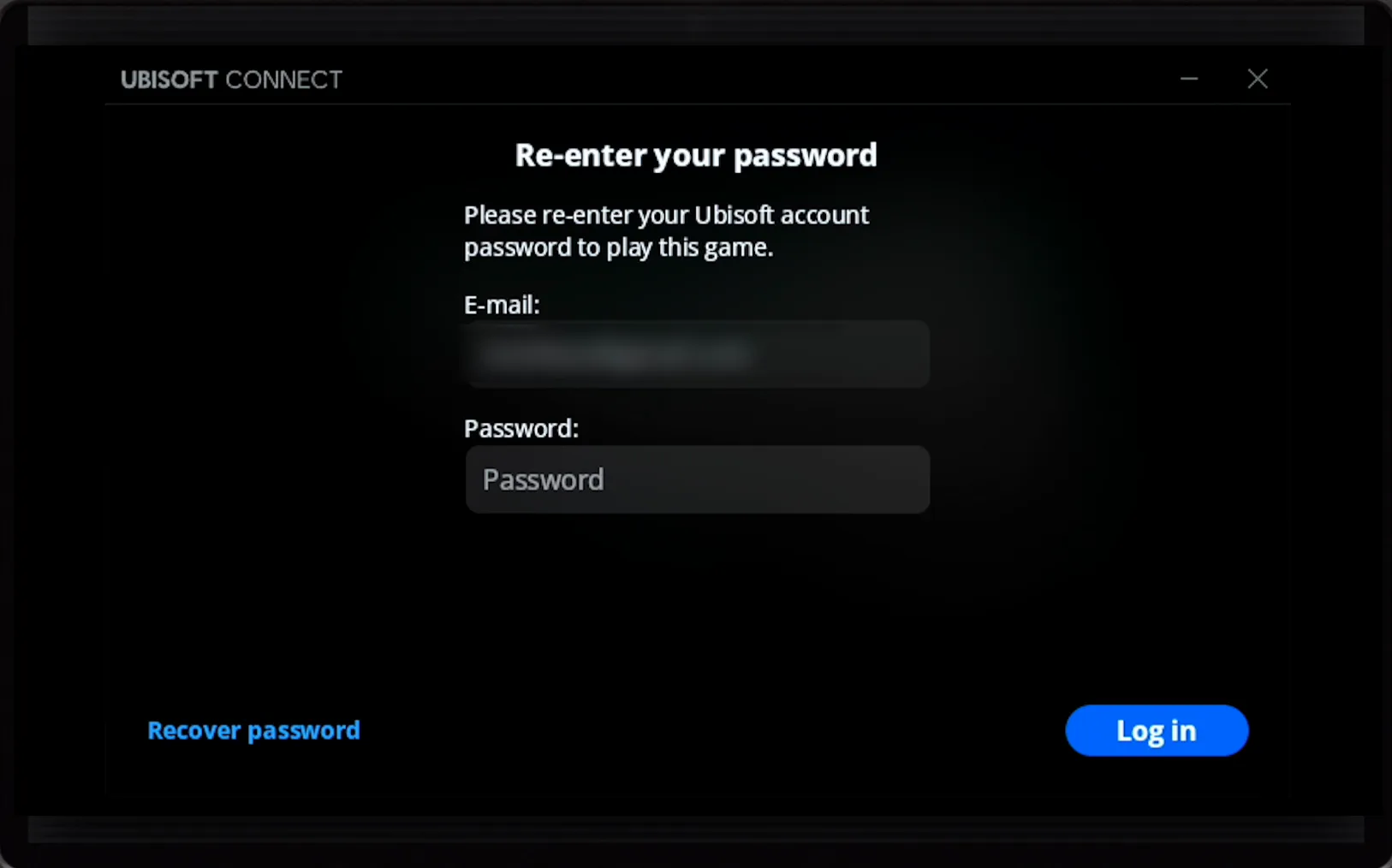
Launch Assassin's Creed IV Black Flag and Ubisoft Connect stops you with "Re-enter your password" before the game starts — every single time, with the Deck's on-screen keyboard as the only way to type it.
Valve rates the original 2013 Assassin's Creed IV Black Flag Playable and warns that entering some text requires manually invoking the on-screen keyboard. The password prompt on every launch is Ubisoft Connect's own behavior, reported by players and confirmed by Ubisoft support — Valve doesn't call it out by name.
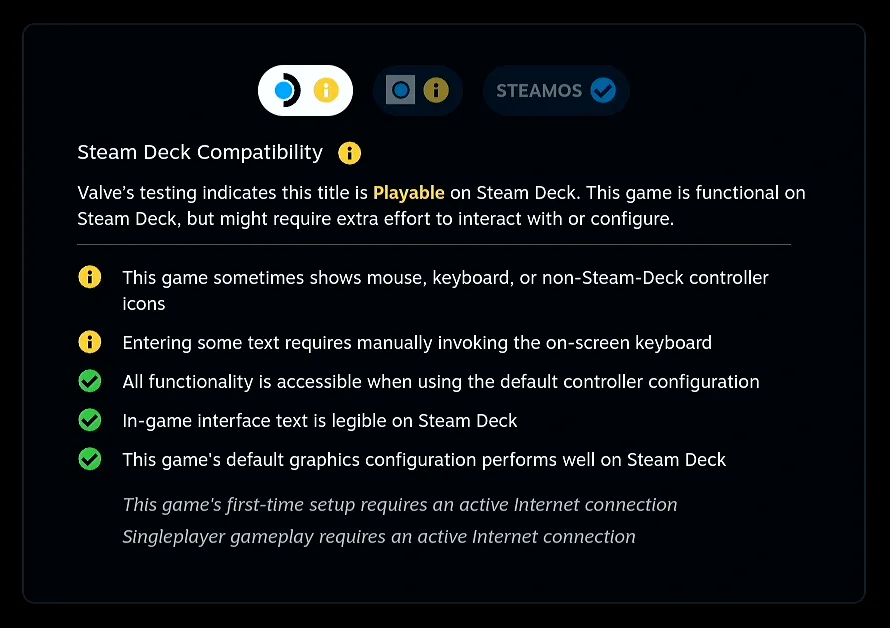
The original Assassin’s Creed IV Black Flag runs well on Steam Deck and carries Valve’s Playable rating. The trouble is the launcher: Ubisoft Connect forgets your session and asks for your password every time you start the game, and Valve’s own panel warns that entering text on the Deck means calling up the on-screen keyboard by hand. Deck Pointer turns your phone into the Deck’s mouse and keyboard, so you record that login once and replay it with a tap.
Video tutorial
Step by step
Ubisoft Connect asks for your password again
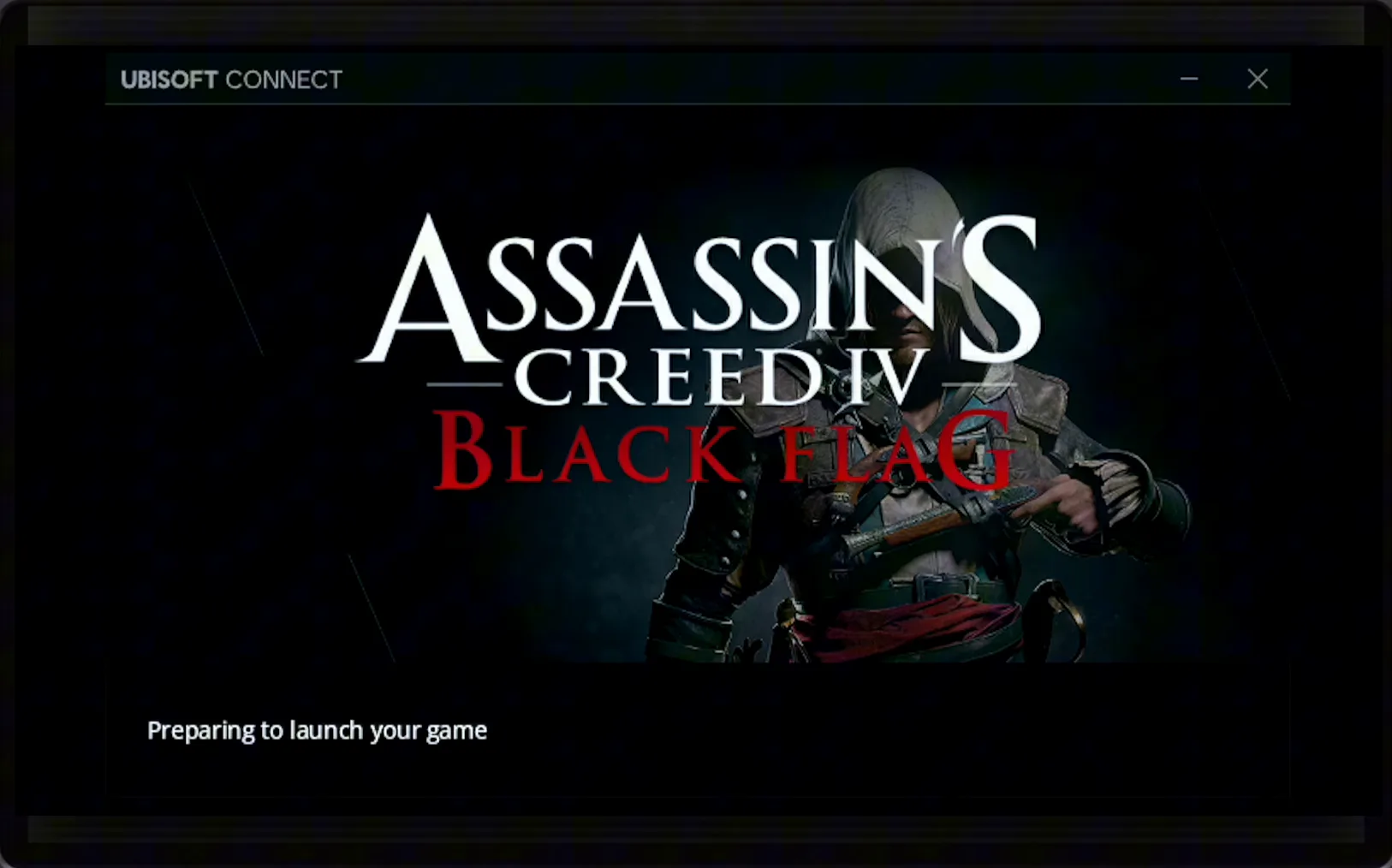
Launch Assassin's Creed IV Black Flag and, before the game even starts, the old Ubisoft Connect launcher shows "Re-enter your password." Your e-mail is already filled in — it only wants the password, and it will want it again next time.
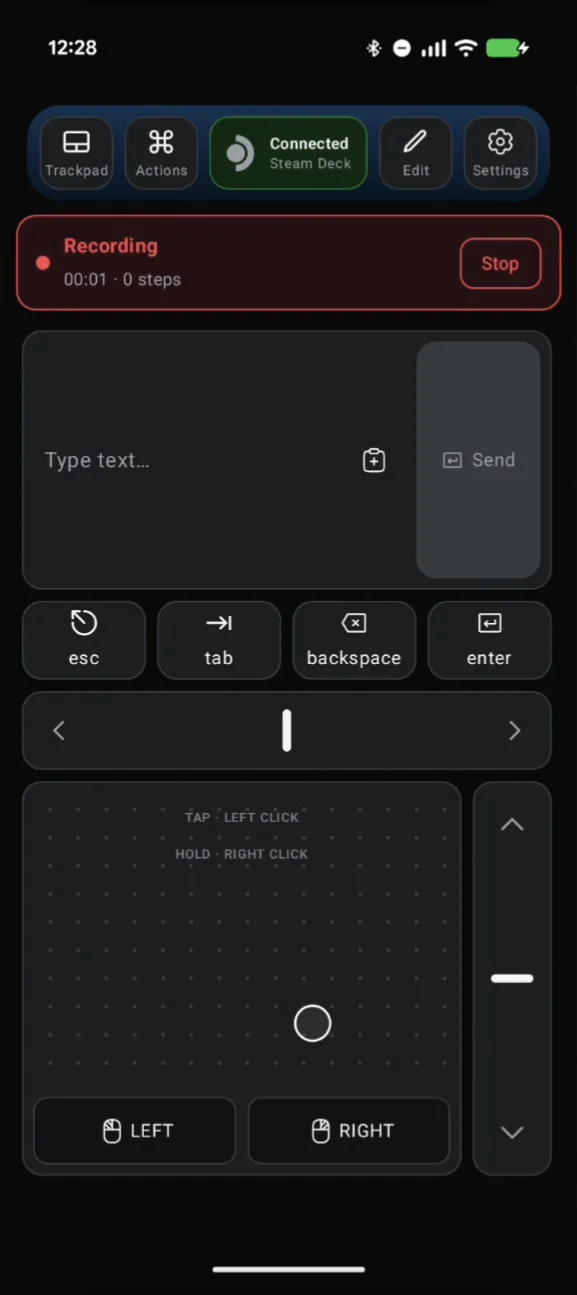
Start recording an Action
Open Actions in Deck Pointer and tap Record. You'll do the login once while it records, so you never have to type the password on the Deck again.
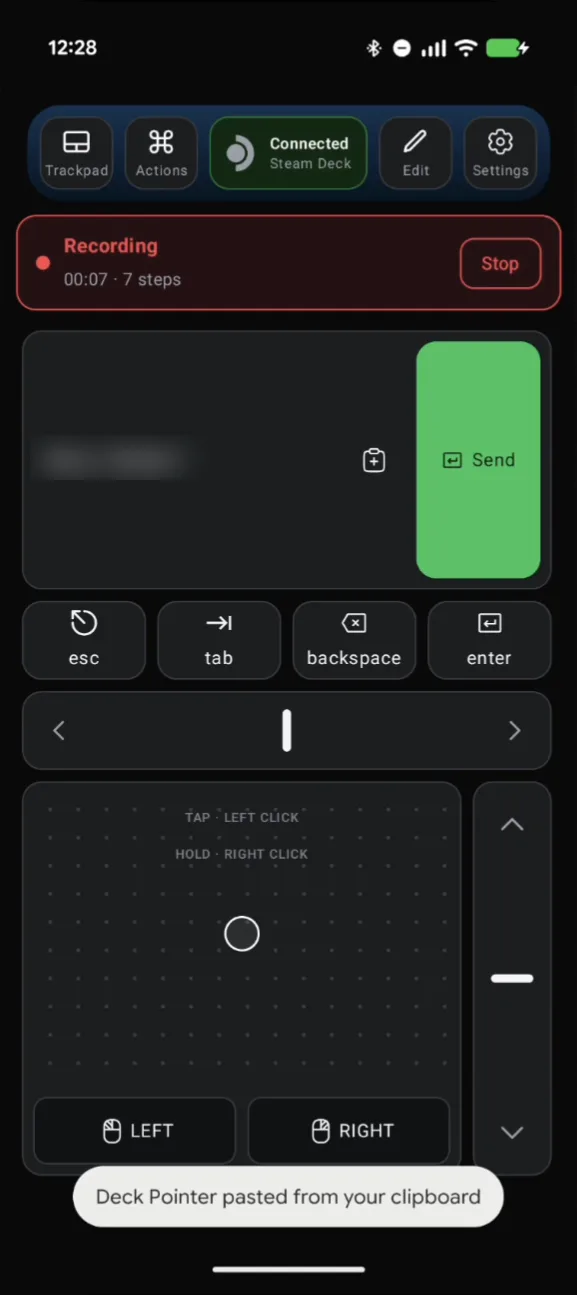
Paste the password, send it, press Enter
Click the password field on the Deck with the trackpad, paste the password into Deck Pointer's text field from your phone's clipboard, tap Send, then press Enter. Ubisoft Connect accepts it and the game starts loading.
Stop recording and check the steps
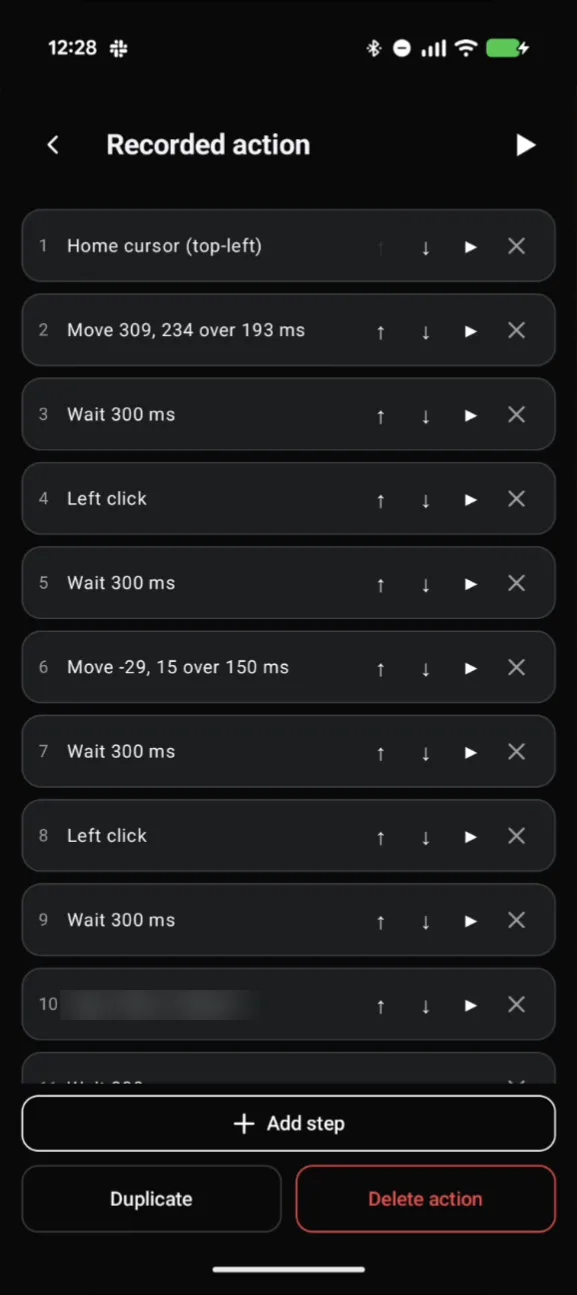
Stop the recording and Deck Pointer lists everything it captured: homing the cursor, the moves and clicks to the password field, the typed password, and Enter. Rename the Action to something you'll recognize, like "Ubisoft".
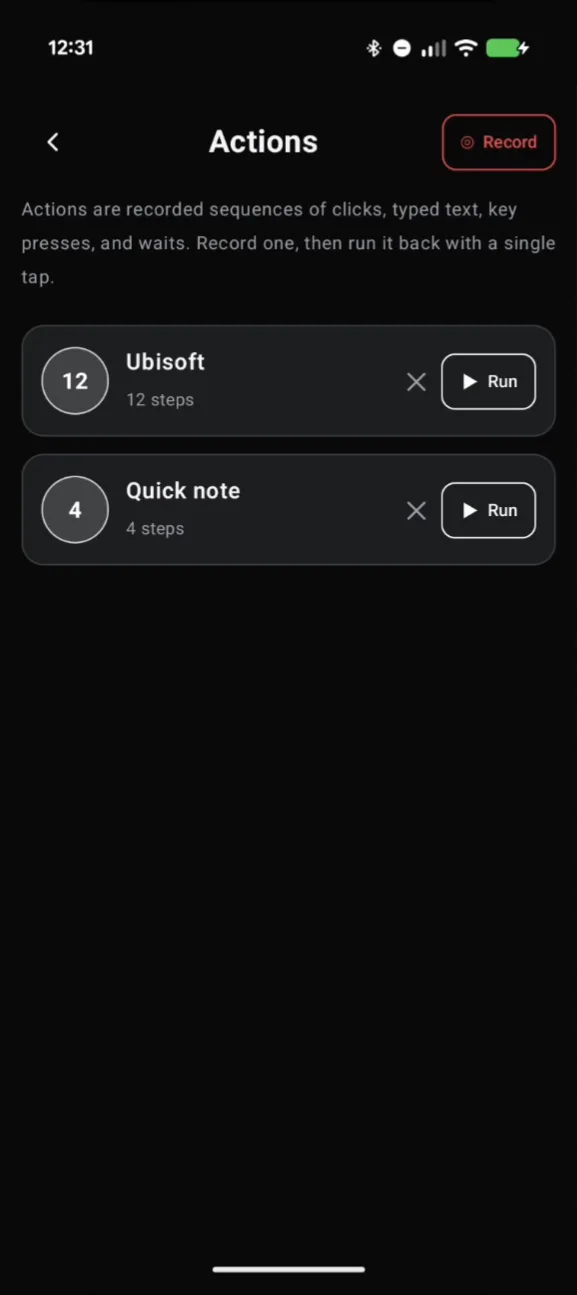
Next time, open Actions and tap Run
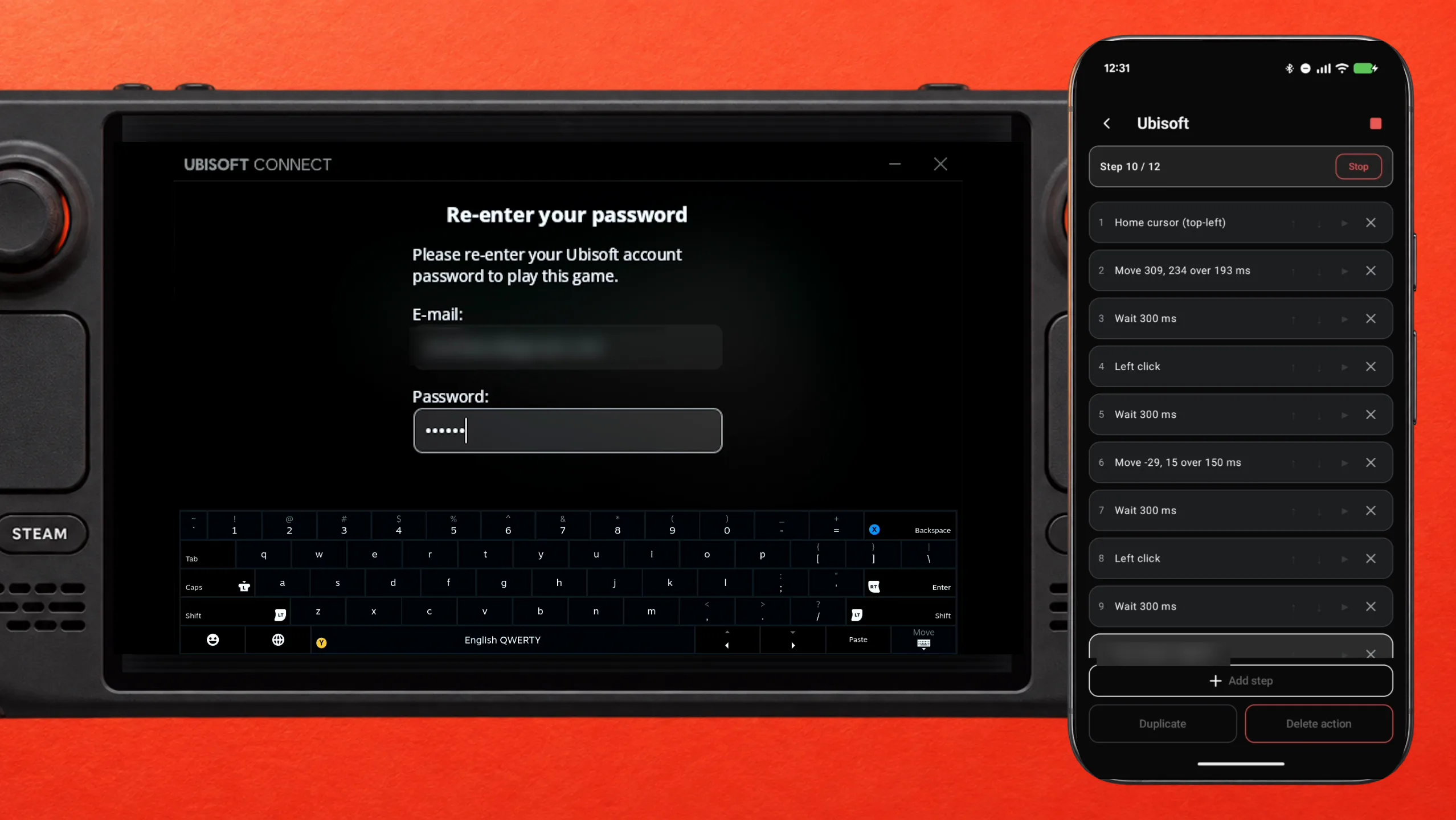
The next time Black Flag stops on the password dialog, open Actions and tap Run next to your saved Action. Deck Pointer replays the whole login — click, password, Enter — while you watch the field fill in on the Deck.
What people are saying
“Entering some text requires manually invoking the on-screen keyboard”
Steam Deck Compatibility panel, Assassin's Creed IV Black Flag
“So, every time I launch this game, I have to enter in my log in details for Ubisoft connect. Is there a reason why I have to do this each time?”
Steam Community: Have to enter Ubisoft password every time I play · 2022-08
“Ubisoft, you're now requirement me to type my username and password EVERY SINGLE TIME I launch the game?”
Steam Community: Logging into Ubisoft? · 2021-08
“some older games require you to re-enter your Ubisoft Connect credentials at each launch”
Ubisoft support reply in the same Steam Community thread · 2021-10
Questions, answered
Is this about the original game or Black Flag Resynced?
The original 2013 Assassin's Creed IV Black Flag on Steam — the one that opens the old Ubisoft Connect "Re-enter your password" dialog shown above. Black Flag Resynced is a separate 2026 release.
Does the same Action work for other Ubisoft games?
Yes, as long as the game shows the same Ubisoft Connect password dialog — Far Cry 3 and Assassin's Creed Origins do. If the dialog sits in a different spot, record a new Action for that game.
Where is my password stored?
Only inside the Action on your phone — no cloud, no account, no sync. The recorded steps never leave the device, but anyone who can open Deck Pointer on your unlocked phone can see them.