Steam Deck fixes
How to control your Steam Deck from your phone with Deck Pointer
Your Steam Deck is docked, on a stand, or across the room, but a launcher, Desktop Mode window, or game menu suddenly expects a mouse and keyboard.
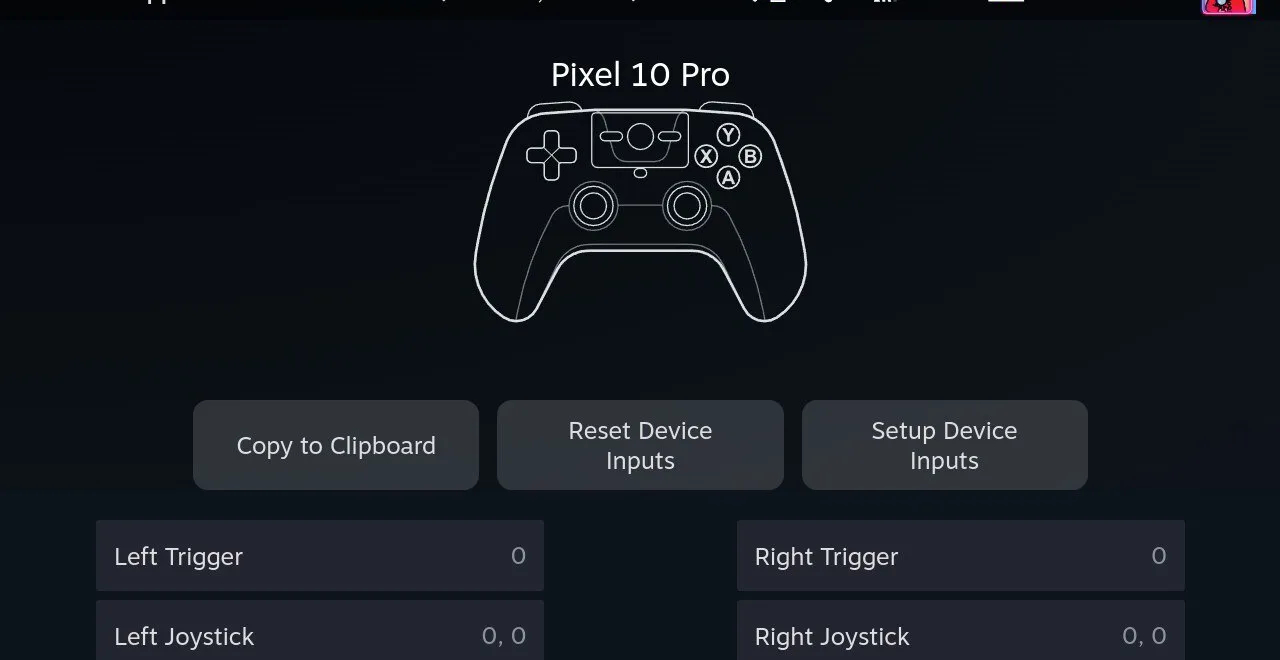
Most “remote control” guides begin by making the Steam Deck stream its screen to another computer or by installing remote-desktop software. That is useful when the Deck itself is out of sight. It is more machinery than you need when the Deck is already in front of you, docked to a TV, or sitting on a stand and the missing piece is simply a comfortable pointer and keyboard.
Deck Pointer takes the shorter route: your Android phone pairs as standard Bluetooth input hardware. Once paired, it can reconnect for later sessions without a network, a helper service, or a game running in the background.
Step by step
Keep the Deck screen in view
Deck Pointer sends input; it does not mirror or stream the Deck's display. Use the Deck's own screen or a connected monitor or TV, and keep the phone within normal Bluetooth range.
Pair the phone once
Open Bluetooth settings on the Steam Deck. In Deck Pointer, add a new device and make the phone discoverable, then select it on the Deck and confirm the pairing on both screens. Before the first connection, the Deck may show your phone model instead of the Deck Pointer name.
Reconnect from Deck Pointer
After pairing, the Steam Deck stays in your known-host list. Wake the Deck, open Deck Pointer, and tap Connect next to it whenever you need control again. Optional automatic reconnect can be enabled in Settings.
Use the Trackpad preset for pointer control
Move one finger across the phone to move the Deck pointer. Use left and right click, hold to drag, and the scroll controls for long pages, file lists, and launcher windows.
Type on the Deck from your phone
Focus a field on the Deck, type or paste text into Deck Pointer, and send it as real Bluetooth keyboard input. Use Tab, Enter, Backspace, function keys, and shortcuts without opening the Deck's on-screen keyboard.
Switch controls for the task
Choose a built-in mouse, keyboard, gamepad, or TV layout, or make a custom layout for the controls you use most. Compatibility can vary by game and host, so verify important mappings before relying on them.
Save repeated input as an Action
For a sequence you repeat often, record the pointer moves, clicks, text, keys, scrolling, and pauses as an Action while connected. Replay it from the phone instead of rebuilding the sequence by hand.
What people are saying
The original poster needed comfortable input for emulator setup without adding a USB-C hub, and found the Deck's on-screen keyboard and long-path file navigation too awkward for the job.
r/SteamDeck discussion: remote control for emulator setup · 2022-03
The discussion groups the common workarounds into screen streaming, remote-desktop software, network keyboard-and-mouse sharing, and carrying physical peripherals. Each solves a broader problem than direct Bluetooth input.
Other ways to try first
- Steam Link or Steam Remote Play
- A good choice when you need both the Deck's picture and its controls on another computer. It uses a network stream and may need extra window or session setup for Desktop Mode.
- Remote desktop software
- VNC, RustDesk, AnyDesk, and similar tools can expose the full desktop over a network, including from farther away. They require host-side installation and configuration, and are a different job from direct Bluetooth input.
- A physical keyboard, mouse, or USB-C hub
- The most universal option when desk space and another device are not a problem. It is less convenient for a docked Deck across the room or a lightweight travel setup.
- A software keyboard-and-mouse switch
- Barrier or Synergy can share a computer's existing mouse and keyboard with the Deck. This works well at a desk, but requires software and network setup on both sides.
Questions, answered
Is Deck Pointer a remote desktop or screen-mirroring app?
No. Deck Pointer turns your Android phone into Bluetooth input hardware. You still watch the Deck's own screen or a connected TV or monitor.
Does it need Wi-Fi or internet access?
No. Control travels directly over Bluetooth, so it also works before the Deck is connected to Wi-Fi.
Do I have to install anything on the Steam Deck?
Not for Bluetooth: the Deck sees the phone as standard Bluetooth input devices. Only the optional Wi-Fi connection (Android) uses a small app on the Deck, from deckpointer.com/deck.
Do I have to pair again every time?
Normally, no. Pair once, then reconnect to the saved Steam Deck from Deck Pointer in later sessions. If either device forgets the Bluetooth bond, pair it again.
Which Android phones are supported?
Deck Pointer requires Android 9 or later and a phone whose firmware exposes Android's Bluetooth HID device profile. Some manufacturers remove that profile, so compatibility is not universal.
Can I type every language and symbol?
Not yet. Text is sent as US-QWERTY HID keystrokes and currently covers ASCII letters, numbers, and punctuation. Unsupported characters are skipped.
Can I keep using another controller at the same time?
Often, but simultaneous Bluetooth devices and gamepad mappings vary by phone, controller, and game. Test your exact setup; if another controller starts reconnecting, disconnect it while using Deck Pointer.
Production draft
Video walkthrough script
Capture plan: Use synchronized phone and Steam Deck feeds so every touch and its response are visible together. The paired control flow is current; synchronized in-app capture is planned production tooling, not a screen-streaming feature for users. Until it is available, record both devices with the project's external capture workflow.
- 0:00–0:05
VisualA docked Steam Deck shows a Desktop Mode or launcher field that needs a pointer and typing. The phone is already in the user's hand.
VO“Need a mouse or keyboard on your Steam Deck without carrying another device?”
On screenBluetooth control — not remote desktop
- 0:05–0:16
VisualSplit view. On the phone, open Deck Pointer, add a device, and make the phone discoverable. On the Deck, select the phone in Bluetooth settings and confirm pairing on both screens.
VO“Pair your phone once through the Deck's normal Bluetooth settings. There is nothing to install on the Deck.”
On screenPair once
- 0:16–0:23
VisualThe Steam Deck appears in Deck Pointer's known-host list. Tap Connect and show the connected state.
VO“Later, wake the Deck and reconnect from Deck Pointer whenever you need it.”
On screenReconnect in a tap
- 0:23–0:41
VisualSynchronized phone and Deck feeds. A finger moves on the Trackpad preset while the Deck cursor follows; demonstrate left click, scrolling, then enter the dummy text 'Deck Pointer demo 123!' and press Tab and Enter.
VO“Use your phone as a real Bluetooth trackpad and keyboard for clicks, scrolling, text, and the keys the on-screen keyboard makes awkward.”
On screenTrackpad · clicks · scroll · keyboard
- 0:41–0:51
VisualQuick cuts: a launcher sign-in form with fake demo text, a Desktop Mode window, and one short Action replay that repeats the harmless demo input.
VO“Handle launcher forms and Desktop Mode, then save repeated input as a one-tap Action.”
On screenCompatibility varies by game and host
- 0:51–1:00
VisualReturn to the side-by-side phone and Deck view. Switch from Trackpad to another built-in layout, then end on the responsive pair.
VO“One phone becomes your trackpad, keyboard, gamepad, and custom controller—without a companion server.”
On screenDeck Pointer · Join the test