Troubleshooting
Steam Deck connects to your phone, then drops it a second later
The Deck pairs with your Android phone, holds the link for under a second and drops it again. Check your SteamOS update channel first: the Beta can cause it.
What you see: the link drops within a second of connecting
- The phone pairs and the Deck shows it as connected, but the link is gone within a second.
- The app reconnects by itself, the link drops again, and after a few tries the app gives up.
- Nothing you type or move on the phone reaches the Deck.
When and why it happens
When it happens. Right after pairing, every time, and again on every reconnect. It was seen with Android phones and a Deck that is on the SteamOS Beta update channel.
Why it happens. On the SteamOS Beta (seen on 3.9.2) the Deck's Bluetooth service can crash as soon as an Android phone connects. On the Stable channel the same phone and Deck stay connected.
Switch the Deck to the Stable update channel
Check the channel
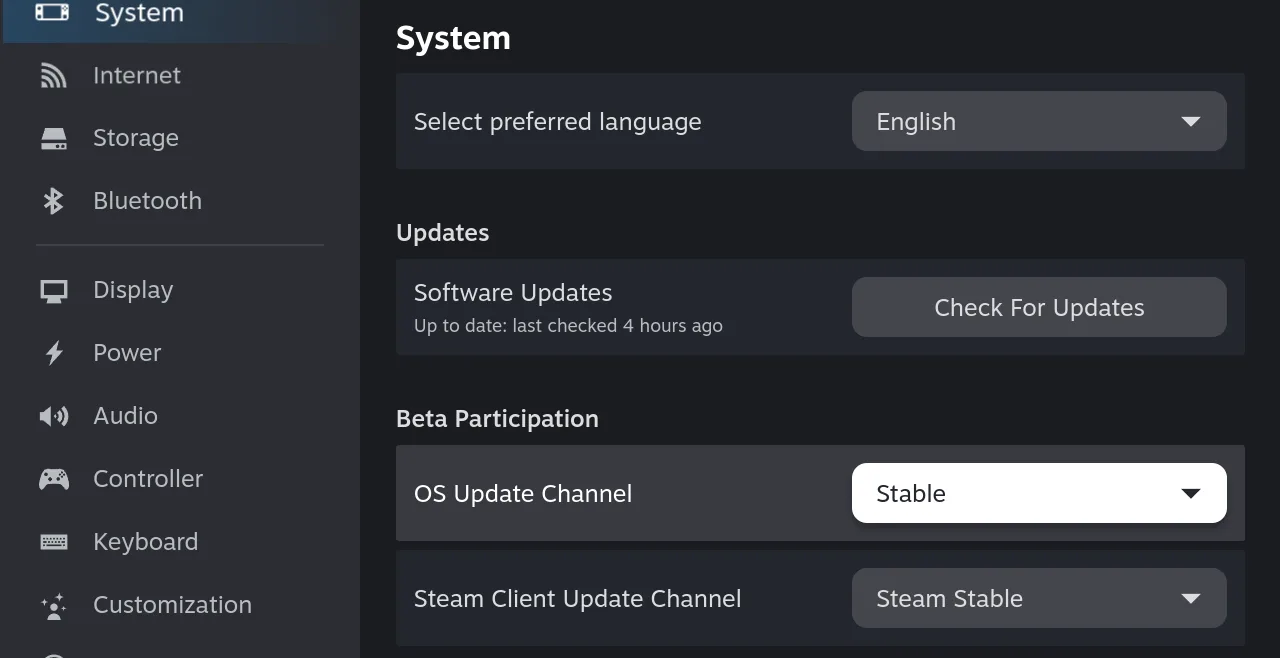
On the Deck, press the STEAM button → Settings → System. Under Beta Participation, look at OS Update Channel. If it says Stable, go to Option 2.
Pick Stable and update
Open the OS Update Channel menu and pick Stable, then press Check For Updates under Updates. The Deck downloads the Stable build and asks to restart. Your games and settings stay on the Deck. Leave Steam Client Update Channel alone: it is a different setting.
Connect again
After the restart, open Deck Pointer and tap Connect next to your Steam Deck. If the connection holds, you are done.
Forget the pairing on both sides and pair again
A pairing made while the link kept dropping is often half-broken, and a Deck that still remembers the phone won't list it under +.
Still dropping?
In Deck Pointer, open Settings → Feedback → Report a problem and pick "Connects, then drops". Add your Steam Deck model and SteamOS channel and attach a photo of the Deck's screen. The report carries the connection log from your phone, so we can see when the Deck drops the link.