
Video tutorial
Giving a Keynote talk from a Mac, with an Android phone in your pocket? Apple’s Keynote Remote is for iPhone and iPad, and there is no Keynote for Android. Your phone can still run the whole show: it pairs with the Mac as a Bluetooth keyboard and trackpad, and Deck Pointer’s Keynote preset puts the slideshow keys under your thumb. Here are eight tips, the same as in the video.
Tip 1: Make your phone the clicker
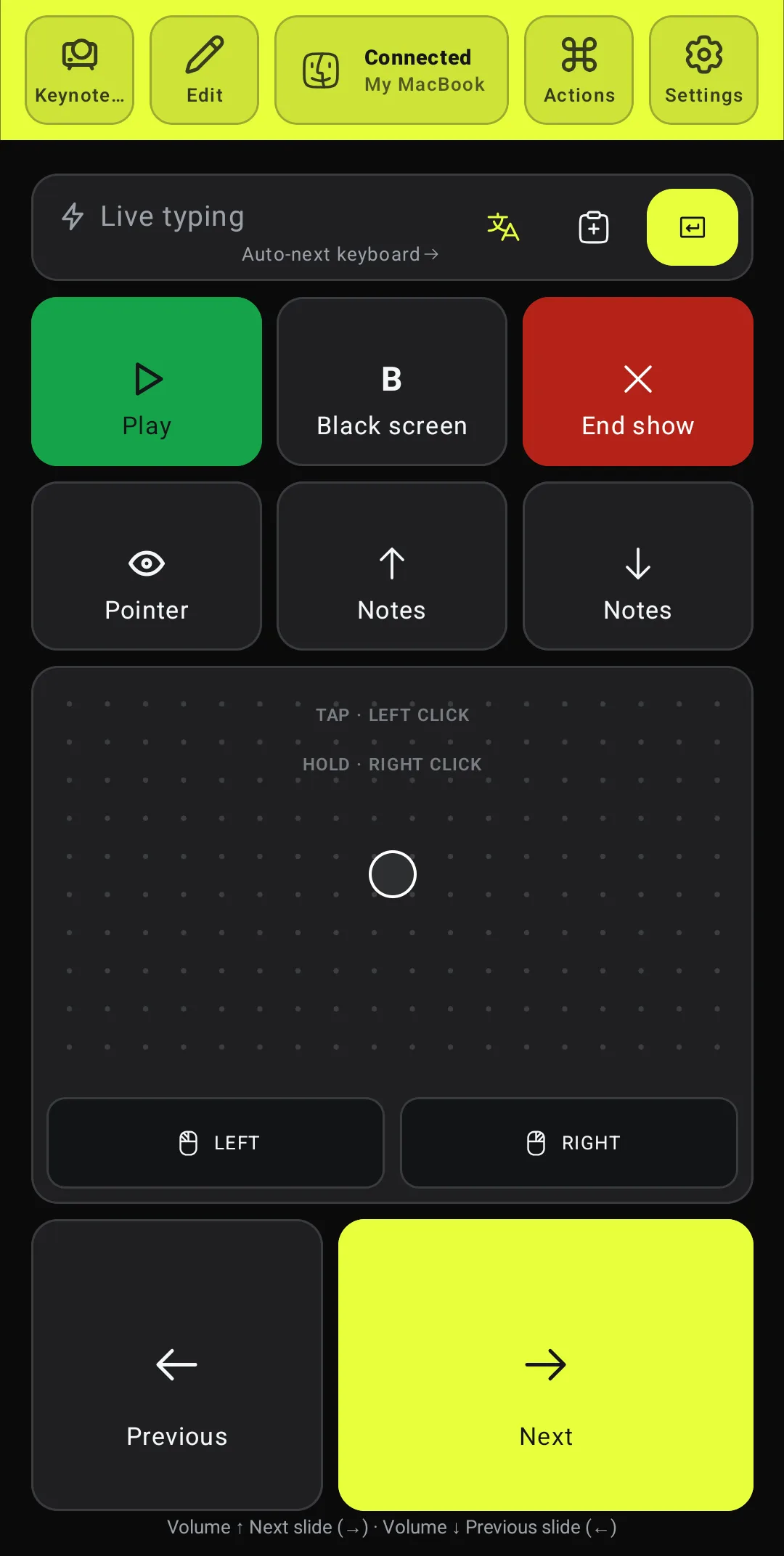
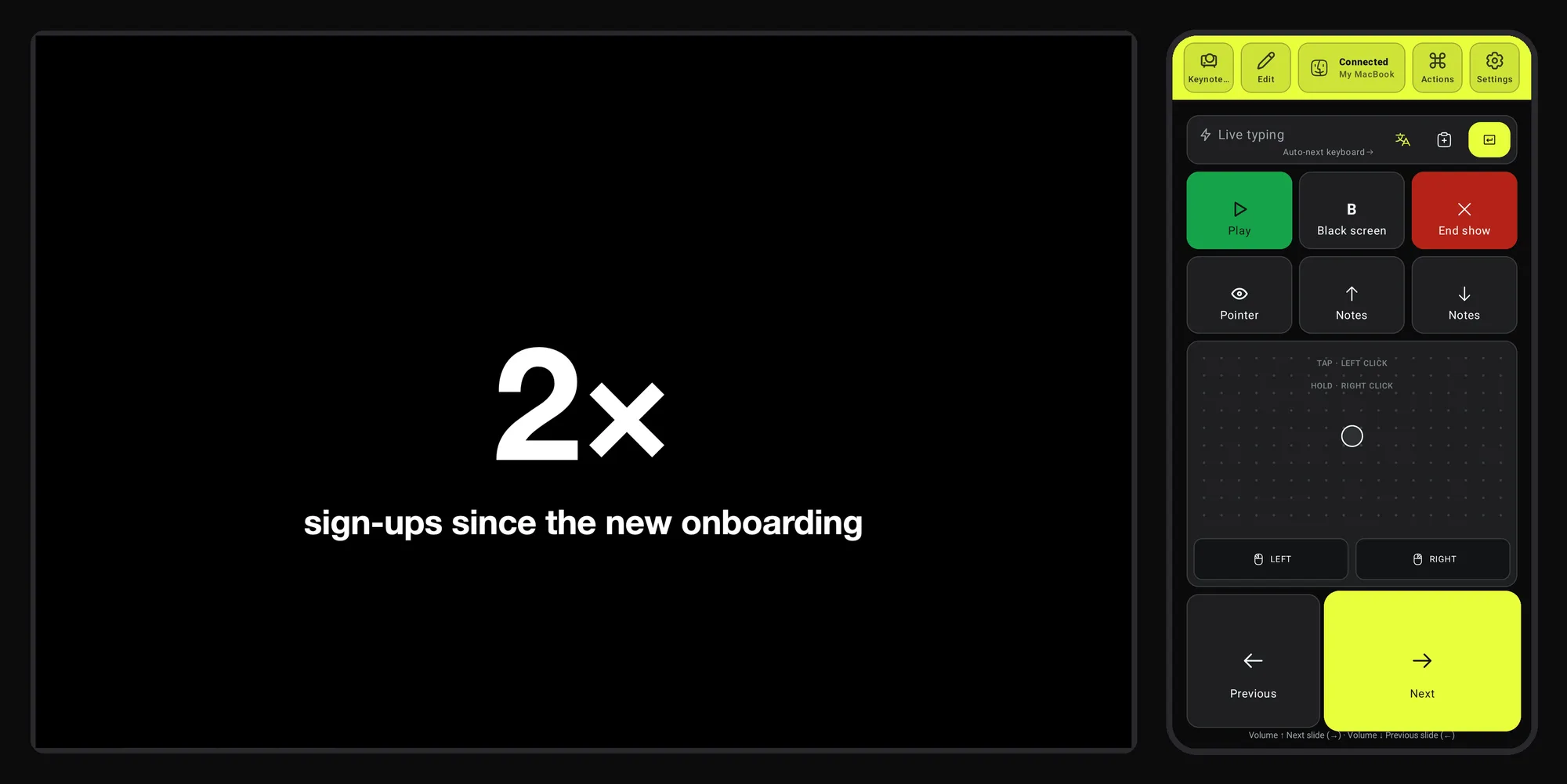
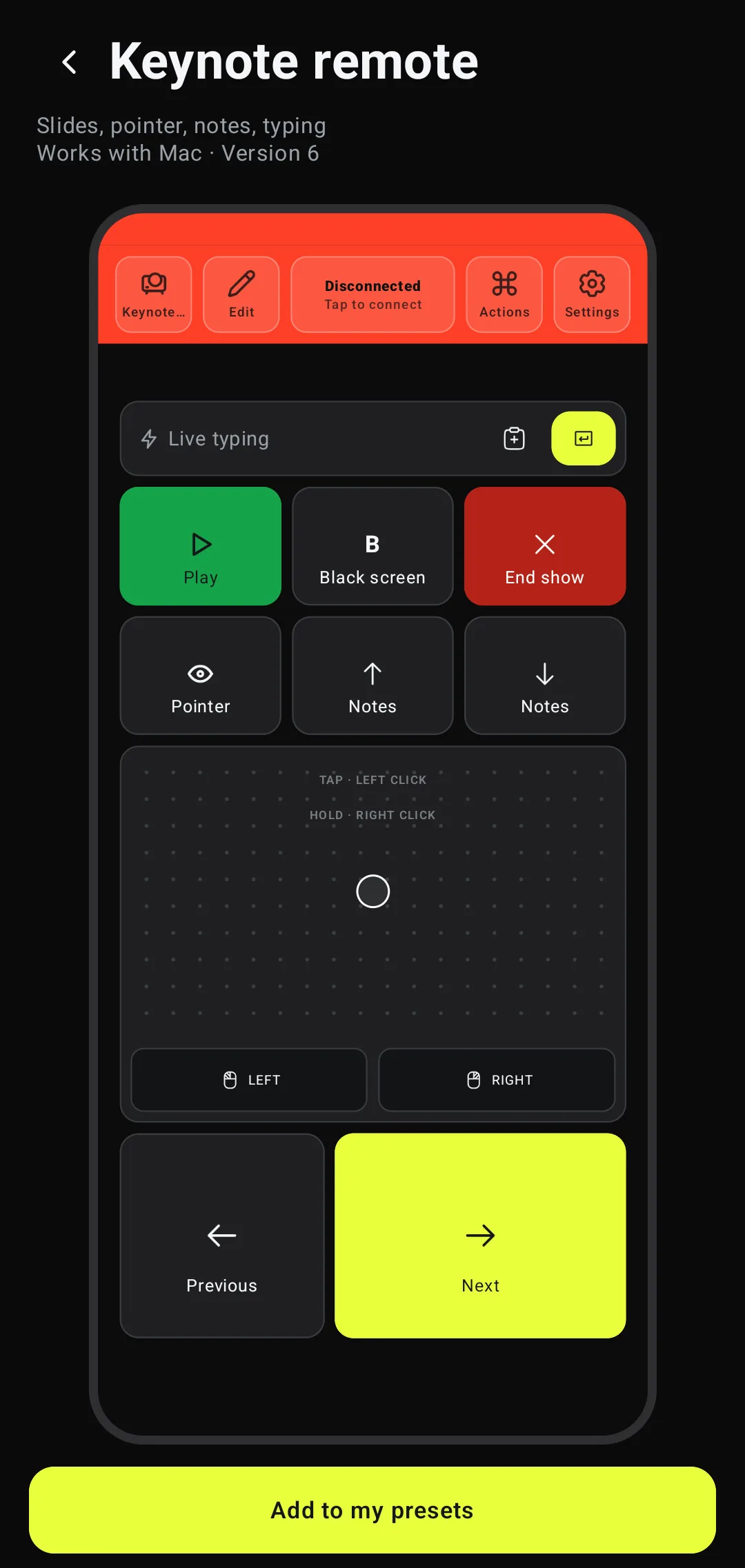
Install Deck Pointer, pair the phone with the Mac over Bluetooth once, and add the Keynote preset from the app’s catalog (the steps are below). No Wi-Fi, nothing to install on the Mac. Open your deck in Keynote and tap Play: Keynote has to be the app in front, because the keys go to whatever has focus. Next and Previous sit at the bottom, under your thumb; each press is one build or one slide, like the arrow keys.
Tip 2: Click without looking
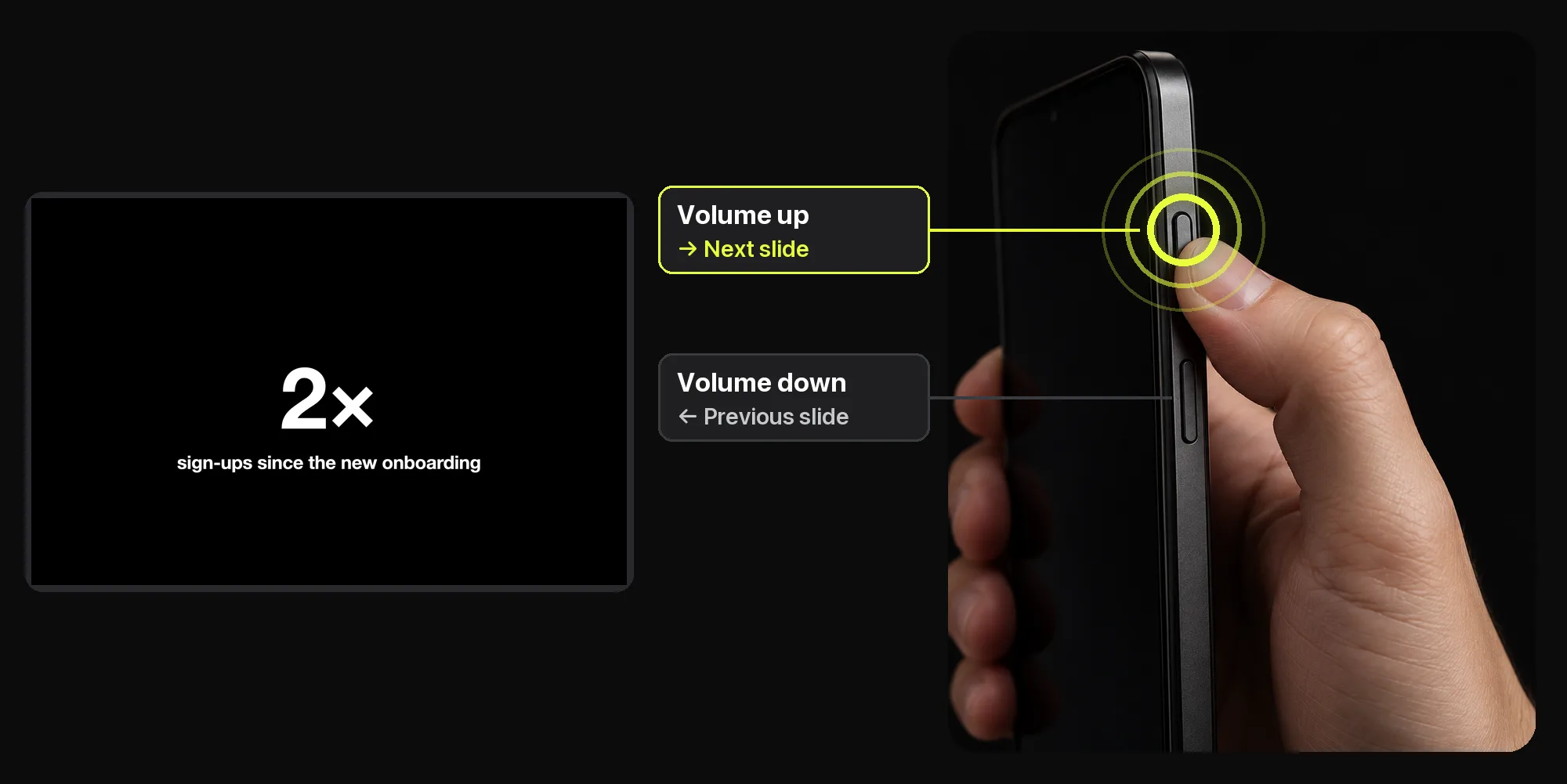
On Android the volume buttons work as Volume up Next slide and Volume down Previous slide, while Deck Pointer is open and connected. Your eyes stay on the room, not on the phone. The line at the bottom of the phone’s screen says what they do.
Tip 3: Go dark for questions
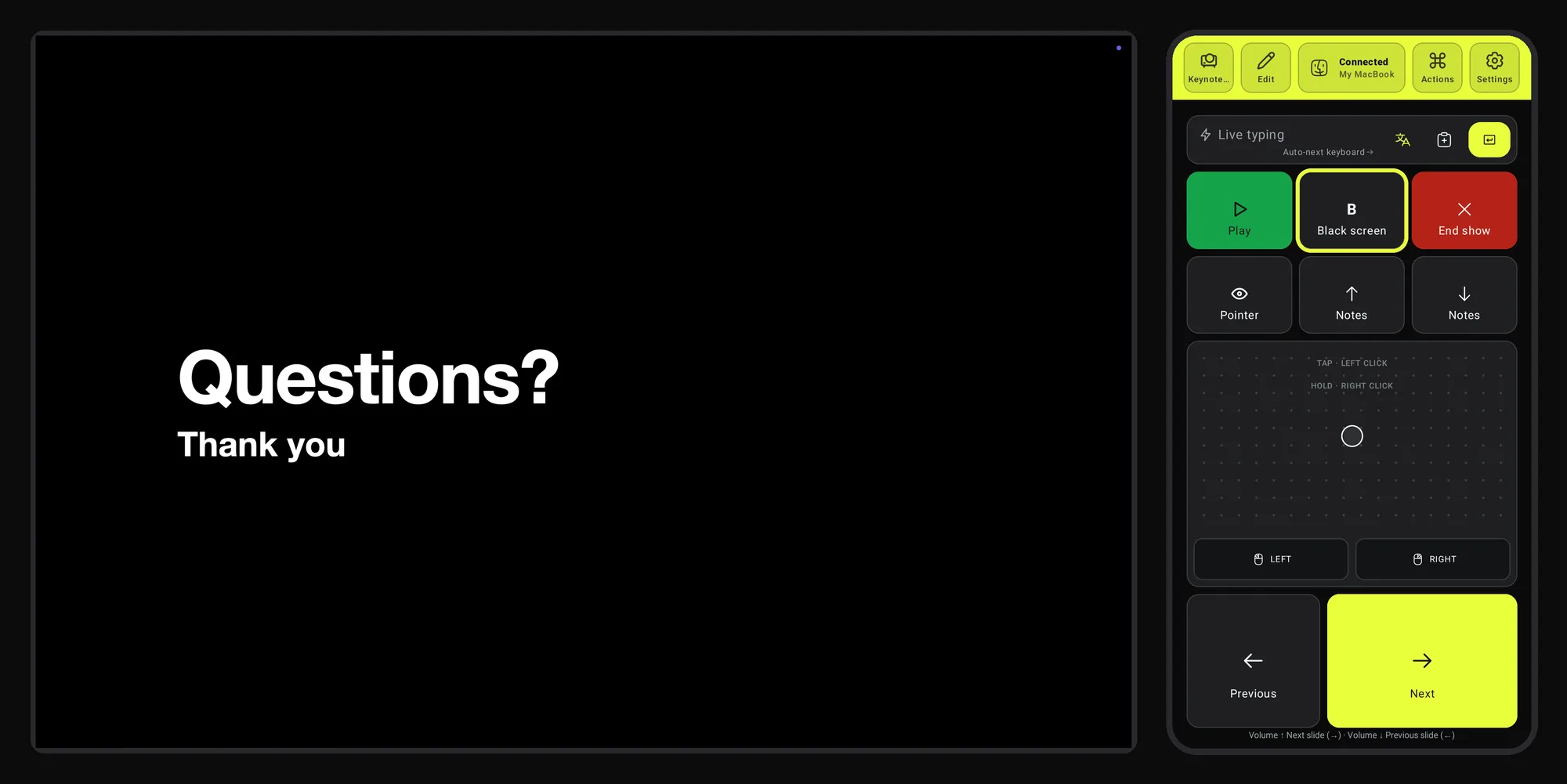
When questions start, tap BBlack screen. The slide goes dark and people look at you, not at the wall. One more tap brings it back.
Tip 4: Keep your notes on your screen
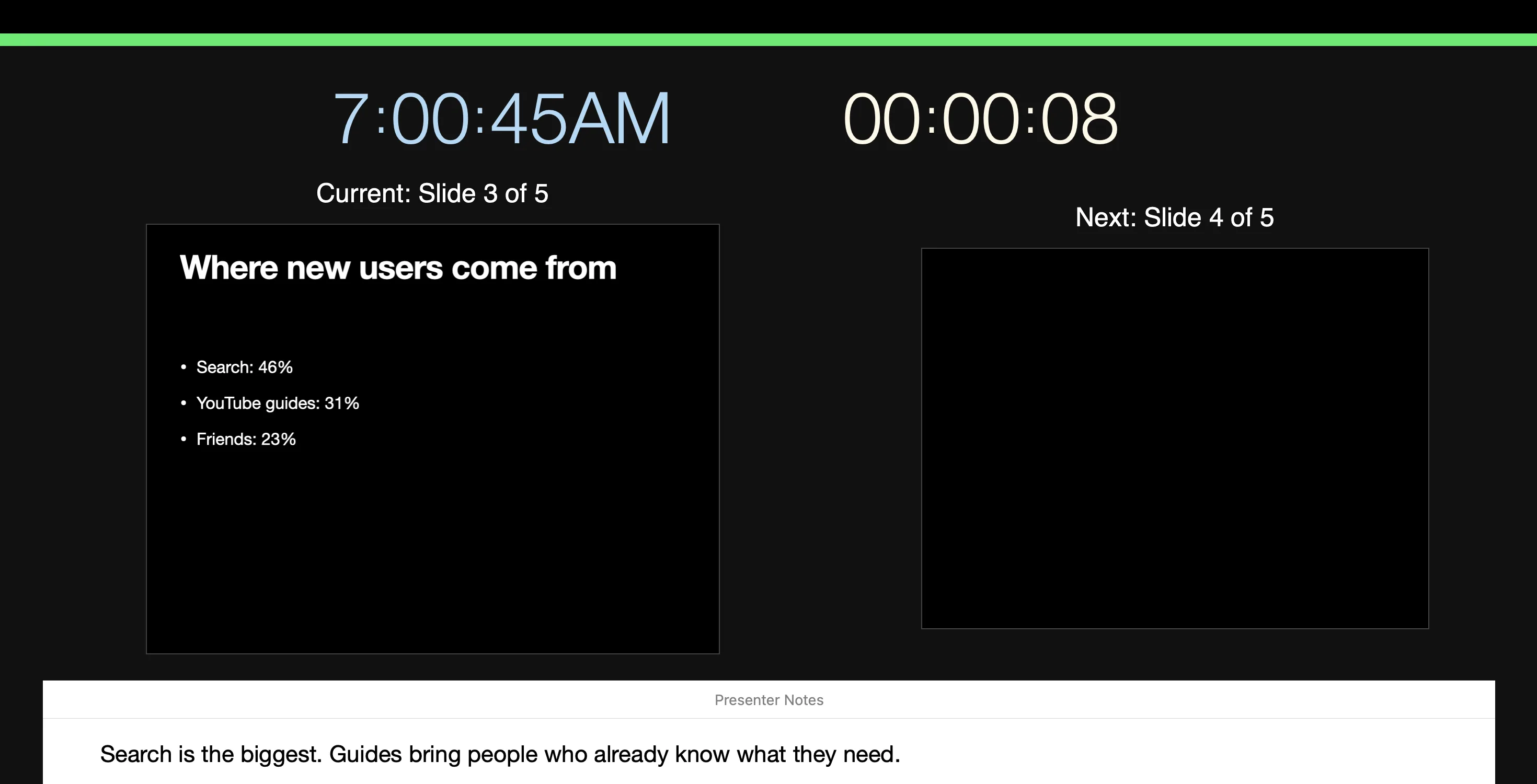
With a second display, Keynote’s presenter display shows the current and next slide and your notes, where only you can see them. Notes and Notes scroll the notes when they are long.
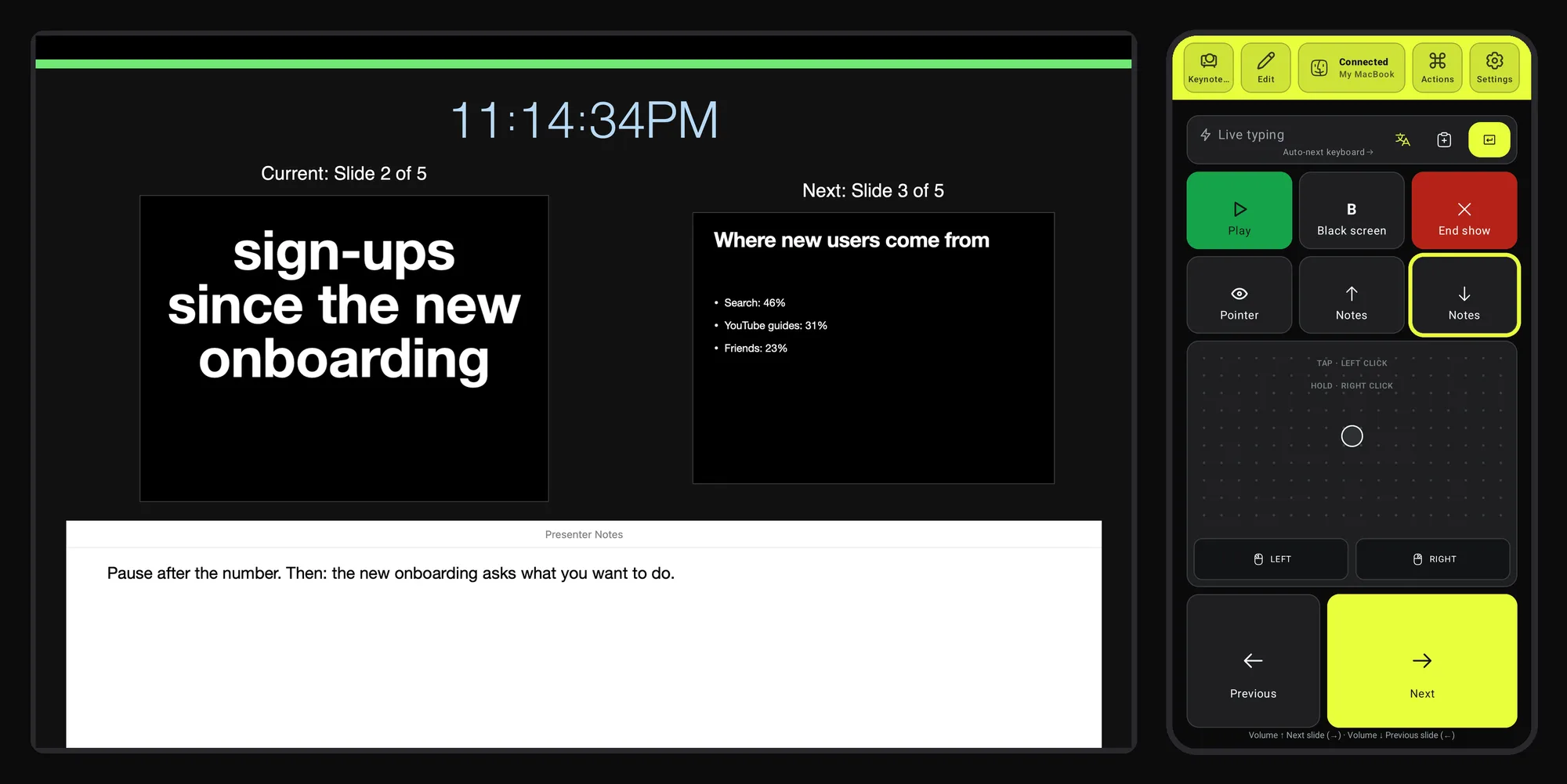
Tip 5: Point at what matters
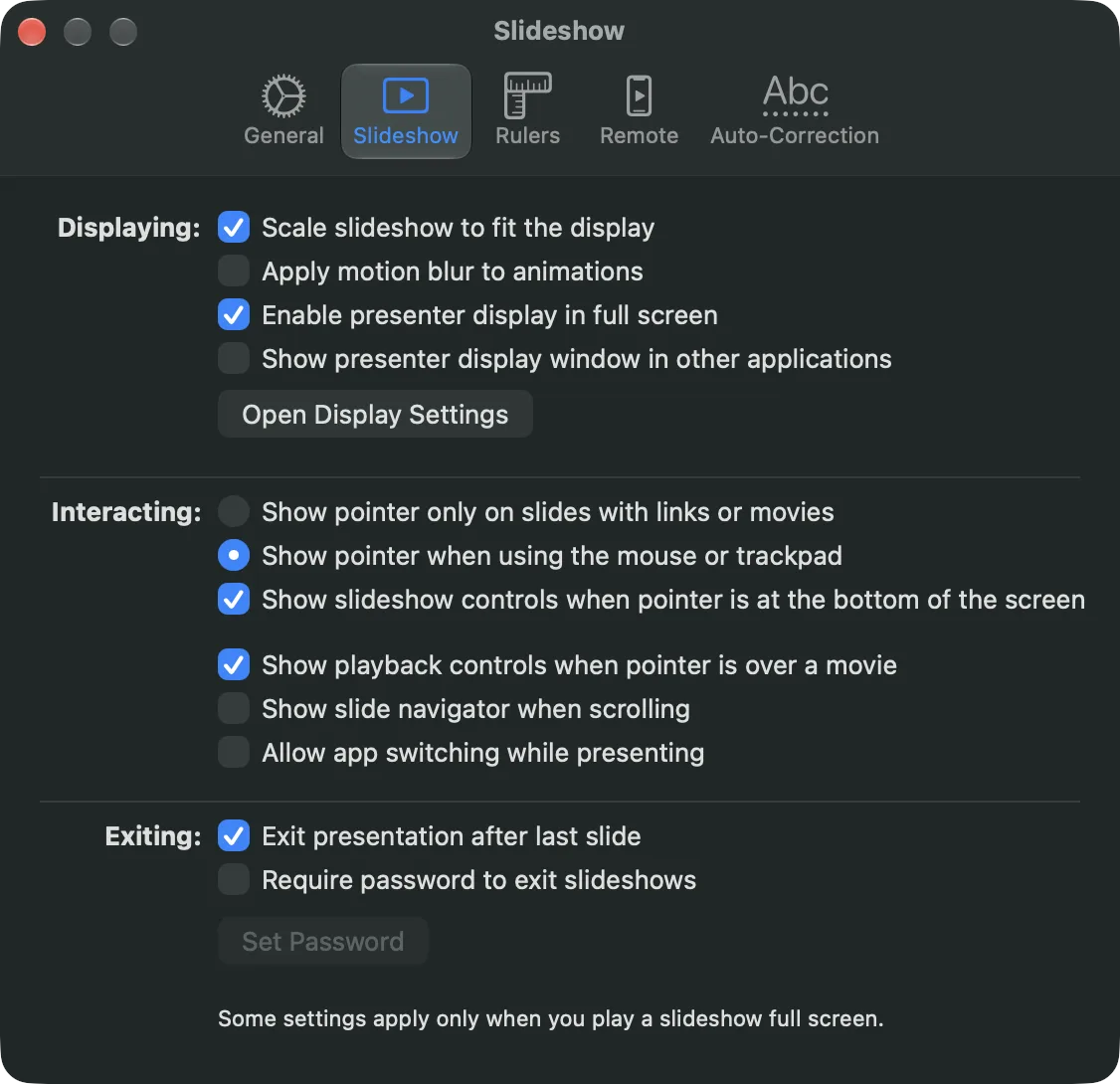
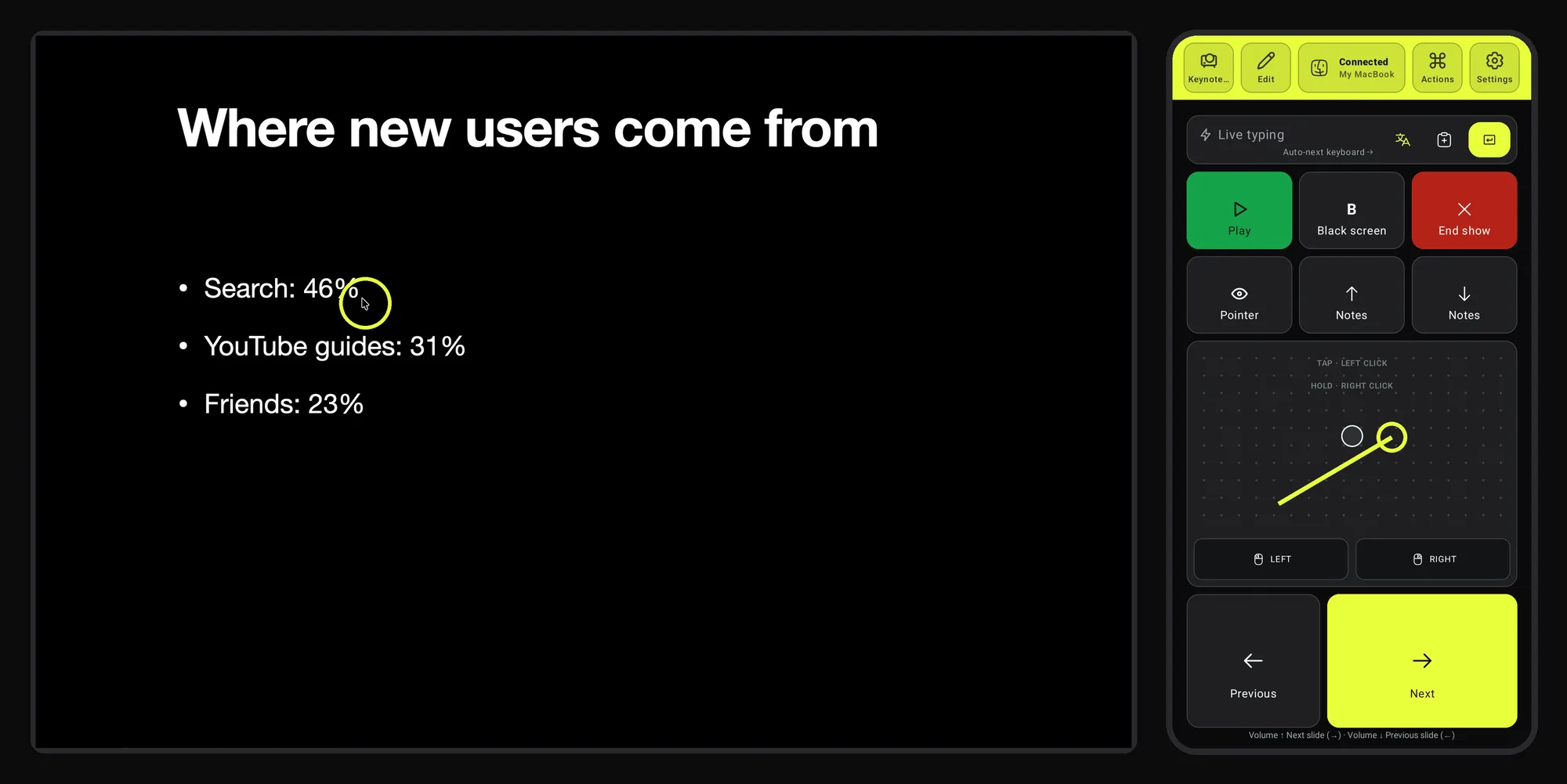
Keynote hides the pointer in a slideshow unless a slide has a link or a movie. Turn it on once: Keynote → Settings → Slideshow → Show pointer when using the mouse or trackpad. Then the phone’s trackpad moves the Mac’s pointer across your slide, and Pointer shows or hides it. On a projector the pointer is small: System Settings → Accessibility → Display → Pointer size makes it easy to follow.
Tip 6: Something broke? Fix it from the stage
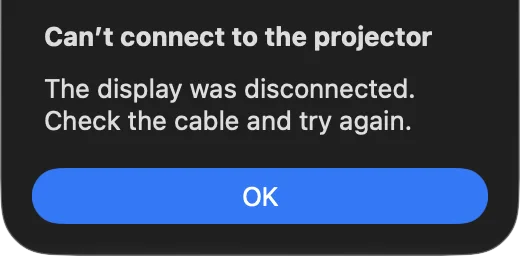
A pop-up covers your slide, or an app freezes, and the laptop is across the stage. Don’t walk back to it. Tap End show, fix it with the trackpad from where you stand, and tap Play to carry on. Apple’s remote controls Keynote only; the phone here is the Mac’s keyboard and trackpad.
Tip 7: Keep time
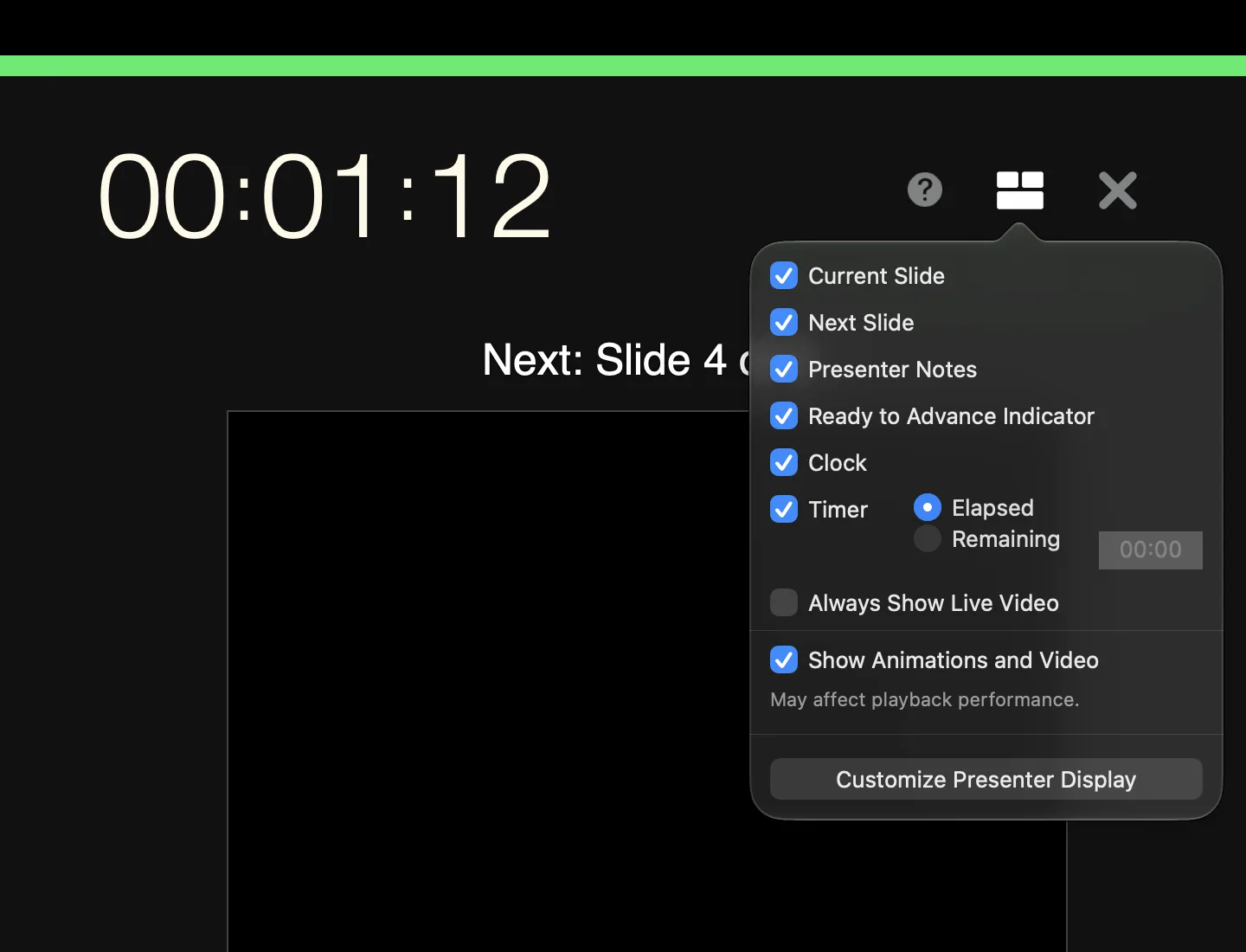
In the presenter display, open the layout menu at the top right and tick Timer. It starts counting with your first click, not when the slideshow opens. If you start talking before your first click, add a Reset timer key (R): one tap sets the timer back to zero and it counts on from there. We checked it with Keynote 15.4.
Tip 8: Jump to any slide
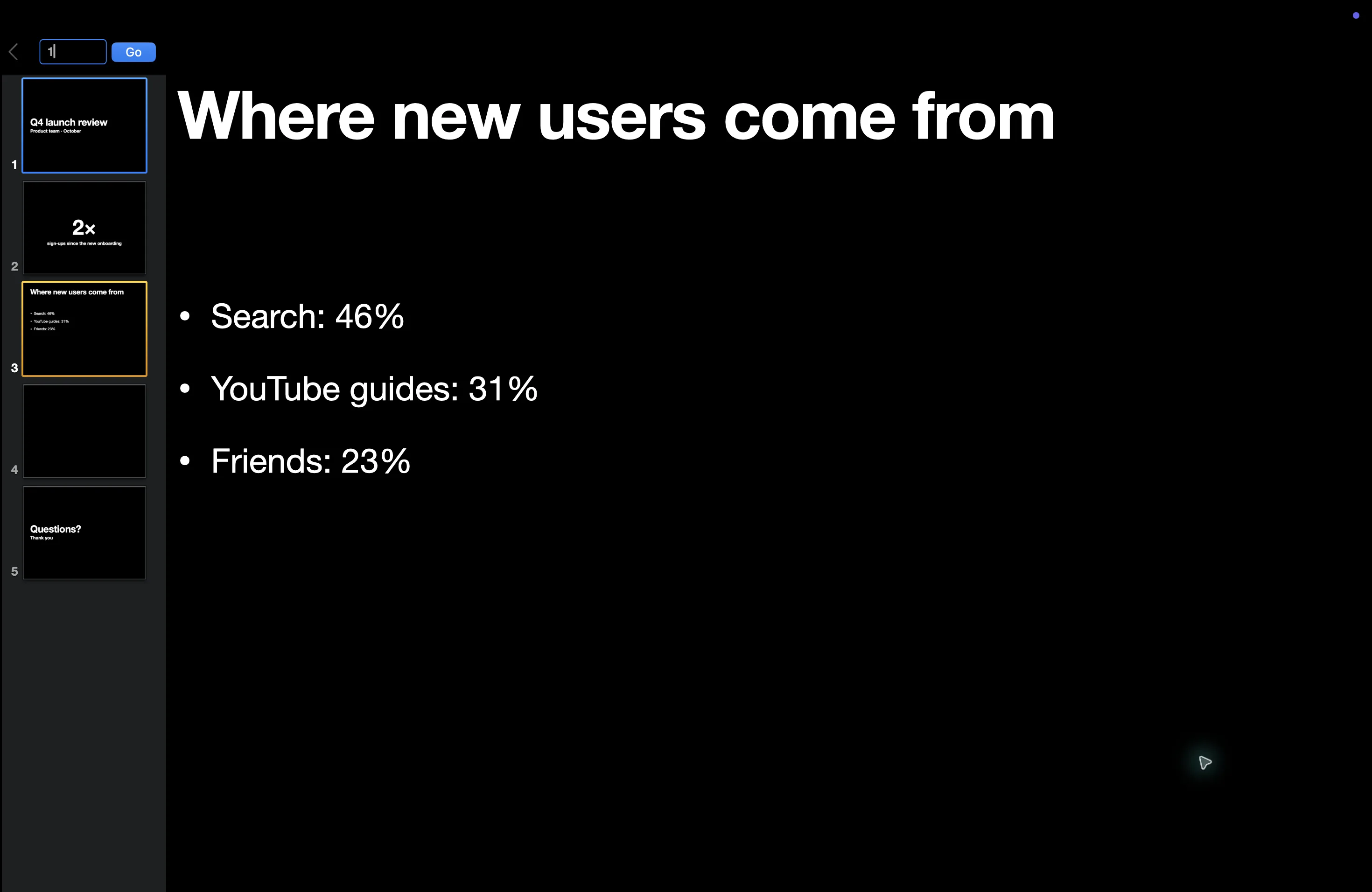
When someone asks about an earlier slide, type its number in Live typing and send. Keynote opens its slide navigator and goes there.
Bonus: add the key you need
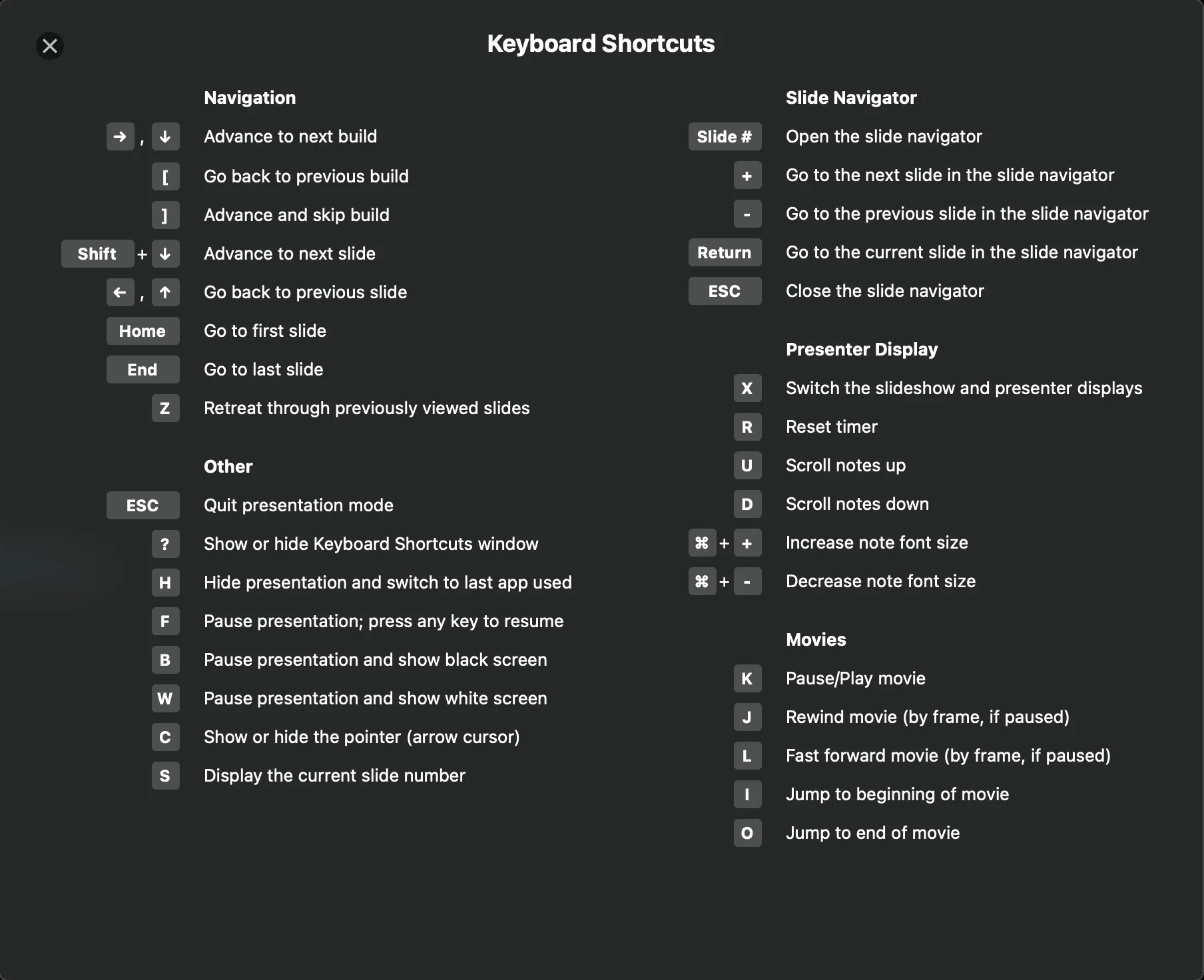
The preset is a starting point. Tap Edit, add a key, choose it and save: Reset timer (R), a White screen (W), First slide and Last slide (Home and End), Hide (H) to step out to another app for a demo. Press ? during a slideshow to see Keynote’s keys. The volume buttons can send any key too, from the preset’s pencil. Editing layouts and the volume buttons is part of Deck Pointer Pro.
Letter keys need an English input source on the Mac: Keynote reads them by the character, so under a Russian or another non-Latin layout B, W and H do nothing while the arrows still work. Switch to ABC or U.S. before the talk; on the phone, Hotkeys not working? under the layout shows how.
Set it up in two minutes
Pair the phone with the Mac
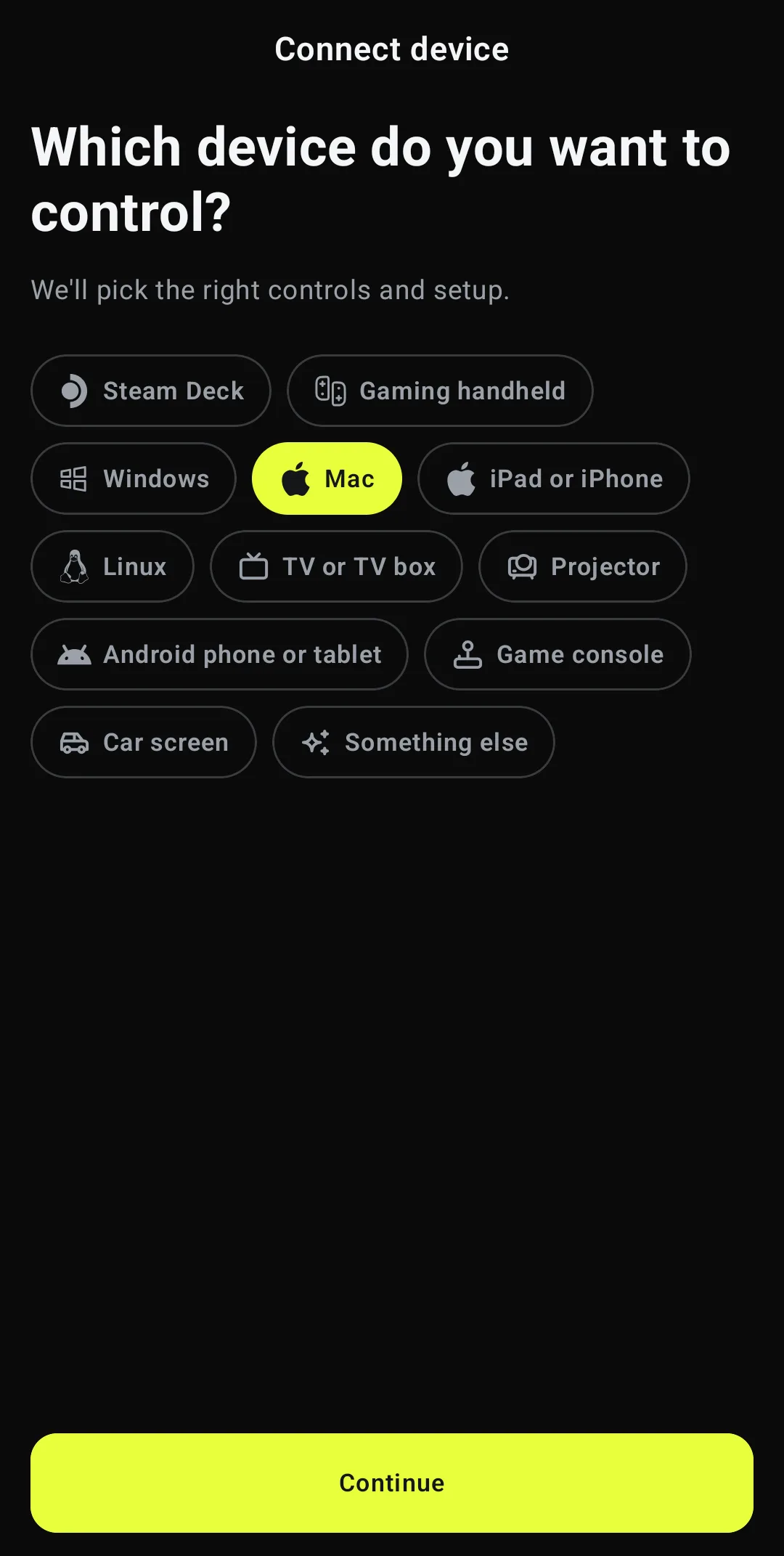
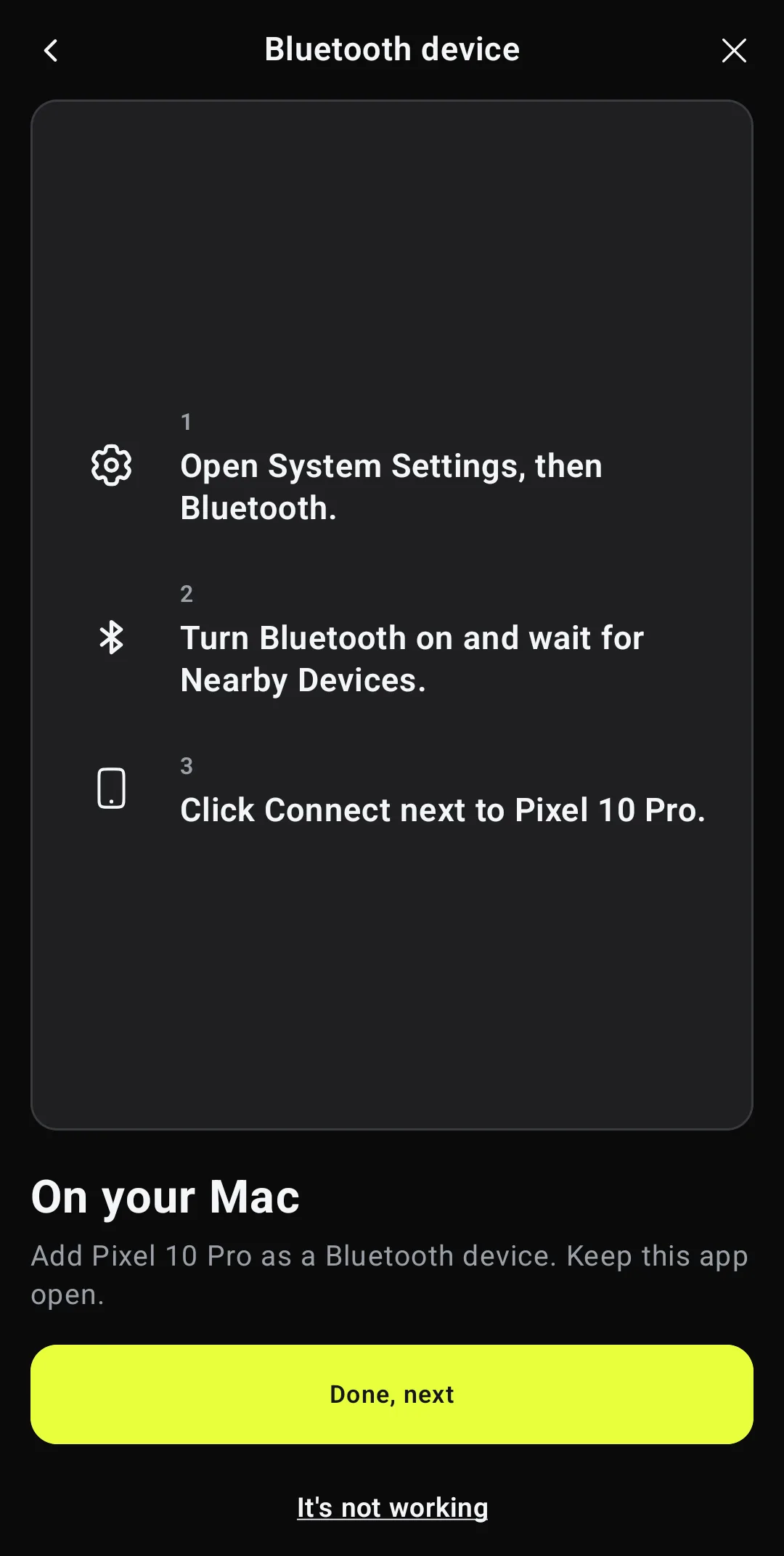
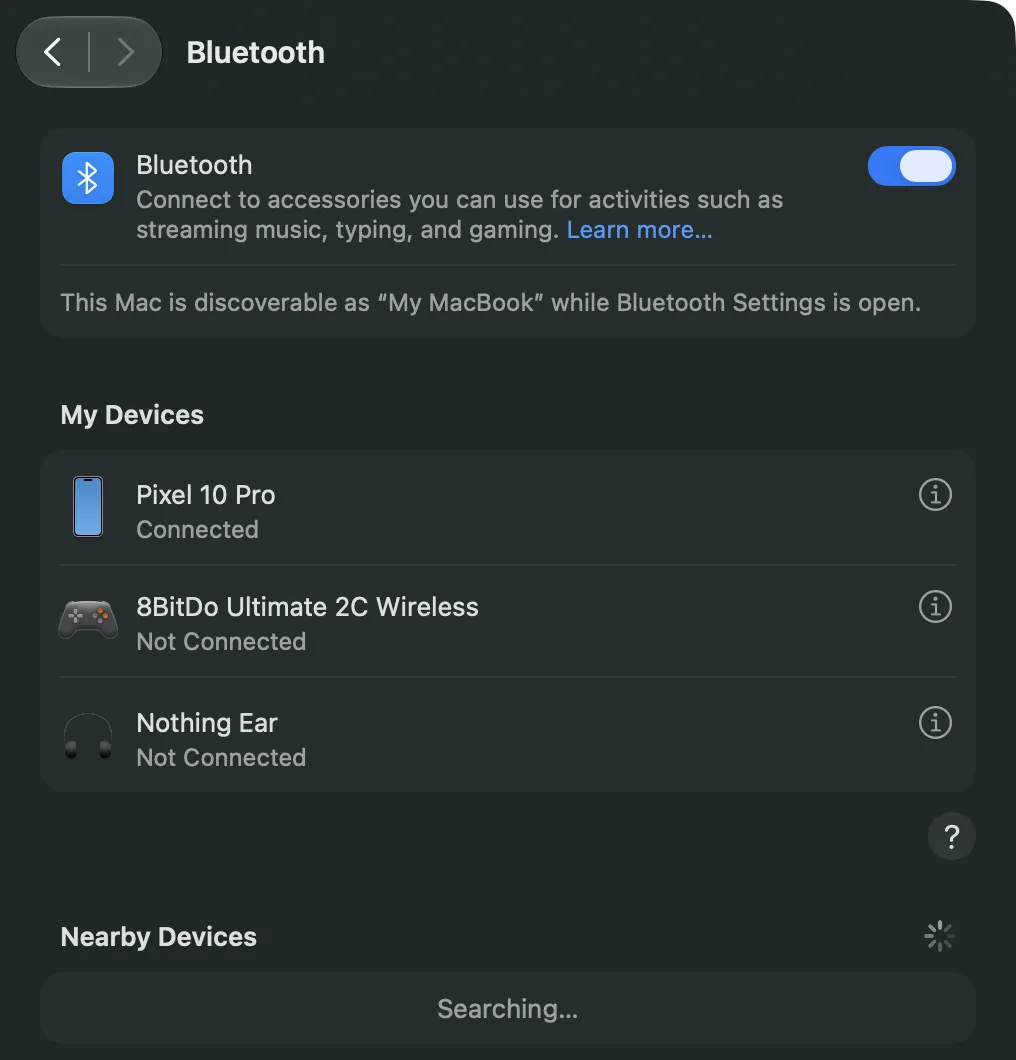
Install Deck Pointer and tap Connect a device. Choose Mac, then Switch slides, then Yes, this is the first time. Tap Connect from the other device instead and allow the phone to be visible. On the Mac, open System Settings → Bluetooth and click Connect next to your phone's name, Pixel 10 Pro in our pictures. If the Mac asks to identify the keyboard, Deck Pointer offers to answer it for you. You pair once; next time, tap Connect next to the Mac in the app.
Add the Keynote preset
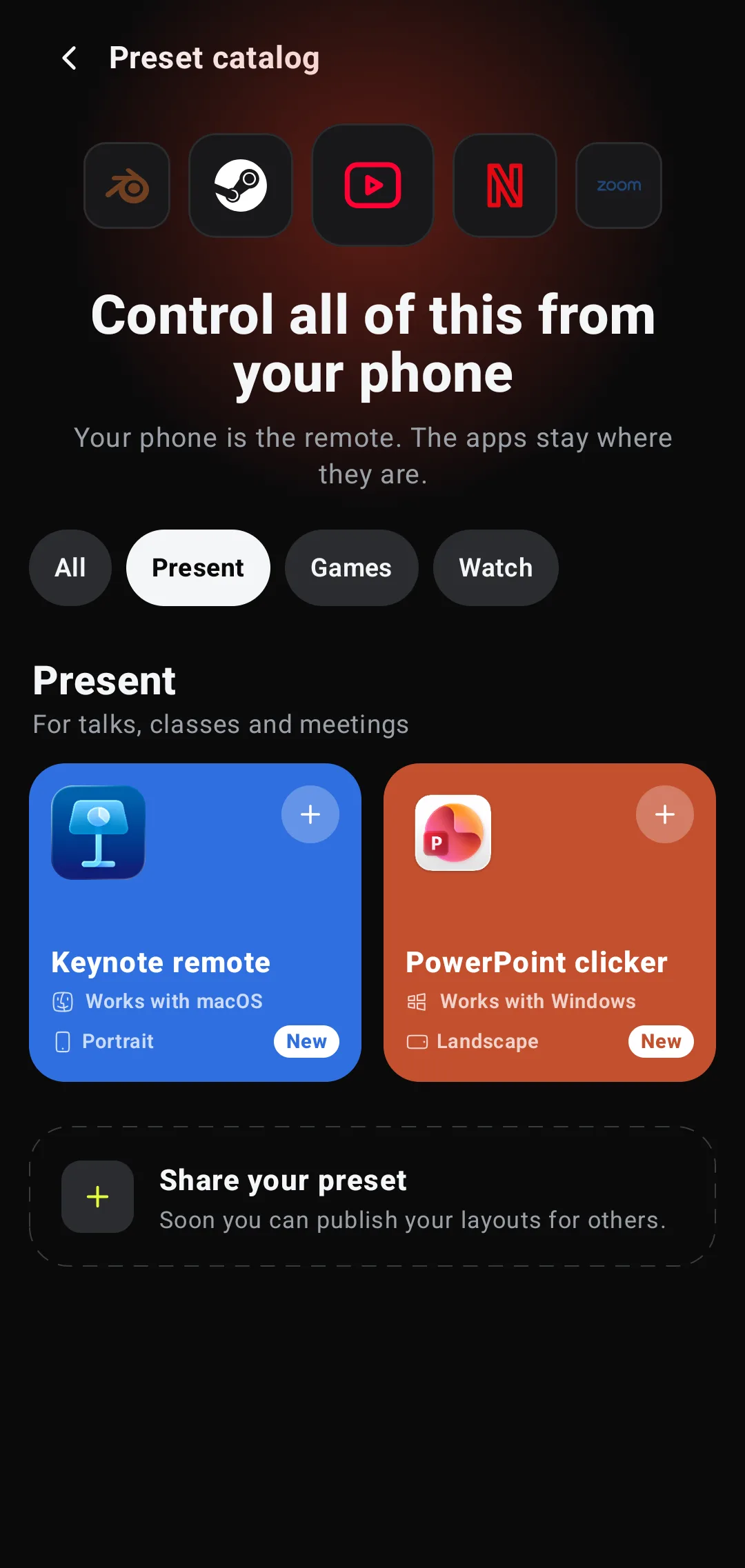
Tap the preset name at the top left, then Browse more presets. Under Present, open Keynote and tap Add to my presets. It opens right away.
Turn on the pointer in Keynote, once
Keynote hides the pointer in a slideshow unless a slide has a link or a movie. On the Mac, open Keynote → Settings → Slideshow and choose Show pointer when using the mouse or trackpad. Now the phone's trackpad can point at your slides.
Questions
Is there a Keynote Remote for Android?
No. Keynote Remote is part of Keynote, and Keynote runs on iPhone, iPad and Mac only. From an Android phone, use the phone as a Bluetooth keyboard and trackpad for the Mac: Deck Pointer's Keynote preset sends Keynote's own slideshow keys.
Do I need Wi-Fi?
No. The phone talks to the Mac over Bluetooth, so the venue's Wi-Fi, a guest network or no network at all makes no difference. Apple's Keynote Remote on an iPhone does need Wi-Fi switched on.
Do I need to install anything on the Mac?
No. The Mac sees an ordinary Bluetooth keyboard and trackpad. You pair it once in System Settings → Bluetooth.
Nothing happens when I tap Next. Why?
The keys go to the app in front on the Mac. If you clicked into another window, Keynote is no longer in front: move the pointer over the slideshow and tap the trackpad, or tap Play again.
Black screen does nothing, but Next works. Why?
Keynote reads its letter shortcuts (B, W, H) by the character. With a Russian or another non-Latin input source active on the Mac they do nothing, while the arrow keys still work. Switch the Mac to ABC or U.S. before the talk; the phone's Hotkeys not working? link shows how.
Can I draw on a slide or use a laser pointer?
Not in Keynote on a Mac: Apple keeps drawing and the laser in Keynote Remote on iPhone and iPad. With the phone you move the Mac's own pointer, which you can make larger in System Settings → Accessibility → Display → Pointer size.
Do the volume buttons work on an iPhone?
No. iOS doesn't let apps use the volume buttons, so on an iPhone you tap Next and Previous on the screen.
Does this work with PowerPoint or Google Slides?
Next, Previous and Black screen are the same keys there, so the slides move. Their other keys differ, so use a preset made for that app.


 Steam Deck