Can I use my phone as a clicker?
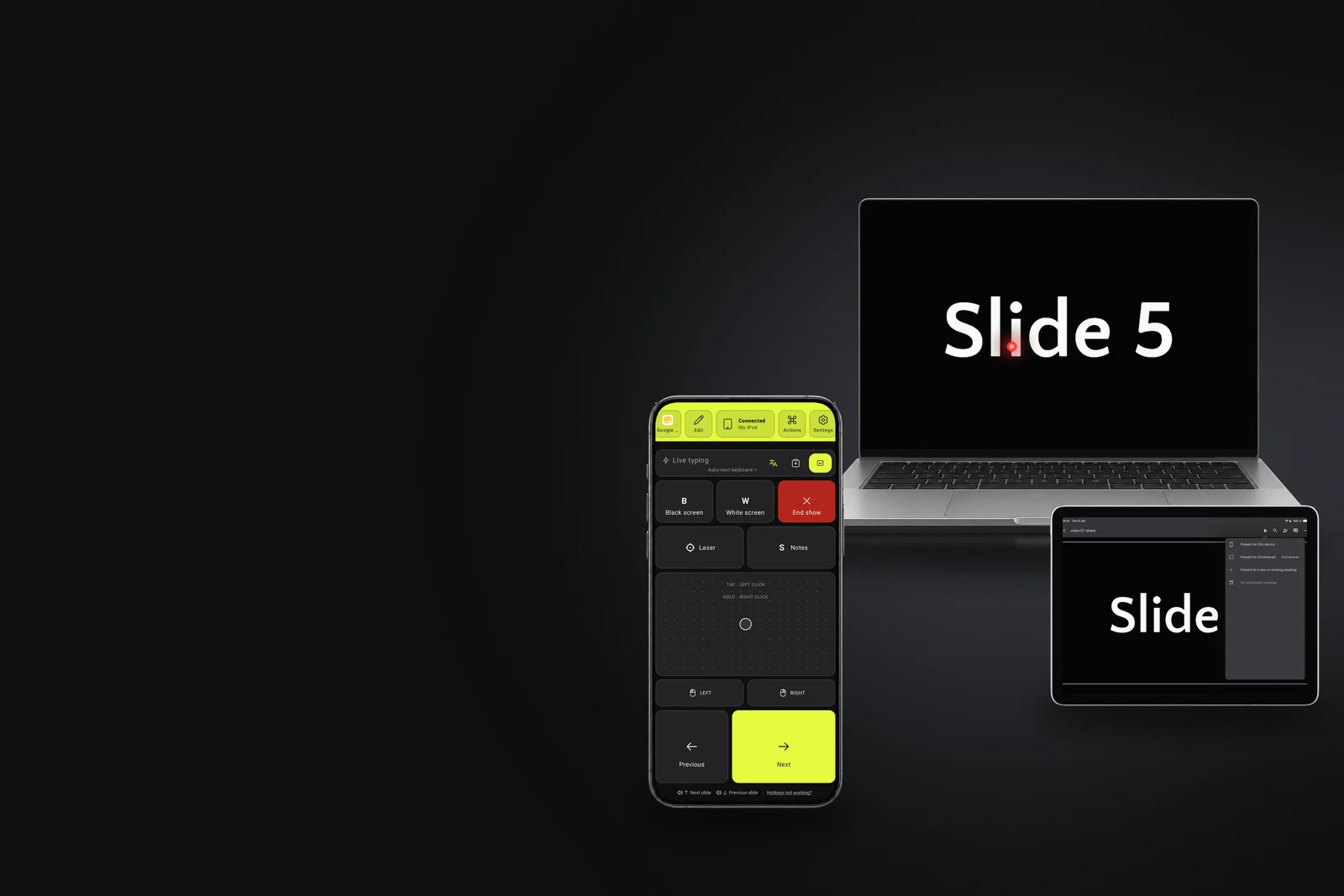
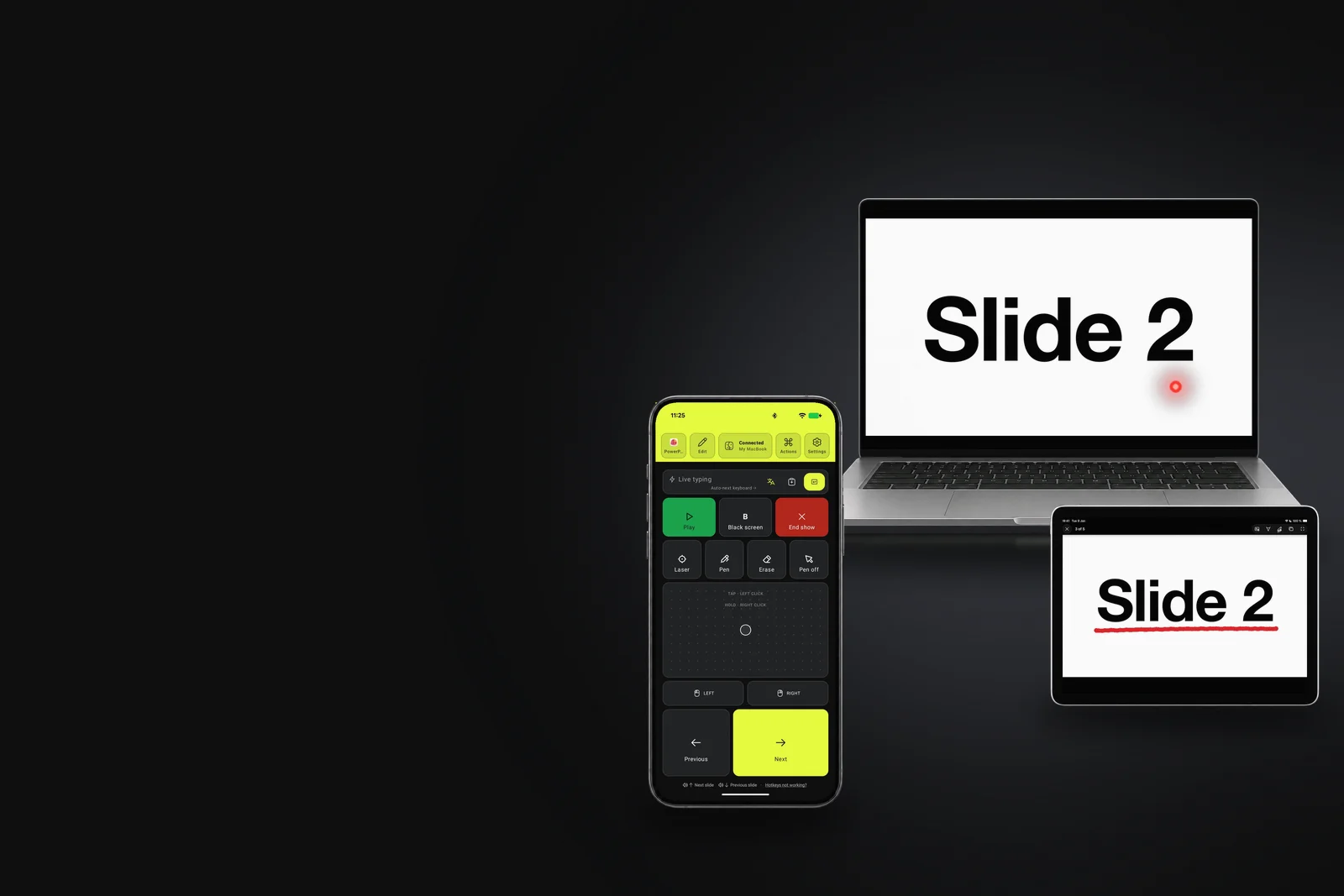
Yes. A clicker is a tiny keyboard: it presses the right arrow for the next slide, the left arrow for the previous one, and sometimes B for a black screen. Your phone can press the same keys. Deck Pointer pairs it with the computer as a Bluetooth keyboard and trackpad, and a preset puts the keys of your presentation app under your thumb.
What the apps offer on their own:
 Keynote has Keynote Remote, on an iPhone or iPad only, and it needs Wi-Fi switched on. There is no Keynote for Android.
 PowerPoint on a phone can present a file from the phone itself. It doesn’t control PowerPoint running on your laptop.
 Google Slides has no phone remote; the usual answer is a browser extension on the computer.
Pick your app and your computer
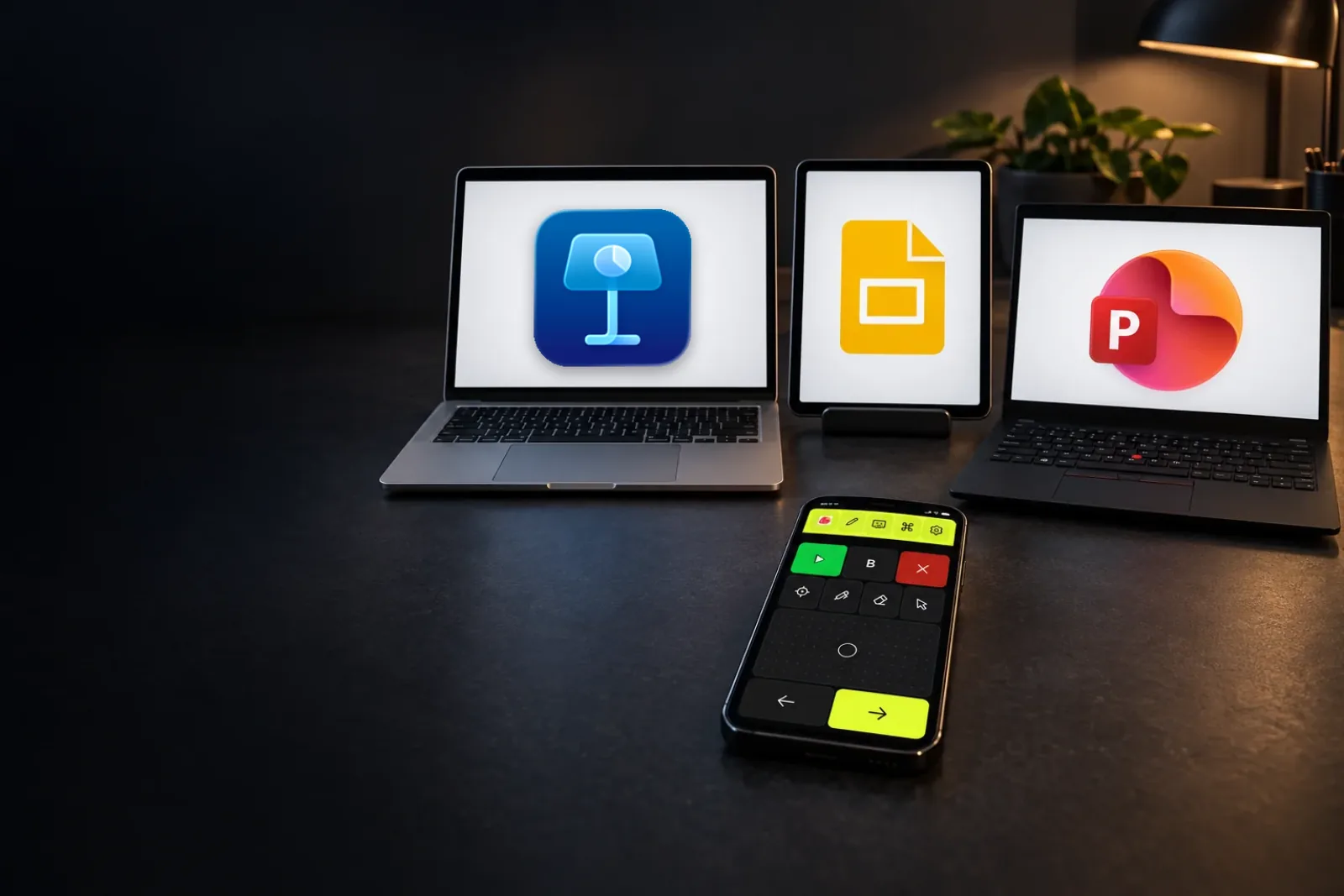
One phone works with all of them. Each app has its own guide and preset, because the keys differ: Ctrl on Windows, Command on a Mac, and far fewer keys in a browser.
| Windows | Mac | Browser | iPad | |
|---|---|---|---|---|
| PowerPoint |
Yes | Yes | Yes | Yes |
| Keynote |
No Keynote | Yes | Not checked | Not checked |
| Google Slides |
Yes | Yes | Yes | Partly |
The phone can be Android or iPhone. The Keynote guide is written for Android, because an iPhone also has Apple’s own Keynote Remote. “Yes” means we ran a real deck on that computer with the preset before writing it here.
What the phone does in a show
- Next and Previous at the bottom, under your thumb. On Android the volume buttons do the same, so you can click without looking.
- BBlack screen for questions: the room looks at you, not at the wall.
- A laser pointer and a pen in PowerPoint on Windows and a Mac: the phone’s trackpad moves them.
- Jump to any slide: type its number and send. PowerPoint and Keynote go straight there.
- The trackpad for everything else: a pop-up, a video’s play button, a show that lost focus.
Phone or a real clicker?
A hardware clicker wins on feel: buttons you find without looking, a physical laser, no pairing. The phone wins on being in your pocket already, with black screen, laser, pen and jump-to-slide on one screen, for free. Keep both if you like: the phone is the backup for the day the clicker stays on the last podium.
Set it up before the talk
- Install Deck Pointer on the phone.
- Pair it once with the laptop or iPad: in the app tap Connect a device and follow the screens.
- Add the preset for your app: tap the preset name, then Browse more presets, then Present.
Do it the day before, not five minutes before you go on stage. Next time the phone connects with one tap.