
Video tutorial
Giving a PowerPoint talk and the laptop stays on the lectern? Your phone can run the whole show. It pairs with the computer or iPad as a Bluetooth keyboard and trackpad, and Deck Pointer’s PowerPoint preset puts the slide show keys under your thumb, including a real laser pointer and a pen. Here are eight tips, then every PowerPoint key on each platform.
Tip 1: Make your phone the clicker
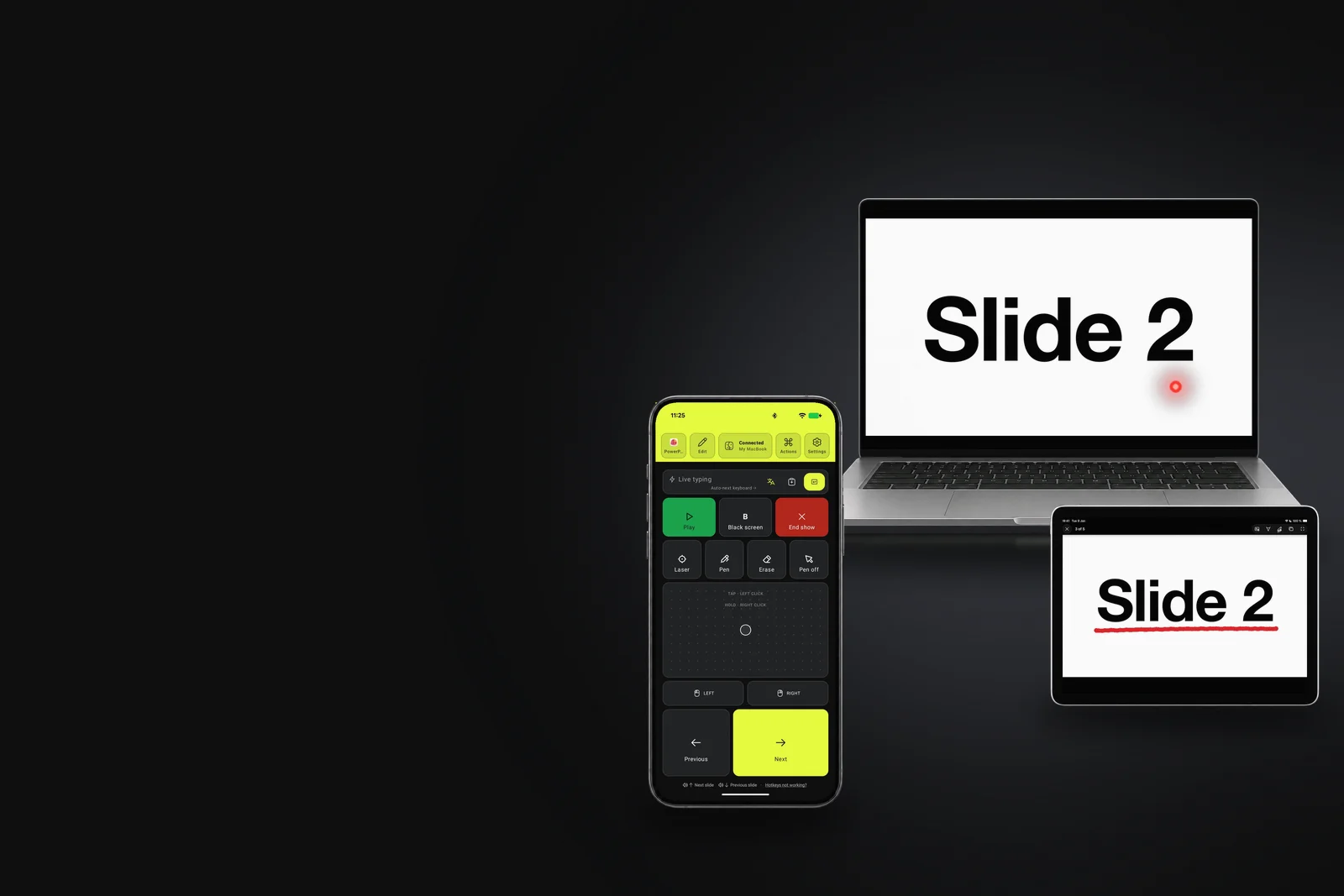
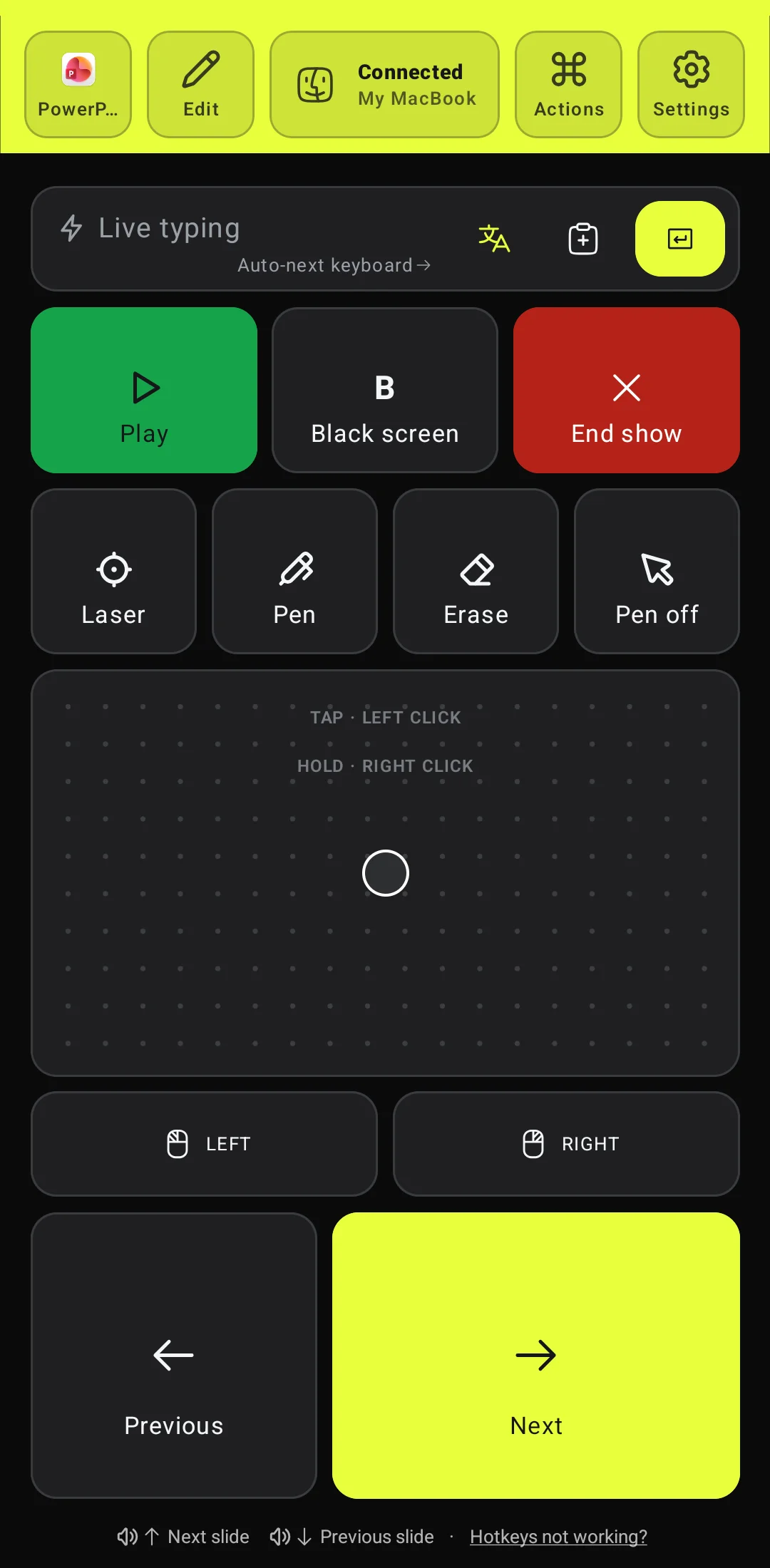
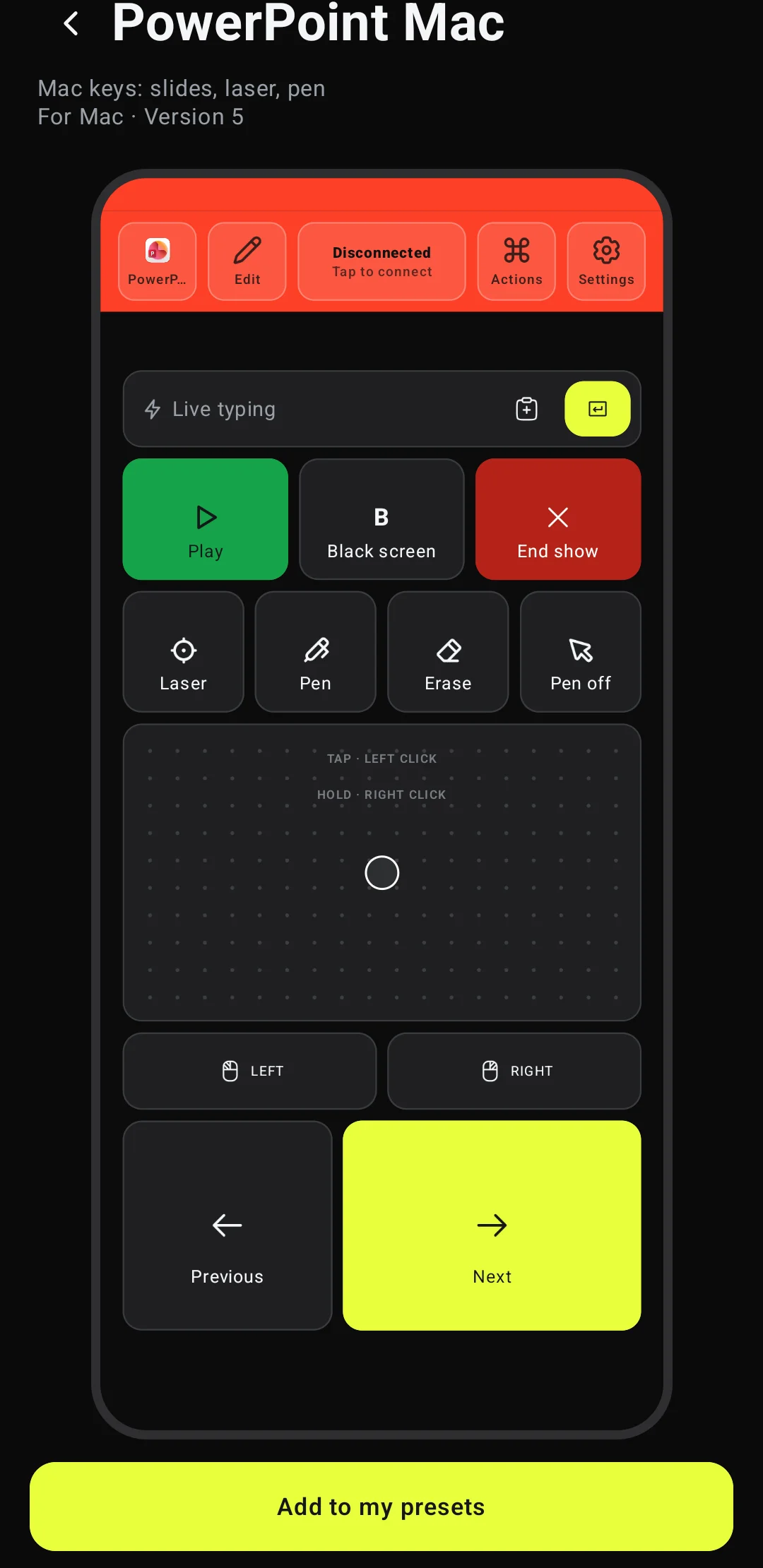
Install Deck Pointer, pair the phone once, and add the PowerPoint preset for where you present (the steps are below). No Wi-Fi, nothing to install on the computer. Open your deck and tap Play: the show starts from the slide you have selected. Next and Previous sit at the bottom, under your thumb; each press is one animation or one slide.
There are four presets: PowerPoint Win, PowerPoint Mac, PowerPoint Web and PowerPoint iPad. They look alike, so these tips read the same for each; the keys behind the buttons are each platform’s own.
Tip 2: Click without looking
On Android the volume buttons work as Volume up Next slide and Volume down Previous slide, while Deck Pointer is open and connected. Your eyes stay on the room, not on the phone. The line at the bottom of the phone’s screen says what they do.
Tip 3: Go dark for questions
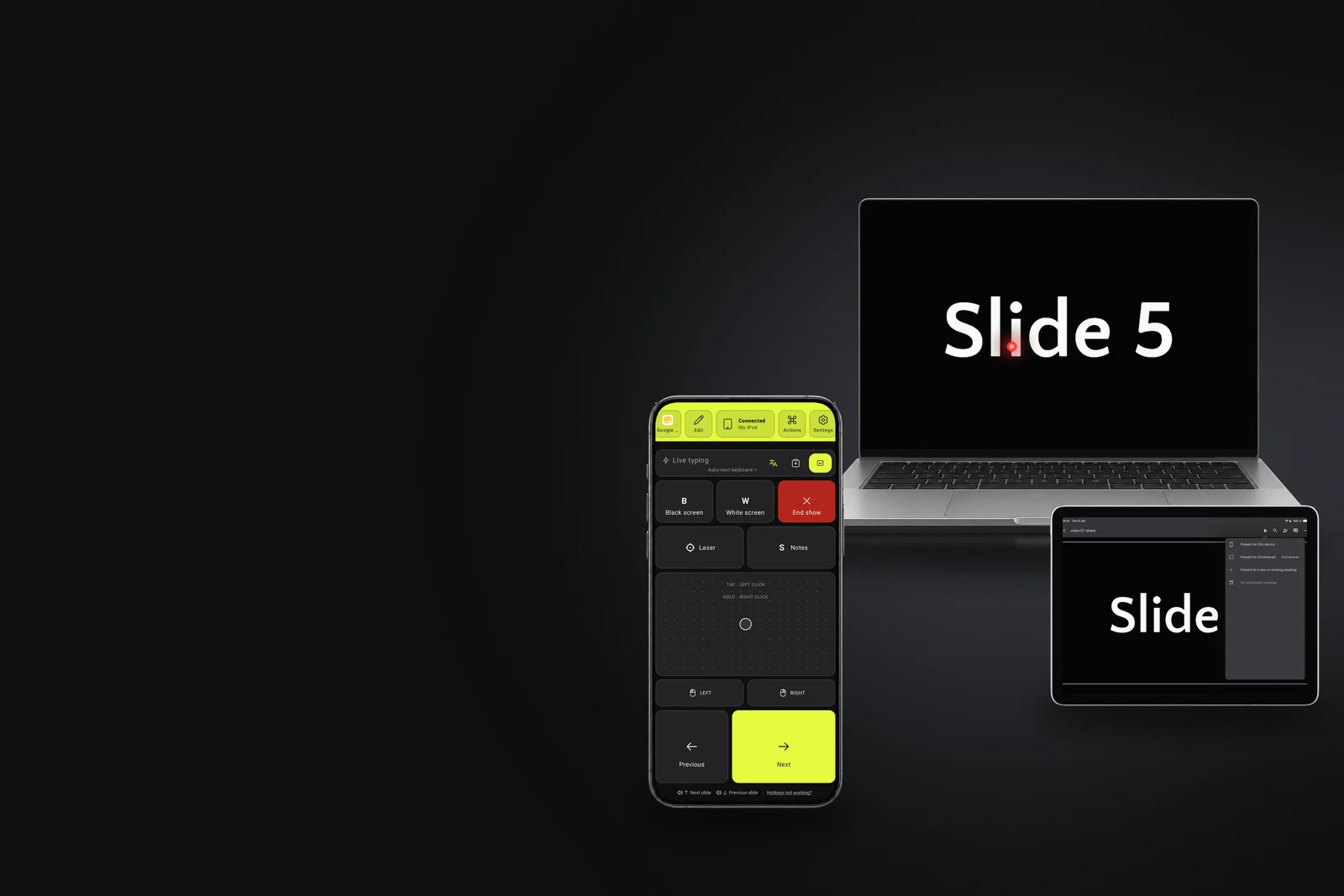
When questions start, tap BBlack screen. The slide goes black and people look at you, not at the wall. One more tap brings it back.
Tip 4: Point with a real laser
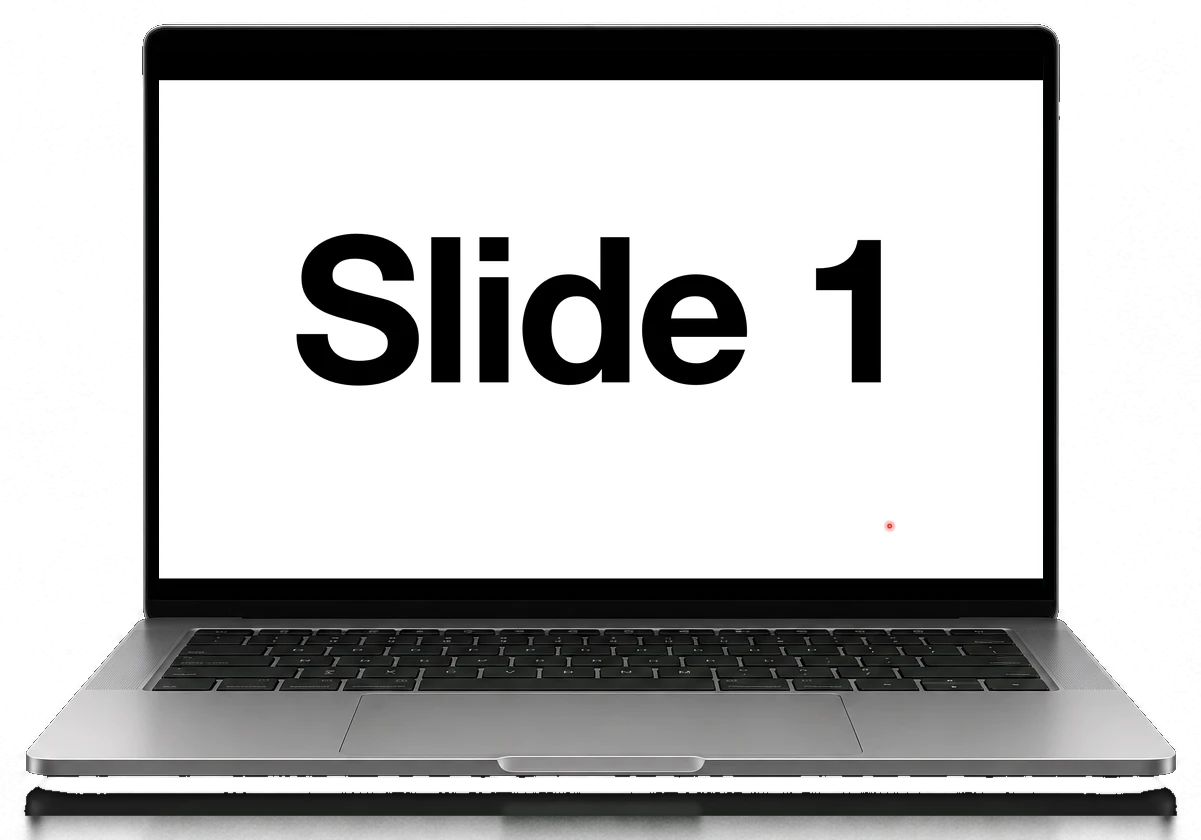
PowerPoint has its own laser pointer. Tap Laser and a red dot appears on the slide; slide a finger on the phone’s trackpad to move it. Tap Laser again, or Pen off, to put it away. The laser works in any PowerPoint, signed in or not.
Tip 5: Draw on the slide
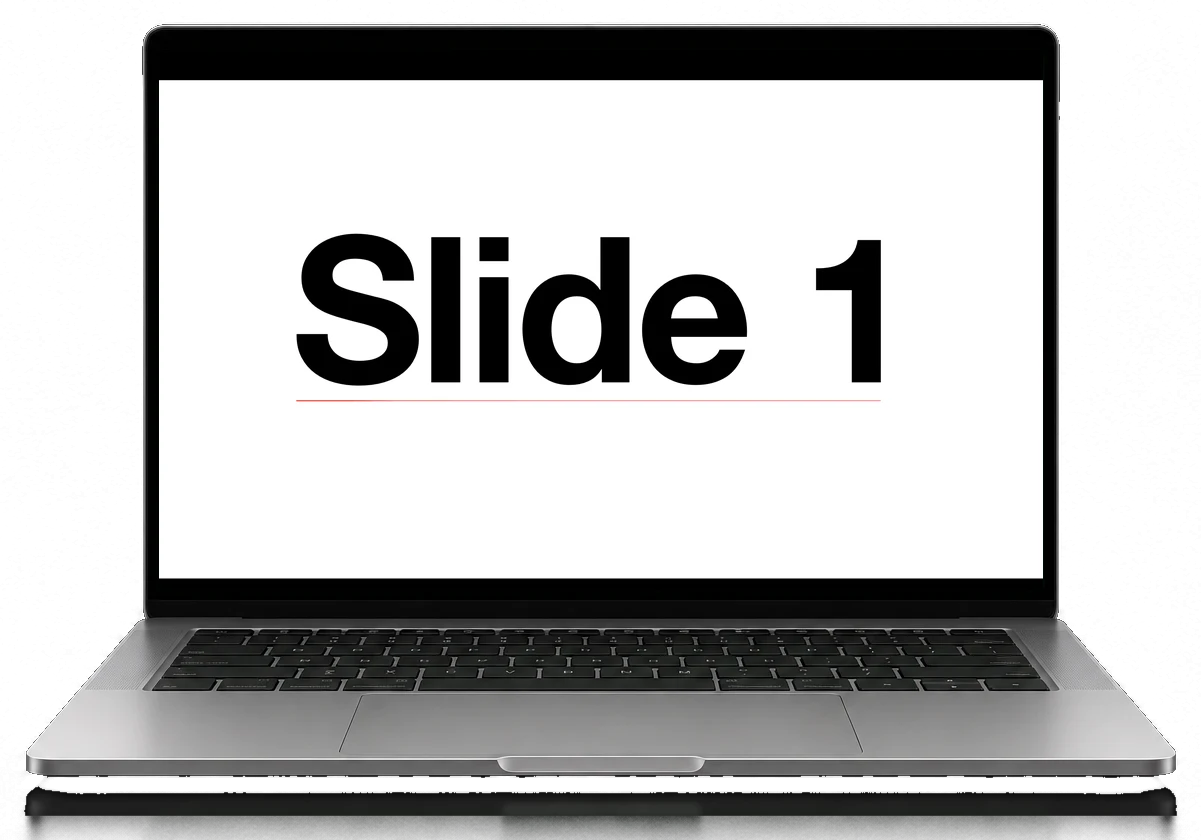
Tap Pen, hold LEFT under the trackpad with one finger and slide another finger on the trackpad: PowerPoint draws a red line where the pointer goes. Underline a number, circle a word. Erase wipes all the ink off the slide, and Pen off gives you the normal pointer back, so the next click moves the slides again.
The pen needs a PowerPoint you can edit in. Without an active Microsoft 365 subscription PowerPoint opens files read-only, and the pen, the highlighter and the eraser are greyed out in a slide show. The laser still works.
Tip 6: Jump to any slide
When someone asks about an earlier slide, type its number in Live typing and send. PowerPoint on Windows and a Mac goes straight there: a number followed by Enter is its own way to jump.
Tip 7: Keep your notes on your screen
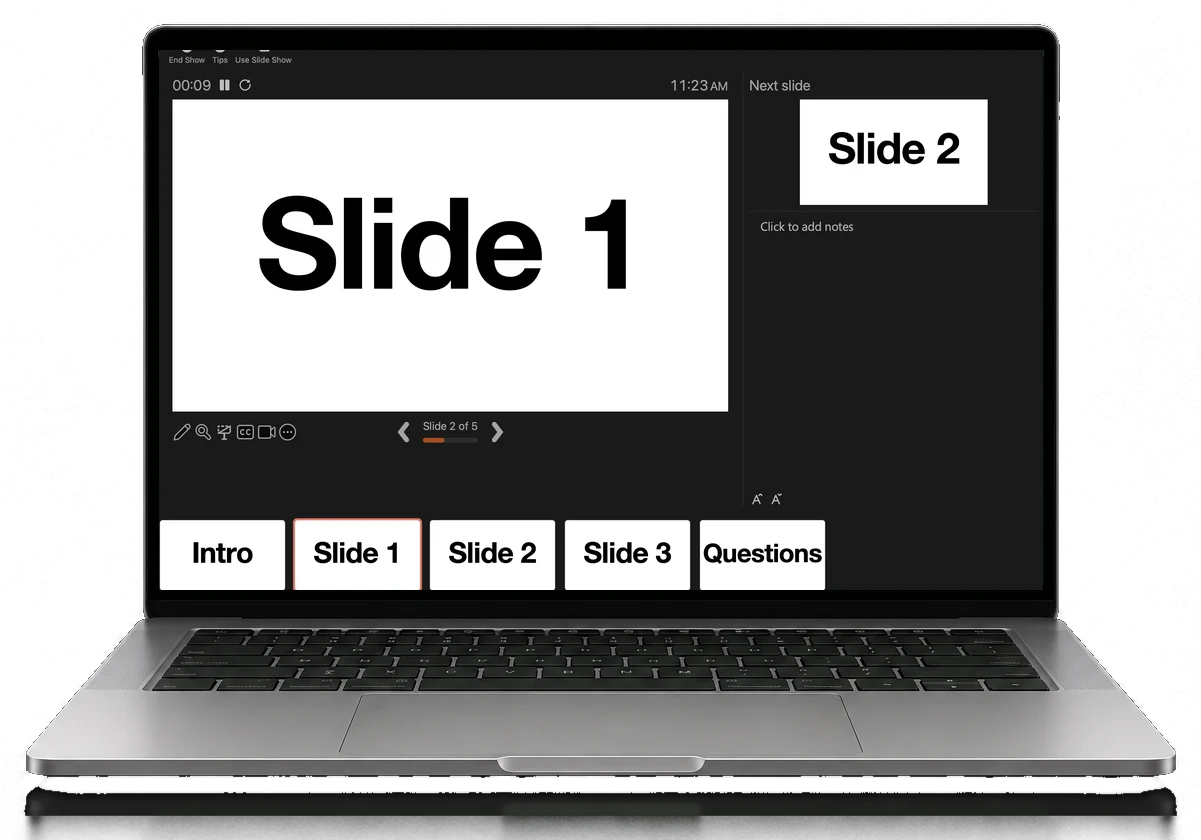
Presenter View shows the current slide, the next one, your notes and a timer on the laptop, while the audience sees the slide on the projector. Start the show with Alt+F5 on Windows or Option+Return on a Mac, or pick Use Presenter View in the show’s menu (tip 8). The phone’s keys work there the same way.
Tip 8: When a key won’t do it, use the trackpad
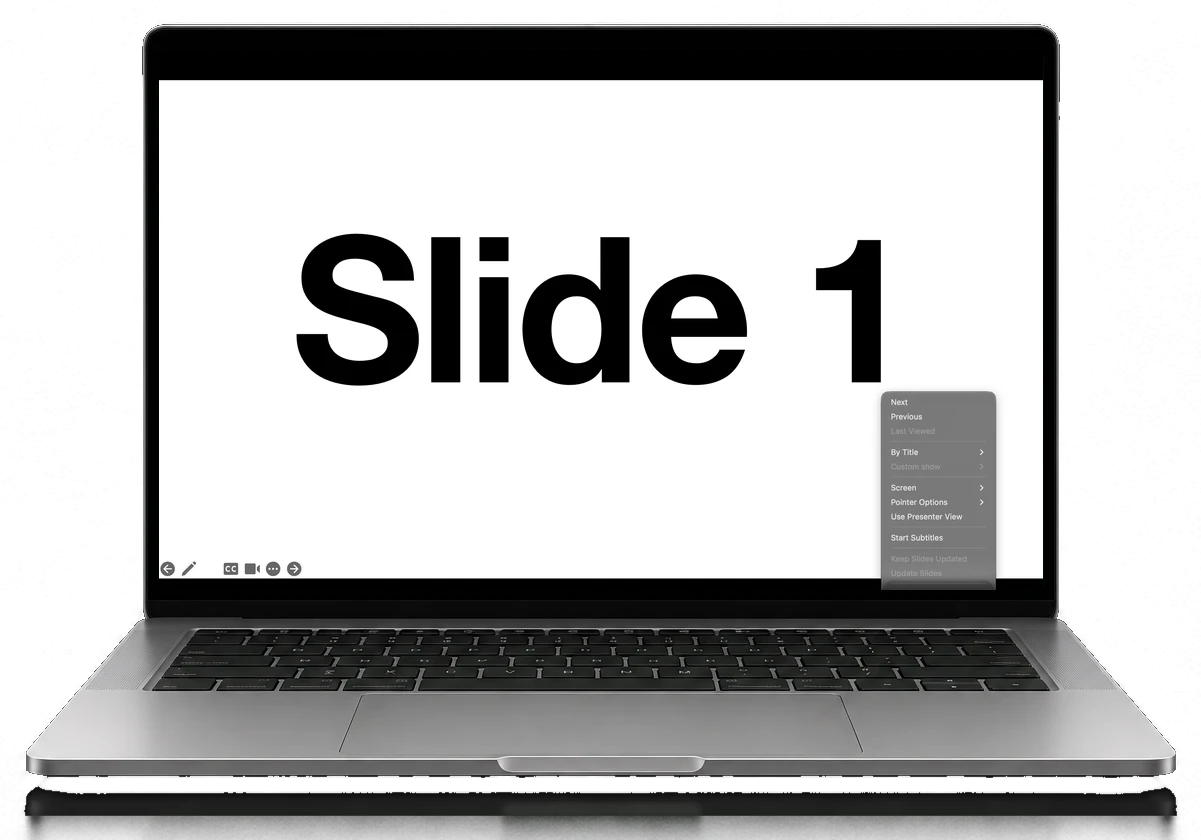
The phone is a trackpad too, so nothing in PowerPoint is out of reach. Hold a finger on it: that is a right click, and PowerPoint opens its slide show menu, where you can jump to a slide by its title, change the pen colour or turn on subtitles. A pop-up on the slide, a button with no key, a show that lost focus: move the pointer there and tap, then carry on with the keys.
PowerPoint in a browser and on an iPad
PowerPoint for the web and PowerPoint for iPad take far fewer keys than the desktop apps. Next, Previous and End show work in both; the iPad also takes Black screen and White screen. In a browser, the browser keeps some keys for itself: Ctrl+L or ⌘+L is its address bar and Ctrl+P or ⌘+P is Print, so the desktop Laser and Pen keys would land there. That is why PowerPoint Web and PowerPoint iPad have no Laser and Pen keys.
Both have the trackpad instead. Click Slide Show or ▷ to start, and use the laser and the pen from the toolbar PowerPoint shows on the slide. If a key does nothing, the show has probably lost focus: click the slide with the trackpad and the keys work again.
Every PowerPoint key, by platform
Every key we know works, per platform. Tap Edit in the app to add any of them to your preset; editing layouts is part of Deck Pointer Pro.
| Action | Keys |
|---|---|
| Start from the current slide (Play) | Shift+F5 |
| Start from the beginning | F5 |
| Next, previous | → ← |
| Black screen, white screen | B W |
| Go to a slide | its number, then Enter |
| Laser | Ctrl+L |
| Pen | Ctrl+P |
| Back to the arrow | Ctrl+A |
| Erase the drawing | E |
| First slide, last slide | Home End |
| Presenter View | Alt+F5 |
| End the show | Esc |
Checked on Windows 10 with PowerPoint for Microsoft 365, under an English and a Russian keyboard layout.
| Action | Keys |
|---|---|
| Start from the current slide (Play) | ⌘+Return |
| Next, previous | → ← |
| Black screen | B |
| Go to a slide | its number, then Return |
| Laser | ⌘+L |
| Pen | ⌘+P |
| Back to the arrow | ⌘+A |
| Erase the drawing | E |
| First slide, last slide | Home End |
| Zoom in, zoom out | = − |
| Presenter View | Option+Return |
| End the show | Esc |
Press / in a slide show to see PowerPoint's own list.
| Action | Keys |
|---|---|
| Start from the current slide | ⌘+Shift+F5 on a Mac, Ctrl+Shift+F5 on Windows |
| Next, previous | → ← |
| End the show | Esc |
| Laser, pen, blank screens | the show's toolbar, with the trackpad |
| Action | Keys |
|---|---|
| Start the show | the ▷ button, with the trackpad |
| Next, previous | → Space ← |
| Black screen, white screen | B W |
| Laser, pen | the show's toolbar, with the trackpad |
| End the show | Esc |
Set it up in two minutes
Pair the phone with your computer or iPad
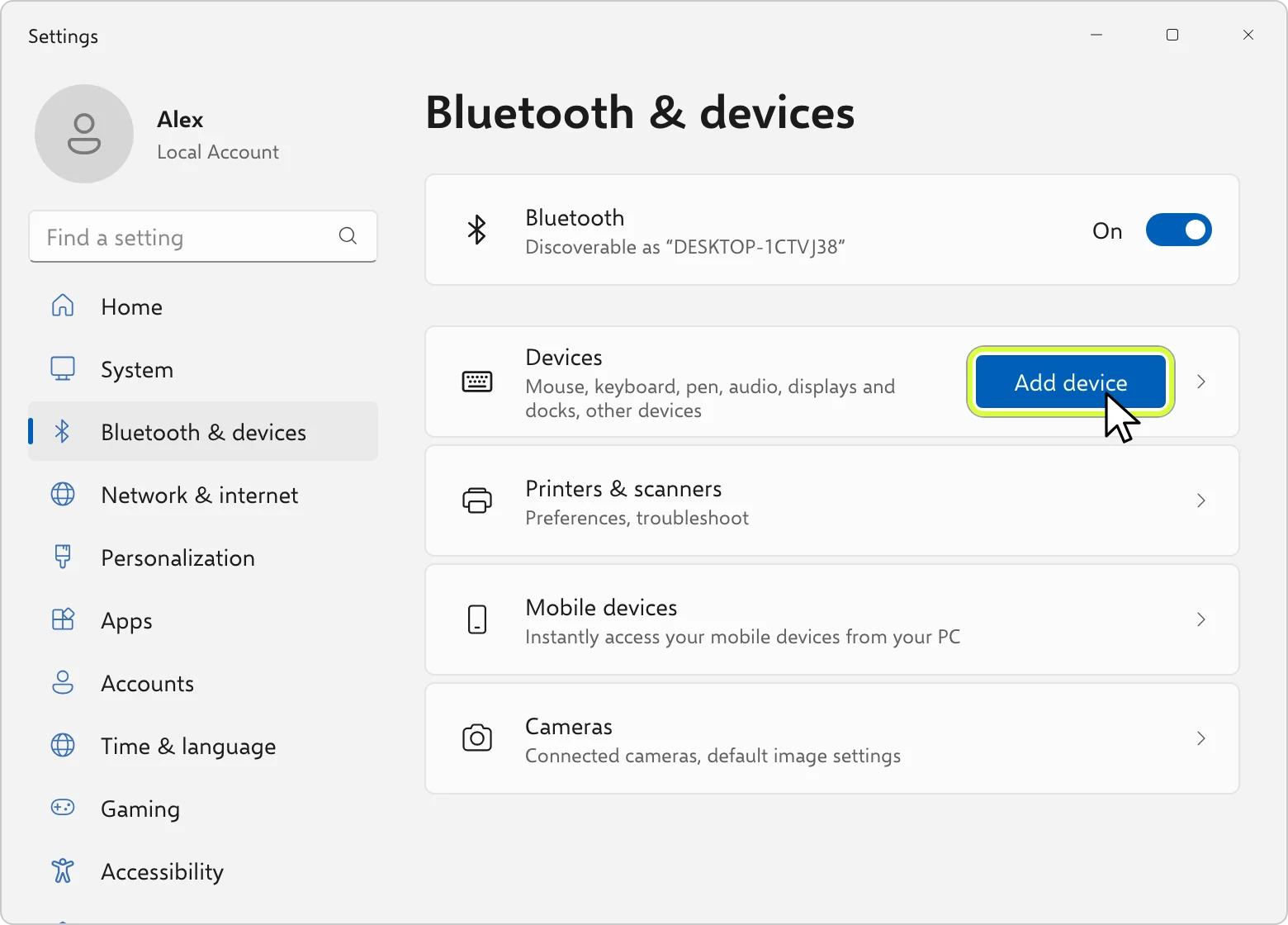
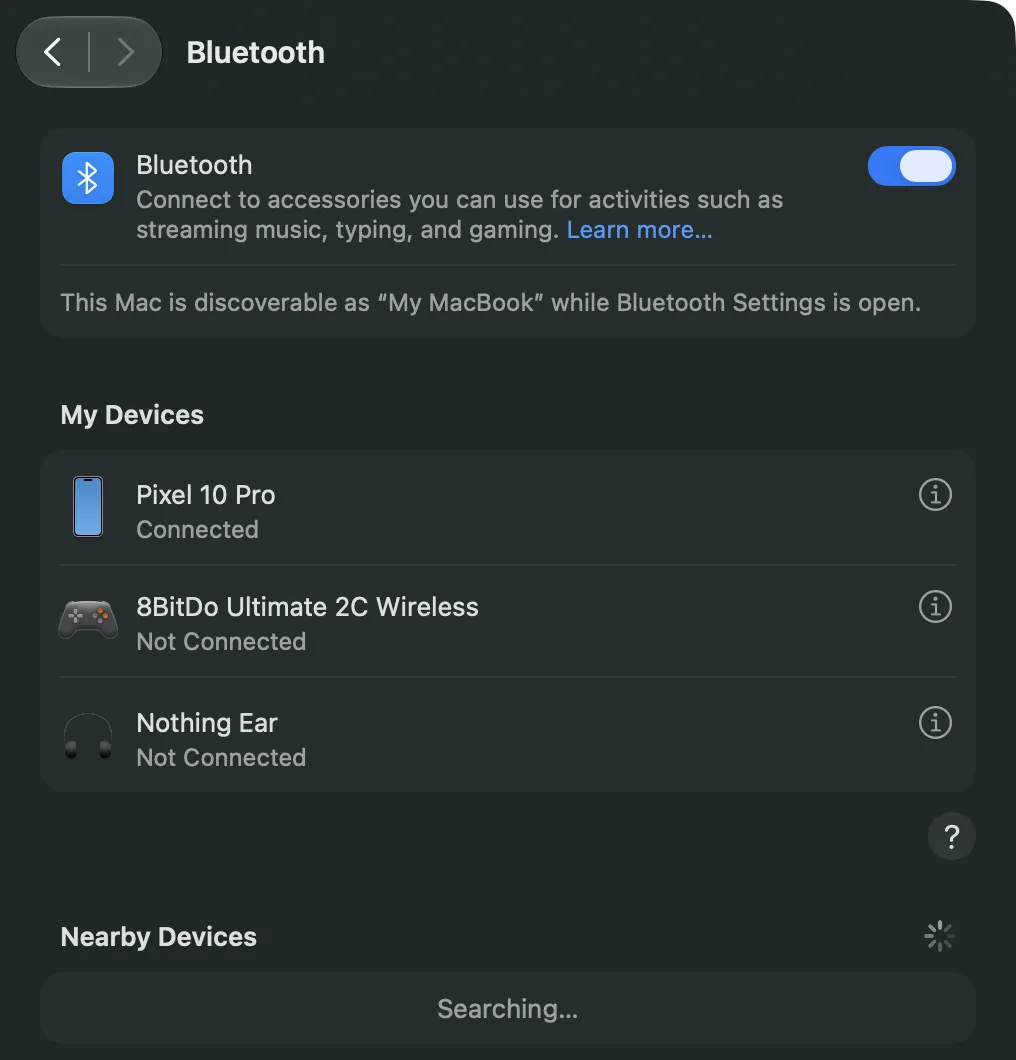
Install Deck Pointer and tap Connect a device. Choose Windows, Mac or iPad, then Switch slides, then Yes, this is the first time, and follow the screens. On Windows you finish in Settings → Bluetooth & devices → Add device; on a Mac in System Settings → Bluetooth. You pair once; next time, tap Connect next to the device in the app.
Add the PowerPoint preset for where you present
Tap the preset name at the top left, then Browse more presets. Under Present there are four: PowerPoint Win, PowerPoint Mac, PowerPoint Web for any browser, and PowerPoint iPad. They look alike; each has only the keys that work on its platform.
Open your deck and start the show
Keep PowerPoint in front: the keys go to the app that has focus. On Windows and a Mac tap Play on the phone. In a browser and on an iPad, click PowerPoint's Slide Show or ▷ button with the phone's trackpad.
Questions
Do I need a PowerPoint app on the phone?
No. The phone works as a Bluetooth keyboard and trackpad for the computer or iPad, and PowerPoint gets the same keys a keyboard would send. Nothing is installed on the computer either.
Do I need Wi-Fi?
No. The phone talks to the computer over Bluetooth, so the venue's Wi-Fi, a guest network or no network at all makes no difference. PowerPoint for the web needs the computer online, as always.
Why is there a preset for each platform?
PowerPoint's keys differ: Ctrl on Windows and Command on a Mac, a different Play key on each, and far fewer keys in a browser and on an iPad. The presets look alike; each has only the keys that work where you present.
Can I control PowerPoint Online, in a browser, from my phone?
Yes. Next, Previous and End show work from the keyboard. The browser keeps some keys for itself (Ctrl or Command+L is its address bar, +P is Print), so start the show, the laser and the pen with the phone's trackpad on PowerPoint's own buttons.
Can I control PowerPoint on an iPad with my phone?
Yes, from an iPhone or an Android phone. The phone pairs with the iPad as a keyboard and trackpad; Next, Previous, Black screen, White screen and End show work in a slide show. Start the show with the ▷ button.
Pen does nothing, but the laser works. Why?
PowerPoint without an active Microsoft 365 subscription opens files read-only (the bar says Subscription Required to Edit and Save), and it turns off the pen, the highlighter and the eraser in a slide show. The laser, blank screens and slide keys keep working. Sign in to PowerPoint and the pen comes back.
Black screen and Erase do nothing, but Next works. Why?
On a Mac, PowerPoint reads letter keys (B, E, W) by the character. With a Russian or another non-Latin input source active they do nothing, while the arrow keys and the Command shortcuts still work. Switch the Mac to English before the talk; the phone's Hotkeys not working? link shows how. On Windows they work with a Russian layout too.
Does it work from an iPhone?
Yes, the presets work the same on iPhone. Only the volume buttons are Android only: iOS doesn't let apps use them, so on an iPhone you tap Next and Previous on the screen.


 Steam Deck